Affordable tablets for inventory management for beginners make tracking stock simple and cost-effective. This guide helps you choose the right devices to streamline your business operations without breaking the bank.
Running a business, big or small, means keeping a close eye on your inventory. It’s crucial for knowing what you have, what you need, and what’s selling fast. But if you’re still using spreadsheets or pen and paper, it can feel like a juggling act. This is where an inventory management system comes in, and the great news is, you don’t need expensive, high-end gear to make it work. You can actually use affordable tablets to manage your stock efficiently. We’re going to walk through everything you need to know to pick the right tablet, even if you’re not a tech whiz. By the end, you’ll be confident in choosing devices that fit your budget and your business needs.
Why Tablets Are Perfect for Inventory Management

Tablets offer a fantastic middle ground between a clunky desktop computer and a small, less capable smartphone. They’re portable, have user-friendly touchscreens, and can run specialized inventory management apps. This makes them ideal for moving around your warehouse, store, or stockroom, scanning items, and updating quantities on the go. Plus, compared to ruggedized scanners or laptops, they are usually much more budget-friendly, making them a smart choice for businesses looking to cut costs without sacrificing functionality.
Key Features to Look for in Affordable Inventory Tablets

When you’re on the hunt for an affordable tablet for inventory management, it’s easy to get overwhelmed by all the specs. But for this specific job, a few key features really stand out. You don’t need the absolute latest or most powerful model; you need something reliable, easy to use, and capable of running your chosen inventory software. Let’s break down what matters most:
- Screen Size and Durability: You’ll be looking at this screen a lot, so aim for something in the 8-inch to 10-inch range for a good balance of portability and readability. A sturdy build is also a plus, as these tablets might be handled frequently in a busy environment.
- Battery Life: Inventory tasks can take time, so you need a tablet that can last a full workday (or at least a significant chunk of it) on a single charge. Look for devices with at least 8-10 hours of active use.
- Storage Space: While inventory management apps themselves don’t usually take up tons of space, you might be storing photos of products or other important files. 32GB of storage is a good starting point, but 64GB or more will give you more breathing room.
- Connectivity: Most inventory apps work best with a stable internet connection. Wi-Fi is essential. If you need to update inventory outside of your Wi-Fi zone, consider a model with cellular (LTE) capability, but be mindful of the extra cost for the device and the data plan.
- Processor and RAM: You don’t need a powerhouse. A decent quad-core processor and at least 3GB of RAM should be more than enough to run most inventory apps smoothly.
- Camera Quality: A good rear camera is helpful for scanning barcodes (if your app supports it) or taking photos of products for your records. Don’t stress about professional-grade photography; clear and functional is the goal.
- Operating System: Android and iOS are the most common. Android generally offers more affordable hardware options. Your inventory management software might be specific to one operating system, so check compatibility first.
Top Affordable Tablet Recommendations for Inventory Management

Finding the right balance between price and performance can be tricky. We’ve scoured the market to find some excellent, budget-friendly options that are well-suited for handling your inventory needs. These are not the flashiest gadgets, but they are workhorses that get the job done.
Android Tablets: The Budget-Friendly Powerhouses
Android tablets often provide the best bang for your buck. They offer a wide range of prices and features, making it easier to find something that fits your exact budget. Many of these are perfect for running barcode scanning apps, inventory tracking software, and keeping your data up-to-date.
Amazon Fire HD Series
The Amazon Fire HD tablets, particularly the Fire HD 10, are incredibly popular for their low price and decent performance. They are great for media consumption, but with the right apps from the Google Play Store (which can be sideloaded if not directly available), they can absolutely handle inventory tasks. They offer a good screen size and a capable processor for everyday use. Battery life is generally solid, easily getting you through a busy day of updates.
Samsung Galaxy Tab A Series
Samsung’s Galaxy Tab A line is a step up in build quality and performance from the Fire HD series, often without a significant jump in price. Models like the Galaxy Tab A8 offer a nice display, reliable performance for productivity apps, and good battery life. They come with a more robust Android experience and are generally very durable, which is essential for a device that might see constant use.
Lenovo Tab Series
Lenovo offers a range of affordable Android tablets that provide solid performance for their price point. They often feature good displays and respectable battery life. Look for models that offer at least 64GB of storage and sufficient RAM for smooth operation. Lenovo tablets are known for their value and are a great alternative if you’re looking for something other than Samsung or Amazon.
(Less Common) Windows Tablets: If You Need Desktop Software
While less common in the ultra-affordable bracket for tablets specifically, if your existing inventory management software is a desktop application that absolutely requires Windows, you might need to explore Windows tablets. These can be pricier, but some entry-level models might fit the bill. However, for most cloud-based or app-based inventory solutions, Android or iOS are usually the more practical and cost-effective choices.
Checking for Compatibility: Your Critical First Step
Before you fall in love with a particular tablet, the most important step is to ensure it’s compatible with your inventory management software. Many software providers will list recommended devices or operating system requirements on their website. Check if your software is available on the Google Play Store (for Android) or the Apple App Store (for iOS). If you’re using a web-based inventory system, simply ensure the tablet’s browser can access the site reliably.
Alternative & Complementary Inventory Tools
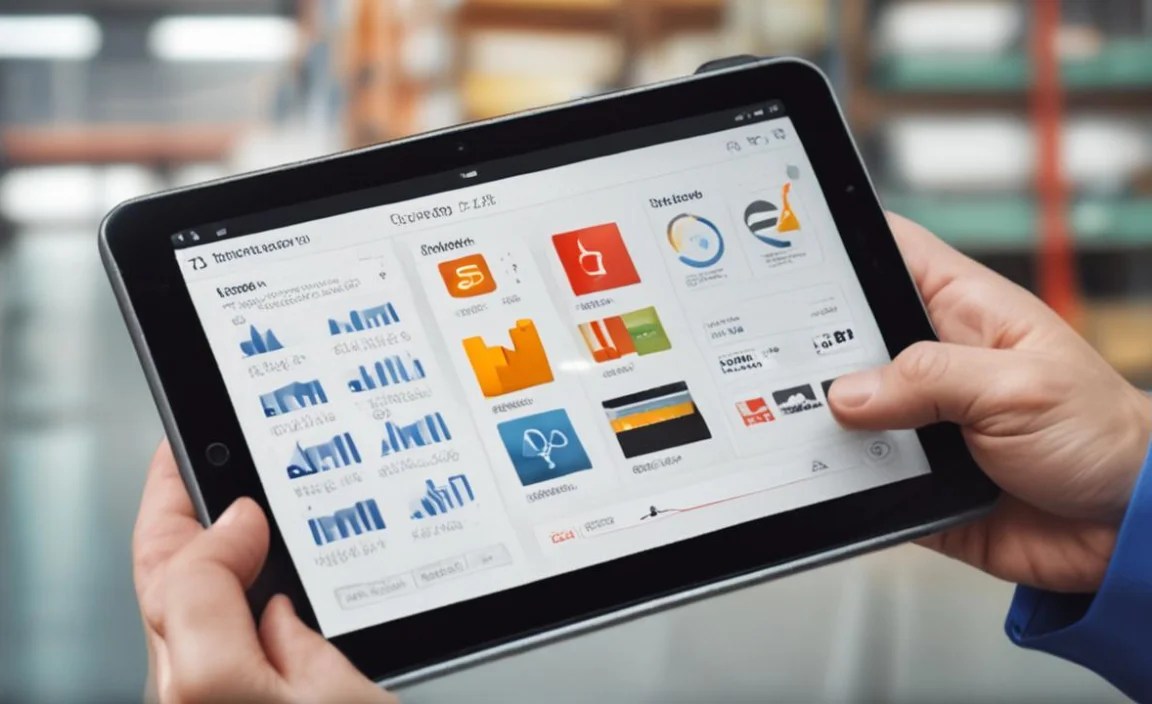
While a tablet is a fantastic central device, sometimes combining it with other affordable tools can create an even more efficient inventory management system.
- Barcode Scanners (Optional Attachments): Some tablets can connect to or use attachments that act as dedicated barcode scanners. This can speed up the scanning process significantly, especially if you deal with a high volume of items. Look for Bluetooth scanners that pair easily with your tablet.
- Inventory Management Software: This is the brain of your operation. There are many affordable (some even free for basic plans!) cloud-based inventory management systems available. Research options like Zoho Inventory, Sortly, or Odoo.
- Mobile POS Systems: If your inventory management is tied directly to sales, consider a tablet that can double as a Point of Sale (POS) system. Many modern POS apps integrate directly with inventory tracking.
Setting Up Your Tablet for Inventory Management: A Simple Walkthrough

Getting your new tablet ready to manage your inventory doesn’t have to be complicated. Here’s a straightforward process to get you up and running:
- Initial Setup: Power on your tablet and follow the on-screen prompts to connect to your Wi-Fi network and set up your user account.
- Download Your Inventory App: Go to your device’s app store (Google Play Store for Android, App Store for iOS) and search for your chosen inventory management application. Download and install it.
- Log In or Sign Up: Open the app. If you already have an account with your inventory software provider, log in. If not, follow the prompts to create a new account. Many services offer free trials, so you can test them out.
- Configure Settings: Within the app, explore the settings. You might need to set up your business details, product categories, and initial stock levels.
- Import Existing Data (if applicable): If you have your inventory details in a spreadsheet (like a CSV file), most inventory apps will allow you to import this data directly. This saves you from manually entering everything.
- Test Functionality: Pick a product and try out the core functions: adding a new item, updating stock quantities, searching for an item, or even scanning a barcode if your app and tablet support it.
- Secure Your Device: Set up a screen lock (PIN, pattern, or password) to protect your business data. Consider enabling remote wipe features if available, in case the tablet is lost or stolen.
Budgeting for Your Inventory Management Tablet

The “affordable” tag can mean different things to different people. Here’s a general idea of what you can expect to spend and how to think about it:
- Under $100: You’ll primarily find Amazon Fire tablets in this range. They are basic but capable for simple inventory tasks.
- $100 – $200: This is the sweet spot for many respectable Android tablets like the Samsung Galaxy Tab A series or some Lenovo models. You get better build quality, more storage, and smoother performance.
- $200 – $300: At this price point, you can find tablets with larger screens, more processing power, and better cameras. These are excellent options if you want a bit more performance or a larger display for easier data entry.
Remember to also factor in potential costs for accessories like a protective case and screen protector. These are highly recommended to extend the life of your tablet, especially in a workshop or warehouse environment.
Tips for Maximizing Your Affordable Tablet Investment
Even with a budget-friendly device, you can make it last and perform exceptionally well for your inventory management needs. Here are some tips:
- Invest in a Good Case: A rugged case is a small, one-time expense that can save you from costly repairs or replacements.
- Keep Software Updated: Regularly update your tablet’s operating system and your inventory management app. Updates often bring performance improvements, bug fixes, and new features.
- Manage Storage Wisely: Uninstall apps you don’t use and regularly clear the cache. If your tablet has expandable storage (via microSD card), consider using it for photos or other media.
- Optimize Battery Usage: Lower screen brightness when possible, disable unnecessary background app activity, and turn off Wi-Fi or Bluetooth when not in use to conserve battery.
- Familiarize Yourself with Your App: Spend time learning all the features of your inventory management software. The tablet is just the tool; the software does the heavy lifting.
Table: Comparing Affordable Inventory Tablet Options
To help you visualize the differences, here’s a look at a couple of popular, budget-friendly tablet series that are suitable for inventory management. Pricing can vary based on sales and retailers.
| Tablet Model | Typical Price Range | Screen Size | Key Strengths for Inventory | Considerations |
|---|---|---|---|---|
| Amazon Fire HD 10 | $75 – $200 | 10.1 inches | Very affordable, good screen size, decent battery. Works well with sideloaded Google Play Store for more app options. | Build quality is basic; requires some effort to install Google Play Store for full app access. |
| Samsung Galaxy Tab A8 | $150 – $250 | 10.5 inches | Good performance for the price, reliable Samsung build, user-friendly Android experience. | Can be slightly more expensive than Fire tablets; storage options might require checking specific models. |
| Lenovo Tab M10 Series | $120 – $220 | 10.3 inches or 10.6 inches | Offers great value, good audio (useful if your app has notifications), often more storage out-of-the-box. | Performance can vary by specific model; check RAM and processor specs. |
Frequently Asked Questions (FAQ)
Q1: Do I need a tablet with a cellular connection for inventory management?
Not usually. Most inventory management tasks can be done offline and synced later, or you’ll be working within your business’s Wi-Fi network. If you need to update inventory while out in the field or at multiple locations away from Wi-Fi, then a cellular model might be beneficial, but it adds to the cost.
Q2: Can I use any tablet for inventory management?
While you can technically use almost any tablet with internet access and the ability to run apps, the best choice depends on your specific inventory software. Always check your software’s compatibility with the tablet’s operating system (Android or iOS) and ensure it has enough power and storage for smooth operation.
Q3: Is it better to get an Android or an iPad for inventory?
For budget-conscious businesses, Android tablets generally offer more affordable hardware options. iPads are excellent but typically come at a higher price point. Both can run excellent inventory apps. The choice often comes down to budget and what your specific inventory software supports.
Q4: How important is screen resolution for inventory management?
A good screen resolution (like Full HD or 1080p) makes text easier to read and reduces eye strain, which is important if you’ll be looking at the screen for extended periods. However, for basic inventory tasks, even a slightly lower resolution screen on an affordable tablet will likely be perfectly functional.
Q5: What is the minimum storage space I should look for?
For basic inventory management, 32GB of internal storage is often sufficient. However, if you plan to store photos of your products, create extensive notes, or use many other apps on the tablet, opting for 64GB or more will provide better long-term performance and prevent storage issues down the line.
Q6: Can I use my tablet to scan barcodes?
Yes, many tablets have built-in cameras that can scan barcodes if your inventory management app supports this feature. For high-volume scanning, you might consider a separate Bluetooth scanner that pairs with your tablet, but for most beginner setups, the built-in camera is a great place to start.
Conclusion
Managing your inventory doesn’t have to be a drain on your resources. By choosing affordable tablets, you can equip yourself with powerful tools to keep track of your stock efficiently and accurately. Whether you opt for a super-budget-friendly Amazon Fire tablet for basic needs, or a more robust Samsung or Lenovo device for enhanced performance, the key is to focus on the features that matter most: reliability, battery life, and compatibility with your chosen inventory management software. With the right tablet in hand, you’ll be well on your way to a more organized, streamlined, and profitable business. Happy inventorying!

Your tech guru in Sand City, CA, bringing you the latest insights and tips exclusively on mobile tablets. Dive into the world of sleek devices and stay ahead in the tablet game with my expert guidance. Your go-to source for all things tablet-related – let’s elevate your tech experience!