Best Tablets For Architects For A Seamless Design Workflow. Discover proven tools that boost creativity and efficiency for all your architectural projects!
Hey there! So, you’re an architect, or you’re on your way, and you’re wondering about the best tablets to bring your brilliant designs to life? It’s a common question, and frankly, the sheer number of options can feel overwhelming. Choosing the right tool is like picking the perfect pencil – it needs to feel right in your hand and help you draw your vision without a hitch. Don’t worry, we’re going to break down what makes a tablet great for architectural work and highlight some of the top contenders that can seriously upgrade your design process. Let’s get your digital drafting table set up!
Why Tablets Are Essential for Modern Architects

In today’s fast-paced architectural world, a tablet isn’t just a gadget; it’s a crucial part of the design toolkit. Think about it: you can sketch out initial ideas on-site, present 3D models to clients with impressive visuals, and access project files from anywhere. Tablets bridge the gap between traditional drafting and cutting-edge digital design, offering unparalleled portability and versatility.
Gone are the days of lugging around heavy sketchbooks and bulky laptops to every meeting or site visit. A powerful tablet can consolidate your notes, drawings, and even complex 3D models into a single, lightweight device. This mobility empowers architects to be more responsive, collaborate seamlessly, and capture inspiration whenever and wherever it strikes. From concept to construction, a well-chosen tablet can streamline your workflow, boost your creativity, and ultimately help you deliver better projects.
Key Features Architects Should Look For in a Tablet

When you’re choosing a tablet for architectural work, you’re not just looking for something to browse the web. You need a device that can handle demanding design software, offer precise input, and last through long work sessions. Here are the essential features to consider:
- Processing Power (CPU & GPU): Architectural software, especially 3D modeling and rendering programs, requires serious horsepower. Look for tablets with powerful processors (like Apple’s M-series chips or high-end Qualcomm Snapdragon processors) and capable graphics processing units (GPUs) to handle complex calculations and visual rendering smoothly.
- RAM: More RAM means your tablet can juggle multiple applications and large files without slowing down. For architectural work, aiming for 8GB of RAM is a good starting point, with 16GB or more being ideal for intensive tasks.
- Storage (SSD): Design files can be massive! You’ll want ample storage space, preferably a fast Solid State Drive (SSD), to ensure quick loading times for software and projects. Look for at least 256GB, with 512GB or 1TB being more comfortable for extensive project libraries.
- Display Quality: A large, high-resolution screen with excellent color accuracy is vital for detailed design work. Consider screen size (11 inches or larger is often preferred), resolution (QHD or higher), and color gamut support (like P3 or sRGB) to ensure your designs look as intended.
- Stylus Support & Precision: This is non-negotiable for many architects! You need a tablet that works seamlessly with a pressure-sensitive stylus. Look for low latency (minimal lag between pen stroke and screen response), tilt support, and palm rejection for a natural drawing and annotating experience. Brands like Apple Pencil and Samsung S Pen are industry leaders.
- Operating System & Software Compatibility: This is a big one. Will the tablet run the specific architectural software you rely on (e.g., AutoCAD, SketchUp, Revit, Vectorworks, Adobe Creative Suite)? Some tablets have more robust desktop-class operating systems (like Windows on Microsoft Surface devices) that offer full software compatibility, while others rely on mobile apps that might have limitations compared to their desktop counterparts.
- Battery Life: You don’t want your tablet dying mid-presentation or during a field visit. Look for devices with impressive battery life, ideally enough to get you through a full workday.
- Build Quality & Portability: You’ll be carrying this device around. A sturdy build is important, but so is a comfortable weight and slim profile, especially if it’s going to be your primary portable workhorse.
Top Tablet Picks for Architects: Hands-On Reviews

Finding the “best” tablet depends on your specific needs and budget. However, some devices consistently stand out for their performance, features, and suitability for professional design work. Here’s a look at some of the top contenders, along with their strengths and weaknesses for architects.
1. Apple iPad Pro (M-Series Chip)
The iPad Pro has become a darling of the creative professional, and for good reason. Its combination of raw power, stunning Liquid Retina XDR display, and the seamless integration with the Apple Pencil 2 makes it a formidable tool for architects. The transition to Apple’s M-series chips has put iPad Pro performance on par with many laptops, making it capable of running sophisticated design apps.
Pros:
- Exceptional Performance: The M1, M2, and M4 chips provide desktop-class power for demanding tasks.
- Stunning Display: High resolution, excellent color accuracy (P3 wide color), and ProMotion technology for smooth visuals.
- Apple Pencil 2 Integration: Pixel-perfect precision, low latency, tilt and pressure sensitivity, magnetic charging and pairing.
- Vast App Ecosystem: Access to powerful apps like Procreate, Shapr3D, Nomad Sculpt, and many Adobe Creative Cloud apps tailored for iPadOS.
- Build Quality & Portability: Sleek, premium aluminum build that’s surprisingly thin and light.
Cons:
- Software Limitations: While improving, iPadOS can still limit full desktop application functionality for some specialized AEC (Architecture, Engineering, and Construction) software. You might find that full desktop versions of Revit or AutoCAD have more features.
- Storage Costs: Storage upgrades can be expensive.
- Requires Accessories: To be truly productive, you’ll likely need an Apple Pencil and possibly a keyboard case, adding to the overall cost.
Ideal for: Architects who prioritize a fluid sketching experience, client presentations with high-fidelity renderings, and use iPad-optimized design and illustration apps. Excellent for conceptual design, 2D drafting, and annotating PDFs.
2. Microsoft Surface Pro (with Intel Core Processors)
The Microsoft Surface Pro series is designed from the ground up to be a true laptop replacement, and this makes it incredibly appealing for architects who need full desktop software compatibility. Running a full version of Windows 11, the Surface Pro can run virtually any architectural software you’d use on a desktop or laptop, all in a portable tablet form factor.
Pros:
- Full Desktop OS: Run industry-standard software like AutoCAD, Revit, SketchUp, and Adobe Creative Suite without compromise.
- Versatile: Can function as both a powerful tablet and a laptop with the attachable Type Cover.
- Excellent Stylus Support: The Surface Pen offers great precision, tilt, and pressure sensitivity for natural drawing.
- High-Resolution PixelSense Display: Sharp, vibrant displays that are great for detail work.
- Wide Range of Configurations: Available with various Intel Core processors (i5, i7), plentiful RAM options, and SSD storage.
Cons:
- Battery Life Can Vary: Depending on the model and workload, battery life can sometimes be a concern compared to some iPads.
- Can Get Expensive: High-end configurations with ample RAM and storage, plus the necessary Pen and Type Cover, can add up quickly.
- Windows Tablet Experience: While Windows has improved greatly, the touch-first experience isn’t always as refined as iPadOS for pure tablet use.
Best for: Architects who absolutely need to run desktop versions of their primary architectural CAD and BIM software on a portable device. It’s a no-compromise solution for those who require full desktop application power in a tablet form.
3. Samsung Galaxy Tab S Series (e.g., Tab S9 Ultra)
Samsung’s flagship Galaxy Tab S series offers a compelling alternative for Android users, often providing excellent value and premium features. The larger models, like the Tab S9 Ultra, feature massive AMOLED displays that are fantastic for multitasking and immersive viewing, paired with the capable S Pen for note-taking and sketching.
Pros:
- Gorgeous AMOLED Displays: Vibrant colors, deep blacks, and high refresh rates make for a stunning visual experience.
- Included S Pen: The S Pen is included in the box, offers great responsiveness, and integrates well with Samsung’s software for note-taking and annotation.
- DeX Mode: Samsung’s DeX offers a desktop-like experience when connected to an external display or used in its tablet form, enhancing productivity.
- Strong Performance: Latest Snapdragon processors provide ample power for most design tasks.
- Expandable Storage: Many models offer microSD card slots for affordable storage expansion.
Cons:
- Android App Limitations: Similar to iPadOS, while Android has many capable apps, full desktop-class architectural software is generally not available. You’ll rely on mobile versions and specialized apps like Clip Studio Paint or Krita for drawing.
- Software Updates Can Be Slower: Compared to Apple, Android updates can sometimes lag.
- Less Mature Pen Input Ecosystem: While the S Pen is excellent, the overall suite of professional designer apps might not be as robust as on iPadOS or Windows.
Ideal for: Architects who are primarily in the Android ecosystem, value a large and vibrant display for presentations and multitasking, and are comfortable using mobile apps or Android-optimized creative tools.
4. Google Pixel Tablet
The Google Pixel Tablet is a more budget-friendly option that still offers decent performance and a clean Android experience. While not as powerful as the iPad Pro or top-tier Surfaces, it can be a great starting point for students or architects who need a tablet for lighter design tasks, note-taking, and presentations.
Pros:
- Affordable: Significantly more budget-friendly than the iPad Pro or high-end Surfaces.
- Clean Android Experience: Runs a pure Android OS with Google’s usual emphasis on user-friendliness.
- Included Speaker Dock: The charging speaker dock allows it to function as a smart display when not in use.
- Decent Performance: Capable of running most Android apps smoothly, including drawing and note-taking apps.
Cons:
- Limited Power: Not suitable for running intensive 3D modeling or rendering software.
- Stylus Sold Separately: The active stylus is an additional purchase and may not offer the same professional-grade features as Apple Pencil or S Pen.
- Smaller App Selection for Professional Design: The Android app ecosystem for high-end architectural design is still developing.
Ideal for: Students, junior architects, or those on a tighter budget looking for a reliable tablet for note-taking, light sketching, document review, and basic client presentations. It’s a great entry-level device.
Tablets vs. Laptops for Architects: Which is Right for You?
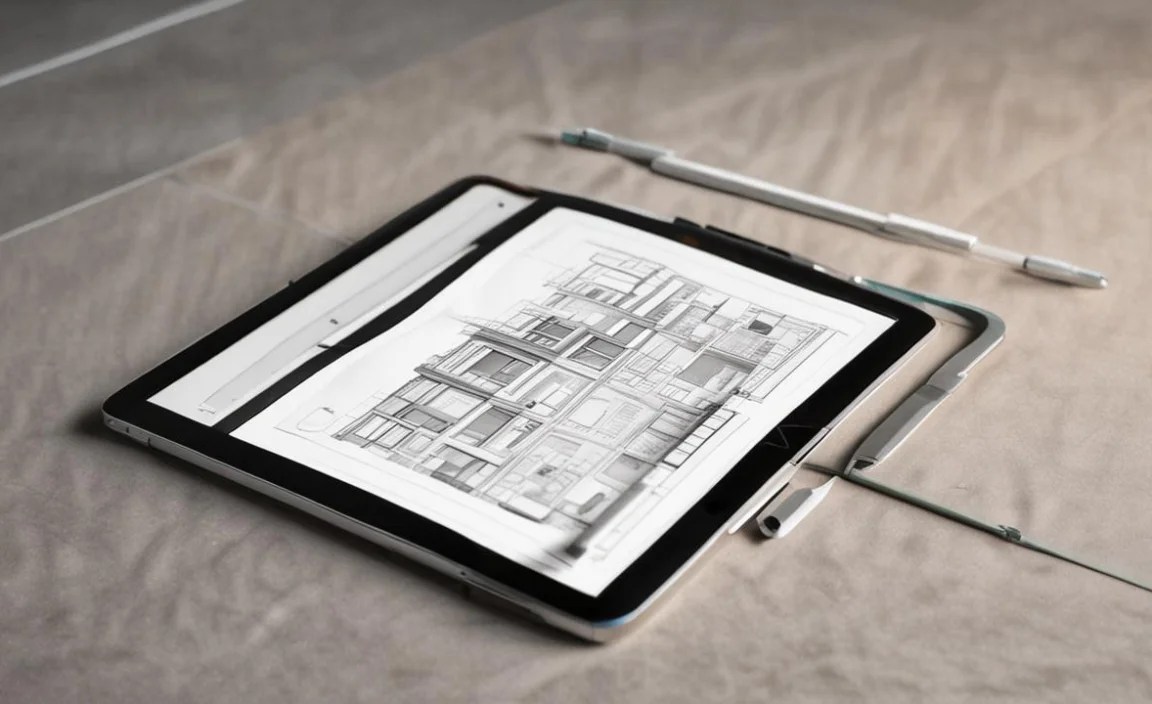
This is a question many architects ponder. There’s no single right answer, as it depends on your workflow. Here’s a quick comparison:
| Feature | Best Tablets for Architects | Traditional Laptops for Architects |
|---|---|---|
| Portability | Excellent. Lightweight, easy to carry to site, meetings, and cafes. | Good to Very Good. Can be bulky, but improving with ultrabooks. |
| Stylus Input / Sketching | Superb. Designed for pen interaction, natural drawing feel. | Variable. Requires specific models with touchscreen and pen support. |
| Screen Size | Typically 10-14 inches. Can feel restrictive for complex layouts. | Typically 13-17 inches. Larger screens are better for detailed work. |
| Software Compatibility | Limited by OS (iPadOS, Android). Full desktop AEC software often unavailable. However, Windows tablets offer full compatibility. | Excellent. Run all desktop CAD, BIM, and rendering software seamlessly. |
| Battery Life | Generally outstanding, especially iPads. | Good to Very Good, but intensive tasks drain batteries quickly. |
| Power & Performance | High-end models rival laptops for many tasks, but complex rendering can be a bottleneck. | Generally more powerful dedicated graphics cards and processors available for demanding tasks. |
| Price | Premium tablets with accessories can be as expensive as mid-range laptops. | Wide range, from entry-level to professional workstations. |
Conclusion for this battle: If your workflow involves extensive use of desktop-based CAD/BIM software like Revit, Navisworks, or heavy rendering work, a powerful Windows laptop or workstation is likely still your best bet. However, if you do a lot of conceptual sketching, site visits, client presentations, and can leverage tablet-optimized apps or desktop apps on Windows tablets, then a tablet can be a game-changer for mobility and creative input.
Essential Apps for Architects on Tablets
The hardware is only half the story! The right apps can transform your tablet into an indispensable design powerhouse. Here are some must-have apps across different platforms:
For Sketching & Conceptualization:
- Procreate (iPad): A professional-grade digital illustration app with an intuitive interface and extensive brush library. Amazing for freehand sketching and concept art.
- Autodesk Sketchbook (iOS, Android, Windows): A free, user-friendly sketching app great for quick doodles and concept development.
- Concepts (iOS, Android): A vector-based sketching app that feels like paper but with infinite canvas and precision tools.
For 2D Drafting & 3D Modeling:
- Shapr3D (iPad, Windows): A powerful, intuitive 3D modeling tool designed for touch and stylus input. It imports and exports common CAD file formats (like DWG, STEP), making it great for design iteration and even some production work.
- AutoCAD Mobile/Web (iOS, Android, Web): Access and edit your DWG files on the go. It’s not as feature-rich as the desktop version but excellent for on-site reviews and minor adjustments.
- Sketchbook (Desktop/Mobile): While its 3D capabilities are limited at present, Sketchbook remains a go-to for fluid 2D sketching.
- Vectorworks Nomad (iOS, Android): Companion app for Vectorworks users, allowing access to BIM and CAD files.
For Visualizations & Presentations:
- Morpholio Trace (iPad): Blends sketching, drawing, and annotation tools, making it ideal for overlaying sketches on site photos or existing plans.
- FormIt 360 (iPad, Web): From Autodesk, it’s an intuitive conceptual modeling tool that syncs with Revit.
- Adobe Aero (iPad): For creating and experiencing augmented reality (AR) visualizations. Imagine walking through a building model on-site.
For Productivity and Project Management:
- Adobe Acrobat Reader (All Platforms): Essential for viewing, annotating, and signing PDF documents, which are ubiquitous in architecture.
- Microsoft Office Suite / Google Workspace: For word processing, spreadsheets, and presentations.
- Evernote / OneNote: For keeping organized notes, organizing project research, and syncing across devices.
- AEC Industry Cloud Platforms: Such as Autodesk Construction Cloud, Trimble Connect, or BIM 360. These allow for seamless project file management and collaboration.
When choosing apps, always check their compatibility with your tablet’s operating system and consider if they offer the full feature set you need, or if they are better suited for supplementary tasks.
Tips for an Optimized Tablet Workflow for Architects
To truly harness the power of your tablet, consider these workflow tips:
- Invest in the Right Stylus: Don’t skimp here. A good stylus with pressure and tilt sensitivity is crucial for natural drawing and annotation.
- Master Your Chosen Apps: Spend time learning the ins and outs of your preferred design and productivity apps. Many offer advanced features that can dramatically speed up your work.
- Organize Your Files: Use cloud storage services (like Google Drive, Dropbox, OneDrive) and a structured folder system to keep your projects accessible and manageable.
- Utilize Keyboard Accessories: For tasks requiring extensive typing or complex shortcuts, a good keyboard case can make your tablet function much like a laptop.
- Connect External Displays: For larger projects or detailed work, connecting your tablet to an

Your tech guru in Sand City, CA, bringing you the latest insights and tips exclusively on mobile tablets. Dive into the world of sleek devices and stay ahead in the tablet game with my expert guidance. Your go-to source for all things tablet-related – let’s elevate your tech experience!