Best Tablets For Kiosk For Beginners: Genius Choice
Choosing the best tablets for kiosk use as a beginner doesn’t have to be overwhelming. Focus on durability, ease of use, and a reliable operating system. Look for robust build quality and intuitive interfaces to ensure a smooth experience for both you and your users. This guide will help you select the ideal kiosk tablet with confidence.
Setting up a tablet for a kiosk can feel like navigating a maze, especially if you’re new to it. You want something that’s sturdy, simple to manage, and won’t cause headaches down the line. It’s easy to get lost in technical specs or worry about making the wrong choice. But don’t fret! This guide is here to make it simple. We’ll walk through everything you need to know, from understanding the basics to picking out the perfect device for your needs. Ready to find a tablet that’s a true winner for your kiosk? Let’s dive in!
Why Kiosk-Ready Tablets Matter
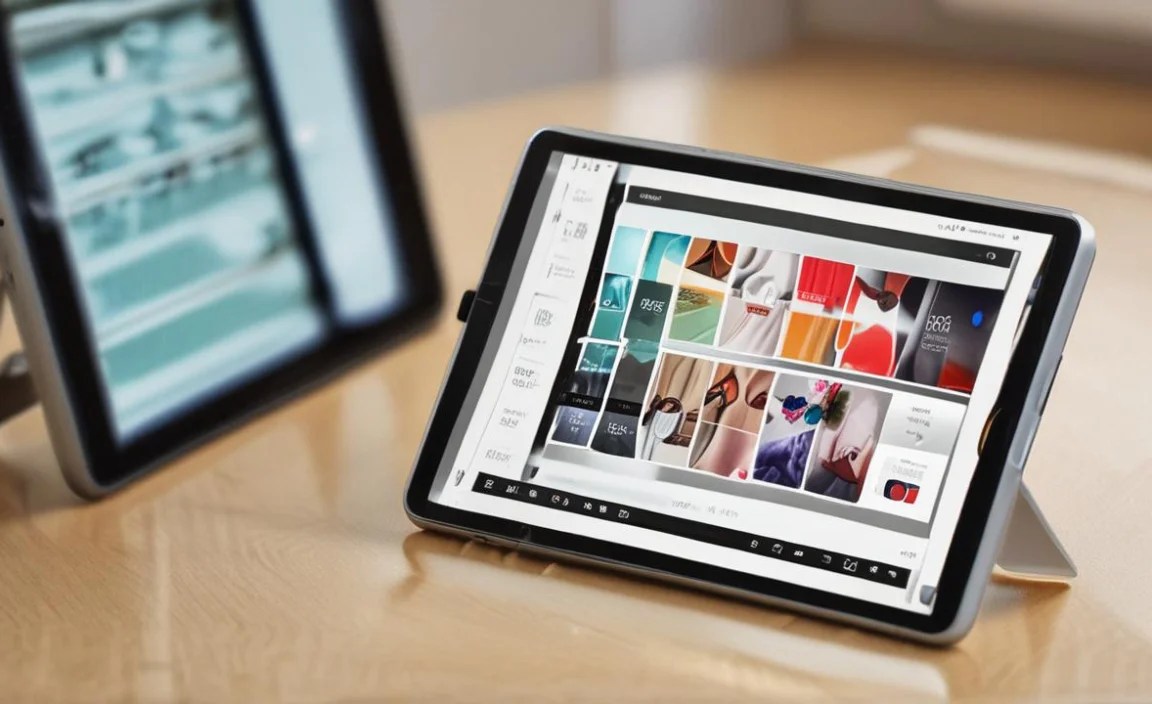
When you’re setting up a kiosk, the tablet isn’t just any ordinary device. It’s the face of your operation, often used by the public or in a demanding environment. This means it needs to be more than just a pretty screen. Kiosk tablets are designed for specific environments and tasks, prioritizing reliability, security, and ease of management. They’re built to withstand constant use, potential bumps, and specific software needs. Using a regular tablet might seem like a shortcut, but it can lead to frustration with durability, security vulnerabilities, and limited control over how the device is used.
Key Features for Beginner Kiosk Tablet Selection

As a beginner, you don’t need to be a tech wizard to pick the right kiosk tablet. Focusing on a few key features will make your decision process much smoother. Think about what the tablet will do and who will use it. This helps narrow down the options quickly and effectively.
Durability and Build Quality
This is paramount for any kiosk setup. Your tablet will likely be in a public space or a busy work environment, meaning it needs to withstand more than just gentle handling.
Ruggedness: Look for tablets with reinforced corners, splash resistance, or even full ruggedization if your environment is particularly harsh. This protects against accidental drops and spills.
Screen Strength: A strong, scratch-resistant screen (like hardened glass) is essential to prevent damage from frequent touches or unexpected impacts.
Build Materials: Devices made from strong plastics or metal alloys tend to hold up better over time than purely plastic models.
Screen Size and Touchscreen Performance
The screen is the primary interface for your kiosk. Its size and responsiveness directly impact user experience.
Size: For most kiosk applications, a screen size between 9 and 13 inches offers a good balance between usability and space. Smaller screens can feel cramped, while larger ones might be overkill or too expensive.
Touch Sensitivity: The touchscreen should be responsive and accurate, even with light touches. This ensures users can easily interact with the interface without frustration. Multi-touch capabilities are also important for modern applications.
Brightness and Clarity: A bright, clear screen is vital, especially if your kiosk is in a well-lit area. This ensures content is legible and engaging.
Operating System and Software Compatibility
The operating system dictates what kind of apps you can run and how you’ll manage the device.
Android: Known for its flexibility and wide range of app availability. It’s generally user-friendly and can be locked down for kiosk use. Many businesses find it a cost-effective solution.
iOS (iPads): Offers a very polished and secure user experience. Apple’s “Guided Access” feature is excellent for locking down an iPad to a single app, making it ideal for kiosk setups.
Windows: Provides the most desktop-like experience and can run a wider variety of complex software. This is a good choice if your kiosk application requires specific Windows-based programs.
Security Features
Keeping your data and the device secure is crucial, especially if customer information is involved.
Kiosk Mode/Guided Access: Most major operating systems have built-in modes that restrict the tablet to a single application, preventing users from exiting or accessing other parts of the system.
Secure Storage: Look for devices with encryption capabilities to protect any sensitive data stored locally.
Remote Management: The ability to remotely update software, lock devices, or wipe them if lost or stolen can be invaluable.
Battery Life and Power Options
For a kiosk, consistent power is key.
Long Battery Life: Ideally, the tablet should last at least a full day on a single charge, minimizing the need for constant recharging.
Power Efficiency: Consider devices that are designed for efficient power usage.
Easy Charging: A straightforward charging method (USB-C, dedicated dock) is important for maintaining uptime.
Connectivity
Seamless connectivity ensures your kiosk can perform its intended function.
Wi-Fi: Reliable Wi-Fi is a must for most kiosk applications.
Optional Cellular (LTE/5G): If your kiosk will be in a location without Wi-Fi, cellular connectivity becomes essential.
Bluetooth/NFC: Useful for connecting peripherals or enabling contactless payments/interactions.
Top Tablet Recommendations for Beginners

Based on the key features, let’s look at some excellent tablet options that are beginner-friendly and suitable for kiosk applications. We’ll consider different operating systems and price points.
Category 1: Budget-Friendly & Reliable (Android)
For beginners seeking an economical yet dependable option, Android tablets offer a fantastic entry point. They provide good flexibility and a familiar interface.
1. Samsung Galaxy Tab A Series
Samsung’s Galaxy Tab A series is often praised for its balance of features, performance, and affordability. They are robust enough for moderate kiosk use and easy to manage.
Why it’s great for beginners: Intuitive Android interface, accessible price point, good battery life.
Kiosk suitability: Can be easily locked down to a single app using Android’s built-in kiosk mode features. Samsung also offers enterprise solutions for more advanced management.
Key Specs to Look For: Models with at least 3GB RAM for smoother operation and 32GB storage (expandable via microSD). Screen sizes typically range from 8 to 10.5 inches.
2. Amazon Fire HD Tablets
While primarily consumer devices, Amazon Fire HD tablets can be surprisingly capable for simple kiosk tasks, especially if your application exclusively uses Android apps that are available on the Amazon Appstore.
Why it’s great for beginners: Incredibly affordable, simple interface, decent build for the price.
Kiosk suitability: Can be put into single-app mode. They are very limited in terms of customization and app access compared to standard Android or iOS, which can be a pro for simplicity or a con for flexibility.
Key Specs: Focus on the Fire HD 10 for a larger screen. Ensure the apps you need are compatible with the Amazon Appstore.
Table 1: Budget Android Kiosk Tablet Comparison
| Feature | Samsung Galaxy Tab A (e.g., 10.1) | Amazon Fire HD 10 |
| :————— | :——————————– | :——————— |
| Screen Size | 10.1 inches | 10.1 inches |
| Operating System | Android | Fire OS (Android-based) |
| Price Range | $$ | $ |
| Durability | Moderate | Moderate |
| App Access | Google Play Store | Amazon Appstore |
| Best For | General kiosk use, flexibility | Very basic kiosk needs |
Category 2: Mid-Range & Versatile (Android/iOS)
Stepping up slightly in price often brings enhanced performance, better build quality, and more robust features suitable for more demanding or public-facing kiosks.
1. Lenovo Tab P Series
Lenovo offers a solid range of Android tablets in its P series that often punch above their weight class in terms of performance and display quality, making them excellent for interactive kiosks.
Why it’s great for beginners: Good build quality, vibrant displays, reliable performance.
Kiosk suitability: Android’s built-in kiosk features work well. Lenovo also has enterprise solutions for easier deployment and management.
Key Specs: Look for models with at least 4GB RAM and 64GB storage for smoother multitasking and application performance.
2. Apple iPad (Standard Model)
The standard Apple iPad remains a top choice for its unparalleled ease of use, robust security, and excellent ecosystem. For beginners, its straightforward operation and excellent “Guided Access” feature make it incredibly simple to turn into a secure kiosk.
Why it’s great for beginners: Incredibly intuitive interface, seamless app experience, robust security.
Kiosk suitability: Apple’s “Guided Access” is arguably the best built-in single-app lockdown feature for tablets, making it incredibly secure and simple to manage for kiosk use.
Key Specs: Opt for models with at least 64GB of storage to accommodate your app and any necessary data. The 10.2-inch or 10.9-inch models are generally ideal.
Table 2: Mid-Range Kiosk Tablet Comparison
| Feature | Lenovo Tab P Series (e.g., P11) | Apple iPad (Standard) |
| :————— | :—————————— | :——————– |
| Screen Size | 11 inches | 10.2 or 10.9 inches |
| Operating System | Android | iPadOS |
| Price Range | $$ | $$$ |
| Durability | Good | Good |
| Kiosk Feature | Android Kiosk Mode | Guided Access |
| App Store | Google Play Store | App Store |
Category 3: Premium & Robust (iOS/Windows)
For those who need maximum durability, advanced manageability, or the power of a desktop-like OS, premium tablets are the way to go.
1. Apple iPad Pro
While pricier, the iPad Pro offers the best performance, display, and build quality within the Apple ecosystem. Its power and features, combined with Guided Access, make it a top-tier kiosk solution, especially for visually rich or performance-intensive applications.
Why it’s great for beginners: Still offers the signature iPad ease of use; powerful enough for almost any application.
Kiosk suitability: Guided Access is excellent. The premium build quality means it can handle more rigorous environments.
Key Specs: Storage as needed, but 128GB or more is common for pro models.
2. Microsoft Surface Go / Pro
If your kiosk application requires running specific Windows software, a Microsoft Surface device is an excellent, tablet-first option. These devices bridge the gap between tablets and laptops.
Why it’s great for beginners: Familiar Windows environment if you already use PCs; capable of running full desktop applications.
Kiosk suitability: Windows has “Assigned Access” (similar to kiosk mode) for locking devices to a single app. Many enterprise management tools are built for Windows.
Key Specs: Consider models with at least 8GB RAM and 128GB SSD storage for good performance.
Table 3: Premium Kiosk Tablet Comparison
| Feature | Apple iPad Pro | Microsoft Surface Go / Pro |
| :————— | :—————————— | :————————- |
| Screen Size | 11 or 12.9 inches | 10.5 to 13 inches |
| Operating System | iPadOS | Windows 10/11 |
| Price Range | $$$$ | $$$$ |
| Durability | Excellent | Excellent |
| Kiosk Feature | Guided Access | Assigned Access |
| App Ecosystem | App Store | Microsoft Store, Web Apps |
Essential Accessories for Your Kiosk Tablet
Beyond the tablet itself, a few accessories can significantly improve your kiosk’s functionality, security, and longevity.
Secure Enclosures/Mounts: These are crucial for physically securing the tablet and preventing theft or tampering. Many are VESA mount compatible, allowing them to be attached to stands or walls. When choosing an enclosure, ensure it provides good ventilation to prevent overheating. Resources on tablet security best practices can be found on sites like NIST, which outlines cybersecurity frameworks applicable even at the device level.
Charging Docks or Stands: A dedicated dock or stand not only keeps the tablet powered but also presents it at an ergonomic angle for users. Some docks offer additional ports for peripherals.
Screen Protectors: Even with durable screens, an extra layer of protection can guard against fine scratches from constant touching. Look for tempered glass protectors.
External Keyboards/Mice (Optional): If your kiosk application requires extensive input, consider a rugged, wireless keyboard and mouse combo.
Payment Terminals (If Applicable): If your kiosk involves transactions, ensure compatibility with secure payment hardware.
Setting Up Your Tablet for Kiosk Mode
Once you’ve chosen your tablet, the next step is to configure it. This typically involves ensuring it’s updated, installing your specific application, and then locking it down.
For Android Tablets:
1. Update the OS: Ensure your tablet is running the latest version of Android.
2. Install Your Kiosk App: Download and install the application you want your kiosk to run.
3. Enable Screen Pinning / Kiosk Mode:
Go to Settings > Security > Advanced > Screen Pinning (or similar path depending on your Android version and manufacturer). Enable “Ask for PIN before unpinning.”
Open your kiosk app.
Access the recent apps view (usually a square icon at the bottom).
Tap the app’s icon at the top and select “Pin.”
To unpin, press and hold the back and recent apps buttons simultaneously (or follow your device’s specific unpinning gesture) and enter your PIN.
For more advanced kiosk solutions, consider Mobile Device Management (MDM) software designed for business use which offers much greater control. A good starting point for understanding MDM principles can be found in educational resources from organizations like the FCC.
For Apple iPads (Using Guided Access):
1. Update iPadOS: Make sure your iPad is up-to-date.
2. Install Your Kiosk App: Download your chosen application from the App Store.
3. Enable Guided Access:
Go to Settings > Accessibility > Guided Access.
Toggle Guided Access on.
Set a Passcode for Guided Access (or use Touch ID/Face ID).
Tap App Accessibility and toggle it on if you want to disable specific accessibility features within the app itself.
Open your kiosk app.
Triple-click the Side Button (on iPads with Face ID) or the Home Button (on iPads with a Home Button).
Tap “Guided Access” to start the session. You can also tap “Options” to disable volume buttons, touch, or time limits.
To end a session, triple-click the button again and enter your passcode.
For Windows Tablets (Using Assigned Access):
1. Update Windows: Ensure your Windows tablet has the latest updates.
2. Install Your Kiosk App: Install the application that will run in kiosk mode. This is typically a Universal Windows Platform (UWP) app.
3. Configure Assigned Access:
Go to Settings > Accounts > Family & other users.
Under “Set up a kiosk,” click Assigned Access.
Select the user account that will run the kiosk app.
Choose the application from the list. This will automatically launch the app when that user logs in and prevent access to the rest of Windows.
For more robust management or if you need to run traditional Win32 applications, investigate Windows’ Kiosk Browser or third-party MDM solutions.
Frequently Asked Questions (FAQ)
Q1: What’s the most important factor when choosing a kiosk tablet for the first time?
A1: For beginners, durability and ease of locking down to a single app are most crucial. You need a device that can withstand potential rough handling and can be secured reliably to prevent users from accessing other apps or settings.
Q2: Do I really need a “rugged” tablet?
A2: It depends on your environment. If your kiosk is in a high-traffic public area, a dimly lit bar, or around a workshop, then yes, a rugged tablet with good drop and spill protection is a wise investment to avoid costly repairs. For quieter, supervised environments, a standard tablet in a secure mount might suffice.
Q3: How do I prevent people from messing with the tablet or exiting the app?
A3: This is achieved through the operating system’s built-in kiosk modes: “Screen Pinning” on Android, “Guided Access” on iPadOS, and “Assigned Access” on Windows. These features lock the device to a single application, making it secure and user-friendly.
Q4: Can I use my personal tablet for a kiosk?
A4: You can, especially for personal projects or very low-risk applications. However, personal tablets often lack the robust build quality and advanced lockdown features needed for reliable or public-facing kiosk use. They also might not support the level of remote management businesses often require.
Q5: What’s the difference between a standard tablet and a dedicated kiosk tablet?
A5: Dedicated kiosk tablets are built with enhanced

Your tech guru in Sand City, CA, bringing you the latest insights and tips exclusively on mobile tablets. Dive into the world of sleek devices and stay ahead in the tablet game with my expert guidance. Your go-to source for all things tablet-related – let’s elevate your tech experience!