Finding the best tablets for preschool doesn’t have to be overwhelming. Focus on durable design, kid-friendly interfaces, educational apps, and parental controls. Prioritize a balance of learning and fun, ensuring a safe and engaging digital experience for your little one.
Choosing a tablet for your preschooler can feel like a big decision. You want something that sparks their curiosity and helps them learn, but you also need it to be safe and robust enough to handle little hands. It’s easy to get lost in all the technical jargon and endless options. But don’t worry! We’re here to break it all down. Think of this as your friendly guide to picking the perfect tablet that balances fun, education, and peace of mind for you. We’ll cover everything you need to know, so you can confidently make the right choice.
Why Tablets Are Great for Preschoolers (When Used Wisely!)
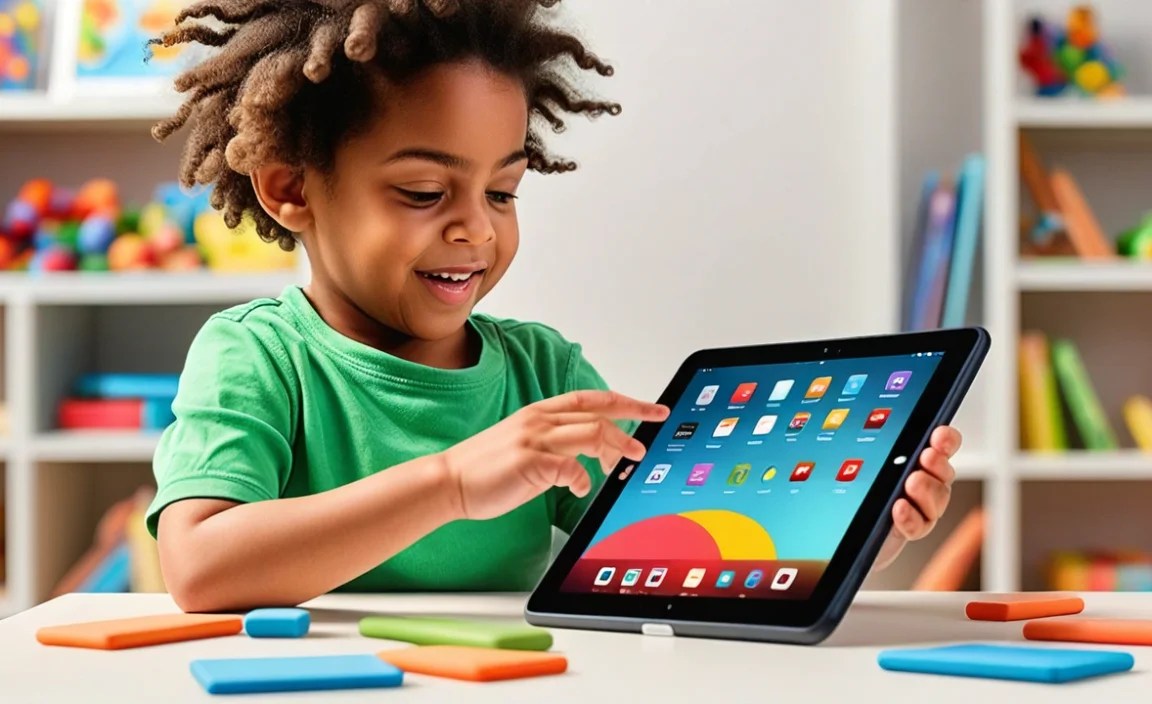
Tablets can be fantastic tools for early learning. They open up a world of interactive stories, engaging games, and creative activities that can make learning feel like play. Think colorful alphabet games, fun math challenges, or virtual drawing boards. These digital experiences can help develop fine motor skills, problem-solving abilities, and early literacy.
However, it’s crucial to remember that screen time should be balanced with other activities. The American Academy of Pediatrics suggests mindful media use, focusing on quality over quantity. For preschoolers, this means choosing content that is age-appropriate, educational, and promotes active engagement rather than passive consumption.
Key Features to Look For: What Makes a Tablet “Preschool-Friendly”?

When scouting for the ideal tablet for your little learner, a few features stand out. These are the cornerstones of a good preschooler tablet experience.
Durability is Paramount
Preschoolers are, let’s say, enthusiastic. This means drops, bumps, and maybe even the occasional spill are highly probable. Look for tablets with:
Rugged Cases: Many tablets come with or can be fitted with sturdy, often brightly colored, cases that absorb shocks. These are a must-have.
Tempered Glass Screen Protectors: Even with a good case, a screen protector adds an extra layer of defense against scratches and cracks.
Water and Dust Resistance (IP Rating): While not always a deal-breaker, some tablets offer basic protection against splashes and dust, which can be a lifesaver.
Screen Size and Resolution
For little eyes, a screen that’s too small can be frustrating, and one that’s too large might be unwieldy.
Ideal Size: Generally, 7 to 10 inches is a sweet spot. It’s big enough for clear visuals and comfortable interaction but not so large that it’s difficult for a child to hold.
Resolution: While top-tier resolution isn’t usually necessary, a decent screen ensures that educational content is clear and engaging, without pixelation causing eye strain. Look for at least HD (720p) resolution.
Battery Life
You don’t want the learning fun to be cut short by a dead battery.
Aim for Longevity: Tablets that offer 8-10 hours of active use on a single charge are ideal for longer learning sessions or travel.
Storage Space
Educational apps, games, and videos can take up a surprising amount of space.
Minimum: 16GB is a bare minimum, but 32GB or more is highly recommended.
Expandability: Check if the tablet has a microSD card slot, allowing you to add more storage later if needed.
Processor and RAM (Keep it Simple!)
This is where tech specs can seem daunting, but for a preschool tablet, the priority is a smooth, lag-free experience for basic apps.
What to Aim For: A quad-core processor and at least 2GB of RAM are usually sufficient for running most educational apps without frustrating slowdowns. You don’t need the most powerful processor on the market.
Child-Friendly Interface and Parental Controls
This is arguably the most critical aspect for ensuring your child’s safety and productive use.
Kid-Mode/Profiles: Many tablets offer dedicated “kid modes” that present apps in a simplified, visually appealing interface. They also restrict access to areas you don’t want your child to explore.
Robust Parental Controls: Look for features that allow you to:
Set time limits for daily or weekly usage.
Approve or block specific apps and websites.
Monitor your child’s activity.
Manage purchases.
Create custom kid profiles.
Top Tablet Options for Preschoolers: A Comparison

Let’s look at some popular choices that parents often consider for their little ones. We’ll categorize them to help you find what fits best.
For a Budget-Friendly, Durable Choice: Amazon Fire Tablets
Amazon’s Fire tablets are incredibly popular for a reason. They are affordable, designed with families in mind, and come with Amazon’s Kids+ subscription service.
| Feature | Amazon Fire 7 Kids | Amazon Fire HD 10 Kids |
| :—————– | :—————————– | :—————————— |
| Screen Size | 7 inches | 10.1 inches |
| Durability | Comes with a rugged Kid-Proof Case & 2-year worry-free guarantee | Comes with a rugged Kid-Proof Case & 2-year worry-free guarantee |
| Parental Controls | Robust Amazon Kids+ features, including time limits and content filters | Robust Amazon Kids+ features, including time limits and content filters |
| Storage | 16GB (Expandable via microSD) | 32GB (Expandable via microSD) |
| Processor/RAM | Quad-core / 2GB RAM | Octa-core / 3GB RAM |
| Key Advantage | Ultra-affordable, great entry-level | Larger screen, better performance for slightly older kids |
| Consideration | Smaller screen, less powerful | Higher price point than Fire 7 |
Amazon Kids+ is a significant plus. It offers unlimited access to thousands of kid-friendly books, movies, TV shows, educational apps, and games. You can learn more about the benefits of Amazon Kids+ on their official website.
For a Versatile, Kid-Proof Operating System: Kid-Specific Tablets
There are tablets designed specifically for children, often with simplified interfaces and pre-loaded educational content.
LeapFrog Tablets: Known for their educational focus, LeapFrog tablets (like the LeapPad series) offer a wealth of curated learning games and apps. They are built for young children with sturdy designs and intuitive interfaces. While perhaps not as versatile as a standard tablet, they excel at foundational learning.
VTech Tablets: Similar to LeapFrog, VTech offers tablets like the InnoTab series and Storio. These are also built with learning and safety for preschoolers as the primary goal. They often include built-in cameras for fun photos and videos, along with a good range of educational software.
For a More Powerful Option with Strong Parental Controls: Android Tablets (with careful setup)
If you prefer the flexibility of a standard tablet and plan to use it for yourself as well, a good Android tablet can be a great choice, provided you set it up with robust parental controls.
Samsung Galaxy Tab A Series: These are excellent mid-range Android tablets that offer a good balance of performance, screen quality, and price. Samsung’s Samsung Kids mode is a fantastic, built-in feature that creates a safe, fun environment for children. It offers time limits, app control, and a child-friendly interface. You can explore more about Samsung Kids on Samsung’s official resources.
Google Play Store Access: This gives you access to millions of apps, including a vast library of educational content. Just be sure to manage what your child can download and access!
Setting up an Android Tablet for Kids:
1. Create a Child Profile: Use the built-in Android user profiles to set up a separate account for your child.
2. Enable Samsung Kids (if applicable): Activate Samsung Kids for a safe interface.
3. Google Family Link: This is a powerful free tool from Google that allows you to manage your child’s Google account and device usage. You can set screen time limits, approve or block apps, set content restrictions, and even track their location. Learn more about Google Family Link.
4. Restrict Purchases: Ensure that in-app purchases are disabled or require your password.
5. Curate Apps: Download only age-appropriate and educational apps from the Google Play Store.
For the Apple Ecosystem User: iPad (with careful restrictions)
If your family already uses Apple devices, an iPad can be a natural fit. While pricier, iPads offer excellent performance, a vast app store, and robust parental controls through Screen Time.
iPad Mini or Standard iPad: These are good sizes for young children.
Key Feature: Screen Time: Apple’s built-in Screen Time feature is incredibly powerful. You can set time limits for specific apps or categories, allowlist specific apps for unlimited use, set downtime schedules, content restrictions (for apps, web browsing, movies), and manage purchases. Learn more about Apple’s Screen Time.
Kid Apps in the App Store: The App Store has a huge selection of high-quality educational apps for preschoolers.
Considerations for iPad:
Cost: iPads are generally the most expensive option.
Durability: You will absolutely need a rugged case and screen protector for an iPad used by a preschooler.
Essential Software and Apps for Preschoolers

Beyond the hardware, the software and apps you choose are vital. Here’s what to look for:
Educational Apps
Focus on the ABCs & 123s: Apps that teach letters, phonics, numbers, and basic counting are fantastic. Look for interactive elements.
Early Literacy: Storytelling apps, read-along books, and apps that help identify letters and words.
Problem-Solving: Simple puzzle games, shape recognition, and logic activities.
Creativity: Virtual drawing boards, coloring apps, or simple music creation tools.
Curiosity & Exploration: Apps that introduce basic science concepts, animals, or the world around them.
Where to find great apps:
Curated Lists: Many educational websites and tech blogs offer lists of top preschool apps.
App Store Reviews: Always check reviews and ratings before downloading.
Age Filters: Use the age filters in your device’s app store to find appropriate content.
Entertainment Apps
Age-Appropriate Shows & Movies: Streaming services accessible through the tablet (downloaded for offline viewing is a plus!).
Kid-Friendly Music Players: Simple interfaces to play calming music or popular children’s songs.
Parental Control Apps
Built-in is Best: As detailed earlier, leverage the parental control features that come with your chosen tablet’s operating system (Amazon Kids, Samsung Kids, Google Family Link, Apple Screen Time). These are usually the most integrated and effective.
Safety First: Digital and Physical
Ensuring your child’s safety on a tablet involves two main areas: keeping them physically safe and protecting them in the digital world.
Physical Safety
Ergonomics: Make sure the tablet isn’t too heavy for your child to hold comfortably for reasonable periods.
Eye Strain: Encourage breaks from the screen. A good rule is often the “20-20-20 rule”: every 20 minutes, look at something 20 feet away for at least 20 seconds.
Hygiene: Regularly clean the screen and case.
Digital Safety
Parental Controls are Key: This cannot be stressed enough. Use all the features available to you to restrict access and monitor usage.
Educate Your Child (Simply): Even at a young age, you can start teaching basic digital citizenship. For example, “We only open apps that Mommy or Daddy approve,” or “We don’t click on things that look like a surprise game popping up.”
No Personal Information: Ensure your child knows not to share their name, age, or address online. Tablets designed for kids usually prevent this by default.
Secure Your Wi-Fi: Ensure your home Wi-Fi network is password-protected.
App Permissions: Be mindful of the permissions apps request. Educational apps designed for preschoolers shouldn’t need access to your contacts or location.
Understanding Screen Time Recommendations
The American Academy of Pediatrics (AAP) provides guidelines for children’s media use. For children aged 2-5 years, they recommend:
High-Quality Programming: Co-viewing media with parents or caregivers to help them understand what they are seeing.
Limit Screen Use: Keeping screen use to 1 hour per day of high-quality programming.
* Focus on Other Activities: Ensuring that screen time does not displace adequate sleep, physical activity, and other behaviors essential for health.
This means that while a tablet can be a valuable tool, it should be integrated thoughtfully into a balanced daily routine.
Buying Tips: Making Your Decision
Here’s a step-by-step approach to help you navigate the purchase:
1. Determine Your Budget: Tablets for preschoolers range from under $100 to $300+, depending on the brand and features. Decide what you’re comfortable spending.
2. Prioritize Durability: If your child is prone to dropping things, a rugged, kid-proof tablet or at least a very good case is non-negotiable. Factor the cost of a good case into your budget for standard tablets.
3. Consider Your Existing Ecosystem: Do you already have Amazon Prime, Apple devices, or Samsung products? Sticking within an ecosystem can sometimes offer better integration and deals.
4. Read Reviews: Look for reviews from parents, not just tech reviewers. They’ll offer insights into real-world durability and kid appeal.
5. Check App Availability: If you have specific educational apps in mind, ensure they are available on the platform you choose.
6. Don’t Forget Accessories: Budget for a rugged case (if not included), a screen protector, and potentially a stylus (for more detailed drawing if your child shows interest).
7. Warranty and Return Policy: Understand the warranty and return policy, especially for kids’ devices where accidental damage is common.
Frequently Asked Questions (FAQ)
Q1: What is the youngest age a child can use a tablet?
While infants can interact with devices, most experts recommend introducing tablets to children around age 2, with very limited and supervised use. The focus at this age should be on simple, interactive educational content.
Q2: Should I buy a tablet specifically made for kids, or a regular tablet with parental controls?
Both can work! Kid-specific tablets (like Amazon Fire Kids, LeapFrog, VTech) are often more durable out-of-the-box and come with pre-curated content. Regular tablets (like iPads, Samsung Galaxy Tabs) offer more versatility and power, but require diligent setup of parental controls and the purchase of a robust case. It depends on your budget and how hands-on you want to be with setup.
Q3: How do I protect my child from inappropriate content online?
This is where parental controls are crucial. Use features like Amazon Kids, Google Family Link, Apple Screen Time, or Samsung Kids. These tools allow you to filter web content, restrict app downloads, and set time limits. Always supervise your child’s screen time, especially when they are browsing for new apps or games.
Q4: How much screen time is too much for a preschooler?
The American Academy of Pediatrics suggests limiting screen time for preschoolers (ages 2-5) to about 1 hour per day of high-quality programming. It’s important to ensure screen time doesn’t interfere with sleep, physical activity, and other essential developmental activities.
Q5: Are tablets good for learning to read?
Yes, many apps and e-books on tablets are designed to help preschoolers learn to read. These often include interactive features like read-aloud functions, letter tracing, and phonics games. However, it’s best to supplement tablet-based learning with traditional methods like reading physical books and engaging in interactive conversations.
Q6: What’s the best way to ensure physical durability?
Invest in a high-quality, rugged case designed for children or for the specific tablet model. Many kid-friendly tablets, like Amazon’s Fire Kids editions, come with a sturdy case and a good warranty. A tempered glass screen protector is also highly recommended as a second layer of defense.
Q7: Can a tablet help with my child’s fine motor skills?
Yes, interactive apps that require tapping, swiping, dragging, and drawing can help develop fine motor skills. Games that involve manipulating objects on the screen or tracing shapes can be particularly beneficial for this.
Conclusion
Choosing the best tablet for your preschooler is about finding a tool that supports their learning and development in a safe, controlled environment. By focusing on durability, user-friendly interfaces, robust parental controls, and age-appropriate educational content, you can make an informed decision that benefits your child.
Remember, a tablet is just one piece of the puzzle. It should complement, not replace, hands-on play, reading physical books, and real-world exploration. When used thoughtfully and with proper supervision, a tablet can be a wonderful gateway to learning and creativity for your little one. Happy tablet hunting!

Your tech guru in Sand City, CA, bringing you the latest insights and tips exclusively on mobile tablets. Dive into the world of sleek devices and stay ahead in the tablet game with my expert guidance. Your go-to source for all things tablet-related – let’s elevate your tech experience!