Unlock your creative potential without breaking the bank! Discover affordable tablets perfect for beginners diving into digital art, writing, or video editing. This guide walks you through essential features and top picks to get your content creation journey started right.
Got a big idea brewing but a small budget? You’re not alone! Many aspiring creators think they need the fanciest, most expensive tech to get started. But that’s simply not true! The world of content creation is more accessible than ever, and a budget-friendly tablet can be your perfect first step. Whether you dream of sketching digital masterpieces, writing your next novel, or editing short videos, there’s a tablet out there that won’t empty your wallet. We’re here to show you exactly what to look for and highlight some fantastic options so you can start bringing your ideas to life with confidence. Get ready to ditch the overwhelm – your creative journey begins here!
Your Creative Companion: What is a Budget Tablet for Content Creation?

Let’s break down what we mean by “budget tablets for content creation.” Think of it as your digital sketchbook, notepad, and editing suite, all rolled into one portable package, but at a price that makes sense. For beginners, this means a device that’s easy to use, capable enough to handle your initial projects, and doesn’t require a sky-high investment.
The core idea is to find a device that balances performance, essential features, and affordability. You don’t need the absolute top-of-the-line specs to start writing a blog post, sketching a simple illustration, or editing a quick social media video. What you do need is a responsive touchscreen, decent processing power, enough storage for your files, and perhaps compatibility with a stylus for more hands-on creative work. We’re focusing on tablets that offer the best bang for your buck, making the exciting world of content creation accessible to everyone.
Why Start Your Content Creation Journey with a Budget Tablet?

Starting with a budget tablet for content creation is a smart move for several reasons, especially if you’re just beginning:
Lower Initial Investment: The most obvious benefit is saving money. Expensive equipment can be a barrier. A budget tablet lets you experiment and learn without financial pressure.
Learning Without Pressure: If you’re new to digital art, writing software, or video editing, you’ll likely be experimenting, making mistakes, and learning as you go. Doing this on a less expensive device reduces the anxiety of potentially damaging or overwhelming a premium tool.
Portability and Versatility: Tablets are inherently portable. This means you can create content anywhere – on your commute, at a coffee shop, or simply relaxing on your couch.
Focus on Skills, Not Specs: When you’re starting, your time is better spent honing your creative skills rather than worrying about having the latest processor. A capable budget tablet lets you focus on learning the craft.
Gateway to More Advanced Tools: As your skills and needs grow, you’ll have a better understanding of what features are truly important to you in a more advanced device. Your budget tablet experience will inform future upgrade decisions.
Essential Features for Budget Content Creation Tablets
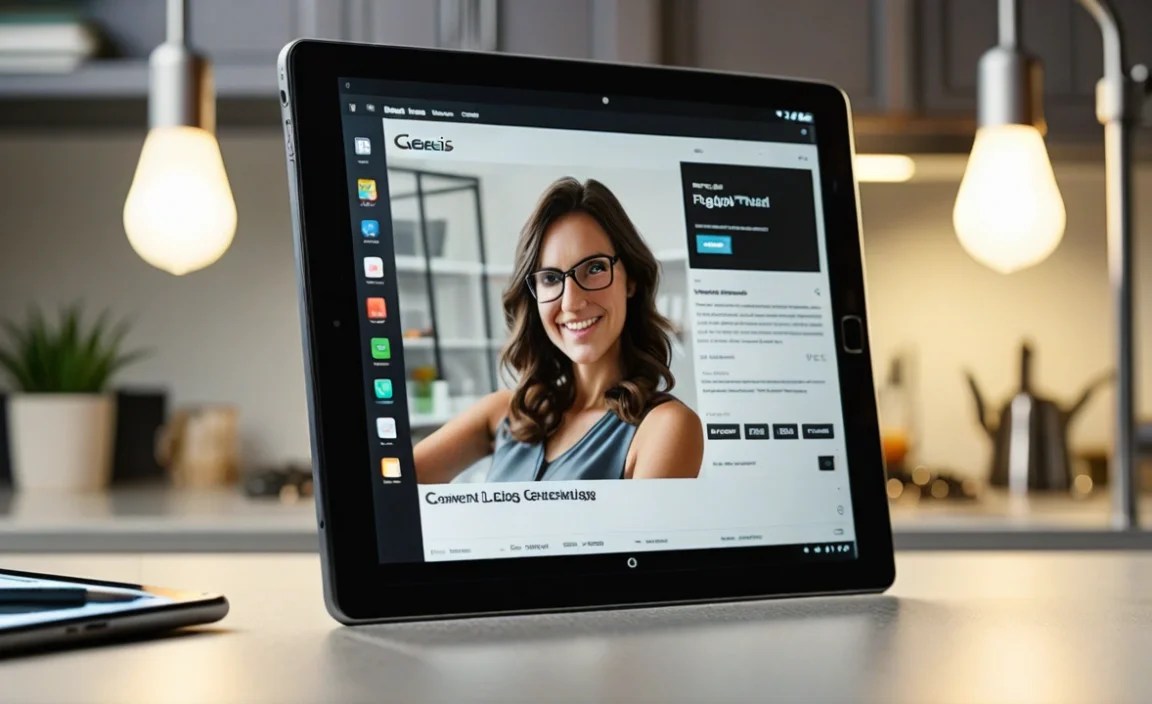
When scouting for your first content creation tablet, keep an eye on these key features. They’ll make a big difference in your workflow and overall experience.
Screen Size and Quality
Size Matters: For drawing and detailed work, a larger screen (10 inches or more) is generally better for comfort and precision. For writing or basic editing, a slightly smaller screen (8-9 inches) can still be very functional and more portable.
Resolution: Look for screens with at least a Full HD (1920 x 1080) resolution. This ensures your content looks sharp and clear, whether you’re viewing images or reading text.
Color Accuracy: While budget tablets won’t match professional-grade displays, some offer decent color representation. This is more critical for visual arts and photo editing. Look for reviews that mention color gamut coverage (like sRGB).
Performance: Processor and RAM
Processor (CPU): This is the brain of the tablet. For content creation, you’ll want something reasonably capable. Avoid the absolute lowest-end processors if possible. A mid-range processor from Qualcomm Snapdragon, MediaTek, or Apple’s A-series (in older iPads) will offer a smoother experience.
RAM (Random Access Memory): RAM is like your tablet’s short-term memory. For multitasking and running creative apps smoothly, aim for at least 4GB of RAM. 6GB or 8GB will offer a noticeably better experience, especially if you plan to run more demanding apps or have multiple apps open.
Storage (Internal and Expandable)
Internal Storage: Content creation files (photos, videos, documents, app data) can take up a lot of space. Aim for at least 64GB of internal storage. 128GB is preferable if your budget allows.
Expandable Storage (microSD Card): Many Android tablets offer a microSD card slot. This is a huge plus for budget devices, as you can easily and affordably expand your storage capacity later for a fraction of the cost of buying a tablet with more built-in storage.
Stylus Support
Active Stylus Compatibility: If drawing, note-taking, or detailed photo editing is a priority, check if the tablet supports an active stylus. This provides pressure sensitivity and palm rejection, making it feel much more like using a pen on paper. Some budget tablets include a stylus, while others require a separate purchase. Always check compatibility carefully!
Operating System and App Availability
Android: Offers the most variety in budget-friendly hardware. Access to the Google Play Store means a vast library of apps for writing, drawing (like Infinite Painter, Sketchbook), photo editing (Snapseed, Adobe Lightroom Mobile), and even basic video editing.
iPadOS: Apple’s iPads are generally more premium, but older or refurbished models can sometimes be found within a budget. The App Store has a fantastic selection of high-quality creative apps, and iPad stylus support (Apple Pencil) is excellent.
Windows: Some budget Windows tablets exist, offering a full desktop OS experience. This can be great for users already familiar with Windows software, but tablet performance can be very hit-or-miss at the lower end.
Battery Life
All-Day Power: Content creation often involves longer, focused sessions. Look for tablets that advertise around 8-10 hours of battery life for mixed usage. This ensures you won’t be hunting for an outlet halfway through a creative burst.
Top Budget Tablet Recommendations for Beginners (2024)

Finding the perfect budget tablet involves a bit of digging, as models and deals change rapidly. Here are a few categories and specific examples that consistently offer good value for beginners looking to create content.
1. The Versatile Android Option
Android tablets offer the widest range of choices in the budget segment, making them a solid starting point.
Samsung Galaxy Tab A Series: Samsung’s Tab A line is often a go-to for affordable Android tablets.
Why it’s good: They offer decent build quality, bright displays, and reliable performance for everyday tasks and lighter creative work. Many models have expandable storage and good battery life. They are highly compatible with various active styluses and offer access to the extensive Google Play Store.
Best for: Note-taking, sketching, writing, basic photo editing, and managing social media content.
Considerations: Performance might be limiting for very demanding video editing or complex digital art projects. Always check the specific model’s specs (RAM, processor) for the best performance.
Where to find: Amazon, Best Buy, official Samsung store.
Lenovo Tab Series (M Series): Lenovo also offers a strong lineup of budget-friendly Android tablets.
Why it’s good: Lenovo tablets often focus on user-friendliness and entertainment features, but they also pack enough punch for content creation tasks. They tend to have good displays and solid build quality for their price point.
Best for: Similar use cases to the Samsung Tab A series – writing, casual drawing, and media consumption.
Considerations: Stylus support can vary by model, so verify before purchasing if a stylus is essential.
Where to find: Amazon, Best Buy, Lenovo’s official website.
2. The Apple Ecosystem Entry Point (Older/Refurbished iPads)
While new iPads can be pricey, older or refurbished models can be surprisingly affordable and offer a premium experience.
Apple iPad (9th Generation or Older): The base model iPad is exceptionally versatile.
Why it’s good: Even older iPads offer excellent performance for their age, a highly polished operating system (iPadOS), and fantastic app support. The Apple Pencil (1st Gen for older models) is a superb stylus for drawing and note-taking. iPads are known for their longevity and resale value.
Best for: A wide range of content creation, from detailed digital art (with Procreate) to writing, graphic design, and video editing. The ecosystem integration is seamless if you have other Apple devices.
Considerations: Storage can be limited on base models (start at 32GB or 64GB), and Apple Pencil and storage upgrades add to the cost. Refurbished models are often the best way to get an iPad on a budget. Check Apple’s official Refurbished store.
Where to find: Apple Certified Refurbished Store, Amazon (renewed), reputable electronics retailers.
3. The Budget All-Rounder (Amazon Fire Tablets – with caveats)
Amazon’s Fire tablets are incredibly affordable, but they come with significant limitations for content creation.
Amazon Fire HD Series: These tablets are extremely budget-friendly.
Why it’s good: Unbeatable price for basic functionality. Good for consuming content.
Best for: Primarily content consumption and very basic tasks like simple note-taking in a dedicated app.
Considerations: The Fire OS is heavily customized and limits app access to the Amazon Appstore, which is much smaller than Google Play or Apple’s App Store. Performance is often sluggish for anything beyond simple browsing or media playback. Stylus support is generally non-existent or very limited. Not recommended as a primary content creation tool for most users, but worth knowing they exist for extreme budget constraints and simple tasks.
Where to find: Amazon.
A Note on Chromebook Tablets:
While some tablets run ChromeOS, dedicated “Chromebook tablets” are less common than traditional clamshell Chromebooks. If you find one, they can be good for web-based creative tools and Android apps, but performance can be an issue at the lowest price points.
What to Look for When Choosing: A Buyer’s Checklist
Ready to shop? Use this checklist to make sure you’re getting the right tablet for your needs.
[ ] Screen Size: Does it feel comfortable for how you’ll create? (e.g., 8-10 inches for portability, 10+ inches for detail)
[ ] Screen Resolution: Is it at least Full HD (1920×1080)?
[ ] Processor: Does it seem adequate for your intended apps? (Avoid the absolute lowest-end chips if possible)
[ ] RAM: Aim for 4GB minimum, 6GB+ preferred for smoother multitasking.
[ ] Storage: At least 64GB internal, ideally 128GB or with microSD card expansion.
[ ] Stylus Support: Is it compatible with an active stylus if you need one? Does one come included?
[ ] Operating System: Does it support the apps you need (Android, iPadOS)?
[ ] Battery Life: Look for 8+ hours of real-world usage.
[ ] Ports: Does it have the ports you need (e.g., USB-C, headphone jack)?
[ ] Reviews: Have you read recent reviews focusing on performance for creative tasks?
Setting Up Your Tablet for Content Creation Success
Once you’ve got your budget tablet, a few steps can optimize it for your creative endeavors.
1. Update Everything: Install all operating system updates and app updates immediately. This ensures you have the latest features, security patches, and performance improvements.
2. Declutter: Remove pre-installed apps you don’t need. The less clutter, the smoother your tablet will run.
3. Organize Storage: Create folders for different types of projects (e.g., “Sketches,” “Blog Drafts,” “Video Clips”). If your tablet has expandable storage, set up your microSD card and choose it as the default location for new downloads or media where possible.
4. Download Essential Apps:
Writing: Google Docs, Microsoft Word (mobile), or dedicated note-taking apps like Evernote or Simplenote.
Drawing/Art: Autodesk Sketchbook (free), Infinite Painter, Krita (on supported versions), Procreate (iPad only, one-time purchase).
Photo Editing: Snapseed (free), Adobe Lightroom Mobile (free basic features), GIMP (limited availability/performance on tablets).
Video Editing: CapCut (free, powerful), InShot, DaVinci Resolve (powerful, but demanding – check tablet compatibility).
5. Invest in a Stylus (If Needed): If your tablet supports a stylus and one wasn’t included, this is often the best upgrade you can make for drawing and detailed work. Look for brands like Wacom, Adonit, or even budget-friendly third-party options that are confirmed compatible.
6. Consider a Screen Protector: A matte screen protector can provide a more “paper-like” feel for stylus use, reducing glare and improving friction.
7. Get a Keyboard Case (Optional): For extensive writing, a Bluetooth keyboard case can transform your tablet into a more productive writing machine. Many affordable options exist.
Real-World Content Creation Scenarios on a Budget Tablet
Let’s see how these tablets hold up in practice.
Scenario 1: The Aspiring Digital Artist
User: Wants to draw characters, digital paintings, and social media graphics.
Tablet Choice: Samsung Galaxy Tab A series (with active stylus support) or a refurbished base model iPad with Apple Pencil (1st Gen).
What they can do:
Sketching rough ideas quickly using Autodesk Sketchbook or Infinite Painter.
Creating cleaner line art with pressure-sensitive input from the stylus.
Experimenting with digital painting techniques in apps like Infinite Painter or Procreate (on iPad).
Editing photos to enhance their artwork using Snapseed or Lightroom Mobile.
Exporting artwork as JPEGs or PNGs for online sharing.
Limitations: Complex, multi-layered digital paintings with many brushes might push performance limits on lower-end Android devices. Very large file sizes or extensive use of effects could lead to slowdowns.
Scenario 2: The Blogger and Writer
User: Needs a portable device to write articles, manage a blog, and do light research.
Tablet Choice: Any decent Android tablet (Samsung Tab A, Lenovo Tab) with 4GB+ RAM and a Bluetooth keyboard, or a refurbished iPad.
What they can do:
Write articles in Google Docs or Microsoft Word, syncing seamlessly to the cloud.
Use a comfortable Bluetooth keyboard for faster typing.
Browse the web for research, fact-checking, and finding images at sites like Unsplash (for royalty-free images).
Quickly edit photos for blog posts using mobile editing apps.
Manage social media updates.
Limitations: While great for writing, these tablets are not ideal for heavy graphic design or video editing that requires significant processing power.
Scenario 3: The Budding Videographer/Social Media Creator
User: Wants to film short clips, edit them together, and add basic effects for platforms like TikTok or Instagram Reels.
Tablet Choice: A mid-range Android tablet with 6GB+ RAM and good storage (or expandable storage) or a refurbished iPad. Performance is key here.
What they can do:
Use free apps like CapCut or InShot to cut clips, add text overlays, music, and basic transitions.
Record video directly on the tablet (though external cameras are often better).
Export short videos in resolutions suitable for social media.
Upload directly from the tablet.
Limitations: Editing high-resolution (4K) footage or very long, complex videos will likely be too much for budget tablets. Rendering times can be significantly longer.
Tips for Maximizing Performance on Budget Tablets
Even with a budget device, you can squeeze out more performance:
Close Unused Apps: Regularly clear your recently used apps list.
Disable Background Updates: For apps that don’t need constant background syncing, disable this feature in settings to save resources and battery.
Use Wi-Fi Whenever Possible: Downloading and uploading large files over Wi-Fi is faster and saves mobile data.
Optimize App Settings: Within creative apps, look for settings that reduce quality for a smoother experience (e.g., lower canvas resolution for drawing, proxy files for video editing).
Keep Storage Clear: Regularly offload finished projects to cloud storage (Google Drive, iCloud, Dropbox) or an external drive to free up internal space. Full storage drastically slows down any device.
* Avoid Overheating: Don

Your tech guru in Sand City, CA, bringing you the latest insights and tips exclusively on mobile tablets. Dive into the world of sleek devices and stay ahead in the tablet game with my expert guidance. Your go-to source for all things tablet-related – let’s elevate your tech experience!