Budget tablets for kids can be surprisingly capable and affordable, offering endless learning and entertainment without breaking the bank. Our guide helps beginners choose the best value options for safe, engaging digital fun.
Finding the right tablet for your child can feel like a puzzle. You want something that’s fun, educational, and safe, but also something that won’t empty your wallet. It’s easy to get lost in all the technical jargon and fancy features, wondering if that extra RAM or higher resolution is really necessary for little hands. Don’t worry! This guide is here to make the process simple and stress-free. We’ll walk you through everything you need to know to pick a fantastic budget tablet that your child will love and you’ll feel great about.
Why Are Budget Tablets the Smart Choice for Kids?

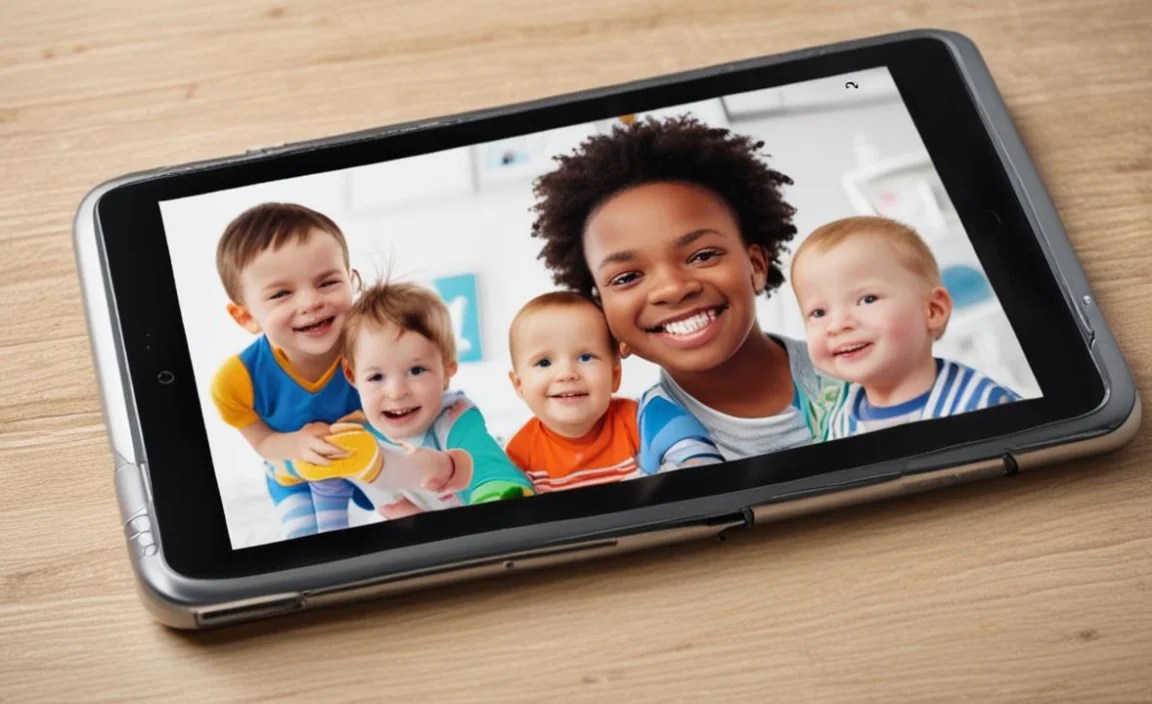
Kids are naturally curious and love to explore. Tablets offer a fantastic gateway to learning, creativity, and entertainment. They can access educational apps, play games, watch shows, and even start drawing or writing stories. When it comes to children, a budget tablet is often the smartest choice for several practical reasons. They provide all the essential functionalities without the hefty price tag of premium devices, which might be subject to more wear and tear. Plus, you can have peace of mind knowing that if it accidentally takes a tumble, it’s not a financial disaster.
Choosing a budget-friendly option also allows you to tailor their experience. You can focus on getting a device that meets their current needs and perhaps upgrade later as they grow and their interests evolve. It’s about getting the most bang for your buck without compromising on quality or safety.
Key Features to Look For in a Budget Tablet for Kids

When you’re on the hunt for a tablet that’s both affordable and suitable for young users, there are a few key features that really make a difference. You don’t need the absolute latest and greatest technology, but you do need reliability and features that enhance the user experience for both kids and parents. Let’s break down what matters most:
Screen Size and Resolution
For kids, a screen size between 7 and 10 inches is typically ideal. Smaller screens can be cramped for games and videos, while anything much larger might be too heavy or unwieldy for little hands. A resolution of 720p (1280 x 800) to 1080p (1920 x 1200) is generally good enough for crisp visuals. You’ll be able to enjoy clear images and text for reading and watching.
Storage Capacity

This is crucial! Kids love to download apps, games, and save photos or videos. Aim for at least 16GB of internal storage, but 32GB is much better. Many budget tablets also come with a microSD card slot, which is a lifesaver. You can easily expand the storage for just a few extra dollars, giving them plenty of space for all their digital treasures.
Tip: Check out how much storage is actually available after the operating system is installed. Manufacturers sometimes state the raw storage, but the usable space is less.
Battery Life
Nobody wants a tablet that dies after an hour! Look for devices that promise at least 6-8 hours of active use. This ensures your child can enjoy their tablet during car rides, long afternoons, or while traveling without constantly needing to be plugged in. Longer battery life means less interruption and more fun!
Durability and Build Quality
Kids can be a bit rough on electronics. While a budget tablet might not be as robust as some high-end models, look for sturdy construction. Many children’s tablets come with protective cases included, which is a huge bonus. If not, consider investing in a good quality, shockproof case separately. Rounded edges and a solid feel are good indicators.
Parental Controls and Safety Features
This is non-negotiable. You need robust parental controls to manage screen time, restrict access to certain apps or websites, and monitor usage. Many tablets designed for kids come with these built-in, often linked to a family-friendly interface. This ensures a safe digital environment for your child.
Processor and RAM
For basic use – browsing, educational apps, and light gaming – a quad-core processor (four cores) and 2GB of RAM are usually sufficient for budget tablets. Avoid devices with less than this, as they might struggle to run apps smoothly, leading to frustration. More can’t hurt, but this is a good starting point for budget devices.
Operating System
Most budget tablets for kids run on Android or a customized version of it. Some might offer Amazon’s Fire OS, which is built on Android but has its own app store and interface. Familiarize yourself with the OS, as it will affect ease of use and app availability. Android gives you access to the vast Google Play Store, while Fire OS uses the Amazon Appstore.
H2: Top Considerations for Beginner Kids’ Tablets
When you’re starting your search for a tablet for your child, it’s helpful to have a clear picture of what your priorities are. Not all tablets are created equal, and what works for older kids might not be ideal for toddlers. Let’s look at the most important factors to consider before making your purchase.
Age Appropriateness
This is the most critical factor. A tablet designed for a 3-year-old will have different features and content than one for a 10-year-old. Toddler-friendly tablets often have highly simplified interfaces, robust physical controls, and durable designs. Older kids might benefit from more processing power for educational games and creative apps. Always check the recommended age range.
Educational Content vs. Entertainment

Do you want the tablet to be primarily a learning tool, an entertainment hub, or a mix of both? Many tablets designed for kids come pre-loaded with educational apps, games, and videos, or they offer easy access to curated content libraries. Decide what your main goal is, and choose a tablet that aligns with that.
Screen Time Management

As a parent, controlling how much time your child spends on the tablet is essential. Look for tablets with built-in, intuitive parental controls that allow you to set time limits, schedule usage, and approve content. This feature helps maintain a healthy balance between screen time and other activities.
Ease of Use
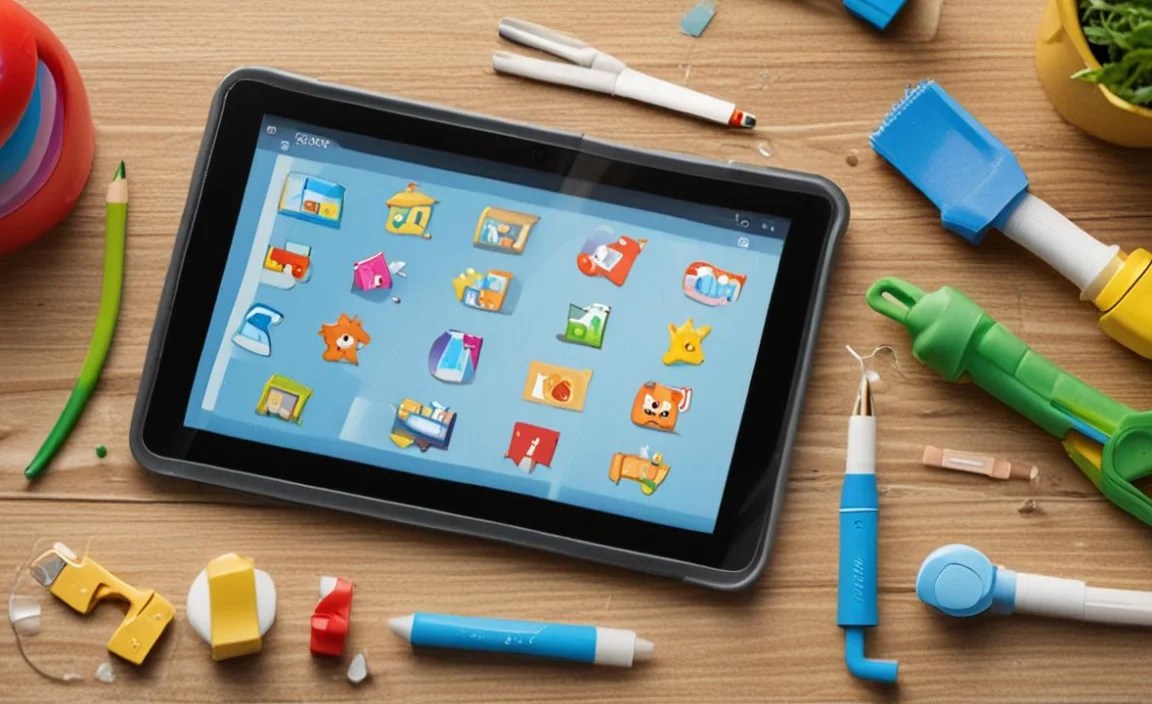
For younger children, a simple, icon-based interface is best. They should be able to navigate the tablet easily without constant adult assistance. Many kids’ tablets feature a simplified user interface that’s visually engaging and easy to understand, often resembling a fun game or activity itself.
Safety and Security
Beyond parental controls, consider built-in security features. This includes protection against malware, secure browsing options, and the ability to restrict in-app purchases and downloads. You want to ensure your child isn’t exposed to inappropriate content or unexpected charges.
Accessories and Support
Think about what comes in the box. Does it include a protective case? A stylus? What about warranty and customer support? For budget tablets, ensuring there’s a plan for potential issues can save you headaches down the line. A good case is a must-have for any child’s device.
H2: Budget Tablet Recommendations for Beginners
When it comes to budget tablets for kids, a few names consistently pop up as reliable choices that offer great value. These options are perfect for parents looking for a dependable device without overspending. We’ll focus on tablets that are generally well-regarded for their features, durability, and kid-friendly nature.
<h3>Amazon Fire Tablets</h3>
Amazon’s Fire tablets are arguably the most popular choice for budget-conscious families. They offer a fantastic blend of affordability, durability, and a robust ecosystem of content specifically curated for children through Amazon Kids+ (formerly FreeTime Unlimited). If you’re already in the Amazon ecosystem, these are a natural fit.
Pros:
- Extremely affordable, especially during sales.
- Durable design, often with included kid-proof cases.
- Excellent parental controls and the Amazon Kids+ subscription (a paid service that offers unlimited access to age-appropriate content like apps, games, books, and videos).
- Good battery life.
- Simple, user-friendly interface.
Cons:
- Uses Amazon’s Fire OS, which is based on Android but doesn’t have access to the Google Play Store. You’re limited to the Amazon Appstore, though it has a vast selection.
- Performance can be sluggish for more demanding apps or multitasking due to less powerful processors and RAM in base models.
<em>To learn more about Amazon Kids+, you can visit their official page: Amazon Kids+.</em>
<h3>Contixo Kids Tablets</h3>
Contixo tablets are often designed with children in mind from the ground up, featuring bright colors, sturdy construction, and pre-loaded educational content. They aim to provide a complete package for young learners.
Pros:
- Focus on education, with many pre-installed learning apps.
- Durable build with protective cases.
- User-friendly interface that’s easy for kids to navigate.
- Decent performance for educational tasks.
Cons:
- The range of apps might be more limited compared to tablets with access to Google Play.
- Build quality, while good for the price, might not feel as premium as some other options.
<h3>Vankyo Kids Tablets</h3>
Vankyo offers a range of tablets, including specific models tailored for children. They often boast good specifications for their price point, making them a strong contender for parents looking for more value.
Pros:
- Good screen quality for the price.
- Often include generous storage or expandable storage options.
- Sturdy design and protective cases are common.
- Access to Google Play Store for a wider app selection.
Cons:
- Parental control features might not be as sophisticated as Amazon’s offerings.
- Brand recognition might be lower than some competitors.
<h3>Samsung Galaxy Tab A Series</h3>
While not exclusively for kids, the Samsung Galaxy Tab A series offers excellent value and can be a great option when bundled with Samsung Kids. These tablets are more versatile, allowing them to grow with your child.
Pros:
- Access to the full Google Play Store.
- Generally better build quality and performance than many dedicated kids’ tablets.
- Samsung Kids offers a robust, safe environment for children.
- Good battery life and decent screen quality.
Cons:
- More expensive than Amazon Fire or dedicated budget kids’ tablets, though often on sale.
- You’ll likely need to purchase a separate protective case.
For a comprehensive comparison of tablet specifications, it’s always good to check out reputable tech review sites like RTINGS.com or TechRadar.
H2: How to Set Up a Budget Tablet for Your Child Safely
Once you’ve chosen the perfect budget tablet, the next crucial step is setting it up correctly to ensure your child has a safe and positive experience. This involves more than just turning it on!
Step 1: Initial Setup and Updates
When you first power on the tablet, you’ll go through the standard setup process. This usually involves connecting to Wi-Fi, signing into an account (like Amazon or Google), and then installing any available system updates. Updates are vital for security and performance!
Step 2: Create a Child Profile or Kids’ Mode
This is where you’ll activate the tablet’s child-friendly features.
- For Amazon Fire Tablets: You’ll set up Amazon Kids, which creates a separate, controlled environment.
- For Android Tablets (Samsung, etc.): Look for options like “Samsung Kids” or use Google Family Link to create a child profile.
Step 3: Configure Parental Controls
This is the most important part of ensuring safety. Dive deep into the parental control settings:
- Set Screen Time Limits: Decide how long your child can use the tablet each day and during what hours.
- App & Content Restrictions: Choose which apps your child can access and which websites are allowed. Some systems allow you to approve apps individually.
- Age Filters: Ensure content is appropriate for your child’s age.
- In-App Purchase Restrictions: Disable or require approval for any in-app purchases to avoid accidental charges.
Google Family Link is a powerful tool for managing Android devices remotely. You can learn more direct from Google here.
Step 4: Download Educational Apps

Now, populate the tablet with great content! Explore the app store (Amazon Appstore or Google Play Store) for age-appropriate educational apps. Look for apps that focus on:
- Learning ABCs and numbers (for younger kids)
- Reading and comprehension
- Math games
- Science and nature exploration
- Creative activities like drawing and coding basics
Step 5: Install a Protective Case

If your tablet didn’t come with one, get a durable, kid-proof case immediately. These cases absorb shock, protect the screen, and often have built-in stands for comfortable viewing. For younger children, consider cases with handles.
Step 6: Teach Your Child About Online Safety

Even with strong parental controls, it’s crucial to talk to your child about online safety. Explain:
- Not to share personal information online.
- Not to click on suspicious links or download unknown apps.
- To tell you if they see something that makes them feel uncomfortable.
Start these conversations early to build good digital habits.
H2: Essential Accessories for Kids’ Budget Tablets
While a budget tablet itself is an economical choice, a few well-chosen accessories can significantly enhance its usability, durability, and your child’s experience. These aren’t always expensive, but they add a lot of value.
Protective Cases

We’ve mentioned this repeatedly, and for good reason. A robust, shock-absorbent case is the single most important accessory for any child’s tablet. Look for foam or silicone cases with raised bezels to protect the screen and reinforced corners. Features like integrated stands are a bonus.
Screen Protectors

For an extra layer of defense against scratches and smudges, consider a tempered glass screen protector. They are relatively inexpensive and can save you from a cracked screen or micro-scratches that can impair visibility.
Headphones

To keep the peace and allow your child to immerse themselves in games or shows without disturbing others, a comfortable pair of kid-safe headphones is essential. Look for models with volume-limiting features to protect young ears from damage. Check out resources from organizations like the National Institute on Deafness and Other Communication Disorders (NIDCD) for guidance on hearing protection for children.
Stylus Pens

For older children who enjoy drawing, digital art, or note-taking, a simple stylus can offer a much more precise and

Your tech guru in Sand City, CA, bringing you the latest insights and tips exclusively on mobile tablets. Dive into the world of sleek devices and stay ahead in the tablet game with my expert guidance. Your go-to source for all things tablet-related – let’s elevate your tech experience!