Looking for affordable yet effective tablets for your preschooler? Our essential guide reviews top budget-friendly options, highlighting key features like kid-friendly interfaces, durable designs, and age-appropriate content to help you make the best choice for your child’s early learning and entertainment journey.
Preschool years are a whirlwind of discovery! So much of it happens on screens these days. But finding a good tablet that’s easy on your wallet can feel tricky. Many look great online, but what if they break easily or are too complicated for little hands? Don’t worry! It’s totally possible to find a fantastic, affordable tablet that your little one will love for learning and fun. This guide is here to help you sort through the options and pick the perfect one without any stress.
Why a Preschooler Needs a Tablet (And What to Look For!)

Tablets can be amazing tools for preschoolers. They can introduce letters, numbers, and the world around them in fun, interactive ways. Think of them as digital activity books or pocket-sized tutors! But not just any tablet will do. For little ones, we need specific things:
Durability is Key: Let’s be honest, preschoolers can be a bit… vigorous. A tablet needs to withstand a tumble or two. Look for features like rugged cases, spill-resistant designs, or reinforced corners.
Kid-Friendly Interface: You don’t want your child getting lost in complicated menus. A good preschool tablet should have large icons, simple navigation, and a clean, intuitive layout.
Parental Controls: This is a non-negotiable! You need to be able to control what your child sees and does. Robust parental controls allow you to manage screen time, approve apps, and block inappropriate content.
Age-Appropriate Content: The apps and games available should be educational and engaging for preschoolers. Many tablets come with pre-loaded educational content or access to curated app stores.
Screen Size and Resolution: A screen that’s too small can be frustrating, while one that’s too large might be unwieldy. Aim for a comfortable size (7-8 inches is often a sweet spot) with good enough resolution that images are clear.
Battery Life: A tablet that dies after an hour isn’t much fun. Look for decent battery life so your child can enjoy it without constant recharging.
The “Cheap” Tablet Advantage: More Than Just Savings
When we talk about “cheap tablets for preschool,” it doesn’t mean low quality. It means smart buying! It acknowledges that preschoolers might not need the top-of-the-line features of an adult tablet. These budget options often focus on the essentials that matter most for young children, making them a perfect fit without breaking the bank. Plus, if a tablet is more affordable, the anxiety around potential damage or loss is naturally lower.
Our Top Picks: Cheap Tablets for Preschool Review

We’ve scoured the market to find some of the best budget-friendly tablets that are perfect for your preschoolers. These are chosen for their blend of affordability, kid-friendly features, and overall value.
1. Amazon Fire HD Tablets (Especially the 7 and 8 Kids Editions)
Amazon’s Fire HD tablets, particularly the “Kids Edition,” are often at the top of our list for good reason. They offer a fantastic balance of features for children at a very accessible price point.
Why it’s great for preschoolers: These tablets come with a robust, kid-proof case that’s built to withstand drops. They also include a year of Amazon Kids+ (formerly FreeTime Unlimited), which gives you access to thousands of kid-friendly books, games, videos, and apps. The parental controls are incredibly comprehensive and easy to use.
Key Features:
Durable, kid-proof case with stand
1-year Amazon Kids+ subscription included
Advanced parental controls
Access to Amazon Appstore
Decent battery life
Available in 7-inch and 8-inch sizes
What to consider: While the Kids Edition is a great all-in-one package, you can also buy a standard Fire tablet and add a separate kid-proof case and app subscriptions if you prefer more customization. The Amazon ecosystem is strong, so if you’re already an Amazon Prime user, it’s a natural fit.
Learn more about Amazon Kids+ here: https://www.amazon.com/amazonkids/
2. Samsung Galaxy Tab A Series (Budget Models)
Samsung offers a range of Galaxy Tab A series tablets that can be found at very competitive prices, especially older models or during sales. While not specifically “for kids” out of the box like Amazon’s options, they can be turned into excellent learning devices.
Why it’s great for preschoolers: The Galaxy Tab A series offers good build quality and vibrant screens. The main advantage here is Samsung’s “Samsung Kids” mode (formerly Kids Mode). This feature creates a safe, separate environment on the tablet with child-friendly apps, characters, and parental controls, all accessible with a simple tap.
Key Features:
Vibrant display
Samsung Kids mode for a safe environment
Customizable parental controls
Access to Google Play Store for a vast array of apps
Good performance for everyday tasks and educational apps
Often available as Wi-Fi only, which reduces cost
What to consider: You will likely need to purchase a separate rugged case for durability. The parental controls within Samsung Kids are strong, but you’ll also leverage Google’s general parental controls for the device as a whole.
Explore Samsung Kids: https://www.samsung.com/us/mobile/smartphones/galaxy-tab-a/ (Note: This link goes to the general Tab A page, look for older or more affordable models)
3. Generic Android Tablets (with Caveats)
The market is flooded with incredibly affordable Android tablets from various brands. These can be tempting due to their rock-bottom prices. However, they come with more caveats and require careful selection.
Why it’s great for preschoolers: The price is usually the biggest draw. You can often find tablets for under $100, sometimes much less. They provide a basic tablet experience that, with the right setup, can be suitable for young children.
Key Features:
Extremely low cost
Run the standard Android operating system, offering access to Google Play Store
Often come with decent storage for a few apps
What to consider: This is where you need to be most diligent.
Durability: Generic tablets rarely come with protective cases and are often made with cheaper plastics that are more prone to breaking. A good, thick, child-proof case is an absolute MUST-HAVE.
Performance: They can be sluggish. Apps might load slowly, and multitasking can be a struggle. This can lead to frustration for both the child and the parent.
Software Updates: These tablets often receive fewer or no software updates, meaning they may not get the latest security patches or feature improvements.
Parental Controls: You’ll rely entirely on Google’s Family Link for Android or third-party apps for parental controls. While robust, setup can be a bit more involved than dedicated kid devices.
Screen Quality: Screens can be dimmer or have lower resolutions, making them less visually appealing.
Battery Life: Often a weak point.
When considering a generic Android tablet, look for brands with decent reviews (even if they aren’t household names) and prioritize models that explicitly mention access to the Google Play Store. Always factor in the cost of an extra rugged case.
4. Refurbished or Older Models of Reputable Tablets
Don’t overlook the power of buying “second-hand” or refurbished from reputable sources!
Why it’s great for preschoolers: You can often get a higher-quality tablet (like an older iPad Mini or a previous generation iPad or Samsung Galaxy Tab) for the price of a new, lower-end model. Refurbished devices from official manufacturers or trusted retailers usually come with a warranty and have been checked for any issues.
Key Features:
Better build quality and performance than new budget tablets
Access to a wider range of high-quality apps and educational content
Stronger parental control options (especially on iPads)
What to consider: You’ll definitely need to buy a separate kid-proof case. Make sure the refurbished device is unlocked and has no outstanding issues. Check the warranty period carefully.
The U.S. Government’s official consumer information site offers great advice on buying refurbished electronics: https://www.usa.gov/refurbished-electronics
Setting Up Your Preschooler’s Tablet Safely

Once you’ve chosen a tablet, the setup is crucial for ensuring a safe and positive experience.
Step 1: Parent Controls First!
This is the most important step.
Google Family Link: If you’re using an Android tablet (Samsung or generic), Google Family Link is your best friend. It allows you to create a Google account for your child, set screen time limits, approve or block apps, view their activity, and even track location.
Amazon Kids: On Fire tablets, Amazon Kids is built-in. You can set daily screen time limits, choose what content they can access after their limit is reached, and select which apps and games are available.
Apple Screen Time: If you opt for a refurbished iPad, Apple’s Screen Time feature offers robust controls for app usage, content restrictions, and downtime.
Step 2: Install Child-Friendly Apps
Focus on apps that are educational, engaging, and free of distracting ads or in-app purchases. Look for apps that teach:
Letters and Phonics: Starfall, ABCmouse (subscription), Endless Alphabet.
Numbers and Math: Khan Academy Kids (free), Monster Math.
Creativity and Art: Drawing apps, simple story creators.
Problem-Solving and Logic: Puzzles, matching games.
Tip: Many educational apps offer free versions with basic features. Consider trying those first before committing to a subscription.
Step 3: Add a Rugged Case and Screen Protector
As mentioned, this is vital for durability. Look for cases with:
Raised edges to protect the screen.
Chunky, easy-to-grip handles or stands.
Shock-absorbent materials.
A good screen protector can prevent scratches and minor impacts.
Step 4: Configure Wi-Fi and Internet Access
Ensure your home Wi-Fi is secure. Be mindful of what your child can access online. Even with parental controls, it’s wise to supervise their initial online explorations.
Step 5: Practice Together
Spend some time with your preschooler showing them how to open apps, play games, and navigate the tablet. This helps them feel confident and reduces frustration.
Tablet Comparison Table for Beginners
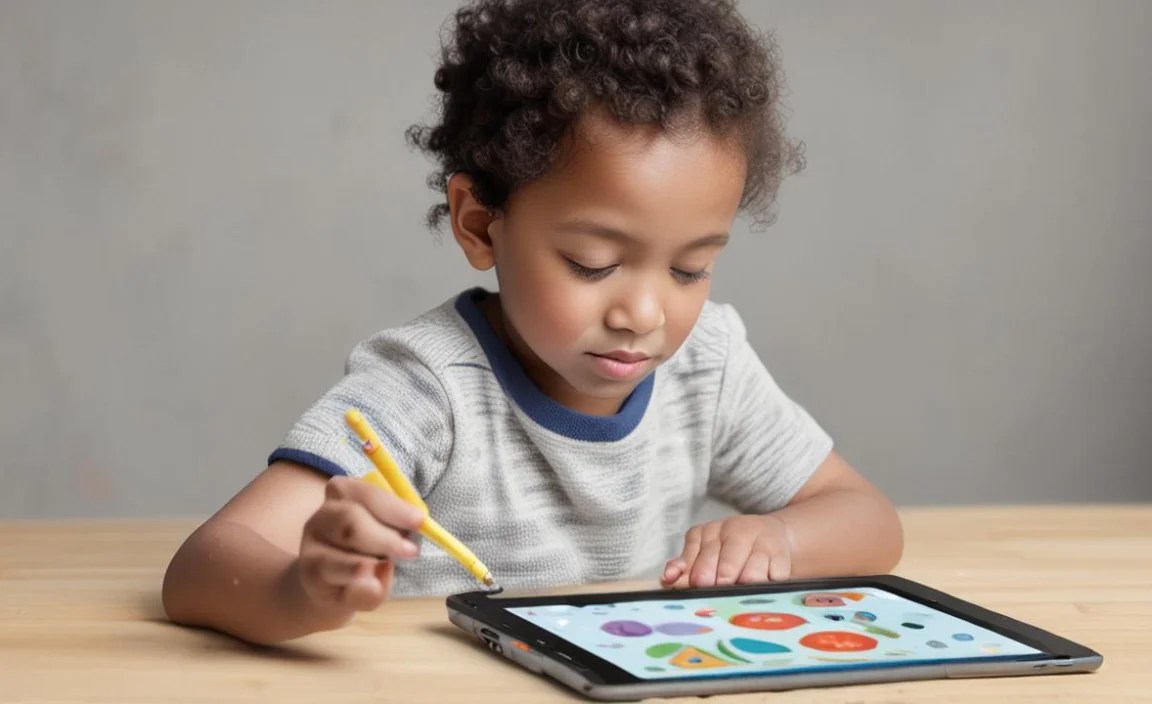
To help you visualize the differences, here’s a simplified comparison. Remember, prices can fluctuate, and older models become more affordable.
| Feature | Amazon Fire HD (Kids Edition) | Samsung Galaxy Tab A (Budget) | Generic Android Tablet | Refurbished iPad (Older Model) |
| :———————- | :——————————— | :——————————— | :——————————— | :——————————– |
| Price Range | $ – $$ | $$ – $$$ | $ | $$ – $$$ |
| Durability (Built-in) | Excellent (rugged case included) | Fair (needs separate case) | Poor (needs separate case) | Fair (needs separate case) |
| Parental Controls | Excellent (Amazon Kids) | Very Good (Samsung Kids + Google) | Good (Google Family Link) | Excellent (Apple Screen Time) |
| Pre-loaded Content | Excellent (Amazon Kids+ 1yr) | Good (Samsung Kids) | Minimal/None | Minimal/None |
| App Store Access | Amazon Appstore | Google Play Store | Google Play Store | Apple App Store |
| Ease of Use | Very Easy | Easy | Moderate | Easy |
| Performance | Good | Good | Basic/Sluggish | Very Good |
| Screen Quality | Good | Good | Basic | Very Good |
| Battery Life | Good | Good | Fair/Poor | Good |
| Recommended For | All-in-one, kid-focused solution | Families wanting Android flexibility | Extreme budget, with caution | Higher quality, value seekers |
Price Range Key: $ = Under $100, $$ = $100-$200, $$$ = $200+ (Note: This is general and can vary widely with sales and specific models.)
Frequently Asked Questions about Cheap Tablets for Preschool
Q1: Are cheap tablets safe for kids?
A1: Yes, cheap tablets can be very safe for kids, provided you set them up correctly with robust parental controls. Always prioritize devices with strong built-in child modes or ensure you can install and configure reliable parental control apps like Google Family Link. Adding a rugged case is also crucial for safety against physical damage.
Q2: What’s the difference between a regular tablet and a “kids” tablet?
A2: “Kids” tablets, like the Amazon Fire Kids Edition, are designed from the ground up with children in mind. They typically come with a durable case, a subscription to kid-friendly content, and simplified interfaces. Regular tablets are more versatile but require more setup (cases, parental controls, app selection) to make them suitable for young children.
Q3: How much should I expect to spend on a “cheap” tablet for preschool?
A3: You can find perfectly capable tablets for preschoolers in the $50 to $150 range, especially if you catch sales or consider older models. Amazon Fire tablets and budget Samsung Galaxy Tab models often fall into this sweet spot when on offer. Generic Android tablets can be found for under $100, but be sure to factor in the cost of a good case.
Q4: Can I use my old tablet for my preschooler?
A4: Absolutely! An old iPad or Android tablet can be a great option. You’ll want to reset it to factory settings to clear old data and then focus on installing a rugged case, setting up parental controls (like Google Family Link or Apple Screen Time), and downloading age-appropriate apps.
Q5: What are the best free educational apps for preschoolers on tablets?
A5: Some excellent free options include Khan Academy Kids, PBS Kids Games, ABC Kids Tracing, and Starfall (which has a lot of free content). Always check app reviews and permissions before downloading to ensure they are safe and educational.
Q6: How long should my preschooler use a tablet each day?
A6: Experts generally recommend limiting screen time for preschoolers. Organizations like the American Academy of Pediatrics suggest that for children aged 2-5, high-quality programming can be co-viewed with a parent, but focus should be on other activities. When screens are used, setting clear limits with parental controls (e.g., 30-60 minutes per day) is advisable, focusing on educational and interactive content.
Q7: What is the most important feature to look for in a cheap tablet for a preschooler?
A7: The most important feature is robust parental controls. This ensures your child is protected from inappropriate content and manages their screen time effectively. After that, durability and a simple, intuitive interface are critical.
Making the Smart Choice for Your Preschooler

Choosing a tablet for your preschooler doesn’t have to be an overwhelming or expensive task. By focusing on the essential features – durability, safety through parental controls, and age-appropriate content – you can find a fantastic device that supports your child’s learning and entertainment needs without costing a fortune.
Whether you opt for the all-in-one simplicity of an Amazon Fire Kids Edition, the flexibility of a Samsung Galaxy Tab with Samsung Kids mode, or even a carefully selected generic Android tablet or refurbished iPad, the key is thoughtful setup and ongoing supervision.
Invest a little time in researching and setting up your chosen tablet, and you’ll unlock a world of educational fun for your little one. Happy tablet hunting!

Your tech guru in Sand City, CA, bringing you the latest insights and tips exclusively on mobile tablets. Dive into the world of sleek devices and stay ahead in the tablet game with my expert guidance. Your go-to source for all things tablet-related – let’s elevate your tech experience!