Cheap Tablets for Procreate: Your Essential Guide. Finding affordable tablets that run Procreate is possible! Focus on screen size, RAM, and stylus support for a budget-friendly digital art experience.
Unlock Your Creativity Without Breaking the Bank
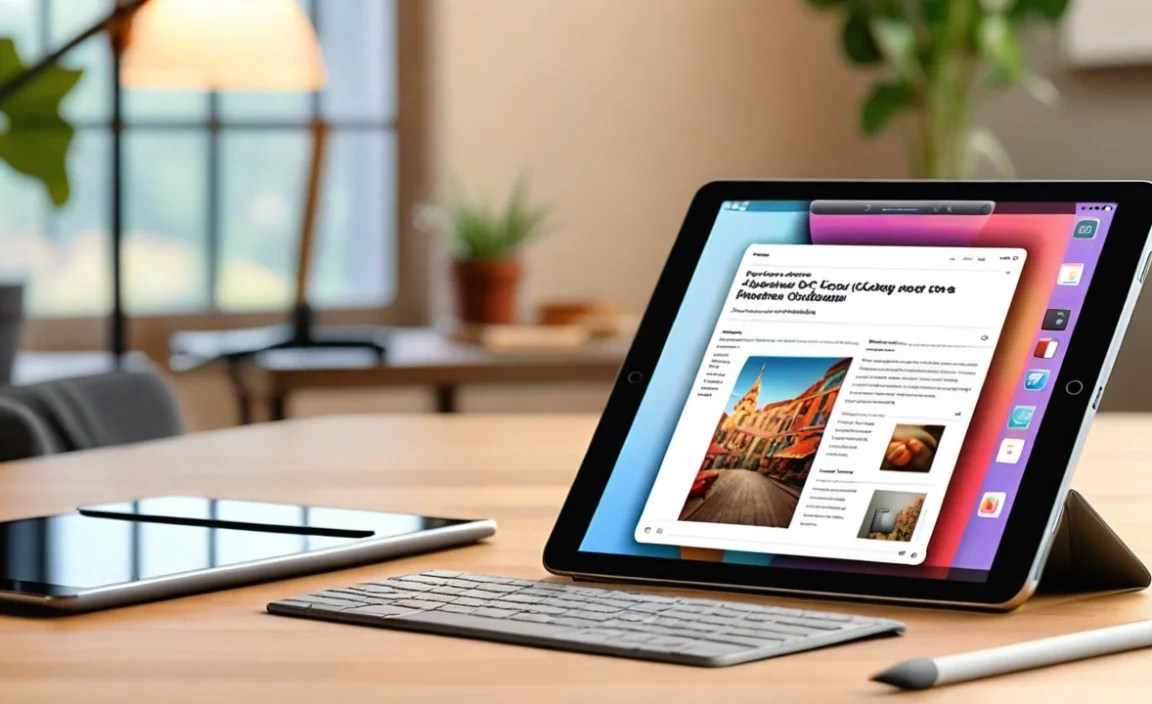
Dreaming of creating digital art with Procreate, but worried about the cost of a tablet? You’re not alone! Many aspiring artists think you need the latest, most expensive iPad to get started. That can feel frustrating and out of reach.
But here’s some good news: you absolutely don’t need a top-tier device. With the right knowledge, you can find a fantastic “cheap tablet for Procreate” that lets you explore your artistic side. This guide is here to help you navigate your options.
We’ll break down what really matters when choosing a budget-friendly tablet for drawing and painting. We’ll look at different types of tablets, key features to seek out, and some popular choices that won’t empty your wallet. Get ready to start your digital art journey with confidence!
Choosing the Right “Cheap Tablet for Procreate”
When we talk about “cheap tablets for Procreate,” it’s important to set expectations. For the uninitiated, Procreate is an iPad-exclusive app. This is a crucial point: if your heart is set on using Procreate, you will need an Apple device. This might sound like a blow to our “cheap tablet” quest, but stick with me! There are still ways to get an iPad at a lower cost, especially if you’re a beginner or don’t need the absolute latest features. We’ll be focusing on finding the most affordable iPads that can still run Procreate smoothly.
Understanding Procreate’s Requirements
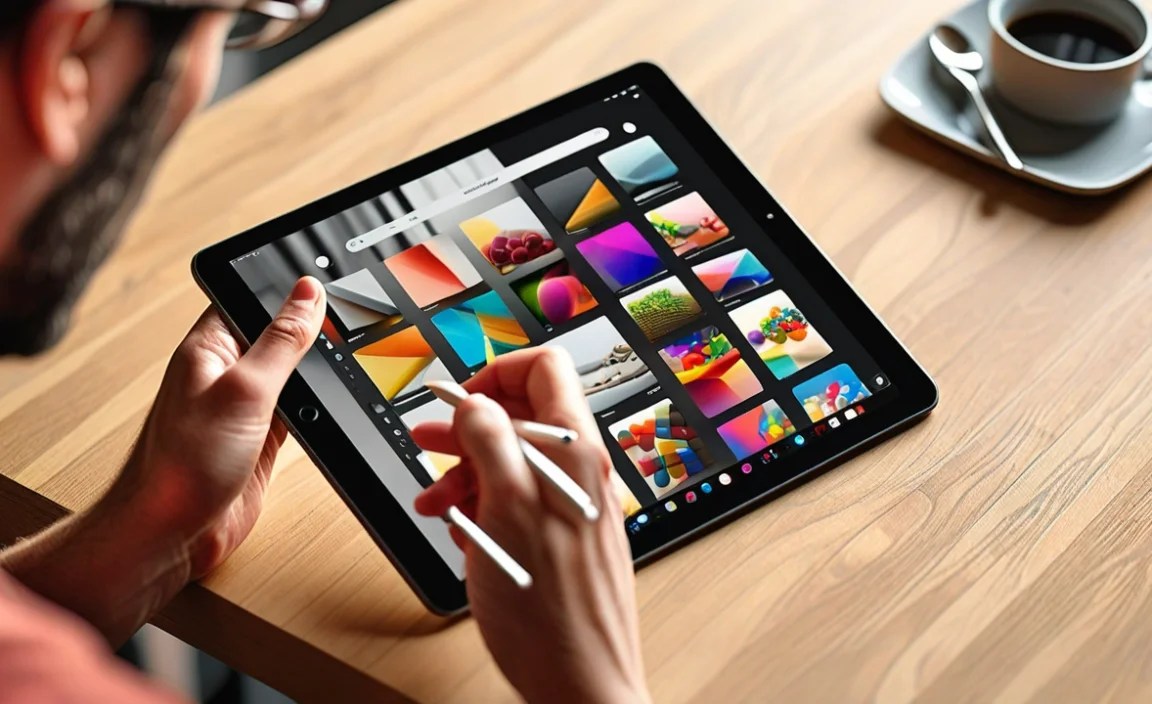
Before diving into tablet options, let’s quickly cover what Procreate needs to run well. The app itself is quite powerful, so it benefits from decent hardware:
- Processor: A faster chip means smoother brush strokes and quicker rendering.
- RAM (Memory): More RAM allows you to work with larger canvases and more layers without lag.
- Stylus Support: Procreate works best with a pressure-sensitive stylus, like the Apple Pencil. This is key for natural-feeling drawing and shading.
- Screen Size: While not a strict requirement, a larger screen offers more drawing real estate.
The good news for budget-conscious artists is that Procreate isn’t as demanding as some professional desktop software. Older iPad models that still meet the minimum requirements can be found at significantly lower prices, especially on the used or refurbished market.
The iPad Ecosystem: Your Procreate Home

As mentioned, Procreate is exclusively available on the Apple App Store. This means our search for “cheap tablets for Procreate” will primarily involve looking at various iPad models. Don’t let this discourage you; Apple often introduces new models, which can make slightly older ones more affordable. Plus, the iPad’s combination of hardware and software optimization for creative apps is hard to beat.
Finding Affordable iPads: Strategies for Savings
Securing an iPad that can run Procreate without a hefty price tag involves a few smart strategies:
- Refurbished Models: Apple themselves offer certified refurbished iPads. These devices have been thoroughly inspected, repaired (if necessary), cleaned, and come with a new battery and outer shell. They also include a standard one-year warranty, just like new products. This is often the best way to get a high-quality iPad at a reduced price.
- Older Generations: While the latest iPad Pro or Air models are expensive, older generations of the standard iPad or even previous iPad Air models are still very capable and can be found much cheaper. As long as they meet the current Procreate app requirements (which are fairly lenient for older versions), they are excellent choices.
- Sales and Promotions: Keep an eye out for sales events from major retailers (like Amazon, Best Buy, Walmart) or directly from Apple. Black Friday, holiday sales, and back-to-school promotions can offer significant discounts.
- Used Marketplaces: Sites like eBay, Swappa, or Facebook Marketplace can be great places to find deals. However, exercise caution. Always check seller ratings, read descriptions carefully, and try to buy from reputable sellers. Inspect the device thoroughly upon arrival.
Key iPad Models to Consider for Procreate on a Budget
Here are some iPad models that often pop up as excellent choices for budget-conscious Procreate users. Keep in mind that availability and pricing will vary based on sales, condition (new, refurbished, used), and storage size.
1. The Standard iPad (e.g., 9th Gen, 10th Gen)
The standard iPad is often the most budget-friendly entry point into the Apple ecosystem. While it might not have all the bells and whistles of the Pro models, it’s surprisingly capable for digital art.
- Pros: Most affordable option, good screen size for beginners, supports Apple Pencil (1st Gen for older models, USB-C or 2nd Gen for newer ones depending on model and adapter), long software support.
- Cons: Can feel a bit dated in design with thicker bezels on older models, may have less RAM or a slower processor than higher-end models, meaning fewer layers or slower performance on very complex brushes/canvases.
- Best For: Absolute beginners, hobbyists, students, those on the tightest budget.
Example: The 9th Gen iPad (released 2021) is still a fantastic value. It features a 10.2-inch Retina display and supports the first-generation Apple Pencil. You can often find this model refurbished for well under $250-300. The 10th Gen iPad (released 2022) moves to a USB-C port and a larger 10.9-inch display, and supports the Apple Pencil (USB-C) or the 1st Gen Apple Pencil with an adapter, making it a slightly more modern but pricier option. Procreate runs smoothly on both.
2. iPad Air (Older Generations, e.g., 3rd, 4th Gen)
The iPad Air bridges the gap between the standard iPad and the iPad Pro, offering a slimmer design, better performance, and often a more powerful processor, all usually at a lower price point than current Pro models.
- Pros: Slimmer design, often a faster processor than standard iPads of the same era, supports Apple Pencil (1st Gen for 3rd Gen Air, 2nd Gen for 4th Gen Air), better display technology on some models.
- Cons: More expensive than the standard iPad, may not have Pro-level features like ProMotion (120Hz refresh rate).
- Best For: Intermediate artists, those wanting a more premium feel and performance without the Pro price tag.
Example: The iPad Air 3rd Gen (2019) supports the 1st Gen Apple Pencil and is a very capable device for Procreate. The iPad Air 4th Gen (2020) is even better, supporting the much more convenient 2nd Gen Apple Pencil wirelessly. Both can often be found at attractive prices, especially refurbished or used. While newer Air models exist, these older ones are where the real budget gold lies for Procreate.
3. Refurbished iPad Mini (e.g., 5th Gen, 6th Gen)
If screen real estate isn’t your top priority and portability is, then a refurbished iPad Mini could be an excellent, surprisingly affordable choice.
- Pros: Extremely portable, powerful processors for their size, supports Apple Pencil (5th Gen uses 1st Gen, 6th Gen uses 2nd Gen), great for on-the-go sketching.
- Cons: Small screen can be limiting for detailed work or complex canvases, can hold fewer layers due to RAM limitations on some older models compared to larger iPads.
- Best For: Sketching, note-taking, portable art creation, artists who prefer smaller devices.
Example: The iPad Mini 5th Gen (2019) is a fantastic little device that runs Procreate perfectly. The 6th Gen (2021) is even more capable with a larger screen and USB-C, but will command a higher price. Refurbished Mini models can offer incredible value if you don’t mind the smaller size.
Essential Accessories for Your Budget Procreate Setup
Once you’ve chosen your tablet, you’ll need a few key accessories to make the most of Procreate. The good news is that you can often find budget-friendly options for these too.
1. The Apple Pencil
This is arguably the most critical accessory for Procreate. Pressure and tilt sensitivity are game-changers for digital art, mimicking real art tools much more effectively than a finger or a basic capacitive stylus.
- First-Generation Apple Pencil: Works with older iPads (like the 6th, 7th, 8th, 9th Gen iPads, and 3rd Gen iPad Air). It charges via a lightning port, which can be a bit clunky. You might find these used for a decent price.
- Second-Generation Apple Pencil: Works with newer iPads (like the 4th Gen iPad Air, 6th Gen iPad Mini, and iPad Pro models from 2018 onwards). It charges magnetically by snapping to the side of the iPad, which is much more convenient. These are pricier but still worth it if your budget allows.
- Apple Pencil (USB-C): A newer, more affordable option that bridges the gap. It offers pressure sensitivity and works across a wide range of USB-C iPads. It charges and pairs via USB-C.
Budget Tip: Look for used or refurbished Apple Pencils! They often perform just as well as new ones and can save you a significant amount of money.
2. Screen Protectors
A screen protector is a smart investment. It protects your tablet’s screen from scratches that can occur from stylus use over time. Some artists prefer “paper-like” screen protectors that add a bit of friction, giving the stylus a feel closer to drawing on paper.
- Tempered glass protectors offer good scratch resistance.
- “Paper-like” film protectors can enhance the drawing experience for some.
You can find decent screen protectors for $10-$20 online.
3. A Comfortable Stand or Case with Stand
Drawing for long periods directly on a flat tablet can be uncomfortable for your wrists and neck. A small, adjustable tablet stand can make a huge difference.
- Look for stands that offer adjustable angles.
- Some tablet cases have built-in stands.
Basic stands can be found for around $15-$30.
Alternatives to iPad for Digital Art (with Caveats)
While Procreate is iPad-only, it’s important to acknowledge that other tablets exist that are capable of digital art, often at a lower price point. These wouldn’t run Procreate, but they have their own powerful art apps.
Windows Tablets (e.g., Microsoft Surface Go, entry-level Surface Pro)
Windows tablets offer more versatility as full computers and have access to powerful art software like Clip Studio Paint, Adobe Photoshop, and Krita (a free, open-source option). You’ll need to purchase a stylus separately (like the Surface Pen), and these can add to the cost.
- Pros: Full PC functionality, wide range of powerful art software, often more affordable than iPads for comparable specs (if you install free software), versatile.
- Cons: Can be more complex for beginners, art apps may not have the same smooth, touch-first interface as Procreate, stylus can be an extra cost, screen-to-body ratio might be less optimized for drawing.
- Best For: Artists who also need a full computer, those who prefer Windows, users already invested in desktop art software.
Android Tablets (e.g., Samsung Galaxy Tab A series, some Lenovo tablets)
Entry-level Android tablets can be very cheap. You can run apps like Adobe Fresco or Krita. However, many cheaper Android tablets lack robust stylus support (pressure sensitivity is rare on budget models) and often have less optimized performance for demanding art apps.
- Pros: Can be very inexpensive, runs Android apps.
- Cons: Limited selection of capable art apps with good stylus support, lower-end models struggle with performance, stylus experience is often inferior to iPad + Apple Pencil.
- Best For: Casual doodling, artists willing to compromise on stylus features or software.
Important Note: For a dedicated digital art experience similar to Procreate, the iPad remains the dominant platform, even when seeking budget options. If your goal is specifically Procreate, stick to iPads.
What to Look for in a “Cheap Tablet for Procreate” (Recap)
When you’re on the hunt for your budget-friendly Procreate companion, keep these key specs in mind:
- Compatibility: Ensure the iPad model can download and run the latest version of Procreate. Check Apple’s Procreate system requirements. As of late 2023, Procreate generally requires iPadOS 15.4 or later. Older models that can be updated are your best bet.
- RAM: Aim for at least 4GB of RAM. More is always better for Procreate, allowing for more layers and larger canvases. iPads typically don’t advertise RAM, but performance benchmarks can give you an idea. Generally, newer generations and higher-tier models (Air, Pro) will have more.
- Storage: Procreate itself isn’t huge, but your artwork will accumulate. 64GB is a decent starting point for beginners, but 128GB or more is recommended if you plan to create a lot of art or use other media.
- Stylus Support: Verify which Apple Pencil generation the iPad model supports. This will influence your accessory purchase and budget.
- Screen Size: A 10-inch screen or larger is generally recommended for comfortable drawing.
Table: Comparing Budget iPad Options for Procreate
Here’s a quick comparison of older but still viable iPad models that can run Procreate, focusing on their appeal as budget options:
| iPad Model | Release Year | Screen Size | Apple Pencil Support | Typical Refurbished Price Range (USD) | Procreate Suitability |
|---|---|---|---|---|---|
| iPad (9th Gen) | 2021 | 10.2 inches | 1st Gen | $200 – $300 | Excellent entry-level |
| iPad Air (3rd Gen) | 2019 | 10.5 inches | 1st Gen | $200 – $350 | Great performance for price |
| iPad Mini (5th Gen) | 2019 | 7.9 inches | 1st Gen | $180 – $300 | Portable sketching, best for smaller works |
| iPad (10th Gen) | 2022 | 10.9 inches | USB-C / 1st Gen (with adapter) | $350 – $450 | Modern design, good portability, slightly higher budget |
| iPad Air (4th Gen) | 2020 | 10.9 inches | 2nd Gen | $350 – $450 | Excellent all-rounder, better stylus integration |
Note: Prices are estimates for refurbished models and can fluctuate significantly.*
Where to Buy Budget iPads and Accessories
To find the best deals on “cheap tablets for Procreate,” explore these sources:

Your tech guru in Sand City, CA, bringing you the latest insights and tips exclusively on mobile tablets. Dive into the world of sleek devices and stay ahead in the tablet game with my expert guidance. Your go-to source for all things tablet-related – let’s elevate your tech experience!