Cheap tablets for Procreate don’t have to sacrifice quality. Our guide reveals the best affordable options, focusing on performance, screen quality, and stylus support essential for digital art, ensuring you can create stunning artwork without breaking the bank.
Cheap Tablets for Procreate: Essential Buying Guide
Dreaming of creating digital art with Procreate but worried about the cost? You’re not alone! Many aspiring digital artists think they need the most expensive tablet to get started, but that’s simply not true. Finding the right budget-friendly tablet for Procreate can feel overwhelming with all the specs and options available. Don’t let confusion hold you back from unleashing your creativity. This guide is here to help!
We’ll break down exactly what to look for in a tablet that won’t drain your wallet but will still handle Procreate like a champ. Get ready to discover the secret to affordable digital art and start your creative journey today. We’ll cover everything from essential features to specific model recommendations, making your tablet hunt easy and effective.
Why Procreate is a Popular Choice for Artists

Procreate is a powerhouse on its own, and its popularity among artists speaks volumes. But why is it so beloved? Let’s dive in:
- Intuitive Interface: Even beginners find Procreate easy to navigate. Its design is clean and user-friendly, letting you focus on your art, not on figuring out complex menus.
- Powerful Features: Despite its simplicity, Procreate is packed with professional-grade features. Think advanced brush engines, seamless layer management, essential blend modes, and a robust selection of tools.
- Smooth Performance: Optimized for Apple’s hardware, Procreate runs incredibly smoothly, allowing for complex multitasking and large canvas sizes without lag – a crucial factor for any digital art app.
- Constant Updates: The Procreate team is always adding new features and improvements, keeping the app cutting-edge and evolving with artists’ needs.
- One-Time Purchase: Unlike many subscription-based apps, Procreate is a one-time purchase. This makes it incredibly cost-effective in the long run for artists.
What to Look For in a Tablet for Procreate on a Budget

When hunting for a cheap tablet that can run Procreate smoothly, a few key specs stand out. You don’t need the absolute top-of-the-line to create amazing art, but you do need to pay attention to these core components to avoid frustration:
Processor and RAM: The Brains of the Operation
This duo is crucial for how fast and how smoothly your tablet performs, especially with demanding apps like Procreate.
- Processor (CPU): Think of this as the tablet’s engine. A faster processor means quicker app loading, smoother brush strokes, and the ability to handle more complex artwork without stuttering. For Procreate, aim for a tablet with a reasonably modern and capable processor.
- RAM (Random Access Memory): This is like the tablet’s short-term memory. More RAM allows your tablet to keep more information readily available, which is vital for multitasking and handling large files and many layers in Procreate. Aim for at least 4GB of RAM, but 6GB or more is even better for a smoother experience.
Screen Quality: Your Digital Canvas
The screen is where your art comes to life, so its quality matters!
- Resolution: Higher resolution means sharper images and finer details. Look for Full HD (1920×1080) or higher.
- Color Accuracy: This is super important for artists! You want a screen that displays colors accurately, so what you see on your tablet is close to how others will see it on different devices. Look for tablets that mention good color gamut coverage (like 90-100% sRGB).
- Screen Size: While not strictly a performance spec, a larger screen (10 inches or more) offers more drawing space and feels more comfortable for extended art sessions. However, smaller screens can also work if you’re looking to save money or prioritize portability.
- Screen Brightness & Glare: If you plan to work outdoors or in bright rooms, a bright screen with good anti-glare properties will make a big difference.
Stylus Support: Your Digital Pencil
Procreate works best with a stylus that offers pressure sensitivity. This means the harder you press, the thicker or darker your lines become, mimicking real drawing tools.
- Pressure Sensitivity: This is non-negotiable for a good Procreate experience. It allows for expressive lines and nuanced strokes.
- Palm Rejection: This is a game-changer! It allows you to rest your palm on the screen while drawing without it registering as input. Most modern tablets and their compatible styluses offer this.
- Stylus Included vs. Separate Purchase: Some tablets come with a stylus, while others require you to buy one separately. Factor this into your budget!
Storage Space: For Your Artworks
Digital art files, especially with many layers, can take up a lot of space. Procreate itself also needs a decent chunk of storage.
- Minimum: Aim for at least 64GB.
- Recommended: 128GB or more will give you much more breathing room and prevent you from constantly worrying about running out of space.
- Expandable Storage: Some Android tablets offer microSD card slots, which can be a budget-friendly way to increase storage later.
Operating System: iOS, Android, or Windows?
This is perhaps the biggest decision, as Procreate is currently only available on iPadOS.
- iPadOS (Apple): Procreate is an iPad-exclusive app. This means if you want to use Procreate, you must get an iPad. While “cheap” iPads aren’t always the lowest price point in the tablet market, older models or refurbished units can be excellent budget-friendly options.
- Android: Many fantastic and affordable Android tablets exist from brands like Samsung, Lenovo, and Amazon. However, Procreate is not available on Android. If you’re set on Procreate, Android tablets are not an option. You can use other drawing apps like Infinite Painter, Clip Studio Paint, or Autodesk Sketchbook on Android.
- Windows: Similar to Android, Procreate is not available on Windows. Drawing apps like Sketchbook, Clip Studio Paint, or Adobe Photoshop can be used on Windows tablets or 2-in-1 laptops.
Important Note: This guide is primarily focused on finding budget-friendly iPads that can run Procreate, as that’s the main requirement for this specific app.
Best Budget-Friendly iPads for Procreate
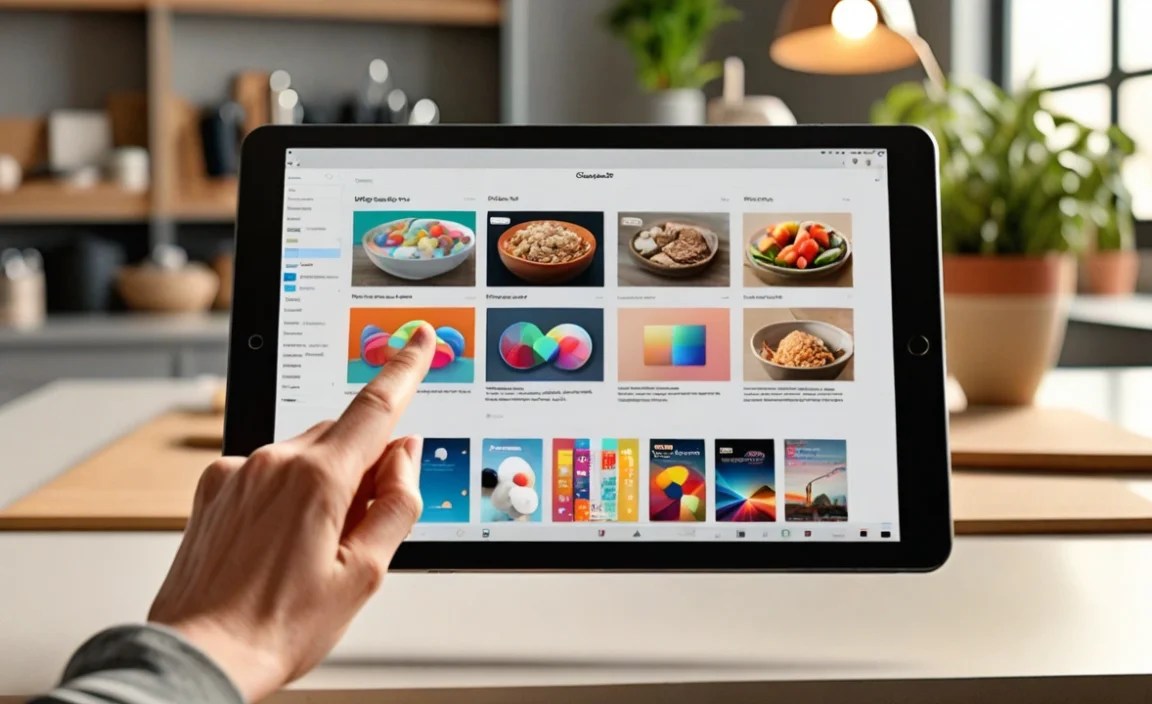
Since Procreate is exclusively on iPadOS, your “cheap tablet” search will naturally lead you to Apple’s lineup. The key is to look for models that offer sufficient power for Procreate without being the latest flagship. Here are your best bets:
The Standard iPad (Your Go-To Budget Option)
The standard, entry-level iPad is consistently updated and often offers the best bang for your buck for Procreate users on a budget. Each new generation typically includes performance improvements that keep it viable for drawing apps for years.
- Why it’s great: It runs Procreate flawlessly, has decent screen size, and supports the Apple Pencil.
- What to look for:
- Storage: Opt for at least 64GB, but 128GB is preferable if your budget allows.
- Generation: Newer generations (e.g., 9th, 10th generation) are best for longevity and performance. The 9th gen, in particular, is often available at a fantastic price point.
- Apple Pencil Support: Ensure it supports the Apple Pencil (1st or USB-C generation, depending on the iPad model).
- Pros: Most affordable new iPad, excellent Procreate performance, widely available.
- Cons: Base models can have limited storage, screen isn’t laminated (meaning a slight gap between glass and display, which can be less ideal but not a deal-breaker for many).
Refurbished or Older iPads: Smart Savings
Apple’s Certified Refurbished program is a fantastic way to get a more powerful iPad for less. You can often find models that were once premium now at a significantly reduced price.
- Why it’s great: You can get a higher-spec iPad (like an iPad Air or even an older Pro model) for the price of a new standard iPad.
- What to look for:
- Processor: Look for models with at least an A10 Fusion chip or newer (e.g., A12 Bionic, A13 Bionic). These are more than capable of running Procreate smoothly.
- RAM: Older Pros might have 4GB of RAM, which is still good for Procreate.
- Apple Pencil Support: Verify compatibility with either the 1st gen or 2nd gen Apple Pencil.
- Storage: Prioritize at least 128GB if possible.
- Condition: Apple Certified Refurbished products come with a new battery, new outer shell, and a one-year warranty, making them a very safe purchase.
- Pros: Significant cost savings, access to higher-tier features (better screens, Apple Pencil 2 support), reliable with warranty.
- Cons: Availability varies, battery health is guaranteed but might not be 100% “new.”
iPad Mini for Portability on a Budget
While often not the cheapest, an older or refurbished iPad Mini can be a fantastic, portable option for Procreate artists. The trade-off is screen size for portability.
- Why it’s great: Extremely portable for on-the-go sketching, still packs a punch with capable processors in newer generations.
- What to look for:
- Generation: Look for at least the 5th generation (released in 2019) or newer for a good balance of performance and Apple Pencil support.
- Processor: A12 Bionic or better is recommended.
- Stylus: Supports Apple Pencil (1st Gen for 5th gen iPad Mini, 2nd Gen for 6th gen).
- Pros: Ultra-portable, great for travel or quick sketches, good performance in newer models.
- Cons: Small screen size can be limiting for detailed work; often pricier than the standard iPad.
Considering the Apple Pencil
No discussion about Procreate on iPad is complete without mentioning the Apple Pencil. While there’s a cost, it’s essential for the app’s functionality.
- Apple Pencil (1st Generation): Compatible with older standard iPads and some older Air models. Charges via Lightning (you plug the pencil into the iPad’s port).
- Apple Pencil (2nd Generation): Compatible with newer iPad Air, iPad Pro, and iPad Mini models. Attaches magnetically to the side of the iPad for charging and pairing. Offers a slightly more refined feel for some users.
- Apple Pencil (USB-C): A more budget-friendly option that works with a wider range of iPads, including the 10th generation standard iPad. It’s a good middle ground if the 1st gen feels too clunky and the 2nd gen is too expensive, but it lacks some of the advanced features of the other two.
Budget Tip: Keep an eye out for bundles or sales that might include an Apple Pencil. Refurbished Apple Pencils can also be a good buy, but always ensure they are from a reputable source and come with a warranty.
Alternative Option: If Procreate Isn’t Exclusive (Android/Windows)
If you’re on a tighter budget and Procreate isn’t a strict requirement, or if you already own an Android or Windows device, there are excellent alternatives that offer robust drawing experiences.
Best Budget Android Tablets for Drawing
Android tablets offer incredible value, with many capable devices available at lower price points than iPads. You’ll need to choose a drawing app compatible with Android, but many are just as powerful as Procreate.
- Samsung Galaxy Tab A Series / Lite Series: These are Samsung’s more budget-friendly lines. Look for models with at least 3GB RAM (4GB+ is better) and a decent processor. They often support S Pen input (Samsung’s stylus), which offers great pressure sensitivity and palm rejection.
- Lenovo Tab Series: Lenovo offers a range of affordable tablets. The M series or P series can be good options. Check for screen resolution and RAM. Some Lenovo tablets also support active styluses.
- Amazon Fire Tablets: While the cheapest option, Fire tablets are generally not recommended for serious digital art. Their performance, screen quality, and stylus support are usually too limited for apps like Clip Studio Paint or Infinite Painter.
Recommended Android Drawing Apps:
- Infinite Painter: Highly recommended, often considered the closest Android alternative to Procreate with a vast array of brushes and tools.
- Clip Studio Paint: A professional-grade art and comic creation app with a powerful Android version. Offers a free trial and subscription options.
- Autodesk Sketchbook: Free and excellent for sketching and drawing, with a clean interface.
- Krita: A free, open-source painting program that’s very powerful but has a steeper learning curve.
Key Android Considerations:
- Stylus: Make sure the tablet explicitly supports an active stylus (like Samsung’s S Pen or a Wacom AES/EMR compatible stylus) for pressure sensitivity. Generic capacitive styluses will not work for art.
- Performance: Prioritize RAM (4GB+) and a processor that isn’t too old for the best experience.
- Screen: Look for decent resolution (FHD is good) and good color reproduction if possible.
Windows Tablets and 2-in-1s for Digital Art
Windows devices offer a full desktop operating system, meaning you can run powerful desktop art software. They can be more expensive, but budget options exist, especially if you look at older or convertible models.
- Microsoft Surface Go: The “Go” line is Microsoft’s budget-friendly Surface offering. It runs Windows and can be paired with the Surface Pen for drawing. Performance can be a bit limited on the lowest specs, so aim for models with at least 8GB of RAM.
- Various Windows 2-in-1 Laptops: Many manufacturers offer convertible laptops that function as tablets when the keyboard is folded back. These can sometimes be found on sale or as older models at competitive prices.
Recommended Windows Drawing Apps:
- Clip Studio Paint: The desktop version is incredibly feature-rich.
- Adobe Photoshop/Illustrator: Industry standards, but require a subscription.
- Krita: Free and powerful, a great option for those on a strict budget.
- Autodesk Sketchbook: Also available on Windows.
- Autodesk Painter: A professional digital painting application with a vast array of brushes.
Key Windows Considerations:
- Pen Support: Ensure the device explicitly supports a digital pen (like the Surface Pen, Wacom AES/EMR pens, or USI pens) and has good pressure sensitivity.
- RAM: 8GB is strongly recommended for a smooth experience with desktop art software.
- Processor: An Intel Core i3 or i5 equivalent (or newer) is generally a good starting point.
<

Your tech guru in Sand City, CA, bringing you the latest insights and tips exclusively on mobile tablets. Dive into the world of sleek devices and stay ahead in the tablet game with my expert guidance. Your go-to source for all things tablet-related – let’s elevate your tech experience!