Expert-Approved Tablets For Medical Students: Essential Guide
Choosing the right tablet for medical school can feel overwhelming! This guide, from your friend at Tabletzoo, breaks down the best expert-approved options. We’ll cut through the jargon and help you find a reliable study companion that fits your needs and budget, ensuring you can focus on what truly matters – your medical education.
Welcome, future doctors! Navigating the world of medical school is a journey filled with dense textbooks, complex diagrams, and a constant need for reliable study tools. The digital age offers incredible advantages, with tablets becoming indispensable for many students. But with so many choices, how do you pick the one that’s truly going to help you succeed without breaking the bank? It can feel like a daunting task, but don’t worry! I’m here to help. We’ll walk through the essential features to look for and highlight some top-tier, expert-approved tablets perfect for the demanding life of a medical student. Get ready to find your perfect digital study partner!
Expert-Approved Tablets For Medical Students: Your Essential Guide
As a medical student, your tablet isn’t just a gadget; it’s a powerhouse for learning. It needs to handle everything from annotating PDFs of anatomy atlases to running specialized medical apps and keeping you connected. But what makes a tablet truly “expert-approved” for this demanding field? Let’s dive in.
Why a Tablet is a Must-Have for Medical Students

Gone are the days of lugging around stacks of heavy textbooks. Tablets have revolutionized how medical students study, offering portability, interactivity, and access to a wealth of resources.
- Portability: Carry your entire library, lecture notes, and study guides in one lightweight device.
- Annotation Tools: Directly mark up PDFs, PDFs of lecture slides, and digital textbooks.
- Access to Medical Apps: Run specialized apps for anatomy, diagnostics, drug references, and more.
- Note-Taking Efficiency: Seamlessly switch between typing notes and drawing diagrams with a stylus.
- Collaboration: Share notes, collaborate on study groups, and access cloud-based resources easily.
- Multimedia Learning: Watch educational videos, view 3D anatomy models, and engage with interactive content.
Key Features to Look For in a Medical Student Tablet

Not all tablets are created equal, especially when it comes to the rigor of medical school. Here’s what to prioritize:
1. Screen Quality and Size
You’ll be spending hours looking at this screen, dissecting complex images and reading dense text.
- Resolution: Aim for at least Full HD (1920 x 1080 pixels) for crisp text and detailed images. Higher resolutions (like those on iPads Pro or Samsung Galaxy Tab S series) offer even better clarity, crucial for anatomical illustrations.
- Size Matters: A 10-inch or larger screen is generally recommended. This provides enough space to comfortably read PDFs, take notes, and view complex diagrams without feeling cramped. Smaller screens can feel restrictive for heavy study use.
- Color Accuracy: While not as critical as for graphic designers, good color reproduction helps in understanding diagnostic imaging and anatomical variations.
2. Performance and Storage
Your tablet needs to be zippy and have enough space for your growing digital library.
- Processor: Look for a tablet with a capable processor (e.g., Apple’s A-series chips, Qualcomm Snapdragon high-end series) that can handle multiple apps running simultaneously, complex simulations, and smooth video playback.
- RAM: 4GB of RAM is a good minimum, but 6GB or 8GB will offer a much smoother multitasking experience, essential for jumping between note-taking apps, research articles, and medical reference materials.
- Storage: Medical school generates a LOT of data. Aim for at least 128GB of internal storage. If you plan on storing large video lectures, extensive reference materials, or high-resolution images, consider 256GB or higher, or a model with expandable storage (microSD card slot), though this is less common on premium tablets.
3. Stylus Support and Note-Taking Capabilities
Digital handwriting is a game-changer for medical students.
- Stylus Inclusion/Compatibility: Does the tablet come with a stylus, or is one available as an accessory? How responsive is it? Look for features like pressure sensitivity and tilt support for a natural drawing and writing feel.
- Note-Taking Apps: Consider the pre-installed or recommended note-taking apps. Features like handwriting-to-text conversion, shape recognition, PDF import/markup, and organization tools are invaluable.
- Palm Rejection: This technology allows you to rest your hand on the screen while writing without it interfering with the stylus input.
4. Battery Life
Long study sessions and days on campus demand a tablet that can keep up.
- All-Day Power: Look for tablets officially rated for 8-10 hours of continuous use or more. Real-world usage will vary, but a solid battery ensures you won’t be hunting for an outlet during crucial lectures or study marathons.
- Fast Charging: A convenient feature that can quickly top up your battery when you have a short break.
5. Ecosystem and Software
The operating system and its associated app store play a significant role.
- iOS (Apple iPadOS): Known for its user-friendly interface, vast app selection (including many specialized medical apps), and strong stylus integration with the Apple Pencil.
- Android: Offers more customization, a wider range of hardware options at various price points, and robust multitasking features, especially on Samsung’s DeX-enabled tablets.
- Windows: Best if you need a full desktop experience and compatibility with Windows-specific desktop medical software or research tools.
- App Availability: Before deciding, do a quick search for essential medical apps you anticipate using (e.g., anatomy viewers, diagnostic simulators, drug databases) on both the App Store and Google Play to ensure they are available and well-supported on your chosen platform.
6. Durability and Build Quality
Medical school can be tough on devices. While you won’t be throwing your tablet around, a sturdy build is a plus. Opting for a case is always recommended, but the device itself should feel solid.
Top Expert-Approved Tablets for Medical Students

Based on performance, features, and suitability for academic use, here are some of the best tablets you should consider.
1. Apple iPad Pro (M2 Chip, 12.9-inch)
The iPad Pro is a powerhouse that excels in nearly every category, making it a top choice for medical students who need the best.
- Pros:
- Stunning Liquid Retina XDR display (12.9-inch) with ProMotion for smooth scrolling and drawing.
- Incredibly powerful M2 chip for seamless multitasking and demanding applications.
- Excellent Apple Pencil 2nd Gen support with low latency and pressure sensitivity.
- Vast ecosystem of high-quality apps, including many professional-grade medical ones.
- Fantastic battery life.
- Premium build quality.
- Cons:
- High price point, especially with Apple Pencil and Magic Keyboard accessories.
- Limited internal storage upgrade options (no microSD).
- iPadOS can still feel less flexible than a full desktop OS for some tasks.
- Ideal For: Students who want the absolute best performance, display, and app experience, and are willing to invest.
2. Apple iPad Air (M2 Chip, 11-inch or 13-inch)
A brilliant balance of performance, features, and price. It offers much of the iPad Pro’s magic at a more accessible cost.
- Pros:
- Powerful M2 chip offers excellent performance for most medical school tasks.
- Great Retina display, suitable for reading and annotating.
- Supports Apple Pencil 2nd Gen for effective note-taking and markup.
- Lightweight and portable.
- Access to the robust iPadOS app ecosystem.
- Cons:
- Display is not as advanced as the iPad Pro (no ProMotion or mini-LED).
- Basic storage starts at 128GB, which might be tight for some.
- Apple Pencil and keyboard are still additional costs.
- Ideal For: Students seeking a premium tablet experience with top-tier performance without the absolute top-tier price of the Pro model.
3. Samsung Galaxy Tab S9 Ultra
Samsung’s flagship tablet offers an expansive screen and an Android experience that’s hard to beat for productivity.
- Pros:
- Massive 14.6-inch Dynamic AMOLED 2X display – incredibly immersive for research and viewing complex visuals.
- Includes the S Pen stylus in the box, offering excellent writing and drawing capabilities.
- Powerful Snapdragon 8 Gen 2 for Galaxy processor handles multitasking with ease.
- Samsung DeX mode provides a desktop-like interface for enhanced productivity.
- Ample storage options and microSD card support for expansion.
- Excellent build quality.
- Cons:
- The sheer size might be cumbersome for some to carry daily.
- Android app selection can sometimes lag behind iPadOS for specialized professional apps.
- Higher price point.
- Ideal For: Students who love a large screen for multitasking, appreciate Android’s flexibility, and want a capable pen experience out-of-the-box.
4. Samsung Galaxy Tab S9 / S9+
These offer a more manageable size than the Ultra while retaining much of the power and premium features.
- Pros:
- Vibrant Dynamic AMOLED 2X displays (11-inch for S9, 12.4-inch for S9+).
- Includes the S Pen stylus.
- Powerful Snapdragon 8 Gen 2 for Galaxy processor.
- Samsung DeX for desktop-like productivity.
- Excellent build and water resistance (IP68).
- MicroSD card support for storage expansion.
- Cons:
- The base S9 model has a lower refresh rate display than the S9+ and Ultra.
- Android app ecosystem may not have every niche medical app found on iPadOS early on.
- Ideal For: Those who want a premium Android tablet experience with excellent display and stylus capabilities in more standard sizes.
5. Microsoft Surface Pro 9
For students who need a full Windows experience and the versatility of a laptop-tablet hybrid.
- Pros:
- Runs full Windows 11, offering unparalleled software compatibility with desktop applications.
- Can function as both a tablet and a laptop with the detachable Surface Keyboard (sold separately).
- Excellent touchscreen and stylus (Surface Pen, sold separately) experience for note-taking and drawing.
- High-resolution PixelSense display.
- Powerful Intel Core processors for demanding tasks.
- Cons:
- Expensive, especially when factoring in the essential keyboard and stylus.
- Battery life can be inconsistent depending on usage and configuration.
- Can be heavier and bulkier than traditional tablets.
- Ideal For: Students who need native Windows software, a true laptop replacement, and prefer a keyboard-centric workflow with tablet capabilities.
6. Google Pixel Tablet
A competitively priced option that shines with its smart home integration and decent performance.
- Pros:
- Included charging speaker dock transforms it into a smart display.
- Smooth performance for everyday tasks thanks to the Tensor G2 chip.
- Clean Android experience.
- Good build quality and display.
- More affordable than premium offerings.
- Cons:
- Stylus support is sold separately and performance isn’t as refined as Apple Pencil or S Pen.
- Storage options are limited (128GB or 256GB).
- Not as powerful as the top-tier iPad Pro or Galaxy Tab S series for heavy multitasking.
- Ideal For: Budget-conscious students looking for a versatile tablet with a great screen for consumption and basic note-taking, who also appreciate smart home features.
Comparison Table: Medical Student Tablets
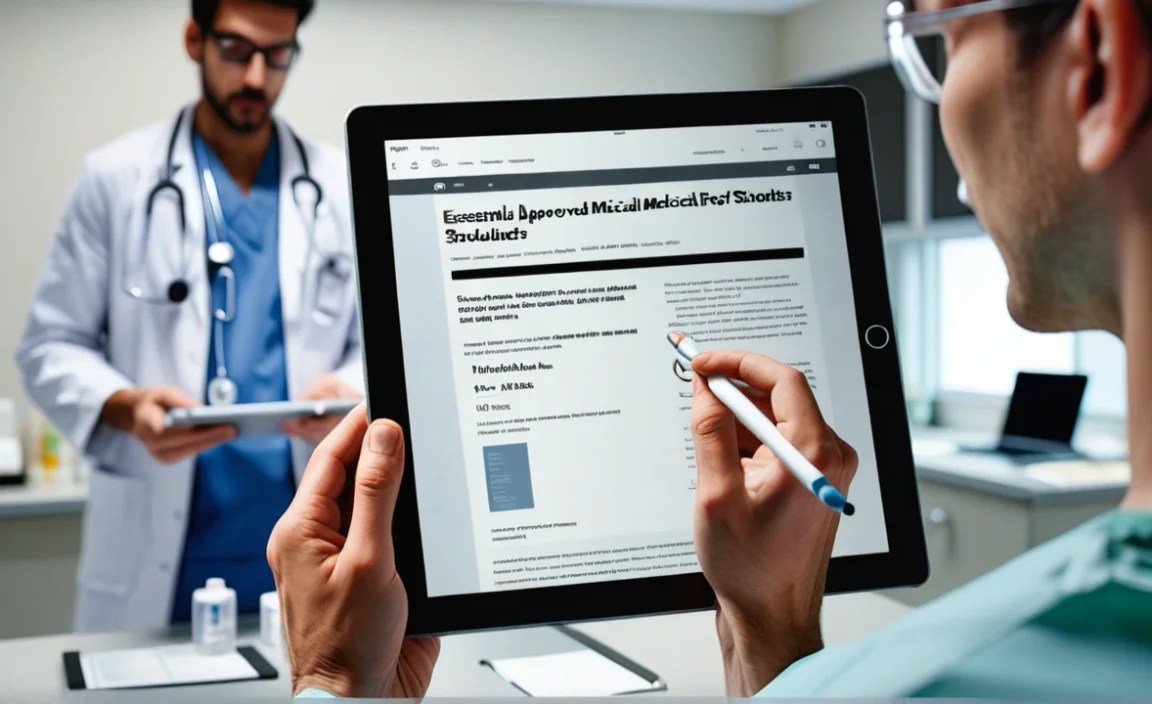
Here’s a quick look at how some of these top contenders stack up.
| Tablet Model | Display Size | Stylus Included? | Operating System | Starting Storage | Key Strength for Med Students | Price Range (Approx.) |
|---|---|---|---|---|---|---|
| iPad Pro (12.9″) | 12.9 inches | No (Sold Separately) | iPadOS | 128GB | Unmatched performance, stunning display, vast app ecosystem. | $$$$ |
| iPad Air (11″ / 13″) | 11 or 13 inches | No (Sold Separately) | iPadOS | 128GB | Excellent performance-to-price ratio, great for notes and reading. | $$$ |
| Samsung Galaxy Tab S9 Ultra | 14.6 inches | Yes (S Pen) | Android | 256GB | Huge immersive screen, productive DeX mode, excellent stylus. | $$$$ |
| Samsung Galaxy Tab S9/S9+ | 11″ / 12.4″ | Yes (S Pen) | Android | 128GB | Premium Android experience, great display and stylus features. | $$$ |
| Microsoft Surface Pro 9 | 13 inches | No (Sold Separately) | Windows 11 | 128GB | Full Windows capability, laptop-tablet hybrid. | $$$$ |
| Google Pixel Tablet | 10.95 inches | No (Sold Separately) | Android | 128GB | Great value, smart home features, decent performance. | $$ |
Note: Price ranges are approximate and can vary based on configuration, sales, and region.
Essential Accessories for Medical Students

Beyond the tablet itself, a few accessories can significantly enhance your study experience.
- Stylus: As mentioned, essential for note-taking and annotation. Choose one compatible with your chosen tablet. The Apple Pencil 2nd Gen and Samsung S Pen are among the best.
- Protective Case: Protect your investment from accidental drops and scratches. Look for one with a kickstand for hands-free viewing and ideally a holder for your stylus.
- Screen Protector: A matte screen protector can reduce glare and provide a more paper-like feel when using a stylus.
- External Keyboard: If you find yourself typing a lot of notes or essays, a Bluetooth keyboard can turn your tablet into a more robust productivity machine.
- Portable Charger (Power Bank): For those extra-long days on campus or in the library when outlets are scarce.
Tips for Optimizing Your Tablet for Medical School
Once you have your tablet, make it work for you!
- Organize Your Files: Create a clear folder structure for different subjects, lectures, and resources. Use cloud storage (like Google Drive, OneDrive, iCloud) for automatic backups and access across devices.
- Master Your Note-Taking App: Experiment with different apps (GoodNotes, Notability, OneNote, etc.) to find one that suits your writing and organizational style. Learn its shortcuts and features.
- Curate Your App Library: Download essential medical apps early on. Explore anatomy viewers (e.g., Complete Anatomy, Visible Body), drug encyclopedias (e.g.,Epocrates, Lexicomp), and diagnostic tools. Check out resources like NEJM for insights on technology in medical education.
- Leverage PDF Annotation: Import all your lecture slides and readings as PDFs and annotate them directly. This keeps your notes synced with the original material.
- Use Split Screen and Multitasking: Get comfortable using your tablet’s multitasking features to view lecture slides while taking notes, or reference a textbook while writing an essay.
- Regularly

Your tech guru in Sand City, CA, bringing you the latest insights and tips exclusively on mobile tablets. Dive into the world of sleek devices and stay ahead in the tablet game with my expert guidance. Your go-to source for all things tablet-related – let’s elevate your tech experience!