High-performance tablets for digital art offer incredible portability and powerful tools for artists. Our essential review breaks down key features and top picks to help you create stunning artwork anywhere, with essential advice for making the best choice.
Are you dreaming of creating digital art on a tablet that’s as powerful as your imagination? The thought of choosing the right high-performance tablet can feel a bit overwhelming, can’t it? With so many options out there, all boasting amazing features, it’s easy to get lost. But don’t worry! We’re here to help you navigate this exciting world. We’ll break down exactly what makes a tablet great for artists and guide you towards finding your perfect creative companion. Get ready to discover the tools that will bring your digital masterpieces to life!
High-Performance Tablets for Digital Art: Essential Review
Welcome, future digital art stars! Walter Moore here from Tabletzoo, and I’m thrilled to guide you through the wonderful world of high-performance tablets for digital art. If you’re ready to ditch the bulky setups and embrace the freedom of creating art anywhere, you’re in the right place. We’ll dive deep into what really matters when picking your next creative powerhouse.
Think of your tablet as your portable studio. It needs to be powerful enough to handle your software, responsive enough to capture every delicate stroke, and portable enough to inspire you wherever inspiration strikes. Whether you’re sketching on a park bench, painting in a coffee shop, or refining a masterpiece on the go, the right tablet makes all the difference.
This review is designed with you in mind – the budding artist, the seasoned pro looking to upgrade, or anyone curious about the possibilities. We’ll demystify the tech jargon and focus on what truly impacts your artistic workflow. Let’s get started on this exciting journey to find your dream digital art tablet!
What Makes a Tablet “High-Performance” for Digital Art?

When we talk about “high-performance” for digital art, we’re not just throwing around fancy words. We’re talking about specific features that directly impact how smoothly and effectively you can create. Imagine trying to paint a detailed portrait with a brush that feels sluggish – frustrating, right? A high-performance tablet avoids that feeling.
Here’s what truly counts:
- Processing Power (CPU & GPU): This is the tablet’s brain and muscle. A powerful processor means your art apps run without lagging, especially when you’re working with large files, complex layers, or demanding graphics.
- RAM (Memory): More RAM allows you to run more applications simultaneously and handle larger, more complex art projects smoothly. It’s like having more elbow room for your creative processes.
- Display Quality: Crucially, you need a screen that shows accurate colors and detail. Look for high resolution, good color accuracy (like sRGB or DCI-P3 coverage), and sufficient brightness.
- Stylus Support & Sensitivity: This is where the magic happens. A great digital art tablet needs excellent stylus support, offering pressure sensitivity (so thicker or thinner lines depend on how hard you press) and tilt support (for natural brush strokes).
- Storage: Digital art files, especially high-resolution ones, can take up a lot of space. Ample storage ensures you can save all your projects without constantly worrying about running out.
- Input Ports: Consider how you’ll transfer files or connect accessories. USB-C ports are versatile and fast.
- Operating System: This determines the apps you can use. iOS (iPads), Android, and Windows all offer different ecosystems and app selections.
Key Features to Look for: Your Artist’s Checklist

Choosing a tablet is like picking the right tools for a painter’s palette. Each feature plays a role in your creative output. Let’s break down the must-haves:
1. The Stylus: Your Digital Brush
This is arguably the most critical component for digital art. A good stylus feels natural in your hand and translates your every nuance onto the screen.
- Pressure Sensitivity: This is non-negotiable. It allows you to control line weight and opacity just like with traditional media. Most high-performance art tablets offer at least 4096 levels of pressure.
- Tilt Sensitivity: This is a fantastic bonus. It mimics the way a real brush or pencil behaves when tilted, allowing for shading and broader strokes.
- Palm Rejection: So you can rest your hand on the screen while you draw without it interfering.
- Low Latency: This means there’s almost no delay between when you move the stylus and when you see the line appear. It feels immediate and responsive.
- Rechargeable vs. Battery Powered: Most modern styluses are rechargeable and often magnetically attach to the tablet for charging.
2. Display: Your Canvas
The screen is where you’ll spend hours. It needs to be vibrant, precise, and comfortable for long drawing sessions.
- Screen Size: Bigger isn’t always better, but consider how much space you need to work. 10-13 inches is a popular sweet spot for portability and workspace.
- Resolution: Higher resolution (like 2K or 4K) means sharper details, which is great for intricate work.
- Color Accuracy: Look for tablets that cover a high percentage of color gamuts like sRGB (web standard) or DCI-P3 (cinema standard). This ensures the colors you see are the colors you get.
- Lamination: A “laminated” display means there’s less space between the glass and the actual display. This reduces parallax (the gap between your pen tip and where the line appears) and makes the drawing feel more direct.
- Anti-Glare/Matte Finish: Some tablets offer an anti-glare coating or a matte screen protector option, which can mimic the feel of drawing on paper.
3. Performance: The Engine Room
This is about raw power. You need a tablet that can keep up with your creative demands.
- Processor (CPU/Chipset): For Apple, this means M-series chips (found in newer iPads Pro and Air). For Android and Windows, look for recent high-end Snapdragon or Intel Core processors.
- RAM (Random Access Memory): 8GB is a good minimum, but 16GB or more is ideal for complex projects and multitasking.
- Storage (SSD): Aim for at least 256GB, with 512GB or 1TB being even better if you work with large files or many projects.
4. Operating System & Software: Your Digital Playground
The OS determines the apps available, and that’s a huge part of your creative toolkit.
- iPadOS (Apple iPads): Known for robust apps like Procreate, Affinity Designer, and Adobe Fresco. It offers a highly optimized and user-friendly experience for artists.
- Android (Samsung Galaxy Tabs, etc.): A more open ecosystem with powerful apps like Clip Studio Paint, Krita, and Infinite Painter. The range of hardware options is vast, catering to different budgets.
- Windows (Microsoft Surface devices, etc.): Offers the full flexibility of desktop software like Photoshop, Illustrator, and Clip Studio Paint in a touch-friendly format. Excellent for artists who want their full desktop software suite.
Top High-Performance Tablets for Digital Art: Our Essential Picks

Based on performance, stylus integration, display quality, and software availability, here are some of the best high-performance tablets that artists rave about. Prices can vary, and newer models are always on the horizon, so always check for the latest versions!
1. Apple iPad Pro (M2/M3 Chip)
Why it’s a favorite: The iPad Pro remains a top-tier choice for digital artists. Its combination of raw power with the M-series chips, superb Liquid Retina XDR display, and seamless integration with the Apple Pencil (2nd Gen or USB-C) is hard to beat. Procreate, arguably the most popular digital art app, is exclusive to iPadOS.
Pros:
- Incredibly fast and smooth performance with M-series chips.
- Stunning, color-accurate display with ProMotion (120Hz refresh rate).
- Excellent Apple Pencil integration with low latency, tilt, and pressure sensitivity.
- Fantastic app ecosystem, especially Procreate.
- Premium build quality and portability.
Cons:
- Can be expensive, especially with the Apple Pencil and storage upgrades.
- Limited file management compared to Windows or Android.
- Apple Pencil is an additional purchase.
2. Samsung Galaxy Tab S9 Series (S9, S9+, S9 Ultra)
Why it’s a favorite: Samsung’s flagship tablets are serious contenders, powered by powerful Snapdragon processors and featuring gorgeous AMOLED displays. The included S Pen is excellent, offering great pressure and tilt sensitivity with virtually no lag. The open Android ecosystem gives you access to a wide array of art apps.
Pros:
- Vibrant and contrast-rich AMOLED displays.
- Excellent S Pen performance included in the box.
- Powerful Snapdragon processors for smooth operation.
- Expandable storage via microSD card (on some models).
- The flexibility of the Android operating system.
Cons:
- Android art app selection, while good, doesn’t have a direct Procreate equivalent.
- Performance might not always match the absolute top-tier iPads for the most demanding tasks.
- Software updates can sometimes be slower than Apple’s.
3. Microsoft Surface Pro 9 / Surface Laptop Studio
Why it’s a favorite: For artists who want the power of a full Windows desktop in a tablet form factor, the Surface Pro is unmatched. It runs the complete Adobe Creative Suite, Clip Studio Paint, and any other Windows art program. Paired with the Surface Slim Pen, it offers a professional-grade drawing experience.
Pros:
- Runs full desktop Windows software (Photoshop, Illustrator, etc.).
- Excellent pen support with the Surface Slim Pen.
- High-resolution PixelSense displays with great color accuracy.
- Versatile as both a tablet and a laptop when paired with the Type Cover.
- Wide range of configurations and port options.
Cons:
- Can be very expensive, especially for higher-end configurations.
- Battery life can be more variable than iPads depending on usage.
- The tablet form factor requires a separate keyboard for extensive typing tasks.
- Stylus is almost always an additional purchase.
4. Apple iPad Air (M1/M2 Chip)
Why it’s a favorite: The iPad Air strikes an excellent balance. It offers much of the performance of the iPad Pro thanks to the M-series chips, supports the Apple Pencil (2nd Gen/USB-C), and still runs all your favorite iPad art apps. It’s a more budget-friendly option while delivering fantastic creative power.
Pros:
- Powerful M-series chip provides excellent performance for most art tasks.
- Supports the excellent Apple Pencil (2nd Gen/USB-C).
- Vibrant and color-accurate Liquid Retina display.
- More affordable than the iPad Pro.
- Great battery life and portability.
Cons:
- Display does not have ProMotion (120Hz), which can make scrolling and drawing feel slightly less fluid than on the Pro.
- Fewer speakers than the Pro models.
- No Face ID; uses Touch ID in the power button.
Essential Companion Gear for Digital Artists

Beyond the tablet itself, a few accessories can significantly enhance your digital art workflow and comfort.
- High-Quality Stylus: As discussed, this is paramount. Ensure it’s compatible with your chosen tablet and offers pressure/tilt sensitivity.
- Screen Protector: A matte or “paper-like” screen protector can provide a more textured feel, reducing screen glare and giving your stylus more “bite” on the glass, mimicking drawing on paper.
- Tablet Stand or Easel: Drawing flat on a tablet for hours can strain your neck and wrists. A stand allows you to position the tablet at an ergonomic angle, like an easel.
- Stylus Sleeve or Holder: Keep your stylus safe and readily accessible. Many tablets have magnetic charging/attachment, but a dedicated holder can offer extra protection.
- Portable SSD/Cloud Storage: For backing up your precious artwork and freeing up internal storage.
- Portable Keyboard/Mouse (Optional): If your workflow involves a lot of text, asset management, or using desktop-style software, these can be very helpful, especially with Windows tablets or hybrid devices.
Choosing Your Perfect Tablet: A Step-by-Step Approach

Feeling ready to choose? Let’s break it down into simple steps. No need to be intimidated!
- Define Your Budget: High-performance tablets can range from $500 to over $2000. Knowing your budget upfront will narrow down your options significantly. Remember to factor in the cost of a stylus if it’s not included!
- Identify Your Primary Art Software: This is HUGE.
- If you must have Procreate, your choice is an iPad.
- If you prefer the full Adobe Suite and need desktop versions, Windows is your strongest bet.
- If apps like Clip Studio Paint, Krita, or Infinite Painter on Android are your jam, then a Samsung Galaxy Tab could be perfect.
- Consider Your Workflow:
- Do you need to multitask heavily? More RAM is key.
- Do you work with very large files or many layers? A more powerful processor and ample storage are essential.
- How important is color accuracy to you? Look for tablets with high color gamut coverage (sRGB, DCI-P3).
- Do you travel a lot? Weight and battery life become more critical.
- Screen Size Preference: Do you prefer a compact, portable canvas, or a larger workspace? Think about where you’ll be drawing most often.
- Read Reviews and Watch Videos: Once you have a few contenders, dive into detailed reviews and YouTube videos from other artists. See how the tablets perform in real-world art scenarios. Sites like ArtStation or dedicated art tech review sites are great resources.
- Try Before You Buy (If Possible): Visiting a store to hold the tablet, feel the screen, and test the stylus can be incredibly helpful.
Tips for Optimizing Your Digital Art Experience
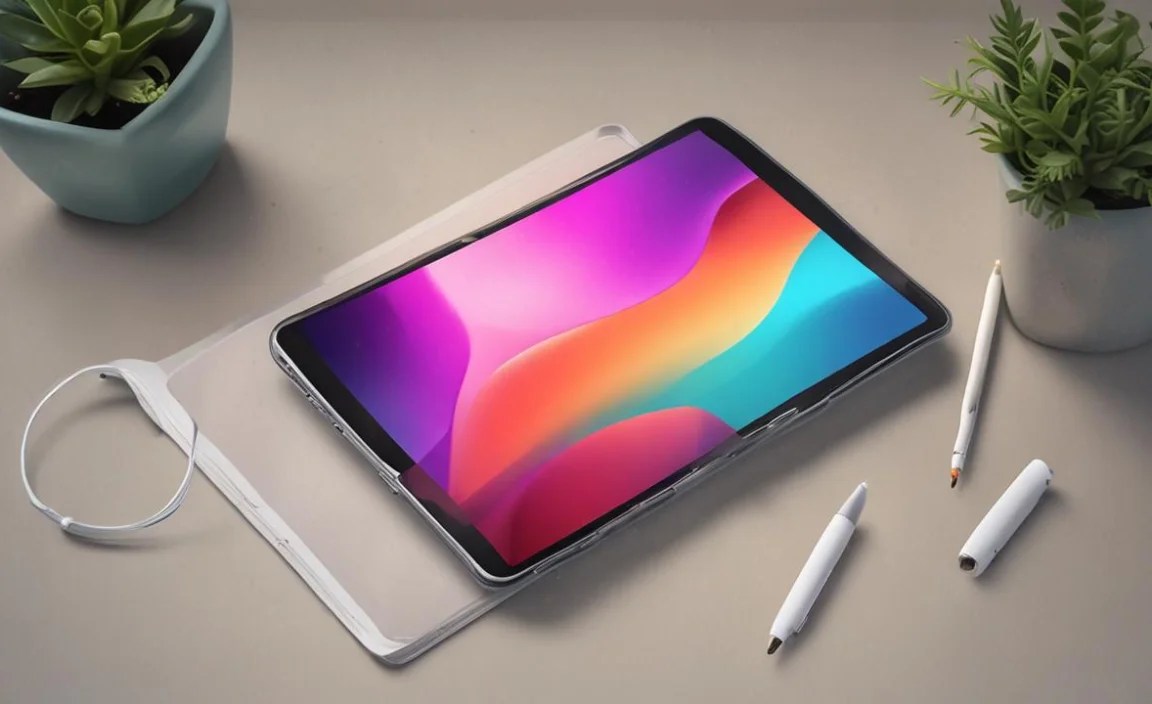
Once you have your tablet, here are some pro tips to make your creative sessions even better:
- Customize Your Stylus Settings: Most apps allow you to tweak pressure curves and button functions for the stylus. Experiment to find what feels best for you.
- Learn Your Art Software Inside Out: Invest time in tutorials. Even with a great tablet, mastering your chosen software is key to unlocking its full potential. Resources like YouTube have countless free tutorials for popular art apps.
- Organize Your Files: Develop a clear folder structure for your projects. Cloud storage services like Google Drive, Dropbox, or iCloud can be invaluable for backup and access across devices.
- Keep Your Software Updated: App and operating system updates often bring performance improvements and new features that can benefit artists.
- Practice Good Ergonomics: Use a stand, take breaks, and ensure proper lighting to prevent strain and fatigue during long drawing sessions.
- Calibrate Your Display (Advanced): For hyper-critical color work, you might consider a calibration tool if your tablet supports it, though most modern high-end tablets are excellent out of the box.
Frequently Asked Questions (FAQ)
Q1: Do I really need a “high-performance” tablet for digital art, or can an average tablet work?
While you can start drawing on less powerful tablets with basic stylus support, high-performance tablets offer a significantly better experience. They handle complex software, large files, and intricate brushes without lag, making your creative process smoother and more enjoyable. For serious digital artists, the performance boost is essential.
Q2: Is the Apple Pencil essential for iPads, or can I use a cheaper stylus?
For the best experience on iPads, the Apple Pencil (2nd Gen or USB-C) is highly recommended. It’s designed to work seamlessly with the iPad, offering precise pressure and tilt sensitivity, palm rejection, and low latency. Cheaper third-party styluses often lack these crucial features, leading to a less intuitive drawing experience.

Your tech guru in Sand City, CA, bringing you the latest insights and tips exclusively on mobile tablets. Dive into the world of sleek devices and stay ahead in the tablet game with my expert guidance. Your go-to source for all things tablet-related – let’s elevate your tech experience!