Need a tablet that makes reading PDFs a joy, not a chore? Look for a bright, high-resolution screen, ample storage, and a speedy processor. Consider screen size for comfort, stylus support for annotation, and battery life for long reading sessions. These tips will help you find the perfect high-performance tablet for all your PDF needs.
Hey there, fellow tech explorers! Walter Moore from Tabletzoo here. Do you ever find yourself squinting at tiny text on your tablet, or waiting what feels like forever for a large PDF document to open? It’s a common frustration, right? PDFs are everywhere – for work, school, hobbies, you name it. And when your tablet struggles to display them clearly or quickly, it can really put a damper on things.
But don’t worry! Finding a tablet that’s a champion at handling PDFs doesn’t have to be complicated. Think of it like choosing the right tool for a specific job. We’re going to break down exactly what makes a tablet great for PDF reading, from the screen you’ll be looking at to the power under the hood.
We’ll walk through the essential features, what specs actually matter, and how to avoid getting overwhelmed by all the options. By the end of this guide, you’ll feel confident in choosing a high-performance tablet that makes reading and interacting with your PDFs a smooth and enjoyable experience. Ready to dive in and find your perfect PDF partner?
Why a “High-Performance” Tablet Matters for PDFs

When we talk about “high-performance” tablets for PDF reading, we’re not just talking about the fastest gaming machines. For PDFs, high performance means a tablet that can handle these files efficiently and present them beautifully. PDFs can vary wildly in size and complexity. Some are simple text documents, while others are filled with high-resolution images, interactive forms, or even complex graphic designs.
A tablet with good performance means:
- Fast Loading Times: No more waiting ages for that large textbook chapter or research paper to appear.
- Smooth Scrolling: Effortlessly glide through pages without stuttering or lag, even in heavy documents.
- Crisp Text and Images: Everything looks sharp and clear, making reading comfortable for long periods.
- Responsive Annotation: If you plan to mark up PDFs, you need a tablet that can keep up with your pen or finger.
- Reliable Multitasking: Easily jump between your PDF reader and other apps without slowdowns.
Let’s break down the key features that contribute to this high performance, starting with the most important element: the display.
1. The Screen: Your Window to the World of PDFs

When you’re reading PDFs, your eyes are going to spend a lot of time on the screen. Therefore, the display is arguably the single most critical component to consider. A great screen makes reading feel natural and reduces eye strain, while a poor one can make the experience unpleasant, no matter how powerful the tablet is.
Screen Resolution: Clarity is Key
Think of resolution as the number of tiny dots (pixels) that make up the image on your screen. More pixels mean a sharper, more detailed picture. For PDFs, especially those with fine print, charts, and images, higher resolution is a must.
- What to aim for: Look for tablets with at least a Full HD (1920 x 1080 pixels) resolution. Tablets with QHD (2560 x 1440 pixels) or higher will offer even better clarity, making small text incredibly crisp and readable. Apple’s “Retina” displays and Samsung’s “AMOLED” screens often boast very high pixel densities, which are fantastic for this purpose.
- Why it matters: Higher resolution allows you to zoom out to see more of a document without text becoming blurry or pixelated. It makes a huge difference when reading academic papers, technical manuals, or scanned documents where detail is crucial.
Screen Size: Comfort and Portability
Screen size is a personal preference, but it significantly impacts how you interact with PDFs. Larger screens generally offer a more comfortable reading experience, mimicking what you might get from a physical book or document, especially when viewing two pages side-by-side.
- Small (7-8 inches): Highly portable, great for quick reads on the go, but can feel cramped for complex PDFs or extensive annotation.
- Medium (9-11 inches): A sweet spot for many users. Offers a good balance of screen real estate for reading and portability. Most popular tablets fall into this category.
- Large (12 inches and above): Excellent for detailed work, comparing documents, or reading.E-readers that use E Ink technology, like those from Amazon Kindle or Kobo, are also excellent for reading but are not generally considered “high-performance” in the same vein as Android or iPad tablets for mixed use. They excel purely at text-based reading and offer an unparalleled paper-like experience with zero glare, ideal for very long reading sessions to prevent eye strain. Some advanced e-readers even offer note-taking capabilities. You can learn more about the benefits of E Ink displays on sites like E Ink’s official technology overview.
Brightness and Color Accuracy: Visibility Matters
A bright screen is essential for reading in various lighting conditions, from sunny windows to dimly lit rooms. Good color accuracy ensures that if your PDF contains images or graphics, they appear as intended.
- Brightness (Nits): Look for tablets that can reach at least 400-500 nits of brightness for comfortable outdoor or bright room use. Some premium tablets can go even higher.
- Display Type: While LCD screens are common and offer good performance, OLED or AMOLED displays often provide deeper blacks, higher contrast, and more vibrant colors, which can make text pop and images more lifelike.
- Anti-Glare Coating: This is a fantastic feature that reduces reflections, making it much easier to read in bright environments.
2. Processing Power and RAM: The Engine Behind Smooth Performance
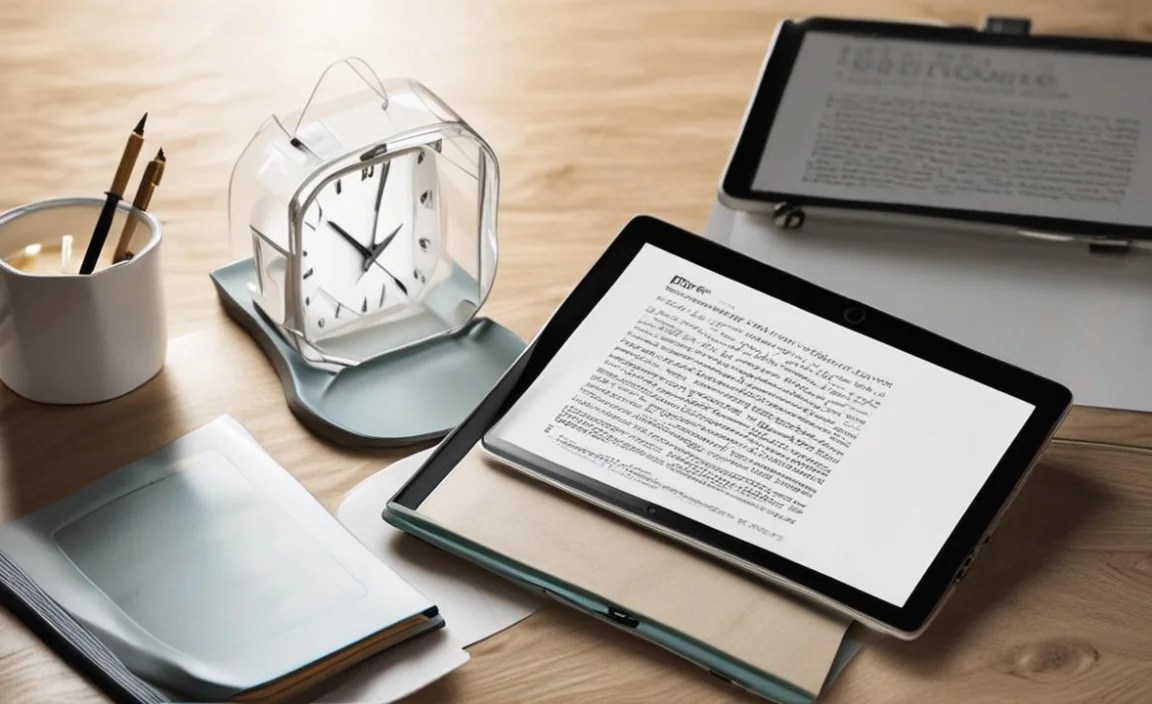
While the screen is what you see, the processor and RAM are what make everything run smoothly. For high-performance PDF reading, these components ensure quick loading, seamless navigation, and efficient multitasking.
The Processor (CPU): Speed and Efficiency
The processor is the brain of the tablet. A powerful processor will handle complex PDFs, graphic-intensive documents, and multiple open apps without breaking a sweat.
- What to look for: Modern tablets from major brands like Apple (A-series chips), Samsung (Exynos or Qualcomm Snapdragon), and even high-end Windows tablets (Intel Core i-series) typically offer excellent performance. For Android and iPadOS, look for tablets released in the last 2-3 years that feature their latest or second-to-latest generation of chips.
- Avoid: Older or entry-level processors designed for basic tasks might struggle with large PDF files, leading to sluggish performance, especially if those PDFs contain many images or demanding layouts.
RAM (Random Access Memory): Multitasking Prowess
RAM is like a tablet’s short-term memory. It holds information for apps and processes that are currently running. More RAM means the tablet can keep more things active in the background without slowing down.
- Minimum Recommended: For a good PDF reading experience, aim for at least 6GB of RAM.
- Ideal for heavy users: 8GB of RAM or more will provide a noticeably smoother experience, especially if you frequently switch between your PDF reader, web browser, note-taking apps, or other productivity tools.
3. Storage: Room for Your Entire Library

PDFs, especially textbooks, research papers, and scanned documents, can take up a surprising amount of storage space. Running out of room can force you to delete files or rely heavily on cloud storage, which requires an internet connection.
Internal Storage Capacity
This is the physical space within your tablet where all your apps, photos, videos, and documents are stored.
- Minimum: 64GB. This might be sufficient if you only read a few documents occasionally and use cloud storage extensively.
- Recommended: 128GB or 256GB. This provides plenty of space for a substantial PDF library, along with other apps and media.
- For heavy users: 512GB or more. If you plan to store entire textbooks, large project files, or a vast collection of documents, consider the highest capacity you can afford.
Expandable Storage (MicroSD Card Slot)
Some Android tablets offer a microSD card slot, allowing you to expand storage affordably. This is a huge advantage if you need a lot of space without paying the premium for high internal storage.
- Check compatibility: Ensure the tablet you’re considering supports microSD cards, and be aware of the maximum capacity it can handle (e.g., 512GB, 1TB).
- Note: Apple iPads do not have microSD card slots, so you must choose your internal storage wisely at the time of purchase.
Cloud Storage Considerations
Services like Google Drive, Dropbox, OneDrive, and iCloud are excellent for syncing and accessing PDFs across devices. However, relying solely on cloud storage for offline reading means you need a stable internet connection, and large files can take time to download.
4. Battery Life: Read All Day, Without the Plug

Nothing interrupts a good reading session quite like a dead battery. A tablet with excellent battery life ensures you can get through long commutes, study sessions, or travel days without constantly searching for an outlet.
- What to aim for: Most high-performance tablets should offer at least 8-10 hours of mixed usage on a single charge. However, for dedicated reading, some might even stretch to 12 hours or more, especially if the screen brightness is managed.
- Check reviews: Battery life can vary significantly based on usage. Look for reputable tech reviews that provide real-world testing results for battery performance.
- Fast Charging: This is a bonus feature that can quickly top up your battery when you do need a charge, minimizing downtime.
5. Operating System and Software Features: The PDF Experience
The operating system (OS) and the available apps play a huge role in how efficiently and enjoyably you can interact with PDFs. The main contenders are iPadOS, Android, and Windows.
iPadOS (Apple iPads)
iPads are renowned for their excellent performance, intuitive OS, and a vast library of high-quality apps. For PDFs, this means reliable options like:
- GoodNotes / Notability: Excellent for handwritten notes, annotation, and organizing documents.
- PDF Expert: A powerful PDF editor and reader with robust annotation tools.
- Apple Books: Can import and read PDFs, offering a clean reading interface.
- Files App: Seamless integration for managing and opening PDFs from various sources.
Pros: Generally very stable, excellent app ecosystem, strong performance, often great stylus support.
Cons: Can be more expensive, limited customization, no expandable storage. Learn more about iPadOS features.
Android (Samsung, Lenovo, Google Pixel Tablets, etc.)
Android tablets offer a lot of variety in terms of hardware and price. The Google Play Store has a wide selection of PDF readers and annotation tools.
- Adobe Acrobat Reader: The industry standard, offering robust viewing and basic annotation.
- Xodo: A popular, feature-rich PDF reader and editor with annotation, form filling, and e-signature capabilities.
- Google Drive / Google Docs: Can open, view, and sometimes edit PDFs.
- Third-party apps: Many other excellent apps like Polaris Office, OfficeSuite, and dedicated PDF readers exist.
Pros: Wide range of device options and prices, usually offers expandable storage, more customization.
Cons: App quality can be inconsistent, performance can vary greatly between devices, some apps might not be as optimized as on iPadOS. Explore the Android ecosystem.
Windows (Microsoft Surface, Lenovo Yoga, etc.)
Windows tablets, often referred to as 2-in-1s, offer the full power of a desktop operating system. This means you can run any PDF software that works on a Windows PC.
- Adobe Acrobat Pro DC: The full professional suite for editing, creating, and managing PDFs.
- Microsoft Edge: Built-in browser that acts as a capable PDF reader and annotator.
- Bluebeam Revu: A powerful tool favoured by construction professionals for PDF markups.
- Other desktop PDF software: You have access to virtually any PDF application available for Windows.
Pros: Most versatile, can run full desktop software, excellent for multitasking, often have great keyboard/stylus support.
Cons: Can be more expensive, battery life might not be as long as dedicated tablets, can feel more like a laptop than a tablet. Learn about Windows 11 features.
6. Stylus Support: For the Digital Annotator
If your PDF workflow involves marking up documents, highlighting key points, or taking notes directly on the pages, stylus support is a game-changer. A good stylus paired with a responsive screen makes digital annotation feel natural and precise.
- Pressure Sensitivity: This allows the stylus to detect how hard you’re pressing, enabling variation in line thickness – great for handwriting and drawing.
- Palm Rejection: A crucial feature that prevents your palm from accidentally registering input on the screen while you write.
- Tilt Support: For more advanced art or shading needs, tilt support allows the stylus to act like a real pencil or brush.
- Low Latency: Minimizes the delay between moving the stylus and seeing the result on screen, making it feel more like writing on paper.
- Built-in Apps: Check if the tablet’s native OS or included apps offer robust PDF annotation features.
Note: Styluses are often sold separately, so factor this into your budget if it’s a priority.
7. Build Quality and Durability: A Tablet That Lasts
A tablet is an investment, and you want it to last. For PDF reading, especially if you’re carrying it around a lot for work or study, build quality is important.
- Materials: Metal bodies (aluminum) generally feel more premium and durable than plastic.
- Screen Protection: While not always explicitly advertised beyond standard glass, some tablets might have stronger screen protectors. Consider a good screen protector film or tempered glass to safeguard against scratches.
- Portability and Ergonomics: Look for a tablet that’s comfortable to hold for extended periods. Lighter tablets are generally easier to handle.
Table: Comparing Tablet Types for PDF Reading
To help visualize the trade-offs, here’s a look at how different types of tablets stack up for PDF reading:
| Feature | iPad (iPadOS) | Android Tablet | Windows Tablet (2-in-1) | E-Reader (e.g., Kindle Scribe) |
|---|---|---|---|---|
| Screen Clarity | Excellent (High Resolution) | Very Good to Excellent (Varies by model) | Excellent (High Resolution) | Good (E-Ink Clarity, Monochrome) |
| PDF App Ecosystem | Excellent (Optimized Apps) | Very Good (Large Selection) | Excellent (Full Desktop Programs) | Limited (PDF viewing specific) |
| Annotation Quality | Excellent (with Apple Pencil) | Good to Very Good (with compatible stylus) | Excellent (with active stylus) | Very Good (with E-Ink pen) |
| Performance (Speed) | Excellent | Good to Excellent (Varies) | Excellent | Slow (Optimized for text) |
| Battery Life | Very Good | Good to Very Good | Fair to Good | Excellent (for reading) |
| Storage Options | Fixed Internal | Internal + MicroSD | Fixed Internal |

Your tech guru in Sand City, CA, bringing you the latest insights and tips exclusively on mobile tablets. Dive into the world of sleek devices and stay ahead in the tablet game with my expert guidance. Your go-to source for all things tablet-related – let’s elevate your tech experience!