High-performance tablets can unlock Procreate’s full potential for digital artists, but choosing the right one can feel overwhelming. This guide simplifies the search, focusing on essential features, top recommendations, and beginner-friendly advice so you can start creating stunning art with confidence on your new tablet.
High-Performance Tablets: Procreate’s Essential Guide
Are you excited to dive into digital art with Procreate but unsure which tablet is your perfect match? You’re not alone! The world of tablets can seem like a maze of specs and jargon, making it tough to know where to start, especially when your creative software, Procreate, is running on it. It’s frustrating to invest in a device that doesn’t quite meet your needs, leading to laggy brushes or a less-than-smooth drawing experience. But don’t worry! This guide is here to help. We’ll break down exactly what you need to look for in a high-performance tablet for Procreate. By the end, you’ll feel confident, informed, and ready to pick the best tablet to bring your artistic visions to life.
Why Tablet Performance Matters for Procreate
Procreate is a powerful and feature-rich drawing app, and it thrives on a device that can keep up. Think of your tablet as your digital canvas and your stylus as your brush. If your canvas is slow to respond or your brushes stutter, your entire creative flow suffers. High performance means:
- Smoother Brushes: No more lag when you’re trying to draw a quick stroke or a detailed line. Your brushes will feel responsive and natural.
- Faster Loading Times: Less waiting means more creating. Opening the app and large files should be quick and seamless.
- More Layers: Complex artwork often requires many layers. A powerful tablet can handle more layers without slowing down.
- Advanced Features: Procreate offers incredible tools. High performance ensures you can use features like QuickShape, Streamline, and various filters without a hitch.
- Better Multitasking: If you like to have reference images open or bounce between apps, a capable tablet makes it easy.
For beginners, this means a more forgiving and enjoyable learning curve. You can focus on learning the art techniques rather than fighting with your tools. As you get more advanced, a high-performance tablet grows with you, supporting more intricate projects and demanding workflows.
Procreate Compatibility: What You Need to Know
The most important thing to know upfront is that Procreate is exclusive to Apple’s iOS operating system. This means you’ll need an iPad to run it. While other tablets are fantastic for drawing, they won’t be able to run Procreate itself. This simplifies the choice for many artists, but within the iPad ecosystem, there are still different models with varying performance levels.
The iPad Lineup for Procreate Artists
Apple offers several iPad models, each with its own strengths and price points:
- iPad (Standard Model): The entry-level iPad is a great starting point. It’s affordable and capable of running Procreate smoothly for most beginner and intermediate tasks.
- iPad Air: This model offers a significant step up in performance, often featuring more powerful processors and better screen quality than the standard iPad. It’s a popular choice for many Procreate users who want a balance of power and price.
- iPad Pro: This is Apple’s flagship tablet, packed with the most powerful processors, the best displays (including ProMotion for smoother scrolling and Apple Pencil response), and the most storage options. It’s ideal for professional artists or those who need the absolute best performance for very complex projects.
- iPad Mini: While compact, newer iPad Minis pack surprising power. They are excellent for portability but might feel cramped for extensive artwork compared to larger models.
Key Tablet Specs for Procreate Performance
When looking at iPads for Procreate, some specifications will have a bigger impact on your experience than others. Here’s how to decipher them:
Processor (CPU & GPU)
This is the “brain” of your tablet. A faster processor means everything runs more smoothly. Apple’s chips (like the A-series or M-series) are industry-leading. For Procreate:
- Look for: iPads with M1, M2, A15 Bionic, or even A14 Bionic chips are excellent. The newer and more powerful the chip, the better performance you’ll get, especially with demanding features.
- Beginner Tip: Even the A12 Bionic or A13 Bionic in older but still supported models will handle Procreate well for basic drawing and painting.
RAM (Memory)
RAM is like your tablet’s short-term memory. It’s crucial for how many layers you can use in Procreate and how smoothly the app handles multitasking. Apple doesn’t always explicitly state RAM in their marketing, but it’s tied to the chip and storage configuration.
- Recommended Minimum: Aim for at least 4GB of RAM.
- Ideal for Procreate: 8GB of RAM or more will provide a significantly better experience, especially for more complex artwork with many layers. iPads with M1 or M2 chips generally come with 8GB or more RAM.
Storage (SSD)
This is where your apps, artwork files, and the operating system live. Procreate itself doesn’t take up a huge amount of space, but your finished artwork, especially high-resolution pieces, can. Video of your artwork process also consumes space rapidly.
- Essential Minimum: 64GB is the absolute minimum.
- Recommended for Artists: 128GB or 256GB is a much safer bet if you plan on creating a lot of art or keeping multiple projects active.
- Professional Needs: 512GB or 1TB is for serious professionals who work with massive files, large brush libraries, or extensive video recordings.
Display
The screen is where you’ll be spending all your time. Quality matters for color accuracy and visual comfort.
- Resolution: Higher resolution means sharper images. All modern iPads have good resolutions.
- Color Accuracy: Look for iPads that support P3 wide color. This is important for ensuring the colors you see on screen are true to life and will translate well if you decide to print your work. Most iPads have excellent color reproduction.
- Lamination: A fully laminated display (where the glass and display layers are fused) reduces glare and parallax (the distance between the stylus tip and where it appears on screen), making for a more natural drawing feel. Most iPads from iPad Air onwards have this.
- Refresh Rate (ProMotion): Found on iPad Pro models, ProMotion technology offers adaptive refresh rates up to 120Hz. This makes drawing feel incredibly fluid, with reduced latency and smoother animations. It’s a significant upgrade for an artist’s feel.
Apple Pencil Support
You’ll need an Apple Pencil to use Procreate effectively. Different iPads support different generations of the Apple Pencil. Ensure the iPad model you choose is compatible with the Pencil you want.
- Apple Pencil (1st generation): Works with the standard iPad, iPad mini (5th gen), and iPad Air (3rd gen).
- Apple Pencil (2nd generation): Works with iPad Pro (all models since 2018), iPad Air (4th gen and later), and iPad mini (6th gen). The 2nd gen attaches magnetically for charging and pairing, which is very convenient.
Pro Tip: The Apple Pencil 2 is generally preferred for its ease of use and charging method.
Top High-Performance Tablets for Procreate (Beginner-Friendly Picks)
Based on research and user feedback, here are some of the best iPads for Procreate, catering to different needs and budgets. For beginners, we’ll often recommend models that offer a great balance of features and affordability.
1. Best All-Around Value: iPad Air (M1 Chip)
The iPad Air (5th generation with M1 chip) strikes an excellent balance for Procreate users. It offers nearly the performance of previous-generation iPad Pros at a more accessible price point.
- Processor: Apple M1 chip (fantastic performance)
- Display: 10.9-inch Liquid Retina display with True Tone and P3 wide color (great for art)
- Apple Pencil Support: Apple Pencil (2nd generation)
- Storage Options: Starts at 64GB, 256GB available
- Why it’s great for beginners: The M1 chip handles Procreate incredibly smoothly, supporting many layers and complex brushes. The screen is bright and color-accurate, and it uses the much more convenient Apple Pencil 2. The 64GB option is manageable for beginners just starting out, though 256GB is recommended if your budget allows.
2. Best Entry-Level Option: iPad (10th Generation)
Apple’s latest standard iPad is a solid performer for Procreate, especially for those on a tighter budget who are just starting their digital art journey.
- Processor: A14 Bionic chip (very capable for Procreate)
- Display: 10.9-inch Liquid Retina display (good color, though not fully laminated)
- Apple Pencil Support: Apple Pencil (USB-C) and Apple Pencil (1st generation) (Note: Requires an adapter for 1st gen charging if you don’t get the USB-C version)
- Storage Options: 64GB and 256GB available
- Why it’s great for beginners: It’s the most affordable way to get into Procreate with a new iPad. The A14 chip is powerful enough for most beginner tasks, and the screen size is decent. The Apple Pencil compatibility can be a little less convenient than the Pencil 2, but it’s still a functional setup for learning.
3. Best for Power Users & Future-Proofing: iPad Pro (11-inch or 12.9-inch, M2 Chip)
If your budget allows and you want the absolute best performance and features, the iPad Pro is the way to go. The M2 chip is incredibly powerful, and the displays are top-tier.
- Processor: Apple M2 chip (industry-leading mobile performance)
- Display: 11-inch Liquid Retina (120Hz ProMotion) or 12.9-inch Liquid Retina XDR (mini-LED, 120Hz ProMotion) – both are stunning.
- Apple Pencil Support: Apple Pencil (2nd generation)
- Storage Options: Starts at 128GB, up to 2TB available.
- Why it’s great for artists: The M2 chip handles everything Procreate throws at it with ease. The 120Hz ProMotion display offers unparalleled smoothness for drawing and reduces latency significantly. The larger 12.9-inch models offer more canvas space, mimicking a traditional sizable sketchbook. For serious artists, this is the ultimate tool.
Choosing the Right Storage Size

Storage is often an overlooked but critical decision. Here’s a simple breakdown for Procreate users:
| Storage Size | Best For | Considerations |
|---|---|---|
| 64GB | Very casual users, beginners focusing on learning basic Procreate features, or those who primarily use the cloud for storage. | Can fill up quickly with many projects, brush packs, or recorded timelapses. May require frequent file management. |
| 128GB | Most beginners and intermediate artists. Good balance for a decent number of projects and brush sets. | Adequate for most users who don’t extensively record timelapses or hoard massive brush libraries. |
| 256GB | Intermediate to advanced users, artists who work on multiple large projects, or those who want extra breathing room. | Comfortable for most digital artists, allowing for many high-resolution pieces, extensive brush sets, and timelapses without constant worry. |
| 512GB+ | Professional artists, users who create extremely high-resolution work, work with animation, or record lengthy timelapses. | Provides ample space for nearly any workload, offering peace of mind for heavy users. |
Proactive Storage Management: Remember, you can always use cloud services like iCloud, Google Drive, or Dropbox to offload finished projects and free up space on your iPad.
Essential Accessories for Your Procreate Tablet
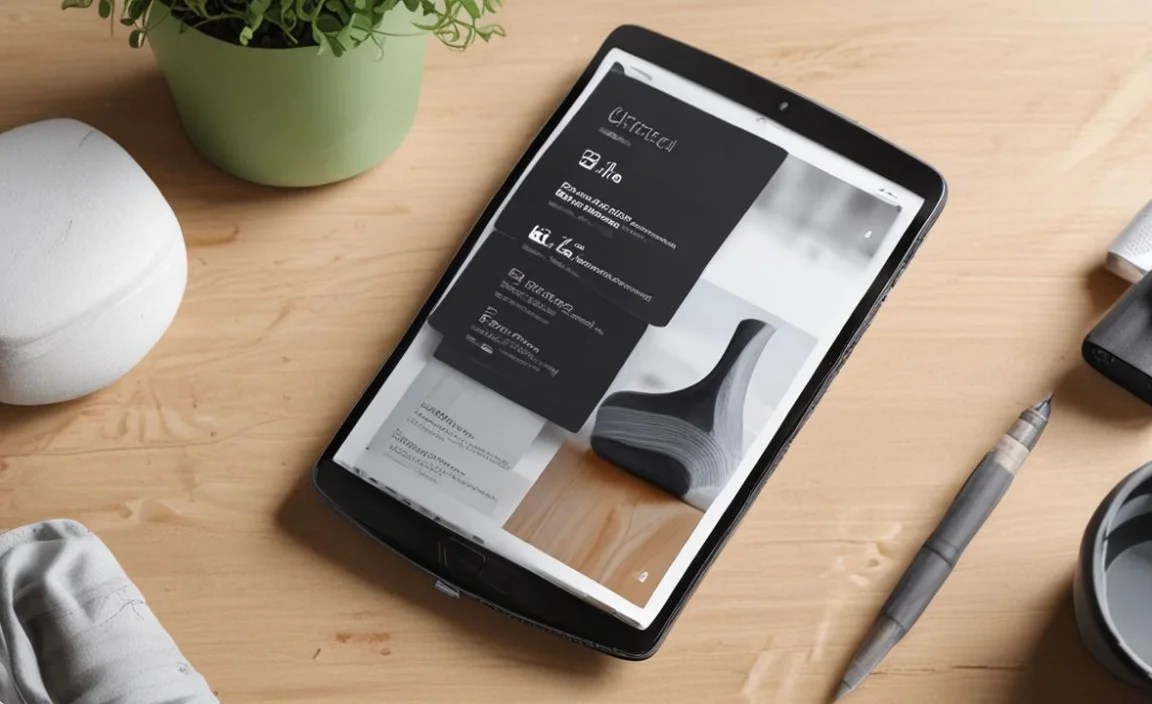
Beyond the tablet itself, a few accessories can significantly enhance your Procreate experience:
- Apple Pencil: As mentioned, this is non-negotiable for Procreate. Ensure you get the correct generation that matches your iPad.
- Screen Protector: A matte screen protector can add a paper-like texture, giving your stylus more drag and a more traditional drawing feel. It also protects your screen from scratches.
- Tablet Stand: Elevating your tablet can improve ergonomics, making it more comfortable to draw for long periods.
- Drawing Glove: These thin gloves can prevent your palm from accidentally registering on the screen and can help your hand glide more smoothly.
- USB-C Hub (Optional): If your iPad only has a USB-C port, a hub can allow you to connect external storage, chargers, or other peripherals simultaneously.
Getting Started with Procreate: Practical Tips for Beginners
Once you have your high-performance tablet and Apple Pencil, it’s time to dive into Procreate. Here are some tips to make your transition smooth:
- Download Procreate: You can purchase Procreate from the App Store. It’s a one-time purchase from Apple.
- Explore the Interface: Take some time to simply navigate Procreate. Tap on brushes, layers, and menus to see what they do. Don’t be afraid to experiment!
- Learn Brush Settings: Procreate has a vast library of brushes. Experimenting with brush dynamics (size, opacity, jitter, etc.) can unlock new creative possibilities.
- Master Layers: Layers are fundamental in digital art. Learn how to add, duplicate, group, and adjust layer opacity and blend modes. This is key for non-destructive editing.
- Utilize Gestures: Procreate has many helpful gestures, like two-finger tap to undo, three-finger swipe down for the toolbar, and pinching to zoom. Learning these speeds up your workflow significantly.
- Watch Tutorials: YouTube is an incredible resource for Procreate tutorials. Search for beginner guides, specific brush techniques, or workflow tips. Many artists share their processes freely.
- Practice Regularly: Like any skill, digital art takes practice. Draw something every day, even if it’s just a simple sketch.
Understanding iPad Performance Benchmarks (A Simple Guide)
While you don’t need to be a tech guru, understanding how to compare tablet performance can be helpful. Apple benchmarks its chips using metrics like Geekbench.
Geekbench Score: This synthetic benchmark tests the CPU and GPU performance. Higher scores generally indicate better performance.
| Chipset | Single-Core Score (Approx.) | Multi-Core Score (Approx.) | Procreate Friendliness |
|---|---|---|---|
| A12 Bionic | 1000 | 2500 | Good for basic Procreate use. |
| A13 Bionic | 1100 | 3000 | Very good for general Procreate use. |
| A14 Bionic | 1200 | 3500 | Excellent for most Procreate needs. |
| A15 Bionic | 1700 | 4800 | Outstanding performance for Procreate. |
| M1 Chip | 1700 | 7500 | Exceptional, can handle complex tasks effortlessly. |
| M2 Chip | 1750 | 8500+ | Top-tier, handles all Procreate demands with ease. |
<p

Your tech guru in Sand City, CA, bringing you the latest insights and tips exclusively on mobile tablets. Dive into the world of sleek devices and stay ahead in the tablet game with my expert guidance. Your go-to source for all things tablet-related – let’s elevate your tech experience!