Lightweight tablets for elderly users offer ease of use and portability. Our expert picks focus on larger, clear displays, simple interfaces, and long battery life, making them ideal for staying connected and entertained without the bulk.
Finding the right technology can sometimes feel like a puzzle, especially when you’re looking for something that’s both easy to handle and packed with useful features. For our cherished seniors, tablets offer a wonderful window to the world – connecting with family, enjoying hobbies, or simply staying informed. However, the thought of navigating complex devices can be daunting. Many tablets are designed with younger, tech-savvier users in mind, leaving seniors struggling with heavy designs or confusing interfaces. But don’t worry! We’re here to guide you through selecting lightweight tablets that are perfect for elderly users, making technology accessible and enjoyable.
Why Lightweight Tablets are Perfect for Seniors

When it comes to choosing a tablet for an elderly loved one, several factors come into play. Weight is a significant consideration. Holding a heavy device for extended periods can be uncomfortable and even painful, especially for those with arthritis or reduced strength. A lightweight tablet reduces strain, making it easier to hold for video calls, reading, or browsing. Beyond weight, think about the screen. Seniors often benefit from larger, brighter displays with clear fonts and high contrast. Big icons and a straightforward user interface are also crucial for effortless navigation.
Beyond the physical aspects, ease of use is paramount. This means intuitive controls, simple app layouts, and robust battery life so they don’t have to constantly worry about charging. We’ll be looking at tablets that excel in these areas, ensuring a positive and stress-free experience for seniors.
Our Top Lightweight Tablet Picks for the Elderly
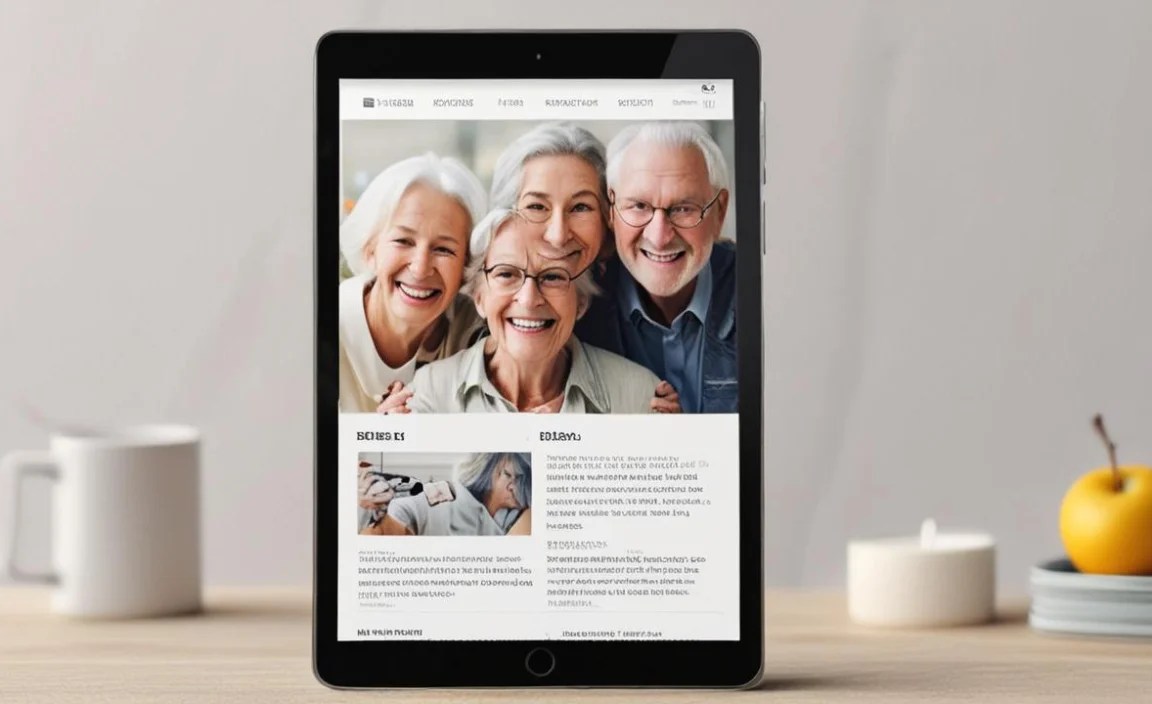
After much research, we’ve identified a few standout options that consistently impress when it comes to being lightweight and senior-friendly. We’ve considered everything from the display quality and user interface to the overall build and essential features.
Apple iPad Air (5th Generation)
While often associated with power users, the iPad Air offers a fantastic balance of performance and surprising lightness for its screen size. It’s incredibly user-friendly, and the Apple ecosystem is known for its intuitive design, making it easier for seniors to pick up.
Key Features for Seniors:
- Lightweight Design: Weighing approximately 1.2 pounds (557 grams), it’s comfortable to hold.
- Brilliant Retina Display: The 10.9-inch Liquid Retina display is sharp, bright, and offers excellent color accuracy, making text and images easy to see.
- Simple and Intuitive Interface: iPadOS is famously easy to learn and navigate, with clear icons and straightforward controls.
- App Store Variety: Access to a vast library of apps, including those for communication (FaceTime, Zoom), entertainment (streaming services, games), and even health management.
- Long Battery Life: Up to 10 hours of web browsing or watching video ensures they can use it for extended periods without needing a charge.
- Accessibility Features: Apple is renowned for its built-in accessibility options, such as VoiceOver, Zoom, and larger text settings, which are invaluable for seniors.
Samsung Galaxy Tab S8
Samsung’s Galaxy Tab S8 is another strong contender that offers a premium experience in a relatively lightweight package. Its Android operating system is familiar to many, and Samsung has done an excellent job of creating a user-friendly experience.
Key Features for Seniors:
- Comfortable Weight: At around 1.1 pounds (490 grams for the Wi-Fi version), it’s easy to manage.
- Vivid Display: The 11-inch LCD screen is bright and responsive, offering crisp visuals.
- User-Friendly Android: Android’s open nature and Samsung’s One UI provide a customizable and straightforward interface. Features like Large Font and simple modes can be enabled.
- Samsung Ecosystem: Seamless integration with other Samsung devices if the senior already uses them.
- Good Battery Performance: Expect solid battery life that should comfortably last a full day of typical use.
- Expandable Storage: For those who like to download lots of photos or apps, this is a plus.
Amazon Fire HD 10
For a more budget-friendly and incredibly straightforward option, the Amazon Fire HD 10 is hard to beat. It’s designed for simplicity and ease of access to Amazon’s services, making it a great choice for those who are already familiar with or primarily interested in Amazon content.
Key Features for Seniors:
- Extremely Lightweight: Typically weighing under a pound (around 1.06 pounds or 477 grams), it’s very easy to hold.
- Bright and Clear Display: The 10.1-inch Full HD display is good for its price point, with adjustable brightness.
- Simplified Interface: Amazon’s Fire OS is very streamlined and easy to navigate, especially for accessing content like Kindle books, Prime Video, and apps. It has a simplified “Easy Mode” option.
- Affordable Price: More budget-friendly than many competitors, making it an excellent value.
- Decent Battery Life: Offers up to 12 hours of mixed usage, which is quite impressive.
- Built-in Alexa: Voice commands can be used for searching content, making calls, or getting information, which is a significant accessibility plus.
Lenovo Tab P11 Plus (or similar)
Lenovo often strikes a good balance between features, performance, and affordability. The Tab P11 Plus (or its successors) can be a solid choice, offering a good-sized screen without being excessively heavy.
Key Features for Seniors:
- Manageable Weight: Usually in the 1.1 to 1.2-pound (around 490 grams) range, it’s comfortable for extended use.
- Good Quality Display: Features a decent resolution screen, often with good color reproduction, making it pleasant for viewing.
- Standard Android Experience: Provides a familiar Android interface, which can be appealing.
- Solid Performance for Everyday Tasks: Handles browsing, video watching, and simple games with ease.
- Optional Kids Mode/Simple Mode: Some Lenovo tablets offer modes that can simplify the interface for elderly users.
Comparing Our Top Picks

To help make the decision even clearer, let’s look at a quick comparison of the key features most important to seniors. We’ll focus on aspects like weight, screen size, and overall ease of use.
| Tablet Model | Approximate Weight | Screen Size | Operating System | Key Senior-Friendly Feature(s) | Approximate Price Range (USD) |
|---|---|---|---|---|---|
| Apple iPad Air (5th Gen) | 1.2 lbs (557g) | 10.9 inches | iPadOS | Super intuitive interface, excellent accessibility options, bright display. | $$$ (Premium) |
| Samsung Galaxy Tab S8 | 1.1 lbs (490g) | 11 inches | Android with One UI | Familiar interface, customizable, good for multitasking, large screen. | $$$ (Premium) |
| Amazon Fire HD 10 | 1.06 lbs (477g) | 10.1 inches | Fire OS | Extremely affordable, very simple interface, built-in Alexa, easy access to Amazon content. | $ (Budget-Friendly) |
| Lenovo Tab P11 Plus | ~1.1 lbs (~490g) | 11 inches | Android | Good balance of performance and price, standard Android interface, some simplification options. | $$ (Mid-Range) |
Essential Features to Consider for Elderly Users
Beyond the specific models, there are certain features that make a tablet an excellent choice for older adults. Focusing on these will ensure you get a device that truly meets their needs and enhances their daily life.
1. Display Size and Clarity
A larger screen is generally better for visibility. Look for tablets with screens of 10 inches or more. Equally important is the display’s clarity and brightness. A high-resolution screen with good contrast and adjustable brightness settings will make reading text, viewing photos, and watching videos much more enjoyable and less straining on the eyes. For example, Apple’s Retina displays and Samsung’s AMOLED or LCD screens are known for their vibrant and sharp visuals.
2. Weight and Ergonomics
As mentioned, a lightweight tablet is crucial. Holding a device for extended periods can be tiring. Aim for tablets that weigh under 1.3 pounds (about 590 grams). The overall shape and how it feels in the hand also matter. Rounded edges and a non-slip finish can improve grip and reduce the chance of accidental drops. Some users might also consider a protective case with a built-in stand, which not only protects the device but also allows it to be propped up for hands-free viewing.
3. User Interface and Simplicity
This is perhaps the most critical factor. A cluttered or complex interface can be overwhelming. Look for tablets with operating systems that are known for their ease of use. Apple’s iPadOS and Amazon’s Fire OS are often cited for their simplicity. Even on more complex systems like Android, many manufacturers offer “simple modes” or “easy modes” that enlarge icons, simplify the layout, and reduce the number of options visible at once. Clear, large icons and straightforward navigation are key.
Tips for Simplifying the Interface:
- Enable “Easy Mode” or “Simple Mode” if available on Android devices.
- Adjust Text Size: Ensure you can increase font sizes for reading.
- Organize Apps: Group essential apps on the home screen and remove unnecessary ones.
- Disable Complex Gestures: Stick to simple taps and swipes.
- Set Up Widgets: Useful widgets for weather, calendar, or quick contacts can be very handy.
4. Battery Life
Constantly searching for a charger can be frustrating. A tablet with long battery life – at least 8-10 hours of typical use – provides peace of mind. This allows seniors to use their tablet for extended periods, whether it’s for a whole afternoon of reading or a long video call with grandchildren without interruption.
5. Durability and Build Quality
Accidents happen, and a durable tablet is less likely to break if dropped. While many premium tablets are built well, they can also be expensive to repair. Consider a good quality protective case. For more budget-conscious options like the Amazon Fire HD series, the build quality is generally robust enough for everyday use, especially when paired with a case.
6. Connectivity and Communication Features
For many seniors, the primary use of a tablet will be staying connected. This means easy access to video calling apps like FaceTime, Zoom, or WhatsApp. Ensure the tablet has a good quality front-facing camera and microphone. Stable Wi-Fi connectivity is essential, and some models offer cellular options for internet access on the go, though this adds to the cost and complexity.
7. Accessibility Features
Modern tablets come with a host of built-in accessibility features that can be a lifesaver for seniors. These include:
- Magnification/Zoom: To enlarge parts of the screen or the entire display.
- Voice Control: Enabling users to operate the device using voice commands (e.g., Apple’s VoiceOver, Google Assistant).
- Color Adjustments: Options to enhance contrast or invert colors for better readability.
- Hearing Aid Compatibility: Some devices are designed to work better with hearing aids.
It’s worth exploring these features in the tablet’s settings menu. Apple devices, in particular, are renowned for their comprehensive accessibility suite, documented on their accessibility page.
Setting Up a Tablet for an Elderly User: A Step-by-Step Guide
Once you’ve chosen the perfect lightweight tablet, the setup process is just as important as the purchase. A well-configured tablet makes a world of difference. Here’s how to get it ready:
- Initial Setup and Wi-Fi: Turn on the tablet and follow the on-screen prompts to select a language and connect to your Wi-Fi network.
- Create or Log In to an Account: This will typically be an Apple ID for iPads, a Google Account for Android tablets, or an Amazon account for Fire tablets. Ensure you have the necessary details or help them create a new account.
- Update Software: Once connected to Wi-Fi, go to the settings menu and check for any available software updates. Keeping the system updated ensures security and access to the latest features.
- Adjust Display Settings:
- Increase the font size (under Display or Accessibility settings).
- Adjust screen brightness to a comfortable level.
- Consider enabling features like “Night Shift” or “Eye Comfort Shield” to reduce blue light, which can be easier on the eyes, especially in the evening.
- Configure Accessibility Features:
- Explore the Accessibility menu. For example, on an iPad, you might enable Zoom, Bold Text, or enhance contrast. On Android, look for similar options under Accessibility.
- If voice control is desired, set it up now.
- Install Essential Apps: Download and install apps for communication (Zoom, FaceTime, WhatsApp, Skype), entertainment (news apps, e-readers like Kindle, streaming services), and any other key interests.
- Organize the Home Screen: Place the most frequently used apps in easily accessible locations. Consider creating a simplified home screen layout, perhaps using folders for categories like “Talk to Family” or “Entertainment.”
- Set Up Security: While not always necessary for a home-based tablet, consider setting a simple passcode or using fingerprint/facial recognition if available and desired. For a home tablet, ensure it’s not easily accessible to unauthorized users if in a shared space.
- Add Important Contacts: For video calling apps, pre-populate contact lists so they can easily call loved ones.
- Demonstrate Usage: Spend time showing the user how to perform basic tasks: turning it on/off, adjusting volume, opening apps, browsing the web, and making calls. Be patient and repeat instructions as needed.
Tips for Maximizing Tablet Use for Seniors
Choosing the right tablet is the first step; helping the senior get the most out of it is the next. Here are some tips to make their tablet experience even better.
- Remote Support: If you’re not physically present, services like Apple’s Screen Sharing via Messages or dedicated remote support apps can be incredibly helpful for troubleshooting or assisting with new tasks.
- Simplifying the App Drawer: On Android, consider using a launcher app that offers greater customization for a simplified experience, or just carefully organize the main pages.
- Encourage Exploration: Gently encourage them to try new features or apps that might be of interest. Learning is a lifelong process, and a tablet can open up new hobbies.
- Regular Check-ins: Periodically ask them what they like, what’s confusing, and what they wish they could do. This feedback is invaluable for ongoing adjustments.
- Consider Accessories: A stylus can be helpful for those with dexterity issues, and a good quality pair of headphones can enhance the audio experience for calls or videos. A durable, stable stand is also a great addition.
- Focus on Connection: Emphasize how the tablet helps them stay connected with family and friends. Grandchildren often love sending photos or having video chats, which provides strong motivation.
Potential Challenges and How to Overcome Them
Even with the best lightweight tablet, some challenges might arise. Being prepared can help you navigate them smoothly.
- Fear of Technology: This is common. Reassurance, patience, and starting with very simple tasks (like accessing photos or a favorite game) can build confidence.
- Accidental Purchases: Ensure app store purchases require a password or are disabled if not needed. For younger users, you can link their account and manage purchases from your own device.
- Poor Connectivity: If Wi-Fi is spotty, consider a tablet with cellular capabilities or invest in a Wi-Fi extender.
- Eye Strain: Always ensure display settings are optimized, and encourage breaks.
- Dexterity Issues:

Your tech guru in Sand City, CA, bringing you the latest insights and tips exclusively on mobile tablets. Dive into the world of sleek devices and stay ahead in the tablet game with my expert guidance. Your go-to source for all things tablet-related – let’s elevate your tech experience!