Lightweight tablets for sketching guide: Your essential tool for creativity on the go. Find the perfect portable device that won’t weigh you down, offering excellent pen support, portability, and battery life.
Are you dreaming of sketching your next masterpiece wherever inspiration strikes? Carrying heavy gear can be a drag. But what if you could have a powerful drawing studio right in your backpack? That’s where lightweight tablets come in. They’re perfect for artists who need to stay nimble. Today, we’ll walk you through finding the ideal lightweight tablet for your sketching adventures. Get ready to lighten your load and unleash your creativity!
Lightweight Tablets for Sketching Guide: Your Essential Tool
As Walter Moore from Tabletzoo, I understand the desire to create art without being tethered to a desk. The market is bursting with tablets, but for sketchers, portability is key. A lightweight tablet means you can easily toss it in your bag, pull it out on a bus, in a park, or at your favorite cafe, and start drawing. It’s about freedom and spontaneity in your creative process.
This guide is designed to make choosing your next sketching companion simple and stress-free. We’ll break down what really matters, from screen size and stylus performance to battery life and portability. By the end, you’ll feel confident in selecting a tablet that becomes your go-to creative tool.
Why Choose a Lightweight Tablet for Sketching?

The benefits of opting for a lighter tablet specifically for sketching are numerous and directly impact your artistic workflow and experience:
- Unmatched Portability: The most obvious advantage is ease of carrying. A lighter tablet is less of a burden, making it ideal for students, commuters, travelers, or anyone who sketches outside the home.
- Comfortable Use: Holding or using a lighter tablet for extended periods is simply more comfortable. It reduces strain on your wrists and arms, allowing for longer, more enjoyable drawing sessions.
- Spontaneous Creativity: When your tools are easy to access and carry, you’re more likely to use them. A lightweight tablet encourages you to capture ideas the moment they arise, wherever you are.
- Reduced Fatigue: Less weight means less physical fatigue. This is crucial for digital artists who spend hours hunched over their screens.
- Versatility: Many lightweight tablets function as both sketching tools and everyday devices, offering a dual purpose that saves you from carrying multiple gadgets.
Key Features to Look for in a Lightweight Sketching Tablet

When you’re shopping for a lightweight tablet for sketching, several key features will make a big difference in your drawing experience. Let’s dive into what to prioritize:
1. Screen Quality and Size
The screen is your canvas, so its quality is paramount. For sketching, you want:
- Resolution: A higher resolution (like Full HD or Retina) means sharper lines and more detail.
- Color Accuracy: Look for tablets with good sRGB coverage or DCI-P3 color gamut for accurate colors. This is vital if you plan to paint or work with color.
- Brightness: Adequate brightness is essential for sketching in well-lit environments or even outdoors.
- Screen Type: IPS panels generally offer better viewing angles and color reproduction than TN panels.
- Size: While we’re focusing on lightweight, screen size is a balance. Smaller screens (7-9 inches) are incredibly portable but can feel cramped for detailed work. Medium sizes (10-12 inches) offer a good balance of portability and drawing space. Larger screens (13+ inches) are wonderful for art but can start to add significant weight. For a truly lightweight sketching experience, 10-12 inches is often the sweet spot.
2. Stylus Performance (Pen Support)
This is arguably the most critical aspect for digital sketching. A good stylus feels natural and responsive.
- Pressure Sensitivity: This is non-negotiable. It allows you to vary line thickness and opacity based on how hard you press, mimicking traditional media. Look for 4096 levels of pressure sensitivity or more.
- Tilt Support: This feature allows the stylus to detect the angle at which you’re holding it, enabling shading effects similar to a real pencil or brush.
- Palm Rejection: The tablet needs to ignore your palm resting on the screen while you draw, so you don’t get accidental marks.
- Latency: This is the delay between drawing a line and seeing it appear on screen. Lower latency feels more natural and responsive.
- Stylus Type: Some tablets come with their own active stylus (like Apple Pencil or Samsung S Pen), while others require you to buy a compatible one separately. Active styluses generally offer better performance.
3. Performance and Storage
You don’t need a powerhouse for basic sketching, but smooth performance ensures a lag-free experience.
- Processor (CPU) & RAM: For sketching apps like Procreate, Autodesk Sketchbook, or Adobe Fresco, 4GB of RAM is a good baseline, with 6GB or 8GB being ideal for more complex projects or multitasking. A reasonably capable processor will prevent stuttering.
- Storage: Sketch files, especially those with layers or high resolution, can take up space. 64GB is a minimum, but 128GB or more is recommended if you store a lot of artwork or other media on your tablet.
4. Battery Life
If you’re sketching on the go, you need a tablet that can keep up with your creative sessions.
- Hours of Use: Look for tablets that offer at least 8-10 hours of active use. Many manufacturers will list battery life, but read reviews for real-world usage figures.
- Charging Speed: Fast charging is a bonus, allowing you to get back to drawing quickly after a short plug-in.
5. Operating System
The OS determines the app ecosystem and overall user experience.
- iPadOS: Known for its robust creative apps like Procreate.
- Android: Offers a wide variety of drawing apps and more hardware choice.
- Windows: Provides the full desktop experience, ideal if you need to run professional software like Photoshop or Clip Studio Paint.
Top Picks for Lightweight Tablets for Sketching

Now, let’s look at some specific tablets that hit the mark for being lightweight and excellent for sketching. These are often praised by artists for their performance and portability.
1. Apple iPad (Standard and Air)
The standard iPad and iPad Air are perennial favorites for creative professionals and hobbyists alike. They offer a fantastic balance of performance, app availability, and a relatively lightweight design, especially considering their capabilities.
- Pros: Access to the unparalleled Procreate app, excellent Apple Pencil support (2nd Gen for Air, 1st Gen for standard iPad), vibrant Retina displays, and a vast ecosystem of creative software and accessories. They are reasonably light for their screen sizes.
- Cons: Apple Pencil is an additional cost. The standard iPad’s design is a bit dated compared to the Air.
- Ideal For: Beginners and intermediate artists looking for a reliable, user-friendly sketching experience with access to top-tier apps.
Learn more about Apple’s latest iPad models on their official website. Apple iPad
2. Samsung Galaxy Tab S Series (e.g., S9 FE, S8/S9)
Samsung’s Galaxy Tab S series, particularly the FE (Fan Edition) models, are strong contenders, offering a versatile Android experience with the integrated S Pen.
- Pros: The S Pen is included and offers great precision, low latency, and tilt support. Vibrant AMOLED screens (on higher-end models) provide excellent color. Android offers a wide range of drawing apps, including Clip Studio Paint, Autodesk Sketchbook, and Krita. The FE models are often more budget-friendly and lighter.
- Cons: Android’s app ecosystem for art, while vast, doesn’t have a single dominant app like Procreate.
- Ideal For: Artists who prefer the Android ecosystem, appreciate the included S Pen, and want a tablet capable of more than just sketching.
Samsung often provides detailed specifications for their tablets. Check out their Galaxy Tab overview.
3. Microsoft Surface Go Series
For artists who need the power of desktop software on a portable device, the Surface Go series is a compelling option. It runs full Windows.
- Pros: Runs Windows, giving access to the full Adobe Creative Suite (Photoshop, Illustrator) and other desktop-level art applications. Excellent stylus support with the Surface Pen. Very portable and lightweight design.
- Cons: Can be pricier when you add the Surface Pen and Type Cover. Art apps might not be as touch-optimized as on iPadOS or Android. Performance may be a bit limited on base models for very complex art.
- Ideal For: Professionals or students who need to run Windows-based creative software and value a highly portable, versatile device that can double as a laptop.
Discover the versatility of Microsoft’s Surface devices. Visit the Microsoft Surface Go page.
4. Lenovo Tab P Series (e.g., P11, P12)
Lenovo’s P series tablets offer strong value, with some models including stylus support and good displays that make them suitable for sketching.
- Pros: Often more affordable than competitors. Good screen quality for the price. Some models come with stylus capabilities and offer decent performance for everyday sketching and art apps.
- Cons: Stylus quality and app support can vary; always check specific model compatibility. Might not be as feature-rich or powerful as flagship iPads or Samsung Tabs.
- Ideal For: Budget-conscious artists exploring digital sketching or students looking for an affordable, capable tablet for notes and light artwork.
Lightweight Tablets vs. Drawing Tablets (Wacom Cintiq, etc.)

It’s important to distinguish between a lightweight drawing tablet and a traditional pen display like those from Wacom. They serve different purposes, though there’s overlap.
Lightweight Sketching Tablets (e.g., iPad, Galaxy Tab):
- All-in-One Devices: They have their own operating system, apps, and storage. You sketch directly on the screen.
- Highly Portable: Designed to be used on their own, anywhere.
- Versatile: Can be used for browsing, media, notes, and more, in addition to sketching.
- Standalone: No computer required to operate.
Drawing Tablets/Pen Displays (e.g., Wacom Cintiq, Huion Kamvas):
- External Monitors: These devices connect to a computer (PC or Mac) and act as an input surface and display for the computer’s software.
- Dedicated Art Tools: Optimized for drawing and painting, often with professional-grade pen technology.
- Less Portable: Requires a tethered computer and power source.
- Not Standalone: Useless without a connected computer.
The term “lightweight tablet for sketching” typically refers to the all-in-one, standalone devices like iPads and Android tablets that offer portability and a direct-on-screen drawing experience.
Optimizing Your Lightweight Tablet for Sketching
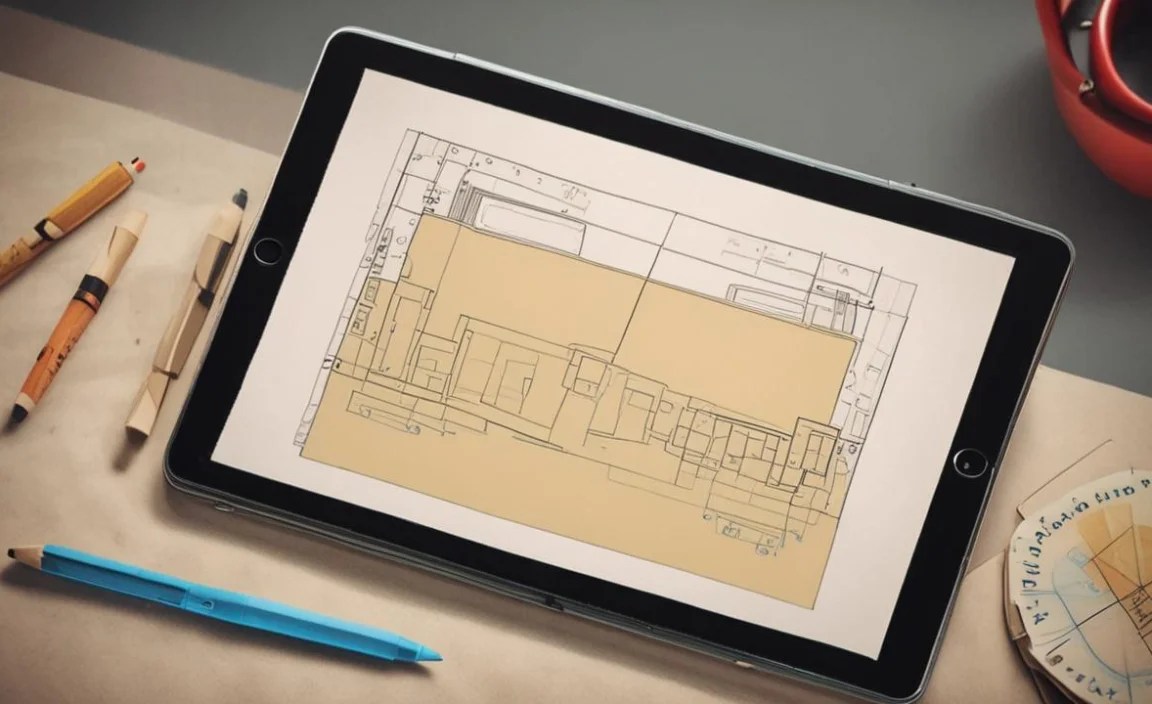
Once you have your tablet, a few tweaks and accessories can enhance your sketching workflow:
1. Essential Apps
The right software makes all the difference. Here are some top picks:
- Procreate (iPadOS): Widely considered the gold standard for digital art on iPad. Powerful, intuitive, and a one-time purchase.
- Adobe Fresco (iPadOS, Windows): Combines raster and vector brushes, with Live Brushes that mimic wet paint. Integrates with Adobe Creative Cloud. Free with an Adobe ID; paid features with Creative Cloud subscription.
- Autodesk Sketchbook (iPadOS, Android, Windows): A free, robust sketching and drawing app with a clean interface.
- Clip Studio Paint (iPadOS, Android, Windows): Powerful comic and manga creation software, also excellent for general illustration and painting. Available as a subscription or one-time purchase on some platforms.
- Concepts (iPadOS, Android, Windows): A vector-based sketching app focused on precision and infinite canvas. Great for technical drawing and design.
The U.S. National Archives offers a guide to software preservation, which highlights the importance of choosing and using applications effectively.
2. Stylus Accessories
- Screen Protectors: A matte or “paper-like” screen protector can provide a more textured surface, giving your stylus more friction and a feel closer to drawing on paper.
- Grips: Little silicone grips can make holding the stylus more comfortable for long sessions.
- Tip Replacements: Stylus tips wear down over time. Having replacements on hand ensures consistent performance.
3. Cases and Stands
- Protective Cases: Essential for protecting your investment, especially when traveling.
- Adjustable Stands: If your tablet’s case doesn’t have a built-in stand, an external one can help you achieve an ergonomic drawing angle, similar to a drafting table.
Quick Comparison Table: Lightweight Sketching Tablet Options
Here’s a simplified look at some popular lightweight tablets suitable for sketching:
| Tablet Model | Operating System | Screen Size (Typical) | Stylus Support | Key Strengths | Portability/Weight |
|---|---|---|---|---|---|
| Apple iPad (e.g., 10th Gen) | iPadOS | 10.9 inches | Apple Pencil (1st Gen) | Procreate access, user-friendly, vibrant display | Good (approx. 1.05 lbs / 477g) |
| Apple iPad Air (e.g., 5th Gen) | iPadOS | 10.9 inches | Apple Pencil (2nd Gen) | Powerful chip, better Apple Pencil integration | Good (approx. 1.02 lbs / 461g) |
| Samsung Galaxy Tab S9 FE | Android | 10.9 inches | S Pen (included) | Included S Pen, good value, decent screen | Good (approx. 1.16 lbs / 524g) |
| Samsung Galaxy Tab S9 | Android | 11 inches | S Pen (included) | AMOLED display, premium build, powerful | Very Good (approx. 1.04 lbs / 477g) |
| Microsoft Surface Go 3 | Windows | 10.5 inches | Surface Pen (sold separately) | Full Windows OS, desktop app compatibility | Excellent (approx. 1.2 lbs / 544g without keyboard) |
Note: Weights are approximate and can vary by specific model generation and configuration. Always check the latest specs for the most accurate information.
Budget-Friendly Lightweight Options
You don’t always need to break the bank for a capable sketching tablet. Consider these:
- Entry-level iPads: The standard iPad models often offer excellent value, especially if you can find them on sale.
- Samsung Galaxy A Series Tablets: While not as high-end as the S series, some A-series tablets offer stylus support and decent screens for basic sketching.
- Amazon Fire Tablets: While their stylus support is limited or non-existent for true digital art, they can be good for very basic sketching or note-taking if combined with a compatible passive stylus (though experience will be very basic).
- Older Models: Consider refurbished or previous-generation iPads or Galaxy Tabs. They can offer significant savings with still-great performance for sketching. For instance, a refurbished iPad Air (3rd or 4th gen) or a Galaxy Tab S6 Lite can be excellent budget choices.

Your tech guru in Sand City, CA, bringing you the latest insights and tips exclusively on mobile tablets. Dive into the world of sleek devices and stay ahead in the tablet game with my expert guidance. Your go-to source for all things tablet-related – let’s elevate your tech experience!