Setting up your RCA Tablet 10 Viking Pro for kids is simple! This guide provides a step-by-step process to create a safe, fun, and age-appropriate digital environment, ensuring your child can enjoy their tablet responsibly with parental controls and curated content.
Welcome to Tabletzoo! So, you’ve got the RCA Tablet 10 Viking Pro and are ready to let your little ones explore its digital world. That’s fantastic! But sometimes, getting a new device ready for kids can feel a bit daunting. You want to make sure it’s safe, and that they’re only seeing and doing what’s appropriate. The good news is, it doesn’t have to be complicated. We’re here to walk you through setting up your RCA Tablet 10 Viking Pro specifically for kids, making it a secure and enjoyable experience for everyone. Let’s get started!
RCA Tablet 10 Viking Pro: Essential Kid Setup Guide
The RCA Tablet 10 Viking Pro is a great option for families looking for an affordable tablet that can be customized for younger users. In this guide, we’ll cover everything you need to know to transform it into a kid-friendly device. From setting up parental controls to choosing the best apps, we’ve got you covered.
Why a Dedicated Kid Setup is Important
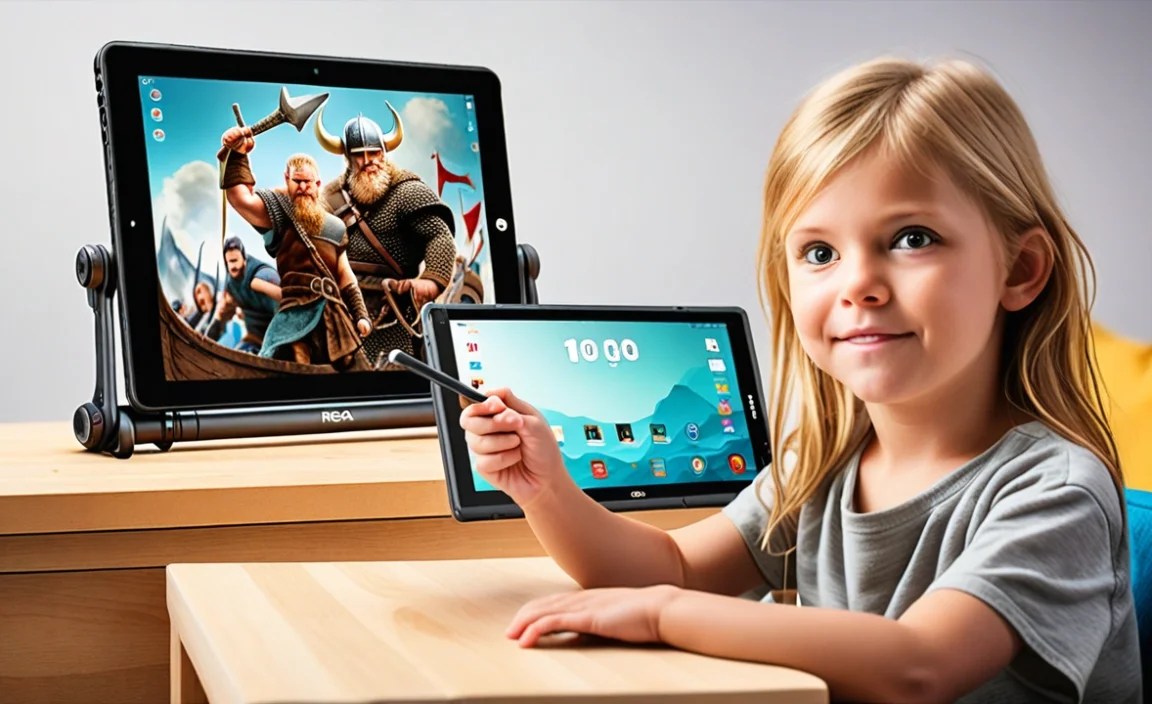
Giving a tablet to a child without proper setup can lead to a few concerns. Without safeguards, they might accidentally access inappropriate content, make in-app purchases, or spend too much time on unrestricted apps. A dedicated kid setup ensures:
Safety: Prevents access to websites and apps not suitable for their age.
Content Control: Limits viewing to educational and age-appropriate entertainment.
Time Management: Helps regulate screen time to promote healthy habits.
Privacy: Protects personal information.
Customization: Tailors the tablet to your child’s interests and learning needs.
Initial Setup of Your RCA Tablet 10 Viking Pro

Before we dive into kid-specific settings, let’s cover the basic setup of your tablet. If you’ve already done this, feel free to skip ahead.
1. Power On: Press and hold the power button, usually located on the side or top edge of the tablet.
2. Language and Region: Select your preferred language and region.
3. Wi-Fi Connection: Connect to your home Wi-Fi network. You’ll need your network name (SSID) and password.
4. Google Account: You’ll be prompted to sign in with a Google account. If you don’t have one, you can create one during this process. This is essential for downloading apps and using Google services.
5. Terms of Service and Updates: Agree to the terms of service and allow the tablet to check for and install any available software updates. Updates often include security patches and performance improvements.
6. Device Name: You can name your tablet here, which can be helpful if you have multiple devices on your network.
7. Set a Screen Lock: While we’ll set up kids’ profiles later, it’s a good idea to set a PIN, pattern, or password for your main administrator account to prevent unintended changes.
Creating a Kid-Friendly Profile (Digital Wellbeing)

Android, the operating system on your RCA Tablet 10 Viking Pro, offers built-in tools to manage your child’s experience. One of the most effective ways is by creating a separate user profile, often managed through features like “Digital Wellbeing” (though specific implementations can vary slightly by Android version).
Using Google Family Link
Google Family Link is a free app that lets you manage your child’s Google account and devices remotely. It’s a powerful tool for setting screen time limits, approving or blocking apps, and seeing activity reports.
To set up with Family Link:
1. Download Family Link: On your own smartphone or tablet (iOS or Android), download and install the Google Family Link app from the App Store or Google Play Store.
2. Create a Child’s Google Account:
Open the Family Link app and tap “Create account” or follow the on-screen prompts to set up a new Google account for your child. You’ll need to provide their name, email address (which will be their username), and password.
Follow the instructions to specify your child’s age. This is crucial for setting up age-appropriate restrictions.
You will also need to provide consent as the parent to create and manage this account.
3. Link the Child’s Account to the Tablet:
On the RCA Tablet 10 Viking Pro, go to Settings > Accounts (or Users & accounts).
Tap Add account.
Select Google and choose Sign in with the new child’s Google account you just created.
Follow the on-screen prompts to complete the sign-in.
4. Set Up Supervision:
Once the child’s account is added to the tablet, Family Link will prompt you to “Supervise [Child’s Name]’s Android device.”
Follow the instructions on both your phone (running Family Link) and the tablet to establish the supervision link. This often involves confirming codes or pressing buttons to agree to supervision.
You can then configure settings like app approvals, screen time limits, and location tracking directly from your Family Link app.
Key Features of Google Family Link for Kids:
App Approval: You decide which apps your child can download and use.
Screen Time Limits: Set daily time limits and a bedtime schedule for the tablet.
Content Filters: Google Chrome and Google Search have built-in safe search options.
Activity Reports: See how much time your child spends on different apps.
Location Tracking: Pinpoint the tablet’s location if it’s lost or misplaced.
Creating a Standard User Profile (If Family Link isn’t an option or preference)
Some older Android versions or specific tablet configurations might not have the full suite of Family Link supervision built-in directly. In such cases, you can create a standard “User” profile on the tablet, which offers a degree of separation but fewer granular controls than Family Link.
1. Navigate to Settings: On the RCA Tablet 10 Viking Pro, open the Settings app.
2. Find Users/Accounts: Look for System, then Multiple users, or Accounts > Users.
3. Add User: Tap Add user or Add profile.
4. Choose User Type: Select Restricted profile or Kid profile if available. If not, you might create a “User” profile.
5. Set Up Profile:
Follow the on-screen prompts. You’ll typically give this new profile a name (e.g., “Lily’s Profile”).
You’ll then get to choose which apps are accessible within this profile. Select only the apps you want your child to use.
Once created, you can switch to this profile by tapping on it.
Note: A standard user profile offers isolation, meaning apps and settings within it are separate. However, it doesn’t usually provide the sophisticated time limits or remote management features of Google Family Link.
What Apps Should You Install on Your Child’s Tablet?

The heart of a great kid’s tablet experience lies in its apps. You want a mix of educational, creative, and fun options.
Educational Apps
These apps make learning engaging. Look for apps that cover subjects like math, reading, science, and coding.
PBS KIDS Games: Offers a wide range of fun and educational games featuring popular PBS characters.
Khan Academy Kids: A completely free, play-based learning program designed for children ages 2–8.
Duolingo: A popular app for learning new languages, suitable for older children.
ScratchJr: Allows young children (ages 5–7) to create their own interactive stories and games by snapping together graphical programming blocks.
Toca Boca Apps: While fun, many Toca Boca apps also encourage imaginative play and exploration, which are essential for development.
Creative Apps
Let your child express their artistic side!
Drawing Apps: Consider apps like Sketchbook, Autodesk Sketchbook, or simple drawing pads.
Storytelling Apps: Apps that let children create their own digital books or comics.
Music Creation Apps: Simple apps that allow kids to experiment with sounds and rhythms.
Entertainment Apps
Keep them entertained with curated content.
YouTube Kids: A separate app from regular YouTube, designed to be more child-friendly with curated content and parental controls.
Netflix / Disney+ (with parental controls): If you subscribe, set up kid profiles within these streaming apps to ensure age-appropriate viewing.
Simple Games: Look for games with minimal ads and no in-app purchases, or ensure they are locked behind parental approval.
Where to Find Apps:
The Google Play Store is your primary source. When browsing, pay attention to:
Ratings and Reviews: See what other parents and users think.
Age Appropriateness: Check the listed age range.
In-App Purchases: Be mindful of apps that heavily push in-app purchases. Family Link can help manage these.
Permissions: Understand what data the app wants access to.
Setting Up Parental Controls and Safety Features
Beyond app management, there are other crucial safety features to configure.
Safe Browsing with Chrome
Google Chrome on the tablet can be configured to be more child-friendly.
1. Open Chrome: On the RCA Tablet 10 Viking Pro, open the Chrome browser.
2. Access Settings: Tap the three vertical dots in the top right corner, then select Settings.
3. Site Settings: Scroll down to Site settings.
4. JavaScript / Pop-ups: You might want to disable pop-ups and redirects if you find them problematic.
5. SafeSearch: For Google searches within Chrome, ensure SafeSearch is turned on. This can be managed via your child’s Google account settings if you are using Family Link. You can access this by going to your child’s Google account settings on your Family Link app and looking for SafeSearch.
6. Visit Websites: You can also use Family Link to manage which specific websites your child can visit.
YouTube Kids
If your child enjoys videos, YouTube Kids is a must. It’s a separate app from the main YouTube and offers:
Curated Content: Videos are selected to be child-appropriate.
Parental Controls: You can block videos or channels, set timers, and restrict search.
Age-Based Modes: Choose from “Preschool,” “Younger,” or “Older” to tailor the experience.
To Set Up YouTube Kids:
1. Download: Install YouTube Kids from the Google Play Store.
2. Parental Setup: When you first open it, there will be a setup process for parents. You’ll need to sign in with your Google account.
3. Child Profile: Create a profile for your child.
4. Settings: Explore the settings to choose your preferred content level, activate parental controls, and set timers.
Disabling Developer Options and Unknown Sources
To prevent accidental installations of unverified apps, it’s wise to disable these settings.
Developer Options: These are usually hidden. To reveal them, go to Settings > About tablet, and tap the Build number seven times. Once revealed, go back to Settings > System (or Developer Options) and ensure USB debugging is off and any other settings you’re unsure of are also disabled.
Unknown Sources: Go to Settings > Apps & notifications (or similar), then look for Special app access > Install unknown apps. You can then manage which apps are allowed to install other apps. For maximum safety, disallow installation from all sources except for the Google Play Store itself.
Managing Screen Time Effectively
Setting time limits is crucial for healthy digital habits. Google Family Link makes this straightforward.
1. Open Family Link App: On your parent device, open the Family Link app.
2. Select Child: Tap on your child’s profile.
3. Go to “Limits”: You’ll see options for “Daily limits” and “Bedtime.”
4. Set Daily Limits: Choose how much screen time your child gets per day. You can set different limits for weekdays and weekends.
5. Set Bedtime: Define a period when the tablet cannot be used at all, ensuring it doesn’t interfere with sleep.
6. App Limits: You can also set limits for specific apps if needed, though general daily limits are usually sufficient.
Tips for a Positive Kid Tablet Experience
Involve Your Child: When setting up, explain to your child why you’re setting up controls. Frame it as helping them find the best games and videos, rather than just restricting them.
Regular Check-ins: Periodically review the apps your child is using and their activity. This is a good opportunity to talk about online safety.
Balance is Key: While tablets are great, encourage a balance with other activities like reading books, playing outdoors, and interacting with family and friends.
No-Tablet Zones/Times: Designate certain areas (like the bedroom at night) or times (during meals) as tablet-free zones to promote family connection and healthy habits.
Physical Activity: Remember to encourage physical activity. The CDC recommends at least 60 minutes of physical activity for children daily.
RCA Tablet 10 Viking Pro vs. Other Kid Tablets: A Quick Look
While this guide is specifically for the RCA Tablet 10 Viking Pro, it’s helpful to know how it stacks up against dedicated kid tablets.
| Feature | RCA Tablet 10 Viking Pro (with Kid Setup) | Dedicated Kid Tablet (e.g., Amazon Fire) |
| :—————- | :—————————————- | :————————————— |
| Price | Generally Affordable | Often affordable, some premium options |
| Parental Controls | Robust via Google Family Link | Strong, built-in ecosystem |
| Content Access| Highly Customizable | Curated by manufacturer |
| App Store | Google Play Store (Vast selection) | Manufacturer’s app store (Smaller) |
| Hardware Durability | Standard consumer grade | Often includes rugged cases and warranties |
| Ease of Use | Simple setup with Family Link | Very simple, designed for kids |
The RCA Tablet 10 Viking Pro, when configured with Google Family Link, offers a flexible and robust solution for parents. While dedicated kid tablets might come with pre-installed rugged cases, the Viking Pro provides a more open ecosystem through the Google Play Store and a personalized experience.
Troubleshooting Common Setup Issues
Sometimes, things don’t go as smoothly as planned. Here are a few common issues and how to fix them:
Google Family Link Not Connecting:
Ensure both your parent device and the child’s tablet are connected to the internet.
Make sure you are signed into the correct Google account on your parent device (the one that will be the supervisor).
Restart both devices.
Check that you have the latest version of the Family Link app.
Can’t Download Apps:
Check your child’s Google account balance if you are trying to download a paid app.
Ensure you have approved the app through Family Link if app approvals are enabled.
Verify that the tablet has enough storage space.
Tablet is Running Slow:

Your tech guru in Sand City, CA, bringing you the latest insights and tips exclusively on mobile tablets. Dive into the world of sleek devices and stay ahead in the tablet game with my expert guidance. Your go-to source for all things tablet-related – let’s elevate your tech experience!