Setting up your new RCA Tablet 10 Viking Pro? Don’t worry, it’s simpler than you think! This guide will walk you through every step, from unboxing to connecting to Wi-Fi and downloading apps. We’ll cover everything you need to know to get your tablet up and running smoothly. Follow along with our easy-to-understand instructions, and you’ll be enjoying your new device in no time. Let’s get started!
Unboxing Your RCA Tablet 10 Viking Pro: What’s Inside?

The excitement of a new gadget starts the moment you open the box. Carefully unbox your RCA Tablet 10 Viking Pro to ensure you have all the necessary components. Often, manufacturers include everything you need to get started right away, but it’s always good to check.
- The RCA Tablet 10 Viking Pro device itself
- A USB charging cable
- A power adapter for charging
- A Quick Start Guide (which you’re essentially upgrading with this comprehensive guide!)
- Warranty information
Take a moment to inspect your tablet for any visible damage. If anything seems amiss, reach out to the retailer or RCA support immediately. Once everything looks good, it’s time to power it up!
First Power-Up and Initial Setup Steps
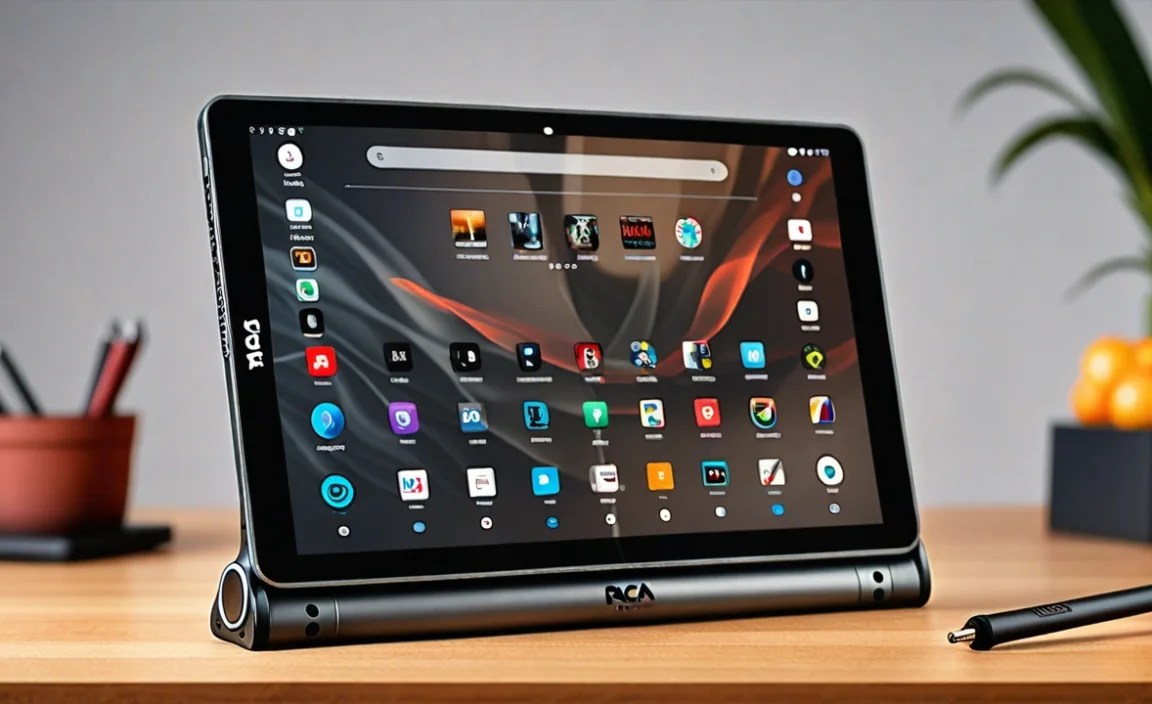
Turning on your RCA Tablet 10 Viking Pro for the first time is straightforward. Find the power button, usually located on the edge or top of the tablet. Press and hold it for a few seconds until you see the RCA logo appear on the screen. Your tablet will then begin its initial boot-up process, which might take a minute or two.
Once the welcome screen appears, you’ll be guided through a series of setup steps. These are designed to get your tablet ready for use and connect it to your digital life.
Selecting Your Language
The very first step is usually choosing your preferred language. This sets the primary language for your tablet’s interface, menus, and system messages. Scroll through the list and tap on your language. This step is crucial for a comfortable user experience.
Connecting to Wi-Fi
To download apps, browse the internet, and use many of your tablet’s features, you’ll need a stable internet connection. Your tablet will scan for available Wi-Fi networks. Select your home network from the list and enter your Wi-Fi password. If you’re unsure about your password, it’s often found on your Wi-Fi router.
Why is Wi-Fi important? A good Wi-Fi connection ensures smooth updates, fast app downloads, and uninterrupted streaming. For more information on understanding Wi-Fi, you can check out resources from the FCC.
Accepting Terms and Conditions
Like most electronic devices and software, your RCA Tablet 10 Viking Pro will come with terms of service and a privacy policy. You’ll need to review and accept these to proceed with the setup. This is standard practice and ensures you’re aware of how the device and its associated services operate.
Setting Up Your Google Account
The RCA Tablet 10 Viking Pro runs on the Android operating system, which is heavily integrated with Google services. You’ll be prompted to sign in with your existing Google account (Gmail address and password) or create a new one if you don’t have one. A Google account is essential for:
- Accessing the Google Play Store to download apps and games
- Syncing contacts, calendars, and emails
- Backing up your device data
- Using Google services like Drive, Photos, and Maps
If you need to create a Google account, you can do so easily through the setup process or by visiting the Google Account creation page.
Restoring Data (Optional)
If you’ve used Android devices before, you might have the option to restore data from a previous backup associated with your Google account. This can save you time by automatically reinstalling apps and restoring settings. If this is your first tablet or you prefer a fresh start, you can skip this step.
Setting Up a Screen Lock
For security, it’s highly recommended to set up a screen lock. You’ll have several options:
- PIN: A numeric code, typically 4 or more digits.
- Password: An alphanumeric code.
- Pattern: Drawing a specific pattern on a grid of dots.
- Face Unlock: Using the tablet’s camera to recognize your face (availability varies).
Choose the method that best suits your preference for security and ease of use. Remember your PIN, password, or pattern, as you’ll need it to unlock your tablet.
Reviewing Additional Apps
During setup, you might be offered optional apps or services. You can choose to install or skip these based on your needs and preferences. It’s usually better to install only what you know you’ll use to keep your tablet running smoothly.
Completing the Setup
Once you’ve gone through all the prompts, you’ll see a “Finishing up” or “Welcome” screen, indicating that the setup is complete. You’ll then be taken to your tablet’s home screen, ready for exploration!
Navigating Your RCA Tablet 10 Viking Pro Homepage

The home screen is your central hub for accessing apps, widgets, and settings. Familiarize yourself with its basic layout to use your tablet efficiently.
- App Icons: These are shortcuts to your installed applications. Tap once to open an app.
- App Drawer: Usually represented by a circle or grid icon, this opens a full list of all installed apps.
- Taskbar/Dock: Located at the bottom of the screen, this typically holds frequently used apps like Phone, Messages, Camera, and your Web Browser.
- Notification Shade: Swipe down from the top of the screen to access notifications (e.g., new emails, app alerts) and quick settings (Wi-Fi, Bluetooth, Brightness).
- Widgets: These are interactive elements that display information or provide shortcuts, such as a clock, weather forecast, or a music player.
Essential Settings to Configure
Now that your tablet is set up, let’s dive into some key settings to optimize your experience.
Display Settings
Brightness: Adjust the screen brightness to your comfort level and to conserve battery life. You can usually find a brightness slider in the notification shade or under Settings > Display. Auto-brightness can also be enabled to adjust dynamically.
Screen Timeout: Control how long the screen stays on before automatically turning off. A shorter timeout saves battery; a longer one is convenient if you’re reading or watching something.
Font Size: If you find the text too small, you can increase the font size for easier reading in Settings > Display > Font size.
Sound and Vibration
Access these settings to adjust media volume, ringtone volume, and alarm volume. You can also choose different notification sounds and vibration patterns.
Battery Management
Understanding your battery usage is important. Go to Settings > Battery to see which apps are consuming the most power. Enabling battery saver mode can extend battery life by limiting background activity and performance.
Storage Management
Check your available storage space in Settings > Storage. If you’re running low, you can uninstall unused apps, delete downloaded files, or move data to cloud storage (like Google Drive or Photos) or an external microSD card if your tablet supports it.
Getting Started with the Google Play Store
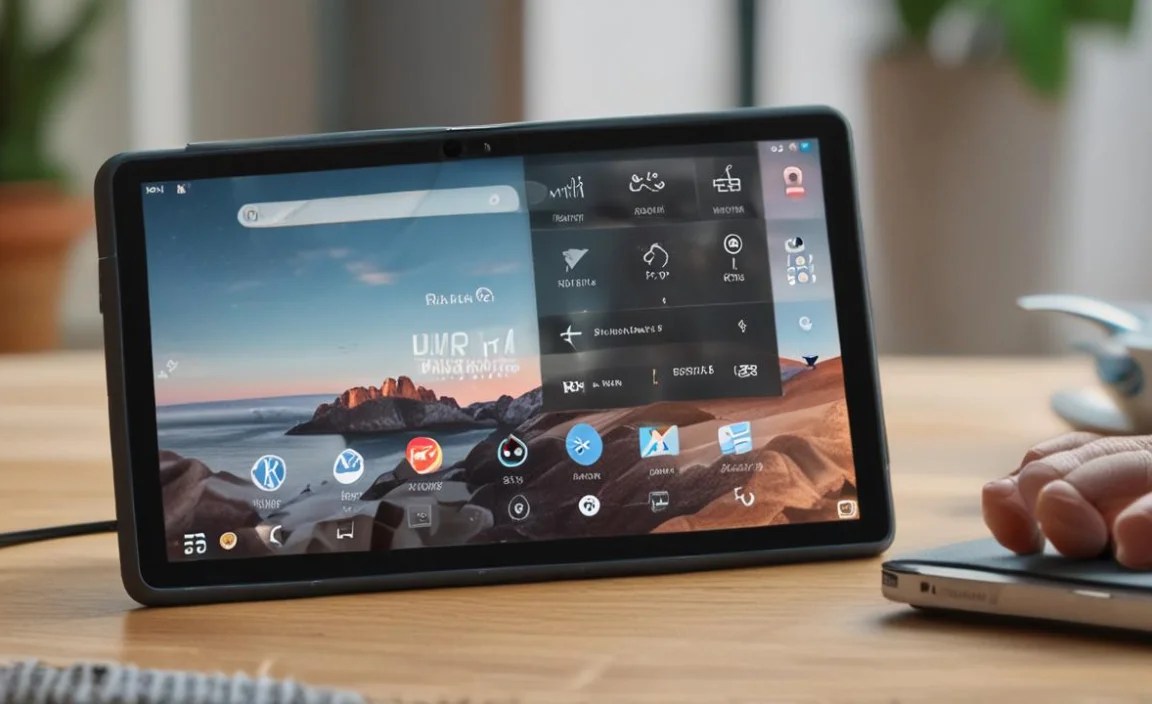
The Google Play Store is your gateway to millions of apps, games, books, and movies. It’s pre-installed on your RCA Tablet 10 Viking Pro.
Open the Play Store app (it looks like a colorful triangle). You can:
- Search: Use the search bar at the top to find specific apps.
- Browse: Explore categories like “Games,” “Apps,” “Movies & TV,” or “Books.”
- Discover: Check out curated lists, trending apps, and personalized recommendations.
To install an app, simply tap on it, then tap the “Install” button. You may need to accept app permissions. Free apps will download immediately, while paid apps will require you to select a payment method (linked to your Google account).
Connecting Peripherals and Accessories
Your RCA Tablet 10 Viking Pro can be enhanced with accessories, depending on its ports and capabilities.
Bluetooth Devices
If your tablet has Bluetooth, you can connect wireless accessories:
- Go to Settings > Connected devices (or Bluetooth).
- Make sure Bluetooth is turned on.
- Put your Bluetooth device (e.g., headphones, keyboard) into pairing mode.
- Your tablet will scan for available devices. Tap on your device name to pair them.
Bluetooth is a great way to add functionality without wires. For more on Bluetooth technology, consult the official Bluetooth website.
MicroSD Card (if supported)
Some RCA tablets support microSD cards to expand storage. If yours does, locate the microSD card slot (often a small tray you need to eject). Insert a compatible card, and your tablet should recognize it, allowing you to move apps, photos, and other files to it to free up internal storage.
USB OTG (On-The-Go) (if supported)
If your tablet supports USB OTG, you can use an adapter to connect a USB drive, keyboard, mouse, or even charge another device. This makes your tablet more versatile for productivity tasks.
Troubleshooting Common Setup Issues
Even with simple setups, hiccups can occur. Here are solutions to common problems:
| Issue | Possible Solution(s) |
|---|---|
| Tablet won’t turn on | Ensure it’s charged for at least 30 minutes. Try a different power outlet and charging cable. Press and hold the power button for 15-20 seconds for a forced restart. |
| Wi-Fi not connecting | Double-check your Wi-Fi password. Restart your router and your tablet. Move closer to the router. Forget the network in Wi-Fi settings and try reconnecting. |
| Google Play Store not working | Check your internet connection. Ensure the date and time are set correctly on your tablet. Clear the cache and data for Google Play Store and Google Play Services apps (Settings > Apps > Show system > Google Play Store > Storage). Restart your tablet. |
| Screen is unresponsive | Try restarting your tablet. If it’s frozen, perform a forced restart (usually by holding the power button for an extended period). Ensure the screen is clean. |
| App is crashing | Close and reopen the app. Restart your tablet. Check for app updates in the Play Store. If the issue persists, try uninstalling and reinstalling the app. |
Remember, patience is key when troubleshooting. If you encounter a persistent issue, consulting the official RCA support website or the manufacturer’s manual can provide further guidance.
Keeping Your RCA Tablet Updated
Software updates are crucial for keeping your tablet secure, stable, and performing at its best. They often include new features, bug fixes, and security patches.
To check for updates:
- Go to Settings.
- Scroll down to “System” or “About tablet.”
- Tap on “System update” or “Software update.”
- Your tablet will check for available updates. If one is found, follow the on-screen instructions to download and install it.
It’s best to perform updates when your tablet is connected to Wi-Fi and has sufficient battery power, or while plugged in.
Securing Your Device: More Tips
Beyond a basic screen lock, consider these security measures:
- Find My Device: Ensure this feature is enabled in your Google account settings on the tablet. It allows you to locate, lock, or erase your tablet remotely if it’s lost or stolen. You can manage this through google.com/android/find.
- App Permissions: Be mindful of the permissions you grant to apps. Only allow access to data and features that are necessary for the app to function. You can review and manage these in Settings > Apps > [App Name] > Permissions.
- Public Wi-Fi Caution: Be extra cautious when using public Wi-Fi networks, as they can be less secure. Avoid accessing sensitive accounts (like banking) on public Wi-Fi unless you are using a VPN (Virtual Private Network) for added security.
Customizing Your Tablet Experience
Once the essential setup is complete, you can tailor your RCA Tablet 10 Viking Pro to your liking:
- Wallpaper and Themes: Personalize your home screen by changing the wallpaper. Long-press on an empty area of the home screen and select “Wallpaper” or “Themes.”
- Widgets: Add widgets for quick access to information or controls. Long-press on an empty area and select “Widgets.”
- Home Screen Layout: Organize your app icons and folders to create a layout that makes sense for you.
- Notification Settings: Fine-tune which apps can send you notifications and how they appear.
Conclusion: Enjoy Your Ready-to-Go RCA Tablet 10 Viking Pro!
Setting up your RCA Tablet 10 Viking Pro should now feel like a breeze! You’ve successfully navigated the unboxing, initial configuration, essential settings, and even learned how to enhance your tablet with apps and accessories. By following these steps, you’re well on your way to enjoying a smooth, secure, and personalized tablet experience.
Remember, your tablet is a versatile tool for entertainment, productivity, and staying connected. Don’t hesitate to explore the Google Play Store, experiment with different settings, and discover all the amazing things your RCA Tablet 10 Viking Pro can do. If you ever face a challenge, this guide, along with the wealth of online resources available, is here to help. Happy tabletting!
Frequently Asked Questions (FAQ)
Q1: How long does the initial setup of an RCA Tablet 10 Viking Pro typically take?
The initial setup, including connecting to Wi-Fi and signing into your Google account, usually takes between 5 to 15 minutes, depending on your internet speed and how quickly you go through the prompts. Subsequent steps like updating firmware or downloading apps can take longer.
Q2: Can multiple users use the same RCA Tablet 10 Viking Pro?
Yes, Android tablets generally support multiple user profiles. You can set up different profiles for family members, each with their own apps, settings, and home screens. Go to Settings > System > Multiple users to manage profiles.
Q3: Do I need a Google account to use my RCA Tablet 10 Viking Pro?
While you can use some basic functions without a Google account (like browsing pre-installed apps or using offline features), a Google account is essential for accessing the Google Play Store to download apps, sync data, and use many core Android features. It’s highly recommended to set one up.
Q4: What should I do if my tablet seems slow after setup?
Several things can cause slowness. Ensure you have enough free storage space. Close any apps you’re not actively using. Check for system updates in Settings. If a specific app is causing issues, try clearing its cache or restarting the tablet. For persistent slowness, a factory reset might be considered, but always back up your data first.
Q5: How do I protect my RCA Tablet 10 Viking Pro from malware?
The best way to protect against malware is to download apps only from the official Google Play Store. Be cautious about app permissions, and avoid clicking suspicious links or downloading files from unknown sources. Keep your tablet’s software updated, as updates often include security patches.
Q6: Can I connect a keyboard and mouse to my RCA Tablet 10 Viking Pro?
This depends on whether your specific RCA Tablet 10 Viking Pro model supports USB OTG (On-The-Go) functionality. If it does, you can usually connect a keyboard and mouse using a compatible USB

Your tech guru in Sand City, CA, bringing you the latest insights and tips exclusively on mobile tablets. Dive into the world of sleek devices and stay ahead in the tablet game with my expert guidance. Your go-to source for all things tablet-related – let’s elevate your tech experience!