Facing issues with your RCA Tablet 10 Viking Pro? Don’t worry! This guide offers straightforward fixes for common problems like slow performance, app crashes, and connectivity hiccups. Get your tablet back in top shape with easy-to-follow steps designed for beginners.
Welcome to Tabletzoo! We know how frustrating it can be when your trusty tablet decides to act up. The RCA Tablet 10 Viking Pro is a popular choice for many, offering a great blend of features and affordability. But sometimes, even the best devices can experience a hiccup. You might find your tablet running slower than usual, apps freezing, or perhaps Wi-Fi acting a bit shy. It’s completely normal and usually very fixable! This article is here to be your friendly guide, walking you through common RCA Tablet 10 Viking Pro troubleshooting steps. We’ll tackle these issues one by one, so you can get back to enjoying your tablet for work, play, or anything in between. Let’s dive in and get your Viking Pro running smoothly again!
Understanding Common RCA Tablet 10 Viking Pro Issues

It’s helpful to know what kind of problems you might encounter with your RCA Tablet 10 Viking Pro. By recognizing these common glitches, you can be better prepared to tackle them. Think of it as familiarizing yourself with the ‘usual suspects’ when it comes to tablet troubles.
Sluggish Performance and Lag
This is probably the most common complaint. If your apps take ages to open, scrolling feels like wading through mud, or the device simply feels unresponsive, you’re experiencing sluggish performance. This can be due to too many apps running in the background, low storage space, or even outdated software.
App Crashes and Freezes
Ever have an app suddenly close on its own, or get stuck showing the same screen indefinitely? These are app crashes and freezes. They can be caused by app bugs, conflicts between apps, or issues with the tablet’s operating system.
Connectivity Problems (Wi-Fi & Bluetooth)
Struggling to connect to your Wi-Fi network or pair a Bluetooth device? These connectivity issues can stem from router problems, incorrect settings, or interference.
Touchscreen Unresponsiveness
Sometimes, the screen might not register your touches, or it might act as if you’re touching it when you’re not. This can be incredibly frustrating, especially for basic navigation.
Battery Drain Issues
If your battery seems to be draining much faster than it used to, even when you’re not using the tablet heavily, there might be a software or hardware issue at play.
The “Not Charging” Dilemma
A very specific, yet common, issue is when your RCA Tablet 10 Viking Pro refuses to charge. This can leave you stranded and unable to use your device. We’ll cover this thoroughly.
Essential Troubleshooting Steps for Your RCA Tablet 10 Viking Pro

Now that we’ve identified some common culprits, let’s get down to fixing them. These steps are designed to be easy to follow, even if you’re new to tablet troubleshooting.
1. The Universal Fix: Restart Your Tablet
Yes, it sounds too simple, but the humble restart can solve a surprising number of problems. It clears out temporary glitches and refreshes the system.
How to do it:
1. Press and hold the Power button on your RCA Tablet 10 Viking Pro.
2. When the power menu appears, tap “Restart” or “Power Off”. If you choose “Power Off,” wait a few seconds, then press and hold the Power button again to turn it back on.
This is your first line of defense for almost any issue.
2. Free Up Storage Space
Running out of space is a major cause of slow performance. Think of your tablet’s storage like a filing cabinet; if it’s overflowing, it’s hard to find anything, and things get jammed.
What to look for and clear:
Downloaded files: Check your Downloads folder for old files you no longer need.
Apps you don’t use: Uninstall any apps you haven’t opened in months.
Photos and videos: Transfer them to a computer or cloud storage, then delete from the tablet.
Cache data: Apps store temporary data (cache) that can build up.
How to check storage and manage it:
1. Go to Settings > Storage. Here you’ll see a breakdown of what’s taking up space.
2. Tap on categories like “Apps” to uninstall unused ones.
3. Tap on “Internal shared storage” to see and delete specific files.
4. For app cache, go to Settings > Apps, tap on an app, then “Storage”, and select “Clear cache”. Be careful not to tap “Clear data” unless you want to reset the app completely.
3. Close Unused Apps
Having too many apps open at once can consume a lot of RAM (your tablet’s short-term memory) and processing power, leading to sluggishness.
How to close apps:
1. Most Android devices have a “Recent Apps” button. On the Viking Pro, this is usually a square icon at the bottom of the screen or accessible by swiping up from the bottom.
2. Tap this button to see all your open apps.
3. You can then swipe apps away one by one or tap a “Clear All” button (if available) to close them all.
4. Update Your Tablet’s Software and Apps
Software updates often include bug fixes and performance improvements. Outdated apps can also conflict with your tablet’s operating system.
Update the System:
1. Go to Settings > System > System update (or similar wording).
2. Tap “Check for update”. If an update is available, follow the prompts to download and install it. Ensure your tablet is connected to Wi-Fi and has sufficient battery or is plugged in.
Update Apps:
1. Open the Google Play Store app.
2. Tap your profile icon in the top right corner.
3. Select “Manage apps & device”.
4. Under “Updates available,” tap “Update all” or update individual apps.
5. Troubleshoot Wi-Fi and Connectivity
If your Wi-Fi is spotty or not connecting, start with these steps:
Toggle Wi-Fi: Go to Settings > Network & internet > Wi-Fi, and turn it off, then back on.
Restart your Router: Unplug your Wi-Fi router, wait 30 seconds, and plug it back in. Give it a few minutes to fully boot up.
Forget and Reconnect: In Settings > Network & internet > Wi-Fi, tap on your network name, then tap “Forget”. Afterward, select your network again and re-enter the password.
Airplane Mode: Briefly turn on Airplane mode and then off. This resets all wireless radios.
Check Router Placement: Ensure your tablet is within a reasonable range of your router and that there are no major obstructions. For more in-depth network troubleshooting, you might find resources from your Internet Service Provider or general tech guides helpful. For example, How-To Geek offers excellent general Wi-Fi troubleshooting advice.
6. Address App Crashes and Freezes
When a specific app is misbehaving:
Force Close the App: If an app is frozen, you can usually force close it from the Recent Apps screen (see step 3).
Clear App Cache and Data: As mentioned in step 2, go to Settings > Apps, select the problematic app, tap Storage, and try “Clear cache” first. If that doesn’t work, and you don’t mind losing settings for that app, you can try “Clear data”.
Reinstall the App: Uninstall the app entirely from the Recent Apps screen or Settings > Apps. Then, go to the Google Play Store and reinstall it.
7. Fix Touchscreen Issues
If your touchscreen isn’t cooperating:
Clean the Screen: Dirt, smudges, or screen protectors can sometimes interfere with touch sensitivity. Clean your screen with a soft, dry microfiber cloth.
Remove Screen Protector temporarily: If you have a screen protector, try removing it to see if it’s causing the issue.
Restart your Tablet: A simple restart often resolves temporary software glitches affecting the touchscreen.
Check for physical damage: If the tablet has been dropped or damaged, the touchscreen might need professional repair.
8. Solve Battery Drain Problems
A battery that drains too quickly can be a real headache.
Identify Battery Hogs: Go to Settings > Battery. This will show you which apps and system processes are using the most power.
Reduce Screen Brightness: High brightness drains battery faster. Lower it in the Quick Settings or main Settings menu.
Turn off Wi-Fi/Bluetooth/GPS when not in use: Leaving these on constantly consumes power.
Limit Background Activity: For apps that you don’t need running all the time, you can sometimes restrict their background data usage in Settings > Apps > [Select App] > Data usage.
Enable Battery Saver Mode: Many devices have a battery saver mode that limits background activity and visual effects to conserve power.
Check for Rogue Apps: If a new app started causing battery drain, it might be the culprit. Try uninstalling recent apps.
9. RCA Tablet 10 Viking Pro Troubleshooting: Not Charging Fixes
This is a critical issue that needs detailed attention. If your RCA Tablet 10 Viking Pro isn’t charging, here’s a step-by-step approach:
Step 9.1: Check the Basics (Most Common Fixes)
Try a Different Charger and Cable: This is the single most common reason for charging issues. USB cables and chargers can degrade over time or be faulty. Borrow a known-working charger and cable from another device (ensure they have the same connector type and power output, typically a USB-A to micro-USB or USB-C).
Inspect the Charging Port: Look closely at the charging port on your tablet (usually micro-USB or USB-C). Is there any lint, dust, or debris inside?
How to Clean: Use a compressed air can to blow out any debris. Never use metal objects like pins or paper clips, as this can damage the delicate pins inside the port. A wooden toothpick might be used very gently if there’s stubborn debris, but be extremely cautious.
Ensure Secure Connection: Make sure the cable is firmly plugged into both the tablet and the charger, and the charger is securely in the wall outlet.
Try a Different Outlet: Test a different wall socket or power strip to rule out an issue with the power source.
Step 9.2: Advanced Charging Solutions
Charge While Off: Sometimes, a tablet might refuse to charge if it’s powered on and experiencing a software glitch. Power off your tablet completely, then plug it in to see if it charges.
Check Charger Specifications: Ensure your charger is providing adequate power. The RCA Tablet 10 Viking Pro typically uses a standard USB charger (often 5V/2A). Using a charger with insufficient amperage might lead to very slow charging or no charging at all.
Restart in Safe Mode (if applicable): If you suspect a third-party app is interfering with charging, booting into Safe Mode can help.
1. Turn off your tablet completely.
2. Press and hold the Power button until you see the RCA logo.
3. Once the logo appears, release the Power button and immediately press and hold the Volume Down button.
4. Keep holding Volume Down until the tablet boots up. You should see “Safe mode” on the screen.
5. With the tablet in Safe Mode, try charging it. If it charges here, a downloaded app is likely the cause. You’ll need to uninstall recently added apps one by one until the issue is resolved.
6. To exit Safe Mode, simply restart your tablet normally.
Step 9.3: Battery Health and Calibration
Battery Calibration: Over time, the battery’s charge indicator can become inaccurate. Calibrating it might help.
1. Charge your tablet to 100% and leave it plugged in for about an hour more.
2. Use your tablet until it shuts down due to low battery.
3. Leave it off for a few hours.
4. Charge it all the way back to 100% without interruption and without turning it on until it’s fully charged.
Note: This is more of a software fix for the battery indicator and might not help if there’s a hardware charging problem, but it’s worth trying if other steps fail.
Step 9.4: When All Else Fails
If your RCA Tablet 10 Viking Pro still won’t charge after trying all these steps, it’s possible there’s a hardware issue with the battery itself or the internal charging circuitry. In such cases, you might need to consider:
Contacting RCA Support: Check the official RCA manufacturer website for support options. They might offer repair services or advice specific to your model.
Professional Repair: Look for a reputable local tablet repair shop. They can diagnose hardware issues and potentially replace the battery or components.
Important Note on Battery Replacement: Replacing a tablet battery can be complex and may void your warranty. It’s usually best left to professionals unless you have experience with electronics repair.
When to Seek Professional Help
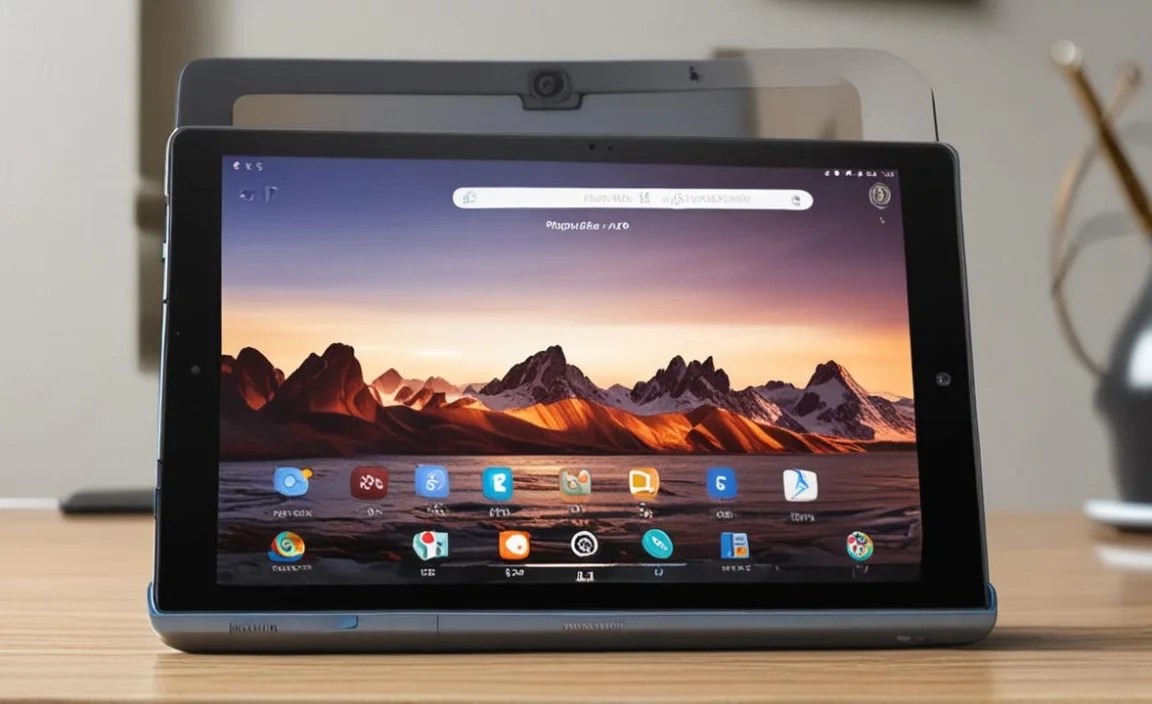
While many issues can be resolved with the steps above, there are times when you might need to call in the pros.
Physical Damage: If your tablet has been dropped and shows cracks or other physical damage, especially if it affects the screen or charging port.
Persistent Issues: If you’ve tried all troubleshooting steps, and the problem continues to occur.
Water Damage: Any signs of water ingress usually require professional assessment.
Hardware Malfunctions: If you suspect a component other than the battery has failed.
When seeking help, it’s always best to consult the manufacturer’s official support channels or a trusted, certified repair service. Organizations like the Federal Trade Commission (FTC) offer advice on choosing repair services.
FAQ: Your RCA Tablet 10 Viking Pro Questions Answered
Here are some common questions beginners ask about troubleshooting their RCA Tablet 10 Viking Pro.
Q1: My RCA Tablet 10 Viking Pro is running very slowly. What’s the first thing I should do?
The very first thing to try is a simple restart. Turn your tablet completely off, wait 30 seconds, and turn it back on. If that doesn’t help, check your storage space, as being full can significantly slow things down. Free up space by deleting unused apps, old files, or photos you don’t need on the device.
Q2: Apps keep crashing on my Viking Pro. Is there a quick fix?
For a specific app crashing, try clearing its cache and data in the tablet’s settings. If that doesn’t work, uninstall the app and then reinstall it from the Google Play Store. Make sure your tablet’s operating system and the app itself are updated to the latest versions.
Q3: Why won’t my RCA Tablet 10 Viking Pro connect to Wi-Fi?
Start by toggling your Wi-Fi off and on. If that fails, restart your Wi-Fi router by unplugging it for 30 seconds. You can also try “forgetting” your Wi-Fi network on the tablet and reconnecting by entering the password again. Ensure you’re within range of the router.
Q4: My tablet’s battery drains very quickly. What could be causing this?
Check your battery settings for apps that are consuming the most power. Lowering your screen brightness, turning off Wi-Fi and Bluetooth when not in use, and closing apps running in the background can help extend battery life. If a new app coincided with the drain, it might be the culprit.
Q5: How do I clean the charging port if it’s dirty?
Use a can of compressed air to blow out any dust or debris. If there’s stubborn lint, you can very gently try to dislodge it with a wooden toothpick, but avoid using anything metallic like pins or paperclips, as they can easily damage the port’s internal components.
Q6: My tablet won’t charge at all. What should I do?
First, try a different charging cable and power adapter, as these are common failure points. Inspect the charging port for debris and clean it gently. Ensure the cable is securely connected. Try charging the tablet while it’s powered off. If none of these work, there might be a hardware issue.

Your tech guru in Sand City, CA, bringing you the latest insights and tips exclusively on mobile tablets. Dive into the world of sleek devices and stay ahead in the tablet game with my expert guidance. Your go-to source for all things tablet-related – let’s elevate your tech experience!