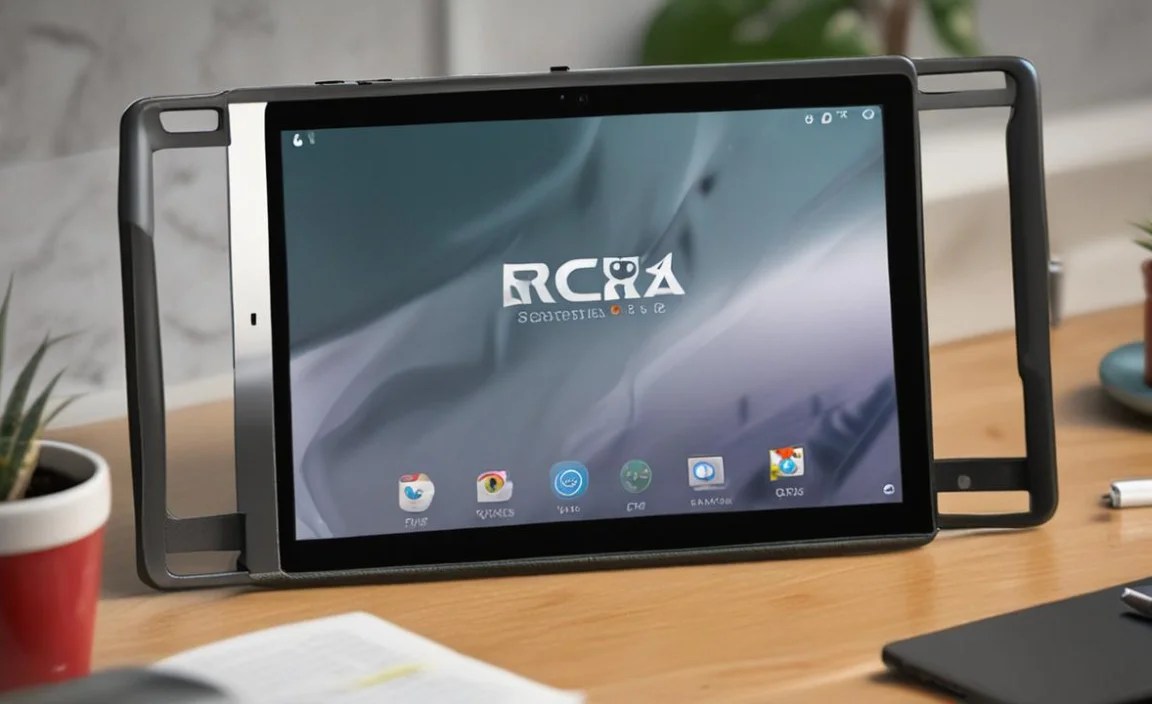
RCA Tablet 10 Viking Pro Troubleshooting: Essential Fixes for Common Problems. Get your tablet running smoothly with our easy-to-follow guide!
Having trouble with your RCA Tablet 10 Viking Pro? Don’t worry, it happens to everyone! Tablets, like any electronic device, can sometimes act up. Maybe it’s running slow, freezing unexpectedly, or refusing to connect to Wi-Fi. These issues can be frustrating, especially when you just want to browse, play a game, or catch up on your favorite show. But before you start thinking about a replacement, know that most common problems have simple solutions. We’re here to walk you through the essential fixes step-by-step, so you can get back to enjoying your tablet without a hitch. Let’s dive in and fix those glitches!
RCA Tablet 10 Viking Pro Troubleshooting: Common Issues and Easy Fixes

The RCA Tablet 10 Viking Pro is a popular choice for its affordability and decent performance, making it a favorite for families, students, and casual users. However, like any gadget, it might encounter a few bumps along the road. This guide is designed to help you tackle those common hiccups smoothly. We’ll cover everything from slow performance to app crashes, giving you the confidence to troubleshoot your tablet like a pro.
1. Slow Performance: Speed Up Your RCA Tablet 10 Viking Pro
Is your RCA Tablet 10 Viking Pro lagging behind? A sluggish tablet can be caused by a variety of factors, often related to memory, storage, or too many apps running in the background. Here’s how to give it a boost:
- Restart Your Tablet: This is the simplest and often most effective fix for many minor glitches. It clears out temporary memory and shuts down processes that might be hogging resources. Press and hold the power button, then select “Restart.”
- Close Unused Apps: Apps running in the background consume processing power and RAM. Regularly clear your recent apps by swiping them away from the multitasking view.
- Free Up Storage Space: When your tablet’s storage is nearly full, it can significantly slow down performance.
- Delete Unused Apps: Go to Settings > Apps, select apps you no longer need, and tap “Uninstall.”
- Clear App Cache and Data: For apps that take up a lot of space, clearing their cache can help. Go to Settings > Apps, select the app, then tap “Storage” and choose “Clear cache.” Clearing data will reset the app to its default state, so use this sparingly.
- Move Files to External Storage or Cloud: If you have a lot of photos, videos, or documents, consider moving them to a microSD card (if your tablet supports it) or cloud storage services like Google Drive or Dropbox.
- Disable Live Wallpapers and Widgets: Animated wallpapers and constantly updating widgets use extra resources. Switch to a static wallpaper and remove unnecessary widgets.
- Check for Software Updates: Manufacturers often release updates that include performance improvements and bug fixes. Go to Settings > About tablet > System updates and check for any available updates.
- Factory Reset (Last Resort): If all else fails, a factory reset can restore your tablet to its original settings, effectively clearing out any software-induced sluggishness. Important: This will erase all data on your tablet, so make sure to back up everything important first! You can find this option in Settings > System > Reset options > Erase all data (factory reset).
2. Frozen Screen or Unresponsive Touchscreen
A frozen screen or an unresponsive touchscreen can be incredibly frustrating. Here’s what to do:
- Force Restart: If a regular restart doesn’t work or the screen is completely unresponsive, a force restart is usually the solution.
- Press and hold the Power button for about 10-15 seconds.
- Keep holding it until the tablet screen goes black and the RCA logo appears, indicating it’s restarting.
3. Wi-Fi Connectivity Issues
Can’t connect to your home Wi-Fi or a public network? Wi-Fi problems are common. Try these steps:
- Toggle Wi-Fi Off and On: A simple refresh can often re-establish the connection. Go to Settings > Network & Internet > Wi-Fi, turn it off, wait a few seconds, and turn it back on.
- Restart Your Router and Modem: The problem might not be with your tablet but with your home network equipment. Unplug your router and modem, wait about 30 seconds, then plug them back in. Wait a few minutes for them to fully boot up before trying to connect your tablet again.
- Forget and Reconnect to the Network: Sometimes, the tablet needs to forget the network and re-enter the password. Go to Settings > Network & Internet > Wi-Fi. Tap on your network name, then select “Forget.” After that, find the network again in the list and tap “Connect,” entering the password when prompted.
- Check Network Settings: Ensure your tablet is set to obtain an IP address automatically and isn’t using a static IP that might be incorrect. You can usually find this in the Wi-Fi settings under “Advanced” or by tapping the network name.
- Check for Router Compatibility: Ensure your router’s Wi-Fi standard (e.g., 802.11b/g/n/ac) is supported by your tablet. Most modern routers are compatible, but it’s worth checking if you have a very old router.
- Update Tablet Software: As mentioned before, software updates can contain fixes for network issues.
- Check Other Devices: See if other devices in your home can connect to the Wi-Fi. If they can’t, the issue is likely with your router or internet service provider.
4. App Crashes and Freezes
Does a specific app keep closing unexpectedly or freezing your tablet?
- Force Close the App: If the app is misbehaving, force it to close. Go to Settings > Apps, find the problematic app, and tap “Force stop.”
- Clear App Cache and Data: As discussed under slow performance, clearing the app’s cache can resolve issues. If that doesn’t work, you can try clearing app data but remember this will reset the app to its default state, requiring you to log in again and reconfigure settings.
- Update the App: Developers frequently push out updates to fix bugs. Open the Google Play Store, tap your profile icon, then “Manage apps & device,” and check for app updates.
- Reinstall the App: Uninstalling and then reinstalling the app can often fix persistent issues.
- Check App Permissions: Some apps crash if they don’t have the necessary permissions. Go to Settings > Apps, select the app, then “Permissions,” and ensure all required permissions are granted.
- Check Device Storage: Low storage can cause apps to crash. Ensure you have sufficient free space.
- Check Minimum Requirements: Ensure the app is compatible with your RCA Tablet 10 Viking Pro and meets its minimum system requirements. You can usually find this information on the app’s page in the Google Play Store.
5. Battery Draining Too Quickly
Is the battery on your RCA Tablet 10 Viking Pro not lasting as long as it used to?
- Check Battery Usage: Go to Settings > Battery > Battery usage. This will show you which apps and services are consuming the most power. If you see an app using an unusually high percentage, that could be the culprit.
- Reduce Screen Brightness: The display is one of the biggest power drains. Lower the brightness to a comfortable level, or enable auto-brightness.
- Shorten Screen Timeout: Set your screen to turn off automatically after a shorter period of inactivity. Go to Settings > Display > Screen timeout.
- Disable Unnecessary Features: Turn off Wi-Fi, Bluetooth, and GPS when you’re not using them. These radios constantly search for connections and consume power.
- Limit Background App Activity: Some apps run in the background even when you’re not using them. You can often restrict background data usage or disable background activity for specific apps in their settings or under Battery optimization.
- Turn off Location Services for Unused Apps: Go to Settings > Location and manage which apps have permission to access your location.
- Update Apps and System Software: Sometimes, battery drain issues are caused by bugs in apps or the operating system that are fixed in updates.
- Consider Battery Health: Over time, all batteries degrade. If your tablet is several years old, the battery might simply have reached the end of its optimal lifespan and might need replacement.
6. Camera Not Working
If your camera app is crashing, showing a black screen, or otherwise malfunctioning:
- Restart the Tablet: A simple reboot can fix temporary software glitches affecting the camera.
- Force Stop the Camera App: Go to Settings > Apps, find the Camera app, and tap “Force stop.”
- Clear Camera App Cache and Data: Go to Settings > Apps > Camera > Storage and clear both cache and data. Remember, clearing data will reset camera settings.
- Check App Permissions: Ensure the Camera app has been granted permission to access the camera hardware. Go to Settings > Apps > Camera > Permissions.
- Update the Camera App: If the camera app is a separate download from the Play Store, check for updates. If it’s a system app, updating your tablet’s system software might include camera improvements.
- Check if Another App is Using the Camera: Make sure no other app that uses the camera (like video conferencing apps) is running in the background.
- Check for Physical Obstructions: Ensure there’s nothing blocking the camera lens, like a case or a finger.
7. Audio Problems (No Sound or Distorted Sound)
Experiencing issues with sound on your RCA Tablet 10 Viking Pro?
- Check Volume Levels: Ensure the volume isn’t muted or turned all the way down. Use the physical volume buttons on your tablet.
- Check Mute Switch/Mode: Some devices have a physical mute switch or a software-based “Do Not Disturb” mode that silences all audio.
- Test with Headphones: Plug in a pair of headphones. If you get sound through headphones but not the speakers, the issue is likely with the speakers. If there’s no sound in either, it might be a software issue.
- Restart the Tablet: A reboot can resolve temporary audio glitches.
- Check App-Specific Volume Settings: Some apps have their own internal volume controls. Check within the app itself.
- Clear Cache and Data for Audio-Related Apps: If a specific app is causing the issue, try clearing its cache/data. For system-wide audio issues, a cache partition wipe (if accessible in recovery mode) can sometimes help, though this is more advanced.
- Check for Software Updates: Audio drivers are often updated through system software.
8. Tablet Not Charging
If your RCA Tablet 10 Viking Pro isn’t charging, consider these possibilities:
- Check the Charging Cable and Adapter: Try using a different USB cable and power adapter. Cables can become damaged internally, and adapters can fail. Ensure you’re using a compatible charger rated for your tablet.
- Inspect the Charging Port: Carefully check the tablet’s charging port for any lint, dust, or debris. Use a non-metallic tool like a toothpick or compressed air to gently clean it out. Be very careful not to damage the pins.
- Try a Different Power Outlet: Rule out a faulty wall socket by trying to charge from a different outlet.
- Charge While Tablet is Off: Sometimes, charging while the tablet is in use or even on the lock screen can be slower or problematic. Try charging it when the screen is off or the device is completely powered down.
- Check Battery Health (Advanced): While not easily user-accessible on most Android tablets, if the tablet is very old, the battery may have degraded significantly and might not hold a charge well.
9. RCA Tablet 10 Viking Pro Troubleshooting for Gaming
Experiencing lag or poor performance when gaming on your RCA Tablet 10 Viking Pro? Gaming is one of the most demanding uses for a tablet. Here’s how to optimize:
- Close All Background Apps: This is crucial for gaming. Ensure no other apps are consuming precious RAM or CPU power.
- Ensure Sufficient Storage: Games can take up a lot of space. Low storage can lead to stuttering and slow loading times. Free up as much space as possible.
- Lower In-Game Graphics Settings: Most games have graphics options. Reduce settings like resolution, texture quality, and anti-aliasing to make the game run smoother on your tablet’s hardware.
- Keep the Tablet Cool: Overheating can cause the processor to throttle its speed, leading to performance drops. Avoid playing in direct sunlight or covering the tablet’s vents while gaming. If it gets too hot, take a break.
- Update Android and Games: Ensure your tablet’s operating system and your games are updated to the latest versions, as these updates often include performance optimizations. Refer to Android Version History for context on OS capabilities.
- Consider a Factory Reset: If gaming performance has recently degraded significantly and other devices are unaffected on the same network, a factory reset might clear out system-level issues that are hampering your gaming experience.
- Check Wi-Fi Stability: For online multiplayer games, a stable and fast internet connection is vital. Poor Wi-Fi can lead to lag and connection drops, which are often mistaken for tablet performance issues.
10. Overheating
If your RCA Tablet 10 Viking Pro gets unusually hot, it can affect performance and potentially damage components. Here’s what to do:
- Remove the Case: Some cases can trap heat. Remove the case and see if the tablet cools down.
- Avoid Direct Sunlight and Hot Environments: Do not use or charge your tablet in direct sunlight or in very hot rooms.
- Close Resource-Intensive Apps: Apps like games, video editors, or navigation apps can make the tablet work harder and generate more heat. Close them when not in use.
- Check for Rogue Apps: Sometimes, a poorly coded app can cause excessive CPU usage and overheating. Monitor battery usage to see if any app is consistently using a high amount of resources.
- Update Software: System and app updates can sometimes fix bugs that cause overheating.
- Avoid Charging While Heavily Using: Charging generates heat. Using demanding apps simultaneously while charging can exacerbate overheating.
- Allow to Cool Down: If the tablet is very hot, stop using it, turn it off if possible, and let it cool down in a neutral environment before using or charging it again.
Troubleshooting Table: RCA Tablet 10 Viking Pro Quick Fixes

Here’s a quick overview of common issues and their primary solutions:
| Problem | Quick Fix | Next Steps If Unresolved |
|---|---|---|
| Tablet is Slow | Restart Tablet, Close Apps | Free Up Storage, Clear Cache, Software Update, Factory Reset |
| Screen Frozen/Unresponsive | Force Restart | Check Case/Screen Protector, Charge Battery, Check for Damage |
| Wi-Fi Not Connecting | Toggle Wi-Fi, Restart Router | Forget Network, Check Router Settings, Update Tablet |
| App Crashing | Force Stop App, Clear App Cache | Update App, Reinstall App, Check Permissions |
| Battery Draining Fast | Reduce Brightness, Shorten Screen Timeout | Check Battery Usage, Disable Unnecessary Features, Update Software |
| Camera Not Working | Force Stop Camera App, Restart Tablet | Clear Camera Cache/Data, Check Permissions, Reinstall Update (if possible) |
| No Sound | Check Volume, Test Headphones | Restart Tablet, Check System Settings, Update Tablet |
When to

Your tech guru in Sand City, CA, bringing you the latest insights and tips exclusively on mobile tablets. Dive into the world of sleek devices and stay ahead in the tablet game with my expert guidance. Your go-to source for all things tablet-related – let’s elevate your tech experience!