Having trouble with your RCA Tablet 10 Viking Pro? Don’t worry! This guide offers simple, step-by-step fixes for common problems. From slow performance to app crashes, we’ll help you get your tablet working smoothly again. Discover easy solutions to keep your Viking Pro running at its best.
Welcome to Tabletzoo! If your RCA Tablet 10 Viking Pro is acting up, you’re in the right place. It can be frustrating when your tablet doesn’t work as expected, but most issues have straightforward solutions. We’re here to guide you through them with clear, easy steps. You don’t need to be a tech expert to fix these common hiccups. Let’s dive into how you can get your RCA Tablet 10 Viking Pro back in tip-top shape so you can enjoy all its features again.
Common RCA Tablet 10 Viking Pro Issues & How to Solve Them

The RCA Tablet 10 Viking Pro is a popular choice for its affordability and decent performance for everyday tasks. However, like any electronic device, it can sometimes encounter problems. Many of these issues are common across tablets and can be resolved without a trip to a repair shop. Let’s explore some frequent troubleshooting scenarios and their fixes.
1. Tablet is Slow or Unresponsive
A sluggish tablet can be incredibly annoying. This often happens when too many apps are running in the background, or when the storage is nearly full.
Causes:
- Too many apps open simultaneously.
- Low internal storage space.
- Outdated software or app versions.
- Malware or unwanted programs.
- Hardware limitations (though less common for simple slowness).
Essential Fixes:
- Restart Your Tablet: This is the first and often most effective step. Press and hold the power button until the power menu appears, then select “Restart.” This clears temporary files and closes background processes.
- Close Unused Apps: Swipe up from the bottom of the screen (or use the recent apps button) to view open applications. Swipe them away to close them. Don’t let dozens of apps run in the background if you’re not using them.
- Check Storage Space: Go to Settings > Storage. If your storage is nearly full, delete unused apps, photos, videos, or move them to a cloud service or SD card. Aim to keep at least 15-20% of your storage free.
- Clear App Cache: For specific apps that are causing slowness, you can clear their cache. Go to Settings > Apps > [Select App] > Storage > Clear Cache. Do this for frequently used or problematic apps.
- Uninstall Unused Apps: Regularly review your apps and uninstall those you no longer need. This frees up storage and reduces background activity.
- Update Software and Apps: Ensure your tablet’s operating system is up-to-date. Go to Settings > System > System Update. Also, update all your apps from the Google Play Store.
2. Apps are Crashing or Not Working Correctly
App crashes can be caused by corrupted app data, conflicts with other apps, or issues with the app’s compatibility with your tablet’s OS version.
Common Culprits:
- Buggy app updates.
- Software conflicts.
- Corrupted app data.
- Outdated app version.
Troubleshooting Steps:
- Force Stop the App: Go to Settings > Apps > [Crashing App] > Force Stop. Then, try opening the app again.
- Clear App Data and Cache: If Force Stop doesn’t work, try clearing the app’s data and cache. Go to Settings > Apps > [Crashing App] > Storage > Clear Data (this will reset the app to its default state, so you might need to log in again) and Clear Cache.
- Reinstall the App: Uninstall the app completely by going to Settings > Apps > [Crashing App] > Uninstall. Then, reinstall it from the Google Play Store.
- Check for App Updates: Ensure you have the latest version of the app installed. Bugs are often fixed in newer updates.
- Check Device Compatibility: Sometimes, an app might not be optimized for your specific tablet model or Android version. Check the app’s page on the Google Play Store for compatibility notes.
3. Wi-Fi Connectivity Problems
Can’t connect to your Wi-Fi network? This is a common frustration that usually has a simple fix.
Troubleshooting Wi-Fi Issues:
- Toggle Wi-Fi Off and On: Sometimes, simply turning your Wi-Fi off and then back on from the quick settings menu or Settings > Network & Internet > Wi-Fi can resolve temporary glitches.
- Restart Your Router and Modem: Unplug your Wi-Fi router and modem from the power source. Wait about 30 seconds, then plug them back in. Wait a few minutes for them to fully boot up before trying to connect your tablet again.
- Forget and Reconnect to the Network: Go to Settings > Network & Internet > Wi-Fi. Tap on your network name, then select “Forget.” After that, select your network again and re-enter your password.
- Check Your Password: Double-check that you are entering the correct Wi-Fi password. Passwords are case-sensitive.
- Ensure Your Tablet is in Range: Move closer to your Wi-Fi router. Walls and distance can weaken the signal.
- Update Tablet Software: Sometimes, Wi-Fi driver updates are included in system updates. Ensure your tablet is running the latest software.
4. Battery Draining Too Quickly
Is your RCA Tablet 10 Viking Pro’s battery running out faster than usual? Several factors can contribute to this.
Causes of Rapid Battery Drain:
- High screen brightness.
- Location services (GPS) constantly active.
- Apps running excessively in the background.
- Poor Wi-Fi or cellular signal.
- Old or degraded battery.
Tips to Improve Battery Life:
- Reduce Screen Brightness: Lowering your screen brightness and enabling auto-brightness can significantly save power. You can adjust this in Settings > Display > Brightness level.
- Turn Off Location Services When Not Needed: GPS uses a lot of battery. Go to Settings > Location and toggle it off, or manage app permissions for location access.
- Manage Background App Activity: Check which apps are consuming the most battery. Go to Settings > Battery > Battery Usage. You can restrict background data for power-hungry apps or uninstall them if they’re not essential.
- Enable Battery Saver Mode: Your tablet likely has a Battery Saver mode that limits background activity, reduces visual effects, and restricts certain features to extend battery life. Find it in Settings > Battery > Battery Saver.
- Disable Connectivity Features When Not Used: Turn off Bluetooth, Wi-Fi, and mobile data (if applicable) when you don’t need them.
- Check for Software Updates: Optimizations for battery management are often included in system updates.
5. Tablet Won’t Charge
If your RCA Tablet 10 Viking Pro isn’t charging, it’s essential to rule out simple issues first.
Charging Troubleshooting:
- Check the Charging Cable and Adapter: Ensure the USB cable and power adapter are securely plugged into both the tablet and the power outlet. Try using a different, known-working cable and adapter. Damaged cables are a common culprit.
- Clean the Charging Port: Dust or debris can accumulate in the charging port, preventing a proper connection. Gently clean the port using a dry, soft-bristled brush (like a new toothbrush) or a can of compressed air. Never use metal objects.
- Try a Different Power Outlet: Rule out an issue with the electrical outlet by trying another one.
- Restart Your Tablet: Sometimes, a simple restart can resolve charging glitches, especially if the software is being uncooperative.
- Let it Charge for Some Time: If the battery is completely drained, it might take a few minutes of charging before the device shows any signs of life. Leave it plugged in for at least 30 minutes to an hour.
- Check for Software Issues: Ensure your tablet’s software is up to date, as sometimes charging protocols are improved via updates.
6. Frozen Screen or Unresponsive Touchscreen
When your screen freezes or touch input stops working, it’s time for a force restart.
Fixing a Frozen Screen:
- Force Restart: This is done by holding down the power button for a longer duration than usual (typically 10-15 seconds) until the device shuts down and restarts. This is the most effective way to get out of a frozen state without data loss.
- Remove Screen Protector/Case: In rare cases, a poorly fitted screen protector or case can interfere with touchscreen sensitivity. Try removing them to see if it resolves the issue.
- Check for Software Updates: Ensure your tablet’s operating system is up-to-date, as some software bugs can cause unresponsiveness.
7. SD Card Not Recognized
If you’ve inserted an SD card and your tablet isn’t seeing it, here’s how to troubleshoot.
SD Card Issues:
- Properly Insert the SD Card: Ensure the SD card is inserted correctly into its slot, with the metal contacts facing the right way. Consult your tablet’s manual if unsure.
- Reformat the SD Card: If the tablet recognizes the card but can’t read it, formatting might be needed. WARNING: Formatting will erase all data on the SD card. You can often format it directly on the tablet by going to Settings > Storage > SD Card > Format. Alternatively, use a computer for formatting. Ensure you use a file system compatible with Android (e.g., exFAT or FAT32).
- Try Another SD Card: Test with a different, known-working SD card to rule out a faulty card.
- Check SD Card Compatibility: Ensure the SD card’s capacity and speed class are supported by your RCA Tablet 10 Viking Pro.
- Safely Eject and Reinsert: If the card was previously recognized, try safely ejecting it (if the option is available in settings) and then reinserting it.
What to Do When All Else Fails: Factory Reset

If you’ve tried all the troubleshooting steps above and your RCA Tablet 10 Viking Pro is still giving you trouble, a factory reset might be the solution. A factory reset will erase all data on your tablet and restore it to its original, out-of-the-box state. This is a powerful tool for fixing persistent software issues.
Before You Factory Reset:
- BACK UP YOUR DATA! This is the most crucial step. Save all your photos, videos, documents, and other important files to your Google account, a computer, or an external storage device (like an SD card or USB drive).
- Note Down Your Accounts: Make sure you know the email addresses and passwords for your Google account and any other services you use on the tablet. You’ll need them to set up your tablet again.
- Charge Your Tablet: Ensure your tablet has at least 50% battery charge or is plugged in during the reset process to prevent it from shutting down midway.
How to Perform a Factory Reset:
Method 1: Through Settings (Recommended)
- Go to Settings.
- Scroll down and tap on System.
- Tap on Reset options (or similar wording).
- Select Erase all data (factory reset).
- Read the warning carefully, then tap Erase all data or Factory reset tablet.
- You may be asked to enter your PIN or password.
- Confirm by tapping Erase everything.
Method 2: Using Recovery Mode (If Tablet Won’t Boot Properly)
- Turn off your tablet completely.
- Press and hold the Volume Down button and the Power button simultaneously.
- Keep holding them until you see the Android robot logo or a recovery menu.
- Use the volume buttons to navigate to “Wipe data/factory reset” and press the power button to select it.
- Confirm your choice by selecting “Yes” or “Factory data reset.”
- Once the reset is complete, select “Reboot system now.”
After the factory reset, your RCA Tablet 10 Viking Pro will restart as if it were new. You’ll need to go through the initial setup process, connect to Wi-Fi, and sign in to your Google account to restore your apps and data.
Additional Tips for RCA Tablet 10 Viking Pro Users
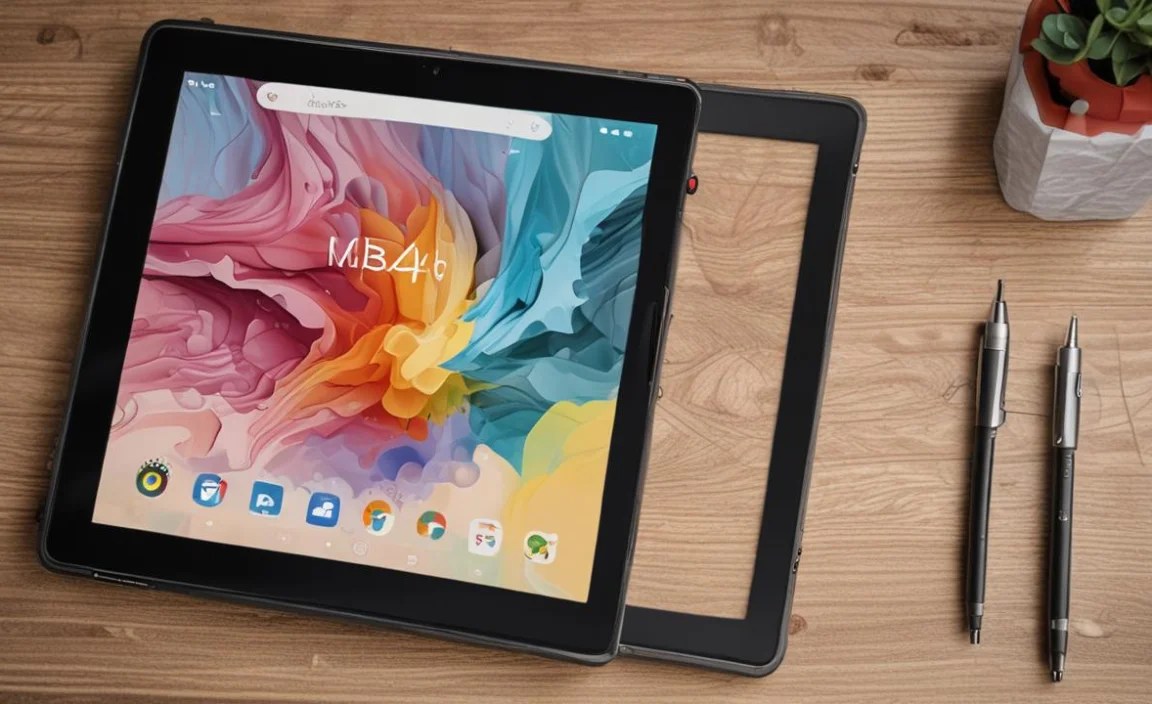
Keeping your tablet in good shape involves more than just fixing problems. Here are some proactive measures.
Regular Maintenance is Key
- Keep it Clean: Wipe down the screen and body regularly with a soft, dry microfiber cloth.
- Avoid Extreme Temperatures: Don’t leave your tablet in a hot car or direct sunlight for extended periods.
- Use a Screen Protector and Case: These protect your tablet from accidental drops and scratches.
- Manage Storage Regularly: Don’t wait until your storage is full to clear it out.
Understanding Your Device
The RCA Tablet 10 Viking Pro runs on Android. Familiarizing yourself with the Android operating system can make troubleshooting easier. For instance, understanding how apps manage permissions or how Google accounts sync data can empower you to manage your device more effectively. You can find more information about Android features and settings on official Google support pages, such as their Android Help Center.
—
FAQ for RCA Tablet 10 Viking Pro Troubleshooting
Q1: How do I take a screenshot on my RCA Tablet 10 Viking Pro?
To take a screenshot, simultaneously press and hold the Power button and the Volume Down button for a moment. You’ll usually see a flash or hear a shutter sound, and the screenshot will be saved in your Gallery or Photos app.
Q2: My RCA Tablet 10 Viking Pro is charging very slowly. What should I do?
Ensure you are using the original charger and cable, or a high-quality replacement. Clean the charging port on the tablet for debris. Also, try charging it while the tablet is turned off, as some apps running in the background can slow down charging.
Q3: Can I expand the storage on my RCA Tablet 10 Viking Pro?
Yes, the RCA Tablet 10 Viking Pro typically has a microSD card slot, allowing you to expand its storage. Check the specifications or look for a small flap or slot on the side of your tablet. You can then insert a compatible microSD card to store more apps, photos, and videos.
Q4: How do I update my RCA Tablet 10 Viking Pro to the latest Android version?
You can check for system updates by going to Settings > System > System Update. If an update is available, follow the on-screen instructions to download and install it. Ensure your tablet is connected to Wi-Fi and has sufficient battery charge.
Q5: My tablet is stuck on the RCA logo. What does this mean?
This often indicates a software issue, sometimes called a “boot loop.” The best way to fix this for most users is to perform a factory reset using Recovery Mode, as described in the “What to Do When All Else Fails” section of this guide. Remember to back up any data you can before doing this.

Your tech guru in Sand City, CA, bringing you the latest insights and tips exclusively on mobile tablets. Dive into the world of sleek devices and stay ahead in the tablet game with my expert guidance. Your go-to source for all things tablet-related – let’s elevate your tech experience!