Quick Summary
The RCA Tablet 11 Galileo is a versatile device, and pairing it with an essential Android keyboard dramatically boosts productivity. This guide will walk you through choosing, connecting, and optimizing your keyboard experience for seamless typing and enhanced usability on your Galileo tablet.
The RCA Tablet 11 Galileo is a fantastic little device for everyday tasks, from browsing the web to enjoying your favorite shows. But if you’re looking to do more, like serious writing or getting work done, you might find yourself wishing for a more comfortable way to type. That’s where adding an external keyboard comes in! It’s like unlocking a whole new level of your tablet’s potential. Many users wonder how to best connect and use a keyboard with their Galileo, and that’s totally understandable. Don’t worry, though! We’ve got your back.
This article is your friendly guide to making your RCA Tablet 11 Galileo even better with the perfect Android keyboard. We’ll cover everything from picking the right one to setting it up so you can start typing away like a pro.
RCA Tablet 11 Galileo: Essential Android Keyboard & Setup Guide
Welcome to Tabletzoo! As your go-to source for all things tablet, we understand that sometimes the built-in features are just the beginning. The RCA Tablet 11 Galileo offers a great canvas for various tasks, but for those who find themselves typing more than just a few sentences, an external keyboard can be a game-changer. Having the right keyboard can transform your tablet from a media consumption device into a powerful, portable workstation.
If you’ve been wondering how to enhance your typing experience on your RCA Tablet 11 Galileo, you’re in the right place. We’ll break down exactly what you need to know, from understanding different keyboard types to getting them connected and ready to go. Let’s dive in and unlock the full potential of your tablet!
Why an External Keyboard for Your RCA Tablet 11 Galileo?

The RCA Tablet 11 Galileo is a capable device, designed for flexibility. While the on-screen keyboard is fine for quick messages or searches, it can become cumbersome for longer writing sessions, coding, or detailed note-taking. An external keyboard offers:
- Increased Typing Speed and Accuracy: Physical keys provide tactile feedback, making typing faster and reducing errors compared to touchscreens.
- Ergonomic Comfort: Typing on a physical keyboard is often more comfortable for extended periods, reducing strain on your fingers and wrists.
- Enhanced Productivity: The ability to use keyboard shortcuts and type more efficiently significantly boosts your productivity, especially for work or study.
- More Stable Typing Surface: A keyboard can provide a stable base, preventing the tablet from sliding around while you work.
- Versatility: Many keyboards come with integrated trackpads or offer additional function keys, further expanding your tablet’s capabilities.
For anyone considering using their RCA Tablet 11 Galileo for tasks beyond casual browsing, an external keyboard is virtually a must-have accessory to unlock its productivity potential. It’s an investment that pays off quickly if you do any significant amount of typing.
Types of Keyboards for the RCA Tablet 11 Galileo

When choosing a keyboard for your RCA Tablet 11 Galileo, you’ll primarily encounter two main connection types and a few form factors to consider. Understanding these will help you make the best choice for your needs.
Connection Types:
- Bluetooth Keyboards: These are the most common and versatile option. They connect wirelessly to your tablet via Bluetooth, offering a clean setup with no wires. Most modern Android tablets, including the RCA Tablet 11 Galileo, have built-in Bluetooth functionality.
- USB OTG (On-The-Go) Keyboards: Some keyboards connect via a USB cable. For Android tablets, this usually requires a USB OTG adapter to physically connect the USB keyboard to the tablet’s micro-USB or USB-C port. This method offers a direct, stable connection but requires an adapter and limits portability slightly.
Form Factors:
- Standalone Bluetooth Keyboards: These are individual keyboards that you can place anywhere. They come in various sizes, from compact travel versions to full-sized keyboards.
- Keyboard Folios/Cases: These are designed specifically for tablets. They integrate a keyboard into a protective case or cover, often allowing the tablet to stand up at an angle for comfortable typing. Many feature a magnetic or slot-in attachment mechanism.
- 360-Degree Hinged Keyboards: Some folio-style keyboards feature a hinge that allows the tablet to rotate 360 degrees, enabling use in tablet mode, tent mode, laptop mode, and stand mode without detaching the keyboard.
For the RCA Tablet 11 Galileo, a Bluetooth keyboard is generally the most convenient and widely compatible choice. Keyboard folios are excellent for transforming the tablet into a mini-laptop experience.
Choosing the Right Keyboard: Key Features to Consider

With so many options available, selecting the perfect keyboard for your RCA Tablet 11 Galileo can seem daunting. Here are the essential features to look for:
Compatibility:
- Ensure the keyboard is compatible with Android operating systems. Most Bluetooth keyboards are, but it’s always good to check.
- If considering a USB OTG option, make sure you have the correct OTG adapter for your tablet’s specific port (usually micro-USB or USB-C).
Size and Portability:
- Compact Keyboards: Great for travel or limited desk space. They might have slightly compressed key layouts.
- Full-Sized Keyboards: Offer a more comfortable and familiar typing experience but are larger and heavier.
Build Quality and Durability:
- Look for sturdy materials that can withstand regular use. A keyboard folio should also adequately protect your tablet.
- Check reviews for common complaints about hinge durability or key wear.
Key Feel and Layout:
- Key Travel: How much the key depresses when pressed. Longer travel often feels more satisfying and accurate.
- Key Spacing: Well-spaced keys reduce typing errors.
- Layout: Most Android keyboards use a standard QWERTY layout, but ensure it has essential Android function keys (like Home, Back, recent apps, brightness, volume control), which are crucial for navigation.
Battery Life:
- For Bluetooth keyboards, check the estimated battery life. Rechargeable batteries are convenient, and some offer long standby times.
- Consider models with USB-C charging if you want to standardize your charging cables.
Additional Features:
- Backlighting: Essential if you often type in low-light conditions.
- Trackpad: A built-in trackpad can significantly improve navigation and productivity, mimicking a laptop experience.
- Multi-Device Connectivity: Some keyboards can pair with multiple devices (e.g., tablet, phone, laptop) and switch between them.
When in doubt, reading user reviews for keyboards specifically mentioned for use with Android tablets can provide valuable insights into real-world performance.
Connecting Your Bluetooth Keyboard to the RCA Tablet 11 Galileo

Connecting a Bluetooth keyboard to your RCA Tablet 11 Galileo is a straightforward process. Just follow these simple steps:
| Step | Action | Notes |
|---|---|---|
| 1 | Turn on your keyboard and put it in pairing mode. | Consult your keyboard’s manual for specific instructions on how to activate pairing mode (usually a dedicated button or a key combination). |
| 2 | Open your RCA Tablet 11 Galileo’s Settings app. | Look for the gear icon on your home screen or app drawer. |
| 3 | Navigate to Bluetooth settings. | This is usually under “Connected devices” or a similar section. |
| 4 | Enable Bluetooth. | If it’s not already on, toggle the switch to enable it. Your tablet will start scanning for available devices. |
| 5 | Select your keyboard from the list of available devices. | Your keyboard’s name should appear in the list. Tap on it. |
| 6 | Confirm pairing (if prompted). | You might be asked to enter a PIN code displayed on the tablet screen using your physical keyboard, or simply confirm the pairing request. |
| 7 | Connection successful! | Your keyboard should now be listed as “Connected” in the Bluetooth settings. You can start typing. |
Once paired, your RCA Tablet 11 Galileo will usually remember the keyboard, and it will reconnect automatically when both devices are turned on and within range.
Using a USB OTG Keyboard with Your RCA Tablet 11 Galileo

If you prefer a wired connection or don’t have a Bluetooth keyboard, a USB OTG keyboard is an option. However, this requires a USB OTG adapter specifically for your tablet’s port.
What You’ll Need:
- A USB OTG (On-The-Go) adapter compatible with your RCA Tablet 11 Galileo’s charging/data port (e.g., Micro USB to USB-A or USB-C to USB-A adapter).
- A standard USB keyboard.
Steps:
- Ensure your RCA Tablet 11 Galileo is powered on.
- Plug the USB OTG adapter into your tablet’s charging port.
- Connect the USB cable of your keyboard to the USB-A end of the OTG adapter.
- Your tablet should automatically recognize the keyboard. In most cases, no further setup is required.
- If the keyboard doesn’t work, check that your tablet supports USB OTG, as not all devices do. Many Android devices, including those that run standard Android versions, do support this feature. You can often find specifications on the manufacturer’s website or through tech review sites.
Important Note: USB OTG can draw power from your tablet. For prolonged use, a powered USB hub might be necessary if you’re connecting multiple USB devices or if you notice battery drain.
Optimizing Your Keyboard Experience on Android
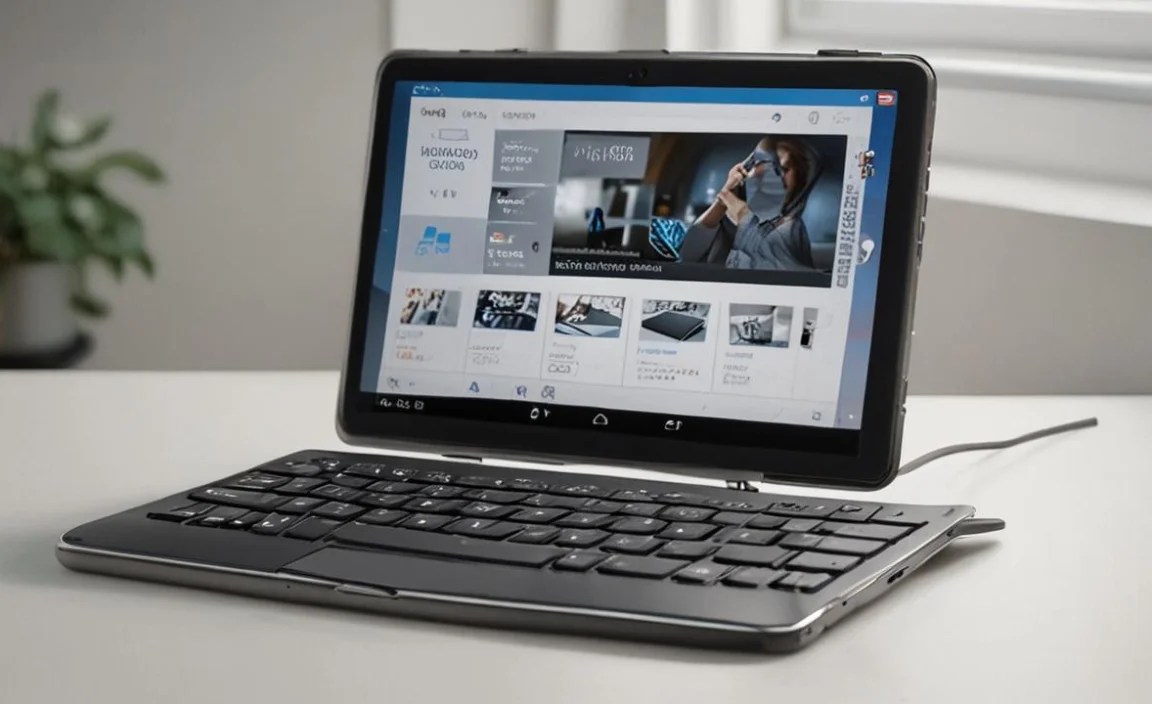
Beyond just connecting your keyboard, there are settings within Android on your RCA Tablet 11 Galileo that can fine-tune your typing experience.
Switching Input Methods:
Even with an external keyboard connected, Android keeps its on-screen keyboard active. You can switch between them or disable the on-screen keyboard if it gets in the way:
- Go to Settings > System (or General Management) > Languages & input.
- Tap on Physical keyboard.
- Here, you can see your connected keyboard. Tap on its name.
- Under “Use, layout,” you can select the correct keyboard layout for your language and region.
- To show the on-screen keyboard when a physical keyboard is connected, look for an option like “Show virtual keyboard” (this might be a toggle within the Physical keyboard settings or a separate option under Languages & input). Toggling this off will hide the on-screen keyboard when the physical one is connected, freeing up screen space.
Keyboard Shortcuts:
Learning keyboard shortcuts can dramatically speed up your workflow. Some common Android shortcuts that work with external keyboards include:
- Ctrl + C: Copy
- Ctrl + V: Paste
- Ctrl + X: Cut
- Ctrl + A: Select All
- Ctrl + Z: Undo
- Ctrl + Tab: Switch between tabs (in browsers)
- Alt + Tab: Switch between open apps
- Home / End keys: Navigate to the beginning or end of a line/document.
- Page Up / Page Down: Scroll through content.
- Search: Often mapped to the Windows/Command key – press it to bring up the app search or Google search bar.
Many specific apps will also have their own set of keyboard shortcuts. Exploring these within the app’s settings can further enhance your efficiency.
Emoji and Special Characters:
Need to type an emoji? With a physical keyboard, the standard method is to bring up the on-screen keyboard and tap the emoji key. If you’ve hidden the on-screen keyboard, you can typically bring it back temporarily using the “Show virtual keyboard” setting or by tapping in a text field. Some keyboards may also have a dedicated emoji shortcut key.
Popular Keyboard Choices for Android Tablets

While the RCA Tablet 11 Galileo is a specific model, many excellent keyboards work well with its Android operating system. Here are a few popular and well-regarded options, categorized by their strengths:
Best Overall Bluetooth Keyboard: Logitech K380 Multi-Device Bluetooth Keyboard
- Why it’s great: Compact, comfortable typing experience, long battery life, and importantly, the ability to seamlessly switch between up to three connected devices. This is perfect if you use your keyboard with other gadgets besides your RCA tablet.
- Compatibility: Excellent with Android, Windows, macOS, Chrome OS, and iOS.
- Consideration: It’s a standalone keyboard, so you’ll need a way to prop up your tablet.
Best Keyboard Folio: Arteck Universal Slim & Light Wireless Bluetooth Keyboard Cover
- Why it’s great: This type of keyboard case often offers a good balance of protection and functionality. Look for models that include a built-in stand and potentially a trackpad for a more laptop-like experience. Arteck is known for its affordable and reliable accessories.
- Compatibility: Designed to work with various tablet sizes and operating systems, including Android. Ensure the dimensions match your 11-inch Galileo.
- Consideration: Ensure the specific model provides a snug fit for the RCA Tablet 11 Galileo, as it’s not a universal one-size-fits-all.
Best Budget Option: VicTsing Bluetooth Keyboard and Mouse Combo
- Why it’s great: If you’re on a tight budget, combinations like these offer a lot of value. You get both a keyboard and a mouse, typically connecting via a single USB dongle (for the mouse) and Bluetooth (for the keyboard), or sometimes both via Bluetooth.
- Compatibility: Generally good with Android, Windows, and other major operating systems.
- Consideration: Build quality might be less premium than higher-end options, but they are functional.
Best for Portability: Jelly Comb 2.4G Wireless Keyboard and Mouse Combo
- Why it’s great: Foldable or ultra-compact keyboards are designed for maximum portability. This type of option is good for carrying around without adding much bulk.
- Compatibility: Most use USB dongles and are plug-and-play with Android devices that support

Your tech guru in Sand City, CA, bringing you the latest insights and tips exclusively on mobile tablets. Dive into the world of sleek devices and stay ahead in the tablet game with my expert guidance. Your go-to source for all things tablet-related – let’s elevate your tech experience!