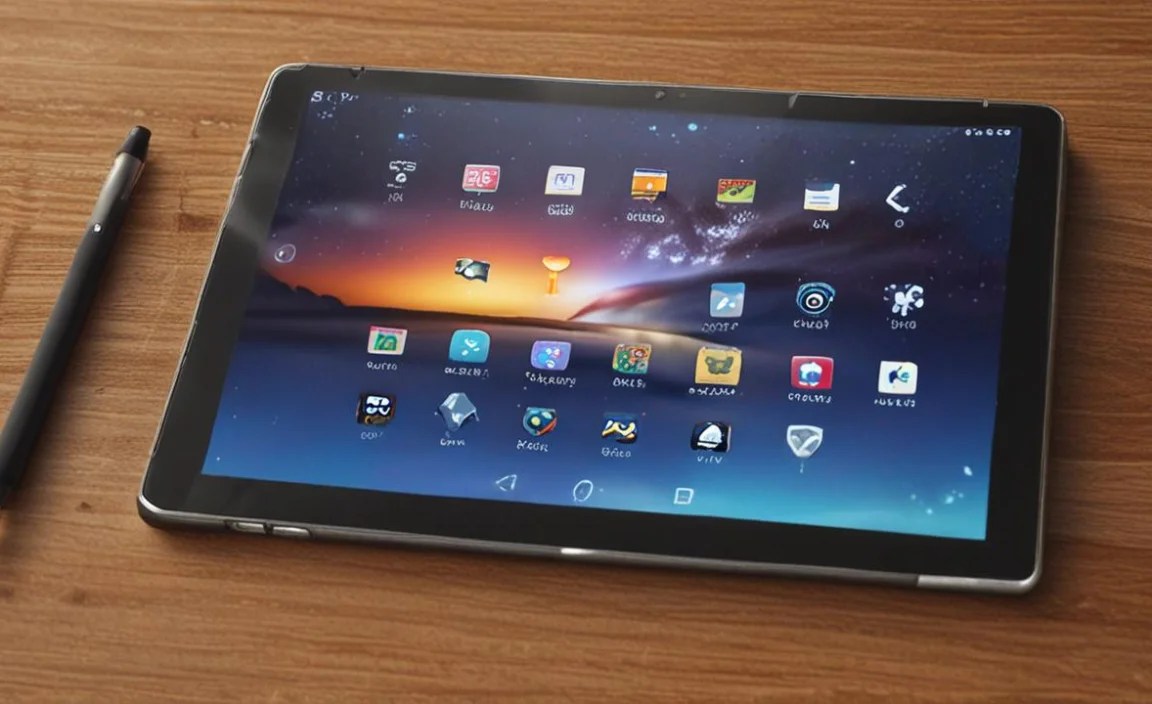
The RCA Tablet 11 Galileo offers impressive battery life and a bundled stylus, making it a great choice for everyday use and light creative tasks. This guide will help you understand its features, maximize its performance, and get the most out of its stylus capabilities.
RCA Tablet 11 Galileo: Your Gateway to Extended Power and Creative Freedom

Deciding on a new tablet can feel overwhelming, especially when you’re looking for specific features like long battery performance and the ability to draw or take notes digitally. Many tablets promise a lot but fall short, leaving users frustrated by constant charging or limited functionality. If you’re hunting for a device that doesn’t quit before you do and offers a touch of creative flair without breaking the bank, the RCA Tablet 11 Galileo might be exactly what you need. This guide is designed to walk you through everything you need to know about this capable tablet, from its stunning battery life to its surprisingly useful stylus. Get ready to discover how the Galileo can become your reliable companion for work, play, and creativity.
Understanding the RCA Tablet 11 Galileo
The RCA Tablet 11 Galileo is designed to hit a sweet spot for users who want a larger screen and extended usage time without a hefty price tag. It’s a tablet that focuses on core functionality, shining brightest in its battery endurance and the convenience of an included stylus. For those often on the go or simply wanting to avoid being tethered to a charger, this device presents a compelling option.
Key Features at a Glance:
11-inch Display: Offers a comfortable viewing experience for browsing, reading, and light media consumption.
Long Battery Life: Engineered for extended use between charges, a major selling point for this model.
Included Stylus: Bundled with a stylus that opens up possibilities for note-taking, drawing, and more precise interaction.
Android Operating System: Runs on Android, providing access to a vast array of apps from the Google Play Store.
Affordable Price Point: Positioned as a budget-friendly option, making advanced features accessible.
The Powerhouse: RCA Tablet 11 Galileo’s Stunning Battery Life

One of the most frequently praised aspects of the RCA Tablet 11 Galileo is its impressive battery life. In a world where many devices struggle to last a full day of moderate use, the Galileo stands out. This means less time spent anxiously searching for an outlet and more time enjoying your tablet for what it’s designed for.
Why is Long Battery Life Important?
Portability: You can take it with you throughout the day without worrying about it dying during travel or commutes.
Productivity: For students and professionals, it means you can attend classes or work meetings without needing to plug in.
Entertainment: Enjoy movies, music, or games on long trips or lazy afternoons without interruption.
Peace of Mind: Less stress about battery levels means a more relaxed user experience.
What Contributes to the Galileo’s Battery Stamina?
While specific battery capacities can vary slightly by sub-model or generation, RCA generally designs these tablets with power efficiency in mind. This often involves hardware choices and software optimizations.
Efficient Processor: The processors used in tablets like the Galileo are often chosen for their balance of performance and power consumption.
Screen Technology: While not always cutting-edge, the display technology is typically optimized to draw less power.
Android Optimization: Regular Android updates from Google and potential tweaks by RCA can improve how the system manages power.
User Habits: How you use your tablet significantly impacts battery life. Brightness settings, background app activity, and Wi-Fi/Bluetooth usage all play a role.
Tips for Maximizing Your RCA Tablet 11 Galileo’s Battery Life:
Even with excellent battery performance, good habits can extend your usage even further.
1. Adjust Screen Brightness: Lowering the brightness, especially when indoors, can save a significant amount of power. The adaptive brightness feature, if available, can also help.
2. Manage App Usage: Close apps you’re not actively using. Some apps continue to consume power in the background.
3. Disable Unnecessary Connectivity: Turn off Wi-Fi, Bluetooth, and GPS when you don’t need them.
4. Reduce Screen Timeout: Set your screen to turn off after a shorter period of inactivity.
5. Update Software: Ensure your tablet’s operating system and apps are up-to-date, as updates often include power management improvements.
Unleashing Creativity: The Saga of the Stylus

The inclusion of a stylus with the RCA Tablet 11 Galileo is a significant bonus, especially considering its competitive price point. This accessory transforms the tablet from a simple consumption device into a more interactive and productive tool. Whether you’re a student wanting to take handwritten notes, an artist sketching ideas, or just someone who prefers the precision of a pen, the stylus adds a new dimension to your tablet experience.
What Can You Do With the Stylus?
Digital Note-Taking: Jot down meeting minutes, lecture notes, or to-do lists directly on screen. Apps like Google Keep or Evernote are great for this.
Drawing and Sketching: Let your artistic side out by doodling, sketching, or creating digital art. Popular apps include Autodesk Sketchbook and Adobe Fresco (check compatibility).
Precise Navigation: For tasks requiring fine accuracy, like editing photos or selecting small elements in an app, the stylus offers better control than a finger.
Signing Documents: Easily sign PDFs or other documents digitally.
Annotating: Mark up PDFs, web pages, or images directly on the screen.
Stylus Compatibility and Usage:
It’s important to note that the stylus included with the RCA Tablet 11 Galileo is typically a capacitive stylus. These work by mimicking the electrical conductivity of your finger. This means they generally work on any touchscreen device but don’t offer advanced features like pressure sensitivity or tilt support that come with active styluses designed for specific tablet lines (like Apple’s Pencil or Samsung’s S Pen).
Tips for Using Your Stylus Effectively:
Practice Makes Perfect: If you’re new to digital writing or drawing, give yourself time to get used to the feel and precision.
Handwriting Recognition: Explore apps that offer handwriting recognition. This can convert your handwritten notes into typed text, which is incredibly useful for organizing information.
Palm Rejection: Some apps might offer basic palm rejection, where the tablet ignores your hand when the stylus is in use. If available, enable this for a more comfortable writing experience. If not, be mindful of where you rest your palm.
Stylus Maintenance: Keep the tip clean and ensure the stylus itself is functioning correctly. For passive styluses, there’s not much maintenance, but for any active components (if applicable in future models or bundles), follow manufacturer advice.
Exploring the RCA Tablet 11 Galileo’s Capabilities
Beyond its standout features of battery life and stylus support, the RCA Tablet 11 Galileo offers a solid overall experience for everyday tasks. Running on the Android operating system, it provides access to millions of applications through the Google Play Store, ensuring you can customize your tablet to your needs.
Performance for Everyday Tasks:
The Galileo is generally geared towards users who prioritize essential functions. This means it’s well-suited for:
Web Browsing: Surfing the internet, reading news, and checking social media.
Email and Communication: Staying connected with friends, family, and colleagues.
Streaming: Watching videos on platforms like YouTube, Netflix, or Hulu.
Light Gaming: Playing casual games that don’t demand high graphical power.
Reading: Enjoying e-books and digital magazines.
Operating System and App Accessibility:
The tablet runs on Android, which is a familiar and user-friendly operating system. This gives you access to a world of apps:
Productivity Apps: Google Workspace (Docs, Sheets, Slides), Microsoft Office Suite, note-taking apps, and task managers.
Entertainment Apps: Streaming services, music players, and a vast library of games.
Educational Apps: Learning platforms, language apps, and study aids.
Creative Apps: Drawing, photo editing, and video creation tools (though performance may vary for demanding applications).
For more information on developing Android apps and understanding its ecosystem, you can refer to the official Android Developers website.
Connectivity and Storage:
Wi-Fi: Essential for connecting to the internet for browsing, downloading apps, and streaming.
Bluetooth: Allows for wireless connection to accessories like headphones, speakers, or keyboards.
Storage: Tablets like the Galileo typically come with a set internal storage capacity, which can often be expanded using a microSD card. This is crucial for storing apps, photos, videos, and documents.
A table comparing storage options would be helpful here, but since specific models can vary, here’s a general idea:
| Feature | Typical Offering | Notes |
| :————– | :———————————————— | :—————————————————————————– |
| Internal Storage | 32GB or 64GB (common) | Actual usable storage will be less due to the operating system and pre-installed apps. |
| Expandable Storage | Up to 128GB or 256GB via microSD card (check specs) | Allows you to store more photos, videos, and apps externally. |
Display and Sound:
The 11-inch display offers a good balance between screen real estate and portability. While it might not match the pixel density of premium tablets, it’s generally sufficient for clear viewing of text and images. The stereo speakers provide decent audio for casual listening, though audiophiles might prefer connecting external speakers or headphones via Bluetooth or the headphone jack (if available).
Who is the RCA Tablet 11 Galileo For?

The RCA Tablet 11 Galileo is a fantastic choice for specific user profiles:
The Budget-Conscious Buyer: If you’re looking for a capable Android tablet without spending a fortune, the Galileo offers excellent value.
Students: For taking notes, accessing online learning materials, and completing assignments, the long battery life and stylus are invaluable.
Casual Users: For general web browsing, social media, email, and watching videos, it performs admirably.
Aspiring Digital Artists and Note-Takers: The included stylus opens up creative avenues and makes digital note-taking accessible.
Families: As a shared family device for browsing, games, and educational apps.
Considerations:
While the Galileo excels in its niche, it’s important to manage expectations. For users who require the absolute highest performance for demanding games, professional-grade video editing, or extensive multitasking with very resource-intensive applications, a higher-end tablet might be a better fit. However, for its intended purpose, the RCA Tablet 11 Galileo is a strong contender.
Setting Up Your RCA Tablet 11 Galileo
Getting started with your new RCA Tablet 11 Galileo is straightforward. Follow these simple steps to get up and running quickly.
Initial Setup Process:
1. Power On: Press and hold the power button, usually located on the side or top edge of the tablet.
2. Language Selection: Choose your preferred language from the list.
3. Wi-Fi Connection: Select your home Wi-Fi network and enter the password. This is crucial for downloading updates and apps.
4. Google Account Sign-In: Sign in with your existing Google account or create a new one. This links your purchase history, contacts, and allows access to the Google Play Store.
5. Restore or Set Up as New: You’ll have the option to restore apps and data from a previous Android device (if applicable) or set up the tablet as a new device.
6. Google Assistant and Other Settings: Follow the on-screen prompts to configure Google Assistant, location services, and other preferences.
7. Review and Accept Terms: Read and accept the Google services terms and conditions.
8. Complete Setup: The tablet will finalize the setup process, and you’ll be greeted by the Android home screen.
Updating Your Tablet:
After the initial setup, it’s highly recommended to check for and install any available system updates.
1. Navigate to Settings: Find the “Settings” app (look for a gear icon).
2. Find System Update: Scroll down to “System” or “About tablet” and then look for “System update” or “Software update.”
3. Check for Updates: Tap “Check for updates.”
4. Download and Install: If updates are available, download and install them. Ensure your tablet is connected to Wi-Fi and has sufficient battery or is plugged in.
Tips for Maintaining Your RCA Tablet 11 Galileo
To ensure your tablet continues to perform well and lasts for a long time, follow these maintenance tips:
Keep it Clean: Regularly wipe down the screen and body with a soft, dry microfiber cloth. For tougher smudges, lightly dampen the cloth with water or an approved screen cleaner. Avoid spraying liquids directly onto the tablet.
Protect the Screen: Consider using a screen protector to guard against scratches and minor impacts.
Use a Case: A protective case can cushion the tablet from drops and bumps, significantly reducing the risk of damage.
Manage Storage: Keep an eye on your internal storage. If it gets too full, performance can degrade. Uninstall apps you no longer use and move media files to a microSD card or cloud storage.
Safe Charging Practices: Use the charger that came with your tablet or a reputable replacement. Avoid leaving it plugged in excessively after it’s reached 100%, although modern batteries have safeguards.
Restart Periodically: Occasionally restarting your tablet can help clear out temporary files and refresh system processes, potentially improving performance.
Troubleshooting Common Issues
Even the best devices can sometimes encounter minor issues. Here are some common problems and their solutions for the RCA Tablet 11 Galileo:
Issue: Tablet is slow or Laggy
Solution:
Restart the tablet.
Close background apps.
Clear app cache (Settings > Apps > [Select App] > Storage > Clear Cache).
Free up storage space.
Check for and install system updates.
If issues persist, consider a factory reset (back up data first!).
Issue: Stylus is not responding or acting erratically
Solution:
Ensure the stylus is compatible with the tablet model.
Make sure you’re touching the screen with the stylus tip.
Clean the stylus tip.
Restart the tablet.
If it’s an active stylus with a battery, ensure the battery is charged or replaced.
Check app-specific settings for stylus support or calibration.
Issue: Apps are crashing or not loading
Solution:
Restart the tablet.
Ensure the app is updated to the latest version.
Clear the app’s cache and data (Settings > Apps > [Select App] > Storage > Clear Data/Cache). Note that clearing data will reset the app to its default state.
Check your internet connection.
If the problem is widespread across multiple apps, it might indicate a system issue, and a system update or factory reset may be necessary.
Issue: Battery drains too quickly
Solution:
Review battery usage (Settings > Battery) to identify power-hungry apps.
Adjust screen brightness and timeout settings.
Disable unnecessary connectivity features (Wi-Fi, Bluetooth, GPS).
Ensure background app refresh is managed.
Consider a factory reset if the drain is sudden and unexplained.
Issue: Cannot connect to Wi-Fi
Solution:
Restart your tablet and your Wi-Fi router.
Ensure you are within range of the Wi-Fi signal.
Forget the network and reconnect (Settings > Network & Internet > Wi-Fi > [Select Network] > Forget), then re-enter the password.
Check if other devices can connect to the same network.
* Update your tablet’s software.
For more technical information and ongoing support, you can often find resources on the RCA brand’s support website or through the retailer you purchased from.
Frequently Asked Questions (FAQ)
Q1: Does the RCA Tablet 11 Galileo come with a pen?
A: Yes, the RCA Tablet 11 Galileo typically comes bundled with a stylus, which is a great feature for note-taking and general use.
Q2: How long does the battery on the RCA Tablet 11 Galileo typically last?
A: The RCA Tablet 11 Galileo is known for its stunning battery life. While exact hours can vary based on usage, many users report it lasting a full day or even longer with moderate use, making it ideal for extended portability.
Q3: Can I use any stylus with the RCA Tablet 11 Galileo?
A: While the included stylus is designed for the tablet, it’s a capacitive stylus. This means it should generally work with most touchscreen devices. However, for the best experience, it’s recommended to use the stylus that came with your tablet or one specifically advertised as compatible. Advanced features like pressure sensitivity are usually not supported with basic capacitive styluses.
Q4: Is the RCA Tablet 11 Galileo good for gaming?
A: The RCA Tablet 11 Galileo is capable of running casual games and many popular titles found on the Google Play Store. However, for graphically intensive, high-end mobile games, you might experience performance limitations compared to more powerful or specialized gaming tablets.
Q5: Can I expand the storage on the RCA Tablet 11 Galileo?
A: Yes, most RCA Tablet

Your tech guru in Sand City, CA, bringing you the latest insights and tips exclusively on mobile tablets. Dive into the world of sleek devices and stay ahead in the tablet game with my expert guidance. Your go-to source for all things tablet-related – let’s elevate your tech experience!