Unlock your RCA Tablet 11 Galileo’s full potential with this beginner-friendly keyboard guide. Learn how to connect, use, and maximize its functionality for seamless productivity and enhanced entertainment. Master basic typing, special keys, and common shortcuts to transform your tablet into a powerful portable workstation.
Hey there, tablet explorers! Walter Moore here from Tabletzoo. Ever felt like your RCA Tablet 11 Galileo is almost perfect, but typing on the touchscreen is just a little… fiddly? You’re not alone! For many of us, a fantastic tablet experience hinges on comfortable and efficient typing. That’s where the keyboard comes in. It can be the missing piece that turns your Galileo from a media viewer into a productivity powerhouse.
Don’t worry if you’re new to tablet keyboards or feeling a tad overwhelmed. This guide is crafted just for you. We’ll break down everything you need to know about using your RCA Tablet 11 Galileo’s keyboard, making sure you feel confident and in control. Get ready to type faster, work smarter, and enjoy your tablet even more!
Connecting Your RCA Tablet 11 Galileo Keyboard

Setting up your keyboard is usually straightforward, but it’s essential to know the methods available for your RCA Tablet 11 Galileo. Most RCA tablets that come with or support a keyboard use one of two primary connection types: a pogo pin connector or Bluetooth.
The Pogo Pin Connection (Keyboard Dock)
Many RCA Tablet 11 Galileo models are designed to work with a specific attachable keyboard dock. This is the most seamless way to connect, as it’s usually a physical, magnetic connection.
- Align the Tablet: Gently align the charging ports and data connector on the bottom edge of your RCA Tablet 11 Galileo with the corresponding ports on the keyboard dock.
- Attach Firmly: Once aligned, the tablet should click or magnetically snap into place. Ensure it feels secure and there are no gaps.
- Automatic Connection: For most pogo pin connections, the tablet will automatically recognize the keyboard. You might see a brief notification on screen, or it might simply start working.
- Power & Charging: The beauty of the pogo pin connection is that it often powers the keyboard directly from the tablet, meaning no separate charging is needed for the keyboard itself. It also allows for data transfer without Bluetooth pairing.
Bluetooth Connectivity (External Keyboard)
If your RCA Tablet 11 Galileo uses a standalone Bluetooth keyboard, the connection process is slightly different but still very simple.
- Turn on the Keyboard: Locate the power switch on your Bluetooth keyboard (usually on the top edge or underneath) and switch it on.
- Enable Pairing Mode: Most Bluetooth keyboards have a dedicated pairing button. Press and hold this button until an indicator light starts blinking (this signifies it’s discoverable). Check your keyboard’s manual for the exact button and indicator.
- Open Tablet Settings: On your RCA Tablet 11 Galileo, swipe down from the top of the screen to open the quick settings panel, then tap the gear icon to open the main Settings app.
- Navigate to Bluetooth: In the Settings menu, find and tap on “Connected devices” or “Bluetooth.”
- Scan for Devices: Make sure Bluetooth is toggled ON. Your tablet will then scan for nearby discoverable devices.
- Select Your Keyboard: You should see your Bluetooth keyboard’s name appear in the list of available devices. Tap on its name.
- Confirm Pairing: You might be prompted to enter a PIN code shown on your tablet screen onto the keyboard, or simply confirm that the numbers match. Once confirmed, the devices will pair.
- Connected! Your keyboard should now show as “Connected” in your tablet’s Bluetooth settings.
Learn more about Bluetooth technology and its benefits from the official Bluetooth SIG website.
Understanding Your Keyboard Layout & Special Keys
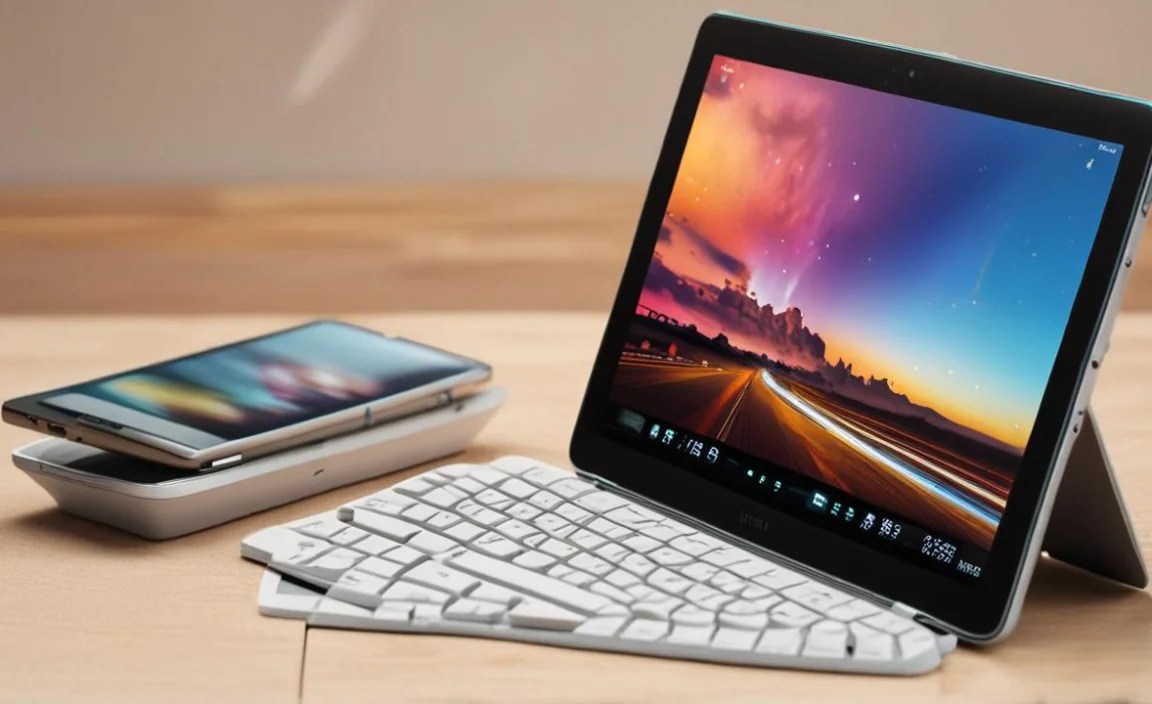
Tablet keyboards, whether docked or external, are designed to mimic a full-sized keyboard while being compact. Here’s a look at the common keys and what they do.
The Alphanumeric Keys
These are your standard letters (A-Z), numbers (0-9), and punctuation marks. They function exactly as you’d expect on any computer keyboard.
The Modifier Keys
These keys don’t do anything on their own but change the function of other keys when pressed simultaneously.
- Shift: Used to type uppercase letters and the symbols above the number keys (e.g., !, @, #, $).
- Ctrl (Control): Often used in combination with other keys for shortcuts (e.g., Ctrl+C for copy).
- Alt (Alternate): Also used in shortcuts and for accessing special characters or functions.
- Win/Home/Menu Key: This key (often with a Windows logo or a house icon) usually brings up the tablet’s home screen or the app menu, similar to tapping the home button on your tablet.
Navigation and Function Keys
These keys assist with navigating your tablet and performing specific tasks.
- Esc (Escape): Typically used to cancel an operation, close a dialog box, or exit a full-screen mode.
- Tab: Moves the cursor to the next field or cell in forms, tables, or documents. Works well for tabbing between website links.
- Caps Lock: Locks the letter keys to output uppercase characters. Press again to turn off.
- Backspace: Deletes the character to the left of the cursor.
- Delete (Del): Deletes the character to the right of the cursor, or deletes selected items.
- Enter/Return: Confirms an action, creates a new paragraph, or submits input.
- Arrow Keys (Up, Down, Left, Right): Used for moving the cursor precisely within text, navigating menus, or controlling movement in games.
- Page Up/Page Down: Scrolls the screen content up or down by one full page.
- Home/End: Home typically moves the cursor to the beginning of a line or document, while End moves it to the end.
Multimedia and Special Keys
Many tablet keyboards include dedicated keys for convenience.
- Volume Up/Down: Adjusts the tablet’s speaker volume.
- Mute: Mutes or unmutes the tablet’s audio.
- Play/Pause: Controls media playback in apps.
- Next/Previous Track: Skips to the next or previous song/video.
- Search Key (Magnifying Glass): Activates the tablet’s search function.
- Keyboard Lock/Screen Lock: Some keyboards have a dedicated key to lock the screen.
Essential Keyboard Shortcuts for RCA Tablet 11 Galileo

Using shortcuts can dramatically speed up your workflow. Here are some fundamental ones that work on most Android (which your RCA tablet likely runs) devices when a keyboard is connected:
Basic Text Editing Shortcuts
These are your workhorses for writing and editing.
- Ctrl + C: Copy selected text.
- Ctrl + X: Cut selected text (copies and removes it).
- Ctrl + V: Paste copied or cut text.
- Ctrl + Z: Undo your last action.
- Ctrl + Y: Redo an action that was just undone.
- Ctrl + A: Select all content on the screen or in a document.
- Ctrl + B: Bold selected text.
- Ctrl + I: Italicize selected text.
- Ctrl + U: Underline selected text.
- Ctrl + S: Save your document (where applicable).
Navigation and System Shortcuts
These help you move around your tablet faster and manage apps.
- Win + A: Opens the app drawer or menu.
- Win + S: Opens the search function.
- Win + L: Locks the tablet screen (requires a PIN/pattern to unlock).
- Win + Tab: Switches between recently opened apps (similar to a task switcher).
- Ctrl + Alt + Del: Sometimes brings up a power menu or task manager, depending on the Android version and specific tablet configuration.
- Arrow Keys: Navigate menus, text, and lists.
- Tab: Move between input fields (e.g., in a web form or login screen).
- Shift + Tab: Move backward through input fields.
Browser-Specific Shortcuts
If you spend a lot of time online, these are invaluable.
- Ctrl + T: Open a new browser tab.
- Ctrl + W: Close the current browser tab.
- Ctrl + Shift + T: Reopen the last closed tab.
- Ctrl + L: Highlight the address bar.
- Ctrl + N: Open a new browser window (or incognito window).
- Ctrl + R (or F5): Refresh the current webpage.
Tip: Many shortcut combinations vary slightly depending on the specific app you are using. If a shortcut doesn’t work in one app, try it in another. For instance, keyboard shortcuts in Google Docs might be more extensive than in a simple notes app.
Optimizing Your Typing Experience
Beyond just connecting and knowing the keys, a few tips can make typing on your RCA Tablet 11 Galileo even better.
Ergonomics and Comfort
Stable Surface: Always try to use your keyboard on a flat, stable surface. This prevents accidental key presses and makes typing more comfortable.
Screen Angle: Position your tablet at a comfortable viewing angle. If you’re using a keyboard dock, this is usually built-in. For Bluetooth keyboards, you might need a stand or case that props up the screen.
* Breaks: Don’t be afraid to take short breaks, especially during long typing sessions, to stretch your hands and wrists.
Adjusting Keyboard Settings on Android
Your RCA tablet allows you to customize how the software keyboard behaves, and while it doesn’t directly affect a physical keyboard, understanding these settings can sometimes help with overall input strategy.
1. Go to Settings.
2. Tap on System (or device settings).
3. Look for Languages & input or Keyboard.
4. You might see options for Physical keyboard. Here, you can often adjust repeat rates and delays, which can fine-tune how a physical keyboard responds.
5. Under On-screen keyboard, you can manage settings for predictive text, auto-correction, and keyboard layouts that might offer alternative character inputs even when a physical keyboard is attached.
Virtual Keyboard vs. Physical Keyboard
While this guide focuses on physical keyboards, it’s good to know your options. Your RCA Tablet 11 Galileo has a virtual (on-screen) keyboard. You can often switch between using your physical keyboard and the virtual one by tapping an input field. Sometimes, a keyboard icon will appear in the notification bar (swipe down from the top) allowing you to manually select your input method. This is handy for quick tasks where typing a few characters on the virtual keyboard is faster than switching.
Common Troubleshooting Tips
Encountering issues? Here are some quick fixes.
- Keyboard Not Responding (Pogo Pin):
- Ensure the tablet is securely attached to the dock.
- Clean the pogo pins on both the tablet and the keyboard with a dry, lint-free cloth. Dust or debris can interfere with the connection.
- Restart your RCA Tablet 11 Galileo.
- Keyboard Not Responding (Bluetooth):
- Make sure the keyboard is charged and turned on.
- Check that Bluetooth is enabled on your tablet and that the keyboard is within range.
- Try “forgetting” the keyboard in your tablet’s Bluetooth settings and then re-pairing it.
- Restart both the tablet and the keyboard.
- Ensure the keyboard is in pairing mode if it’s not connecting.
- Specific Keys Not Working:
- For pogo pin keyboards, cleaning the pins is often the solution.
- For Bluetooth keyboards, check for physical damage or try to reset the keyboard (consult its manual).
- Ensure the key isn’t mapped to a special function, and that “sticky keys” or similar accessibility features aren’t inadvertently enabled on your tablet.
- Slow Response/Lag:
- For Bluetooth, ensure you have a strong signal. Move closer to the tablet.
- Close unnecessary apps running in the background on your tablet to free up resources.
- Restart your tablet.
Enhancements and Accessories
To further boost your productivity with the RCA Tablet 11 Galileo and its keyboard, consider these accessories:
- Screen Protector: Protect your tablet’s display from scratches, which is especially important if you’re frequently setting it down or working on the go.
- Protective Case/Sleeve: Keeps your tablet and keyboard protected during transport.
- Stylus Pen: For creative tasks, detailed note-taking, or precise selections. While not keyboard-related, it complements a tablet setup for productivity.
- External Mouse: For a more traditional desktop-like experience, an external mouse (likely USB OTG or Bluetooth) can be paired with your tablet.
RCA Tablet 11 Galileo Keyboard vs. Competitors
When considering the RCA Tablet 11 Galileo, it’s helpful to know how its keyboard integration stacks up against other budget-friendly tablets. RCA often positions its tablets as affordable solutions, and the keyboard docks or bundles reflect this.
Compared to higher-end devices like an iPad or a Samsung Galaxy Tab with their official keyboard accessories, the RCA keyboard experience is generally simpler. The key differences often lie in keyboard build quality, key travel, backlighting (which is rare on RCA keyboards), and the precision of trackpads (if included on a dock).
However, for everyday tasks like email, web browsing, and basic document editing, the RCA keyboard provides a significant upgrade over touchscreen typing. Its affordability makes it a compelling option for students or individuals on a tight budget looking for a 2-in-1 tablet experience.
It’s worth noting that RCA’s focus is often on providing a functional solution at a lower price point. While you might not get premium features, you do get the essential functionality to boost productivity. For a deep dive into tablet comparisons, resources like Rtings.co

Your tech guru in Sand City, CA, bringing you the latest insights and tips exclusively on mobile tablets. Dive into the world of sleek devices and stay ahead in the tablet game with my expert guidance. Your go-to source for all things tablet-related – let’s elevate your tech experience!