Choosing the right stylus for your RCA Tablet 11 Galileo is surprisingly important. It’s not just about drawing; it’s about making notes, navigating apps, and feeling more connected to your device. If you’ve been wondering which stylus offers the best experience, you’re in the right place. This guide breaks down your options so you can pick the perfect tool for anything you want to do.
RCA Tablet 11 Galileo: Essential Stylus Comparison
Welcome to Tabletzoo! I’m Walter Moore, and I love helping folks like you navigate the world of tablets. Today, we’re diving deep into a question that pops up often: What’s the best stylus for the RCA Tablet 11 Galileo? It might seem like a small accessory, but the right stylus can truly transform how you use your tablet, whether you’re a student taking notes, an artist sketching out ideas, or just someone who prefers a more precise touch.
Many users find that the built-in touchscreen, while functional, doesn’t always offer the precision needed for detailed work or comfortable, long note-taking sessions. This is where a good stylus comes in. But with so many options available, how do you know which one will actually work well with your specific RCA Tablet 11 Galileo? It can feel like searching for a needle in a haystack, trying to understand compatibility, features, and price points.
Don’t worry, I’m here to demystify it all! We’ll walk through the types of styluses that are best suited for your RCA Tablet 11 Galileo, discuss what to look for, and even offer some specific recommendations (where possible, keeping in mind that dedicated accessories for lesser-known models can be tricky to pinpoint). We’ll also cover some common pitfalls to avoid, ensuring you make a confident purchase that enhances your tablet experience, rather than adding to your frustration. Let’s get started on finding that essential stylus!
Understanding Your RCA Tablet 11 Galileo

Before we jump into stylus comparisons, it’s helpful to understand a bit about the RCA Tablet 11 Galileo itself. Knowing its fundamental technology helps us understand what kind of stylus will likely work best. RCA, known for its affordable electronics, often focuses on delivering core functionality at a budget-friendly price. This means the Galileo, like many tablets in its class, typically uses capacitive touchscreens.
What is a Capacitive Touchscreen?
Capacitive touchscreens, like the one on your RCA Tablet 11 Galileo, work by sensing the electrical properties of your finger. Your skin can hold a small electrical charge, and when you touch the screen, the screen’s electrostatic field is disrupted in specific locations. This disruption tells the tablet where you’ve touched. This technology is standard on most modern smartphones and tablets because it’s responsive and durable.
Why This Matters for Stylus Choice
Because capacitive screens rely on electrical conductivity, most basic styluses designed for them mimic this by having a conductive tip, usually made of soft rubber or a mesh material. These are often referred to as “passive” or “universal” styluses. They don’t require batteries or special technology within the stylus itself, they just conduct electricity from your hand to the screen.
More advanced styluses, called “active” styluses, often use Bluetooth and have special tips that communicate with the tablet’s digitizer layer. They can offer features like pressure sensitivity and palm rejection. However, for a tablet like the RCA Tablet 11 Galileo, which doesn’t explicitly advertise support for active styluses or a specific digitizer layer, a passive stylus is generally the safest and most compatible bet.
When we talk about stylus comparison for the RCA Tablet 11 Galileo, we’re primarily looking at passive, universal styluses that leverage the tablet’s existing capacitive touch technology. Advanced features like Bluetooth pairing or pressure sensitivity are unlikely to be supported by the tablet itself, so simpler, more accessible options are usually the way to go.
Types of Styluses to Consider

When looking for a stylus for your RCA Tablet 11 Galileo, you’ll mostly encounter two main categories: passive styluses and, less commonly for this type of device, active styluses. For the Galileo, passive styluses are your go-to. Let’s break down what each means for usability.
Passive Styluses (The Most Compatible Option)
These are the workhorses for most capacitive touchscreen devices, including the RCA Tablet 11 Galileo. They are simple, require no batteries, and are generally very affordable. They work by acting like your finger – a conductive tip that interacts with the screen’s electrical field.
- How They Work: The tip is made of a soft, conductive material (like rubber, mesh fabric, or a specialized synthetic fiber).
- Pros:
- Universally compatible with almost all capacitive touchscreens.
- No charging or batteries required – always ready to use.
- Extremely affordable.
- Simple and easy to use.
- Good for basic navigation and general tasks.
- Cons:
- Lack of pressure sensitivity (all touches register as the same “strength”).
- No palm rejection (your palm resting on the screen can interfere with input).
- Can sometimes provide a slightly “draggy” feel.
- Tips can wear out over time and may need replacement.
Active Styluses (Usually Not Compatible, But Worth Mentioning)
Active styluses are more sophisticated tools. They usually connect via Bluetooth and contain electronics that allow for features like pressure sensitivity, pressure sensitivity, and sometimes even tilt support. They often have a finer tip than passive styluses.
- How They Work: They use active electronics to communicate with the tablet’s digitizer. This requires a special digitizer layer built into the tablet’s screen, which most budget tablets like the RCA Tablet 11 Galileo do not have.
- Pros:
- Pressure sensitivity for varied line thickness (great for drawing/writing).
- Often have finer tips for more precise input.
- May offer additional buttons for shortcuts.
- Some offer palm rejection technology.
- Cons:
- Require charging or batteries.
- Much more expensive.
- Crucially, they typically require specific hardware support from the tablet. The RCA Tablet 11 Galileo is unlikely to support active styluses designed for other brands (like Wacom EMR or active styluses for iPads/Samsung devices).
- Compatibility issues are common when trying to use them with devices not explicitly designed for them.
The Verdict for RCA Tablet 11 Galileo: Stick with passive styluses. They are guaranteed to work because they simply mimic your finger’s conductive properties. Attempting to use active styluses from other brands will likely be a waste of money, as your tablet won’t be able to communicate with their advanced features.
What to Look for in a Passive Stylus for Your Galileo

Since passive styluses are the way to go for your RCA Tablet 11 Galileo, let’s focus on what makes a good one. Even within this category, there are variations that can significantly impact your user experience. Here are the key features and considerations:
1. Tip Material and Durability
The tip is the part that makes contact with your screen. What it’s made of affects its feel, precision, and how long it lasts.
- Soft Rubber Tips: These are very common. They are good at mimicking the feel of a fingertip and are generally kind to screens. However, they can wear down over time and might feel a bit “sticky” or draggy on some screens.
- Mesh Fabric Tips: These are often more durable than rubber and can offer a smoother glide. They are also conductive.
- Clear Disc Tips: Some styluses feature a small, clear plastic disc at the tip. This allows for very precise pointing, as you can see exactly where the stylus is touching. The disc is usually attached to a conductive material underneath. These are excellent for detailed work but can sometimes feel a bit less natural than a soft tip.
- Replaceable Tips: Look for styluses that offer replaceable tips. This extends the life of your stylus and ensures consistent performance.
2. Stylus Construction and Feel
How the stylus is built and how it feels in your hand matters for comfort, especially during longer usage sessions.
- Weight and Balance: A good stylus should feel balanced in your hand, not too heavy or too light. Some people prefer a stylus that mimics the weight of a traditional pen.
- Grip: Does the stylus have a comfortable grip? Some are slim and smooth, while others have textured or rubberized grips to prevent slipping.
- Material: Most passive styluses are made of aluminum or plastic. Aluminum tends to feel more premium and durable.
- Length: Standard pen-like lengths are common and comfortable for most users.
3. Compatibility (Reiterated!)
As discussed, the RCA Tablet 11 Galileo uses a standard capacitive touchscreen. Any stylus designed for iPhones, Android phones, or other capacitive tablets should theoretically work. Avoid anything marketed as “for iPad Pro with Apple Pencil support” or “for Samsung Galaxy Tab S series with S Pen support” unless it’s explicitly stated to also function as a universal capacitive stylus.
4. Price and Value
Passive styluses are budget-friendly. You can find decent ones for anywhere from $5 to $20. Consider what you’re getting for the price – tip quality, build materials, and whether it comes with replacement tips.
5. Brand Reputation (Even for Accessories)
While RCA isn’t known for making its own dedicated stylus line, many reputable accessory brands produce universal styluses. Brands like Noris, Adonit (for their universal models), and even generic but well-reviewed options on Amazon can be good choices. Always check customer reviews!
Essential RCA Tablet 11 Galileo Stylus Comparison: Top Picks & Features

Finding a “stylus specifically made for RCA Tablet 11 Galileo” is where things get a little murky. RCA doesn’t typically release specific stylus accessories for their tablet lines like some other manufacturers do. This means you’ll be looking for universal styluses that are compatible with its capacitive touchscreen. Here, we’ll look at characteristics of excellent universal passive styluses that will serve your RCA Tablet 11 Galileo well.
Instead of specific model numbers that might be hard to find or discontinue, let’s compare types of highly-rated universal passive styluses based on their features.
Comparison Table: Universal Passive Stylus Features
This table highlights general characteristics of common universal passive stylus types, helping you see what fits your needs best for your RCA Tablet 11 Galileo.
| Stylus Type/Feature | Common Materials | Best For | Pros | Cons |
|---|---|---|---|---|
| Soft Rubber Tip Stylus | Aluminum or Plastic Body, Rubber Tip | General Use, Note-Taking, Apps | Affordable, Widely Available, Gentle on Screen | Tip wears out faster, Can feel “sticky,” Less precise |
| Mesh Tip Stylus | Aluminum or Plastic Body, Mesh Fabric Tip | Smooth Scrolling, Navigation, Everyday Use | Durable Tip, Smooth Glide, Good Conductivity | Can fray over time, May not be ideal for very fine detail |
| Clear Disc Tip Stylus | Aluminum Body, Plastic Disc Tip, Conductive Internal Material | Precise Drawing, Detail Work, Note-Taking | Excellent Precision, Pinpoint Accuracy, Easy to see tip | Disc can feel less “natural,” More complex mechanism, Potential for scratches if dirt gets trapped |
| Multi-Tip Stylus | Varies (often Aluminum body) | Versatility | Offers both a rubber/mesh tip and a clear disc tip (or interchangeable tips) | Can be bulkier, Sometimes one tip is less optimized than dedicated styluses |
What to Look for in Specific Products (General Advice)
When browsing online stores (like Amazon, Best Buy, or other electronics retailers), search for terms like:
- “Universal capacitive stylus”
- “Stylus for Android tablet”
- “Touch screen pen for Android”
- “Stylus with rubber tip” or “stylus with mesh tip”
- “Stylus with clear disc tip”
Pay close attention to the product descriptions and customer reviews. Look for:
- Explicit mention of compatibility with capacitive touchscreens.
- Reviews from users who have used it on non-stylus-specific tablets (i.e., tablets not designed for active pens). Many users will mention if it works well for general tablet use.
- Information about replaceable tips.
- A comfortable design for your hand.
For instance, a stylus like the Adonit Pro series (though they have moved to newer models, older ones can still be found) or a well-reviewed multi-tip stylus frombrands like MEKO or Stylus-Friendly often feature durable aluminum bodies and high-quality conductive tips (mesh or disc) that work reliably on capacitive screens. These brands focus on the universal stylus market and generally offer good build quality and performance for the price.
Enhancing Your Stylus Experience
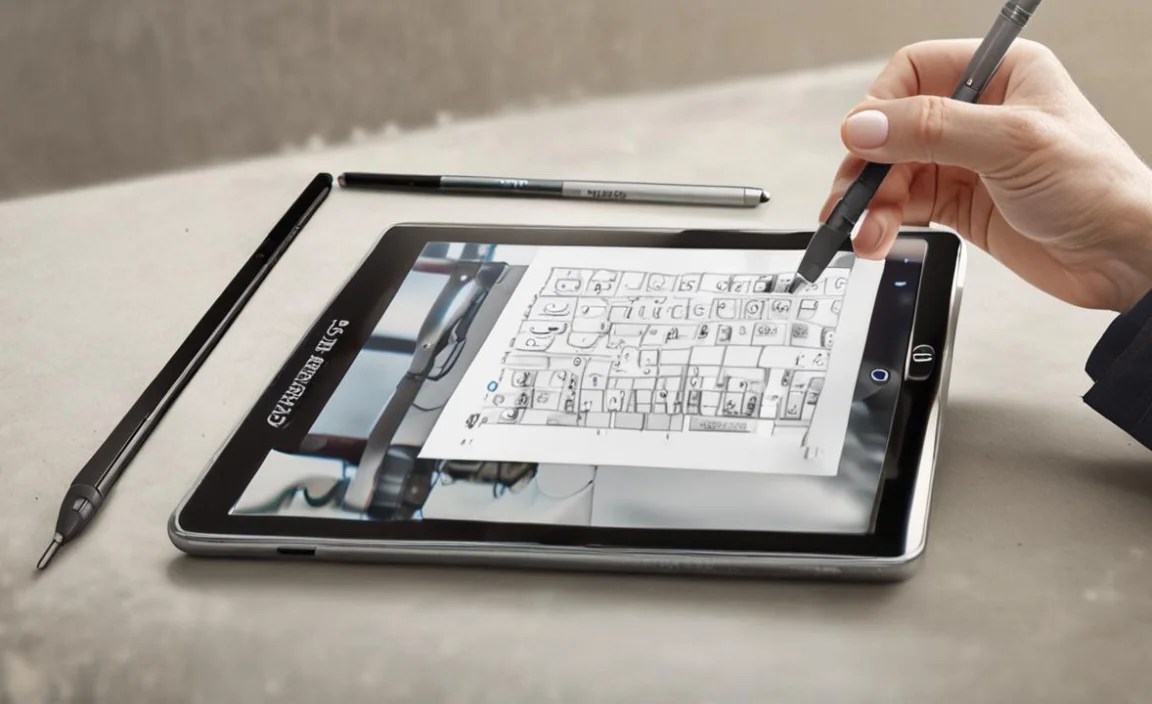
Simply buying a stylus is the first step; using it effectively and maintaining it is the next. Here are some tips to get the most out of your new accessory with your RCA Tablet 11 Galileo.
Tips for Better Handwriting and Drawing
Even without advanced features like pressure sensitivity, you can improve your digital handwriting and drawing:
- Adjust Your Grip: Hold the stylus naturally, similar to how you’d hold a pen. Experiment with different angles and pressures to see what feels most comfortable and produces the results you want.
- Screen Protectors: A good quality screen protector can dramatically change the feel of the stylus on the screen. Some offer a more “papery” texture that mimics drawing on paper, reducing the slippery feel of glass and providing more friction for control. Look for tempered glass or matte screen protectors.
- App Settings: Some drawing and note-taking apps allow you to adjust input settings. You might find options to tweak line thickness based on speed or to ignore certain touch inputs. While not true pressure sensitivity, these can offer some control.
- Practice: Like any new skill, using a stylus takes a bit of practice. Spend some time just doodling, writing, or navigating your tablet with it to get accustomed to the feel and responsiveness.
Maintaining Your Stylus
To ensure your stylus lasts and performs well:
- Keep the Tip Clean: Dust and debris can accumulate on the stylus tip. Gently wipe it with a soft, dry microfiber cloth. Avoid harsh chemicals.
- Inspect the Tip Regularly: Check the tip for wear and tear. If it looks frayed, cracked, or excessively worn, it’s time to replace it if your stylus has interchangeable tips. A worn tip can lead to poor responsiveness and, in rare cases, scratches on your screen.
- Store Properly: When not in use, store your stylus in a pen case, a designated slot, or a safe place where it won’t be crushed or exposed to extreme temperatures.
- Avoid Extreme Pressure: While passive styluses are durable, applying excessive force can damage the tip or even the connections within the stylus. Treat it with reasonable care.
Protecting Your RCA Tablet 11 Galileo Screen
Using a stylus, especially one with a slightly firmer tip, makes a screen protector a worthwhile investment. A good screen protector serves multiple purposes:
- Prevents Scratches: It acts as a sacrificial layer, and much harder than the stylus tip, it protects your tablet’s actual screen from micro-scratches that can occur over time from frequent stylus use or even from dust particles that get trapped between the stylus and screen. The National Institute of Standards and Technology (NIST) has developed methods to test touch screen durability, highlighting the importance of protecting these surfaces.
- Improves Feel: As mentioned, matte screen protectors can give a more tactile, paper-like feel, reducing the “slippery glass” sensation and giving you more control.
- Reduces Glare: Some screen protectors also have anti-glare properties, which can make using your tablet outdoors or under bright lights more comfortable.
When selecting a screen protector, ensure it

Your tech guru in Sand City, CA, bringing you the latest insights and tips exclusively on mobile tablets. Dive into the world of sleek devices and stay ahead in the tablet game with my expert guidance. Your go-to source for all things tablet-related – let’s elevate your tech experience!