Looking to extend your RCA Tablet 11 Galileo’s screen for presentations or multitasking? The HDMI port is your secret weapon! This guide will walk you through how to easily connect your tablet to external displays, transforming it into a powerful portable workstation. We’ll cover everything you need to know to get started.
Welcome to Tabletzoo! I’m Walter Moore, and I know how frustrating it can be when your tech doesn’t quite do what you need it to. Especially when you’re trying to be productive on the go. Many people wonder if their RCA Tablet 11 Galileo can actually output to a larger screen for work. The answer is a resounding yes! With its HDMI port, your tablet is ready to become a key part of your mobile office setup. Let’s unlock its full potential together.
RCA Tablet 11 Galileo HDMI: Why It’s an Essential Work Tool


In today’s fast-paced world, flexibility is key. Whether you’re a student needing to present research, a professional giving a client pitch, or a remote worker craving a larger display, the RCA Tablet 11 Galileo offers a surprisingly capable solution. Its portability is a major advantage, but without easy ways to share your screen or expand your workspace, its full productivity potential can be limited. That’s where the HDMI output comes in, turning a simple tablet into a miniature powerhouse for presentations and enhanced productivity.
Unlocking Productivity: The Power of HDMI Output

Think of your RCA Tablet 11 Galileo’s HDMI port as a direct line to bigger and better things when it comes to your work. It’s not just about watching movies on a TV anymore; it’s about creating a seamless workflow wherever you are.
- Effortless Presentations: Ditch the clunky laptop for quick sales pitches or team updates. Connect your tablet directly to a projector or monitor and share your ideas with confidence.
- Expanded Multitasking: Need more screen real estate to compare documents, write reports, or manage tasks? An external monitor can be a game-changer for your workflow.
- Enhanced Collaboration: Share your screen with colleagues or clients in real-time, making feedback and collaborative work much more intuitive.
- Portable Office Setup: Combine your tablet with a wireless keyboard and mouse, and connect to a monitor for a surprisingly functional desktop experience, all without being tethered to a single location.
What You’ll Need: The Essentials for HDMI Connectivity
Getting your RCA Tablet 11 Galileo connected is straightforward, but you’ll need a couple of key items. Don’t worry, they are easy to find and affordable!
- Your RCA Tablet 11 Galileo: Ensure it’s charged and ready to go!
- An HDMI Cable: This is your primary connection. You’ll need a standard HDMI cable. The length you choose will depend on how far your tablet needs to be from the display.
- The Correct Adapter (if needed): Some tablets use a micro-HDMI or mini-HDMI port. The RCA Tablet 11 Galileo typically uses a standard full-size HDMI port, but it’s always good to double-check your specific model’s ports just in case you have an older variant or a different accessory. (For reference, check the official RCA website for product specifications).
- An External Display: This could be a television, a computer monitor, or a projector. Make sure it has an available HDMI input.
Step-by-Step: Connecting Your RCA Tablet 11 Galileo via HDMI

Connecting your tablet is a simple plug-and-play process. Follow these easy steps to get your display up and running:
- Power Down (Optional but Recommended): While many devices support hot-plugging (connecting while powered on), it’s often a good practice to turn off both your tablet and your external display before connecting cables. This can prevent potential electrical surges and ensure a smoother connection.
- Locate the HDMI Port: On your RCA Tablet 11 Galileo, find the HDMI port. It’s usually located on the side or bottom edge of the device and is a trapezoidal shape.
- Connect the HDMI Cable: Plug one end of the HDMI cable firmly into the HDMI port on your tablet.
- Connect to the Display: Plug the other end of the HDMI cable into an available HDMI input port on your external display (monitor, TV, or projector).
- Power On Devices: Turn on your external display first, and then turn on your RCA Tablet 11 Galileo.
- Select the Correct Input Source: On your TV, monitor, or projector, use the remote control or buttons on the device to select the HDMI input that you plugged the cable into (e.g., HDMI 1, HDMI 2).
- Configure Display Settings (If Necessary): In most cases, your tablet screen will automatically mirror or extend to the external display. If it doesn’t, you might need to adjust the display settings on your tablet. Navigate to “Settings” > “Display” > “Screen Mirroring” or “Extend Display” (the exact wording may vary slightly depending on your Android version) and select your desired output mode.
Understanding Display Modes: Mirror vs. Extend
When you connect your RCA Tablet 11 Galileo to an external display, you’ll typically have two main options for how your screen behaves:
- Mirror Mode: This is the most common default setting. It simply duplicates what’s on your tablet’s screen onto the external display. This is perfect for presentations where you want your audience to see exactly what you’re seeing, or for quickly sharing content.
- Extend Mode: This is where the real productivity magic happens! In extend mode, the external display acts as a second monitor, giving you more space to work. You can drag windows and applications between your tablet screen and the external display, allowing you to multitask more effectively. For example, you could have a document open on the external monitor while referring to notes or a web browser on your tablet.
To switch between these modes, you’ll usually go to your tablet’s display settings. Look for options like “Screen Projection,” “Display Output,” or “Multi-display.” The specific path can vary slightly based on the Android version installed on your RCA Tablet 11 Galileo.
Troubleshooting Common HDMI Connection Issues
Even with simple technology, sometimes things don’t go as planned. Here are a few common issues and how to fix them:
No Signal on the External Display
- Check Connections: Ensure the HDMI cable is securely plugged into both the tablet and the display. Sometimes a loose connection is all it takes.
- Verify Input Source: Double-check that your external display is set to the correct HDMI input port.
- Try a Different Cable: HDMI cables can occasionally fail. If you have another HDMI cable, try using it to rule out a faulty cable.
- Restart Devices: A simple restart of both your tablet and the external display can often resolve temporary glitches.
Screen Resolution or Aspect Ratio is Off
- Adjust Tablet Display Settings: Go into your tablet’s display settings and look for options related to screen resolution or aspect ratio. Try selecting a different resolution that matches your external display.
- Adjust External Display Settings: Most monitors and TVs have their own picture settings. Explore these to see if you can adjust the aspect ratio or zoom to fit your screen correctly.
Audio Not Working Through HDMI
- Check Audio Output Settings: On your RCA Tablet 11 Galileo, go to “Settings” > “Sound” or “Audio Output” and make sure that HDMI is selected as the audio output device.
- Verify Display Audio Capabilities: Ensure that your external display (TV or monitor) is capable of receiving audio via HDMI and that its volume is turned up.
Tablet Screen is Blank When Extended
- Ensure Correct Mode is Selected: Make sure you have selected “Extend Mode” in your tablet’s display settings, not just “Mirror Mode” if you intend to use it as a separate workspace.
- Check Tablet Display Settings: Sometimes, in extend mode, you might need to manually designate which is the primary display or adjust the orientation.
Beyond the Basics: Optimizing Your RCA Tablet 11 Galileo for Work
The HDMI port is just the beginning of making your RCA Tablet 11 Galileo a true work essential. Here are some additional tips to boost its productivity:
- Invest in a Wireless Keyboard and Mouse: Transform your tablet into a more comfortable desktop experience. Many affordable Bluetooth options are available that pair easily with your tablet.
- Utilize Cloud Storage: Services like Google Drive, Dropbox, or OneDrive allow you to access your files from anywhere and sync them across devices. This is crucial for a mobile workflow.
- Explore Productivity Apps: Beyond the built-in apps, consider dedicated productivity suites like Microsoft Office (Word, Excel, PowerPoint), Google Workspace apps, or note-taking apps like Evernote or OneNote.
- Consider a Stylus: If your work involves a lot of note-taking, drawing, or annotating documents, a compatible stylus can significantly enhance your tablet’s usability. Check for stylus compatibility on RCA’s support pages or tech reviews.
- Optimize Battery Life: For extended work sessions, always ensure your tablet is fully charged. Consider carrying a portable power bank to keep you connected on the go.
RCA Tablet 11 Galileo HDMI: A Cost-Effective Productivity Solution
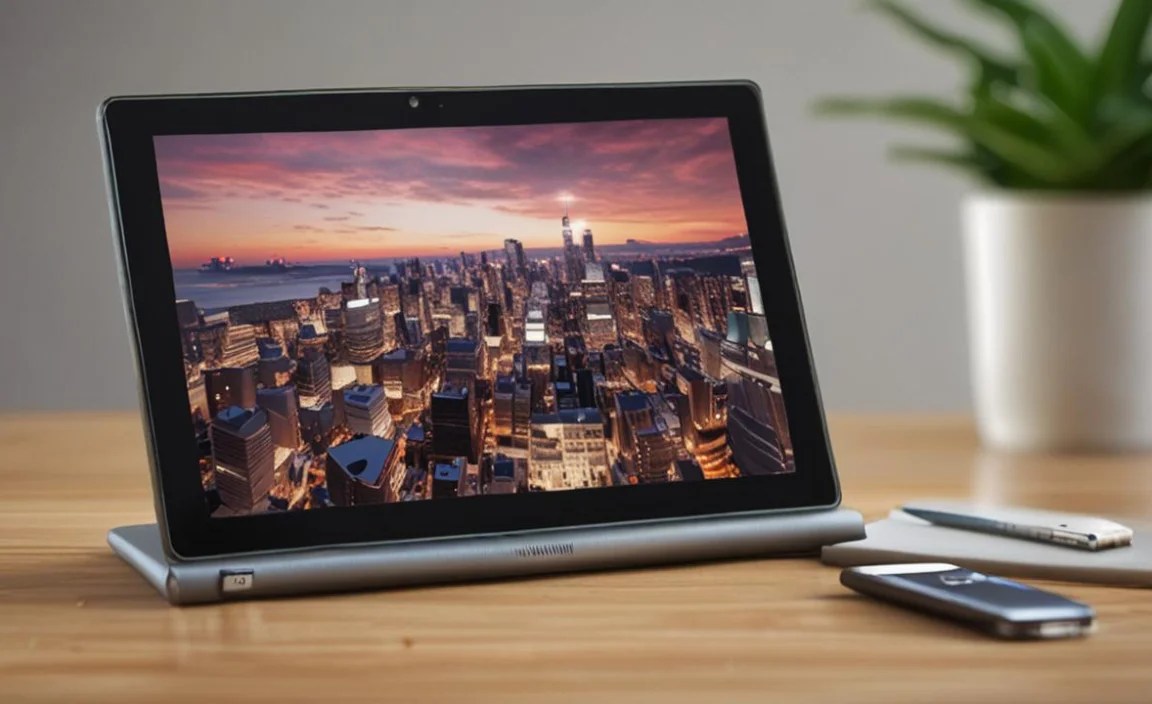
When comparing productivity devices, tablets often present a compelling alternative to traditional laptops. The RCA Tablet 11 Galileo, with its HDMI output, further bridges this gap, offering a budget-friendly way to achieve a functional multi-display setup.
For professionals, students, and even hobbyists, the ability to project content, extend a workspace, or simply present ideas on a larger screen without breaking the bank is a significant advantage. While it may not have all the bells and whistles of a high-end laptop, its core functionality, especially when augmented with the HDMI port and a few key accessories, makes it a surprisingly capable tool for everyday work tasks.
The convenience of a lightweight device that can instantly connect to larger displays means less time setting up and more time being productive. This is especially true for those who travel frequently or work in various locations. The Federal Communications Commission (FCC) provides information on the standards and regulations for electronic devices like tablets, ensuring they meet safety and performance benchmarks.
Consider the total cost of ownership. A tablet with an HDMI port and a good quality HDMI cable is often significantly cheaper than a comparable laptop or a dedicated presentation device. This makes it an attractive option for individuals and small businesses looking to maximize their budget.
| Feature | Benefit for Work | RCA Tablet 11 Galileo HDMI Advantage |
|---|---|---|
| Portable Design | Work from anywhere, increased flexibility. | Lightweight and easy to carry. |
| HDMI Output | Presentations, multitasking, larger workspace. | Direct connection to monitors and projectors. |
| Affordability | Cost-effective productivity tool, better ROI. | Lower entry cost compared to many laptops. |
| Touchscreen Interface | Intuitive interaction, quick note-taking. | Direct manipulation of apps and content. |
| App Ecosystem | Access to a wide range of productivity tools. | Supports essential work and business applications. |
When it comes to choosing a device that can adapt to your needs, the RCA Tablet 11 Galileo with its HDMI capability punches above its weight. It’s a testament to how versatile even an affordable tablet can be when you understand its features and how to use them.
Frequently Asked Questions (FAQ)
Q1: Does the RCA Tablet 11 Galileo have a standard HDMI port?

Most versions of the RCA Tablet 11 Galileo come equipped with a standard full-size HDMI port, making it easy to connect with most modern displays. Always double-check the specific port type on your model if you’re unsure.
Q2: Can I use my tablet’s HDMI port to connect to a TV?

Yes, absolutely! The HDMI port on your RCA Tablet 11 Galileo is designed to connect to any device with an HDMI input, including televisions, computer monitors, and projectors.
Q3: Will the screen on my TV look exactly like my tablet screen?

When you first connect, it will likely be in “mirror mode,” meaning the TV screen will show exactly what’s on your tablet. You can usually change this to “extend mode” in your tablet’s display settings, which turns the TV into a second, separate screen for more work space.
Q4: Do I need a special cable for the HDMI connection?
You will need a standard HDMI cable. If your tablet has a different HDMI port (like micro-HDMI), you would need an adapter or a cable with the correct connectors on each end. However, the RCA Tablet 11 Galileo typically uses a full-size HDMI port.
Q5: Can I use my tablet while it’s connected to the TV via HDMI?

Yes! If you are in “mirror mode,” you’ll see the same thing on both screens. If you switch to “extend mode,” you can use your tablet as a separate display while the TV shows something else, allowing you to multitask.
Q6: What if there’s no sound coming from the TV when I connect via HDMI?

You might need to adjust your tablet’s audio output settings. Go to your tablet’s Settings, find the Sound or Audio section, and ensure that HDMI is selected as the audio output device. Also, make sure the TV’s volume isn’t muted and is set to an audible level.
Q7: Is the RCA Tablet 11 Galileo good for more than just simple work tasks with HDMI?

The RCA Tablet 11 Galileo offers a solid foundation for many work tasks, especially when paired with an external display via HDMI. For more graphically intensive tasks or heavy multitasking, you might find limitations. However, for email, document editing, presentations, web browsing, and basic productivity, it’s a capable device that becomes even more powerful with its HDMI output.
Conclusion: Your Portable Productivity Hub Awaits
The RCA Tablet 11 Galileo, equipped with its HDMI output, is far more than just a casual entertainment device. It’s a flexible and affordable tool that can significantly boost your productivity. By understanding how to leverage its HDMI port, you can easily transform it into a presentation powerhouse, an extended desktop, or a convenient way to share information with others.
Whether you’re a student preparing for a class project, a salesperson on the road, or a freelancer looking for a cost-effective way to enhance your workspace, the RCA Tablet 11 Galileo delivers. Don’t let its budget-friendly price tag fool you; with a little know-how and the right accessories, this tablet and its HDMI output can become an indispensable part of your daily workflow. So, grab that HDMI cable, connect to your favorite display, and start working smarter!

Your tech guru in Sand City, CA, bringing you the latest insights and tips exclusively on mobile tablets. Dive into the world of sleek devices and stay ahead in the tablet game with my expert guidance. Your go-to source for all things tablet-related – let’s elevate your tech experience!