RCA Tablet 11 Galileo keyboard touchscreen not working? This essential guide provides proven fixes to get your device back in action quickly and easily.
Having trouble with your RCA Tablet 11 Galileo’s keyboard or touchscreen? It’s a common frustration when your tablet doesn’t respond as expected. You rely on your device for so many things, and a sticky or unresponsive screen can really slow you down. Don’t worry, though! Many of these issues are fixable with a few simple steps. We’ve put together this guide to help you troubleshoot and resolve those annoying keyboard and touchscreen glitches. Let’s get your tablet working smoothly again – keep reading to find out how!
RCA Tablet 11 Galileo Keyboard Touchscreen Fix: Essential Guide
The RCA Tablet 11 Galileo is a handy, versatile device that bridges the gap between a tablet and a laptop, especially with its integrated keyboard. However, like any electronic device, it can sometimes experience issues with its touchscreen or keyboard functionality. When your RCA Tablet 11 Galileo’s keyboard or touchscreen suddenly stops working, it can be incredibly inconvenient. This guide is designed to be your go-to resource for diagnosing and fixing these common problems, ensuring you can get back to browsing, working, or playing without interruption. We’ll cover everything from simple software tweaks to more involved hardware checks.
Common RCA Tablet 11 Galileo Keyboard and Touchscreen Issues

Before we dive into the solutions, it’s helpful to understand what kind of problems you might be facing. Recognizing the symptoms can often point you toward the right fix.
- Unresponsive Touchscreen: Parts of the screen, or the entire screen, might not register your touch at all. Sometimes, it might seem like the screen is “ghosting” and registering touches you didn’t make.
- Intermittent Touchscreen Issues: The touchscreen works sometimes and not others, making it unpredictable and frustrating to use.
- Keyboard Not Typing: Individual keys, or the entire keyboard, may fail to input characters. This can happen with the on-screen keyboard or the physical keyboard dock.
- Physical Keyboard Connection Problems: The tablet might not recognize that the keyboard dock is attached, or it might disconnect unexpectedly.
- Laggy or Delayed Input: Your touch or typing might be registered with a noticeable delay, impacting usability.
- Specific App Issues: The problem might only occur within a particular application, suggesting a software conflict rather than a hardware failure.
Step-by-Step Troubleshooting for Touchscreen Problems
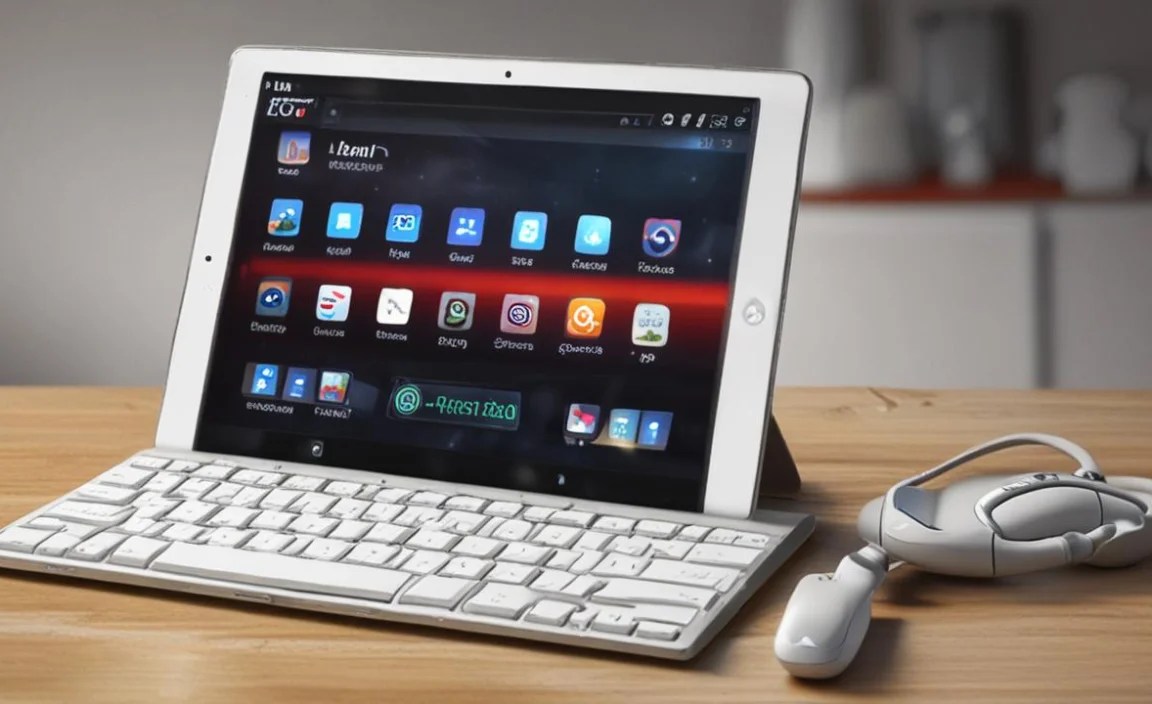
When your RCA Tablet 11 Galileo’s touchscreen acts up, starting with the simplest solutions is usually the best approach. These steps require no technical expertise and can resolve many common glitches.
1. Clean the Screen
This might sound obvious, but a dirty screen can be a surprisingly common culprit for erratic touchscreen behavior. Smudges, grime, and moisture can interfere with the capacitive touch sensors.
- Turn off your tablet.
- Lightly dampen a soft, lint-free cloth (like a microfiber cloth) with water or a screen-cleaning solution specifically designed for electronics. Avoid ammonia-based cleaners or harsh chemicals, as they can damage the screen coating.
- Gently wipe the screen in a circular motion.
- Ensure the screen is completely dry before turning the tablet back on.
2. Remove Screen Protectors and Cases
Sometimes, a poorly applied screen protector or a thick case can interfere with touch sensitivity. If you have either installed, try removing them temporarily to see if the issue resolves.
- Carefully peel off your screen protector and remove any case.
- Test the touchscreen functionality.
- If the problem is gone, the accessory was likely the cause. You might need to reapply the screen protector more carefully or consider a different brand that doesn’t impede touch.
3. Restart Your Tablet
A simple restart can clear temporary software glitches and refresh the system, often resolving touchscreen issues. This is the digital equivalent of giving your device a quick reset.
- Press and hold the Power button on your tablet.
- When the power menu appears, tap “Restart” or “Power Off.” If you select “Power Off,” wait a few seconds, then press and hold the Power button again to turn it back on.
- Once the tablet has fully rebooted, test the touchscreen.
4. Force Restart (Hard Reset)
If a regular restart doesn’t work, a force restart can sometimes help. This is a more drastic reboot that can clear out more stubborn software issues without deleting your data.
- Most Android tablets, including RCA models, require you to press and hold the Power button for an extended period (often 10-30 seconds) until the device shuts down and restarts itself.
- Consult your RCA Tablet 11 Galileo’s user manual if you’re unsure of the exact procedure, as it can vary slightly between models.
- After the force restart, check if the touchscreen is responsive.
5. Check for Software Updates
Outdated software can sometimes cause compatibility issues with hardware. Ensuring your tablet is running the latest firmware can resolve many bugs.
- Connect your tablet to a stable Wi-Fi network.
- Go to Settings.
- Scroll down and tap System or About tablet.
- Tap System update or Software update.
- If an update is available, download and install it. Your tablet will likely restart during this process.
- After the update, test the touchscreen.
6. Boot into Safe Mode
Safe Mode starts your tablet with only the essential system apps and drivers. If the touchscreen works fine in Safe Mode, it indicates that a third-party app you’ve installed is likely causing the problem. You can then uninstall recently added apps one by one until the issue is resolved.
How to enter Safe Mode on most Android devices:
- Press and hold the Power button until the power menu appears.
- Touch and hold the “Power off” option.
- You should see a prompt asking if you want to reboot to Safe Mode. Tap “OK.”
- Your tablet will restart, and you’ll see “Safe mode” displayed, usually in a corner of the screen.
To exit Safe Mode: Simply restart your tablet normally.
7. Calibrate the Touchscreen (If Available)
Some Android devices have a calibration tool to improve touchscreen accuracy. While not always present on every model, it’s worth checking.
- Navigate to Settings.
- Look for options like Display, Advanced settings, or System.
- Search for “Touchscreen calibration,” “Screen calibration,” or similar phrases. This option might not be easily accessible or present on all RCA Tablet 11 Galileo versions.
- If you find it, follow the on-screen instructions carefully.
Note: Many modern Android devices, including those from RCA, may not offer manual touchscreen calibration tools in their settings. If you don’t see this option, don’t worry; it’s not a sign of a problem.
8. Factory Reset (Last Resort for Software)
If none of the above software solutions work, a factory reset will restore your tablet to its original settings. Warning: This will erase all your data, including apps, photos, and settings. Make sure to back up anything important before proceeding.
Detailed instructions for backing up data can be found on Google’s official support pages: Google Android Data Backup.
- Go to Settings.
- Tap System.
- Tap Reset options or Backup & reset.
- Select Erase all data (factory reset).
- Read the warning carefully and tap Erase all data.
- Your tablet will restart and go through the initial setup process.
Troubleshooting RCA Tablet 11 Galileo Keyboard Dock Issues

The physical keyboard dock is a key feature of the RCA Tablet 11 Galileo for productivity. When it doesn’t work, here’s what to try.
1. Check Physical Connections
The most common laptop-style keyboard issues stem from the connection between the tablet and the dock. Ensure it’s secure.
- Detach the tablet from the keyboard dock carefully.
- Inspect the connector pins on both the tablet and the dock for any debris, dust, or bent pins.
- Gently clean any dust with a soft brush or a blast of compressed air.
- Reattach the tablet to the dock, ensuring it clicks or locks firmly into place. Make sure you’re aligning it correctly according to the design.
- Test the keyboard.
2. Restart with Keyboard Attached
Sometimes, the tablet needs to recognize the keyboard during the boot-up process.
- Ensure the keyboard dock is securely attached to the tablet.
- Perform a restart of your tablet (as described in the touchscreen section).
- See if the keyboard is detected and functional after the reboot.
3. Check Keyboard Settings (If Applicable)
While often plug-and-play, some Android versions might have basic keyboard settings to review.
- Navigate to Settings.
- Look for System, then Languages & input, or similar.
- You might find options related to physical keyboards. Ensure the RCA keyboard is recognized or that no specific configurations are preventing it from working.
4. Test Keys Individually
If some keys work and others don’t, it could be a localized issue with the keyboard itself.
- Open a simple text editor or notes app.
- Try pressing each key on the physical keyboard.
- Note which keys are not functioning.
5. Test on Another Device (If Possible)
If you have access to another compatible RCA tablet or a similar device that uses the same connector type, testing the keyboard dock there can help determine if the issue lies with the keyboard itself or your specific tablet.
6. Check for Driver Issues (Rare on Android)
While less common on Android tablets compared to Windows PCs, sometimes a driver might be corrupted or missing. A factory reset is usually the only way to address this on Android without advanced technical knowledge.
When It Might Be a Hardware Issue

If you’ve tried all the software troubleshooting steps and the problem persists—especially if the touchscreen is completely unresponsive or the physical keyboard is no longer detected after cleaning and ensuring connections—it’s possible that there’s a hardware failure.
Potential Hardware Problems Include:
- Damaged digitizer (the layer of the touchscreen responsible for registering touches).
- Loose internal cable connecting the touchscreen or keyboard interface to the tablet’s motherboard.
- Failure of the tablet’s internal components.
- Damage to the connector port on the tablet or the keyboard dock.
For hardware issues, especially if your tablet is still under warranty, the best course of action is to contact RCA customer support or the retailer where you purchased it. Attempting physical repairs yourself without proper knowledge and tools can void your warranty and potentially cause further damage.
RCA Tablet 11 Galileo Specifications Overview (Relevant to Touchscreen/Keyboard)
Understanding the basic specifications can sometimes offer context to potential quirks or capabilities of your device. The RCA Tablet 11 Galileo typically features:
| Feature | Typical Specification |
|---|---|
| Display Size | 11.6 inches |
| Display Type | IPS LCD |
| Resolution | 1366 x 768 pixels |
| Operating System | Android (version varies by manufacturing batch) |
| Processor | Quad-core Intel Atom or similar ARM-based processor |
| RAM | 2GB or 4GB |
| Storage | 32GB or 64GB (expandable via microSD) |
| Connectivity | Wi-Fi, Bluetooth |
| Ports | Micro USB, Audio Jack, MicroSD card slot, Keyboard Dock Connector |
| Keyboard | Detachable physical keyboard with touchpad/trackpad |
The touch capabilities rely on capacitive touch technology, standard for modern tablets. The keyboard dock uses a proprietary connector system, usually designed for a secure plug-and-play experience. The robustness of these connectors can sometimes be a point of failure if not handled with care.
Preventative Tips to Avoid Future Issues
Keeping your RCA Tablet 11 Galileo in good working order involves a mix of careful usage and regular maintenance.
- Handle with Care: Always detach and attach the keyboard dock gently. Avoid forcing it.
- Keep it Clean: Regularly clean the screen and keyboard with appropriate materials.
- Use a Protective Case: A good case can protect the screen and the tablet’s body from drops and impacts.
- Avoid Extreme Temperatures: Don’t leave your tablet in very hot or very cold environments, as this can affect battery performance and internal components.
- Be Mindful of Liquids: Keep liquids away from the tablet and especially the keyboard connector.
- Download Apps from Trusted Sources: Stick to the Google Play Store for app downloads to minimize the risk of malware that could interfere with system functions.
- Restart Regularly: A quick restart once a week can help prevent minor software glitches from becoming bigger problems.
Frequently Asked Questions (FAQ)
Q1: My RCA Tablet 11 Galileo touchscreen is frozen. What should I do?
A1: If your touchscreen is completely unresponsive and frozen, try a force restart. Press and hold the Power button for about 10-30 seconds until the tablet shuts down and restarts automatically. This is the quickest way to attempt to unfreeze the system without losing data. If it continues to freeze, you may need to consider a factory reset after backing up your data.
Q2: Can I use a stylus with the RCA Tablet 11 Galileo?
A2: The RCA Tablet 11 Galileo typically uses a standard capacitive touchscreen. While it may work with some basic rubber-tipped styluses designed for capacitive screens, it’s unlikely to support active styluses that require specific technology or drivers like some higher-end tablets. For best results, use your finger or a basic capacitive stylus. If you’re looking for precision drawing, this model might have limitations.
Q3: My keyboard dock is not charging my tablet. Is there a fix?
A3: The keyboard dock itself usually doesn’t charge the tablet, but it provides the connection port. If your tablet isn’t charging, the issue is likely with the charging cable, the power adapter, or the tablet’s charging port. Try a different USB cable and charger. Ensure the tablet’s charging port and the cable’s port are clean. If your dock has a USB passthrough port for charging accessories, ensure that connection is also clean and secure.
Q4: How do I know if my RCA Tablet 11 Galileo is compatible with Android updates?
A4: RCA tablets, especially older models like the 11 Galileo series, often have a fixed Android version they ship with and may not receive major OS updates. You can check for available system updates by going to Settings > System > System update. If no updates appear, it likely means RCA has stopped providing further software support for that specific model. For security updates, it’s always recommended to keep your device updated as much as possible.
Q5: The physical keyboard works, but the touchpad on the dock doesn’t. What’s wrong?
A5: This often points to a driver or connection issue specifically with the touchpad component. Try detaching and reattaching the dock firmly. Restarting the tablet with the dock attached is also a good step. If the touchpad still doesn’t work, and the keyboard does, it could indicate a hardware problem with the touchpad itself or its connection within the dock. Unfortunately, on many budget Android devices, individual component repairs are not feasible, and a factory reset is the most that can be done via software.

Your tech guru in Sand City, CA, bringing you the latest insights and tips exclusively on mobile tablets. Dive into the world of sleek devices and stay ahead in the tablet game with my expert guidance. Your go-to source for all things tablet-related – let’s elevate your tech experience!