Quick Summary: Is your RCA Tablet 11 Galileo not charging despite being plugged in? Don’t worry! This guide offers simple, effective solutions to fix common charging problems, helping you get back to using your tablet without breaking the bank. We’ll cover everything from checking cables to basic troubleshooting steps.
Have you ever reached for your RCA Tablet 11 Galileo, only to find it stubbornly refusing to power up? That sinking feeling when the charging indicator doesn’t appear is frustrating, to say the least. Out of all the ways a tablet can act up, charging problems are some of the most common and anxiety-inducing. Fortunately, many of these issues are surprisingly easy to fix yourself, often without needing to spend extra money. You don’t need to be a tech whiz to get your tablet back in the game. In this guide, we’ll walk you through—step by step—how to tackle those pesky charging woes and get your RCA Tablet 11 Galileo ready for action again.
Understanding RCA Tablet 11 Galileo Charging Quirks

The RCA Tablet 11 Galileo, like many budget-friendly tablets, offers a lot of bang for your buck. It’s a popular choice for general browsing, media consumption, and light productivity. However, as with any electronic device, it can occasionally encounter charging issues. These problems aren’t usually a sign of a major defect but rather a result of everyday wear and tear, simple connection issues, or minor software glitches. The good news is that understanding these can lead to a quick fix.
When your tablet isn’t charging, it’s easy to jump to the conclusion that the battery is dead or the tablet itself is broken. But before you consider expensive repairs or replacements, let’s explore some straightforward steps you can take. Often, the culprit is something as simple as a loose cable or a need for a quick restart. We’ll help you diagnose the problem and implement the right solution.
Common Reasons Your RCA Tablet 11 Galileo Won’t Charge

Before we dive into solutions, let’s identify the most frequent culprits behind charging problems on your RCA Tablet 11 Galileo. Knowing what to look for can save you a lot of time and guesswork.
- The Charging Cable: This is the most common offender. Cables can fray, the internal wires can break, or the connectors can get dirty or damaged.
- The Power Adapter (Charger Brick): Similar to cables, adapters can fail. Sometimes, they might not be powerful enough for the tablet’s needs, especially if it’s an older or third-party adapter.
- The Charging Port on the Tablet: Dust, lint, or debris can accumulate in the Micro-USB port (or a similar charging port) on your tablet, preventing a secure connection with the cable. Physical damage to the port can also occur.
- Software Glitches: Sometimes, the tablet’s operating system can get stuck in a state that prevents proper charging detection. A simple restart can often clear these temporary glitches.
- The Power Outlet: It might sound obvious, but ensure the wall outlet you’re using is working! Try plugging in another device to test it.
- Battery Health: Over time, all lithium-ion batteries degrade. While usually a slower process, a very old battery might struggle to hold a charge, though this is less common as a sudden charging failure cause.
Troubleshooting Steps: Fix Your RCA Tablet 11 Galileo Charging Issue

Let’s get your RCA Tablet 11 Galileo charging again! Follow these steps in order. Often, the simplest solution resolves the problem.
Step 1: Inspect and Test Your Charging Cable and Adapter
This is where most charging issues begin and end. A damaged cable or adapter simply won’t deliver power effectively, if at all.
- Visual Inspection: Carefully examine the entire length of your charging cable. Look for any signs of fraying, cuts, kinks, or exposed wires. Check the connectors on both ends for bent pins or damage. Do the same for your power adapter, checking for cracks or burn marks.
- Try a Different Cable: If you suspect your cable is the problem, try using a different, known-working Micro-USB cable. Many Android phones and other tablets use compatible cables.
- Try a Different Adapter: If you have another USB power adapter (phone charger, another tablet charger), try using that with your now-tested cable. Ensure it provides at least 1A, but preferably 2A or more, for optimal charging speed. A quick tip: check the amperage (A) rating on the original charger and try to match or exceed it with a replacement.
- Test the Cable/Adapter Combination: If possible, try your original cable and adapter with another device (like a phone) to see if they charge that device correctly. This helps isolate whether the issue is with the accessories themselves or your tablet.
Tip: For the RCA Tablet 11 Galileo, it typically uses a standard Micro-USB charging port. Make sure you’re using a cable designed for data transfer and charging, not just a “charge-only” cable if you intend to test with a computer (though we’re focusing on wall charging here).
Step 2: Clean the Tablet’s Charging Port
A buildup of dust and debris in the charging port is a very common cause of connection issues.
- Gather Your Tools: You’ll need a small, soft-bristled brush (like a clean toothbrush or a small paintbrush) or a can of compressed air. A toothpick can be used very carefully if needed, but avoid anything metallic.
- Power Off the Tablet: Ensure your tablet is completely turned off before attempting to clean the port.
- Gentle Cleaning:
- Compressed Air: Hold the can upright and use short bursts of air directed into the port. This is often the safest method to dislodge loose debris.
- Soft Brush: Gently brush the inside of the port with your soft-bristled brush. Work from the back of the port towards the opening to push debris out.
- Toothpick (Use with Extreme Caution): If you see stubborn debris, you can very gently try to scrape it out with the tip of a wooden or plastic toothpick. Be extremely careful not to bend or damage the pins inside the port. Do NOT use a metal paperclip or pin.
- Inspect Again: After cleaning, use a flashlight to look inside the port. You should see clean metal contacts.
- Try Charging: Plug your charging cable back in firmly and see if the tablet now recognizes the charger.
Important Note: Be gentle! The charging port contains delicate pins that can be easily damaged. If you’re not comfortable cleaning it yourself, consider taking it to a repair shop or seeking assistance from a tech-savvy friend.
Step 3: Restart Your RCA Tablet 11 Galileo
Sometimes, a simple software hiccup can prevent the tablet from recognizing a proper charge. A restart can clear this.
- Force Restart (if necessary): If your tablet is completely dead and won’t respond, you might need to try a force restart. For many Android tablets, this involves pressing and holding the Power button for an extended period (15-30 seconds). If your tablet has a Volume Down button, you might need to press and hold both the Power and Volume Down buttons simultaneously. Keep holding them until the screen flickers or the RCA logo appears.
- Standard Restart: If your tablet has some battery life or is showing signs of life, but not charging, try a standard restart. Go to Settings > System > Restart (or Power > Restart) if you can access the menus. If not, use the force restart method mentioned above.
- Charge While Off: After the restart, plug your tablet into the charger while it is powered off. Leave it to charge for at least 30 minutes to an hour. Then, try powering it on.
Step 4: Check the Power Outlet and Consider a Different Location
It sounds basic, but a faulty power source can stop charging in its tracks.
- Test the Outlet: Plug a known-working device (like a lamp, phone charger, or another tablet) into the same wall outlet. If that device doesn’t power on, the outlet is the problem.
- Try a Different Outlet: Use a different wall socket in your home or office.
- Avoid Power Strips/Surge Protectors (Temporarily): Sometimes, power strips or surge protectors can have their own issues or provide insufficient power. Try plugging the adapter directly into the wall.
- Test Other Power Sources: If you’re trying to charge via a computer’s USB port, know that these often provide much slower charging speeds compared to wall adapters and may not be sufficient to charge a tablet that’s low on power or heavily in use.
Step 5: Test Charging with Optimized Settings (If Tablet Boots Up)
If your tablet turns on but charges very slowly or inconsistently, software settings might be contributing.
If you can boot up your RCA Tablet 11 Galileo, even with low battery, try these:
- Disable Battery Optimization for Charging Apps: While less common for the core charging process, sometimes apps can interfere. It’s unlikely to be the primary cause for a “not charging” issue, but good to keep in mind for slow charging. (This setting is often buried in battery or advanced settings and might not be easily accessible on all Android versions or manufacturer UIs.)
- Enable/Disable Battery Saver Mode: While Battery Saver mode is designed to extend battery life by reducing background activity and performance, in some rare cases, it might interfere with the charging recognition. Try toggling it off. Conversely, in some devices, enabling it can sometimes help the system focus solely on charging. Experiment with both states.
Step 6: Consider the Charging Cable Pinout (Advanced – Use with Caution)
Most standard Micro-USB cables are straightforward. However, some accessories are designed to optimize charging. This is a more niche issue, but for completeness:
- Standard USB Charging: A standard Micro-USB cable has five pins. The important ones for charging are VBUS (+5V) and Ground.
- Proprietary and Optimized Cables: Some manufacturers use specific pin configurations or data lines within the USB connector to communicate with the charger and device to allow for faster charging protocols. While the RCA Tablet 11 Galileo is unlikely to support complex fast-charging standards, compatibility issues with very cheap or old cables can sometimes arise. Ensure you’re using a reputable, standard USB 2.0 Micro-USB cable.
For most users, this step is about ensuring you’re using a generic, functional Micro-USB cable, rather than trying to modify or understand complex pinouts.
When to Seek Professional Help
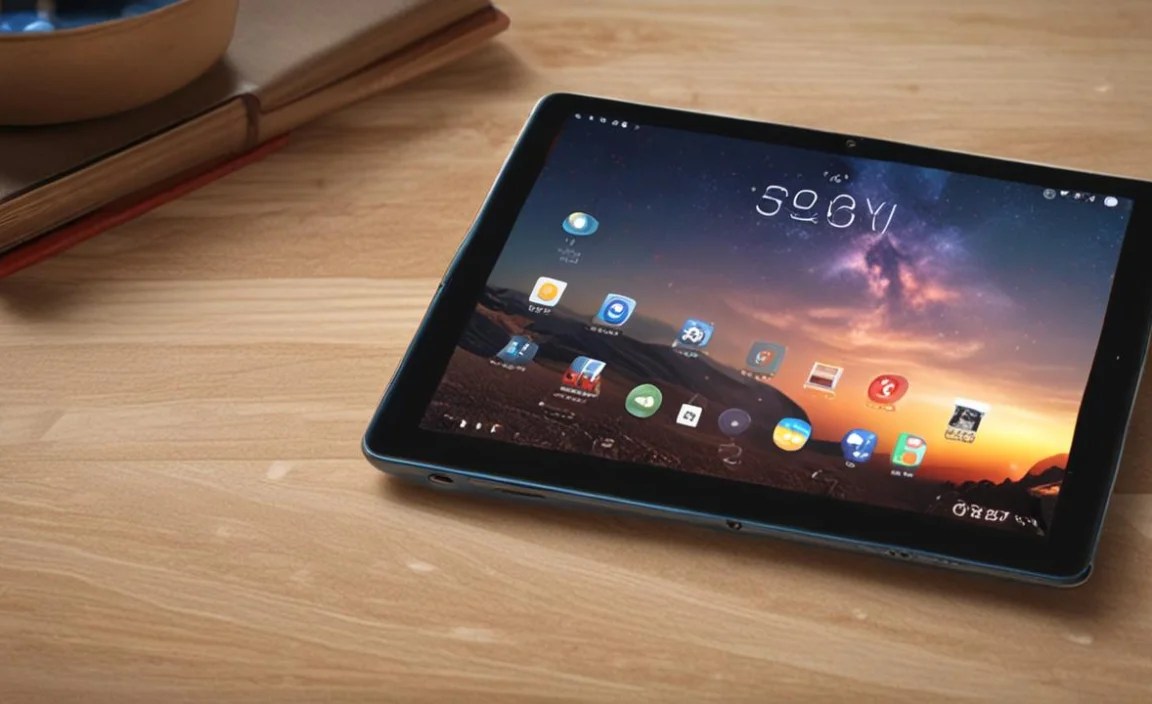
If you’ve gone through all the troubleshooting steps above and your RCA Tablet 11 Galileo still isn’t charging, it might be time to consider that there’s a hardware issue beyond simple fixes.
- Physical Damage: Visible damage to the charging port, the tablet body, or the screen could indicate internal damage that needs professional repair.
- Water Damage Indicator: If your tablet has come into contact with moisture, internal corrosion could be the culprit. Many devices have small liquid contact indicators (LCIs) that change color if exposed to water.
- No Signs of Life: If the tablet shows absolutely no response – no screen flicker, no charging light, no sound – even after trying different chargers and cables on known working outlets, the motherboard or battery may have failed.
Seek a qualified electronics repair shop. While RCA doesn’t always have easily accessible repair centers for older models, local independent repair shops that specialize in tablet and smartphone repairs are your best bet. Be sure to get a quote before committing to any service. You can also research official support or warranty options, though for older models, these might be limited.
RCA Tablet 11 Galileo Price and Potential Repair Costs

The RCA Tablet 11 Galileo was typically positioned as an affordable tablet. Its price point, often ranging from $80 to $150 depending on the configuration and retailer, means that repair costs need to be considered carefully.
For a device in this price range, major internal repairs are often not cost-effective.
Typical Repair Cost Estimates (for independent shops):
| Issue Type | Estimated Cost (USD) | Notes |
|---|---|---|
| Charging Port Replacement | $40 – $80 | Can vary greatly based on labor complexity. Often the most cost-effective hardware repair. |
| Battery Replacement | $50 – $100+ | If the battery is the issue and is accessible. |
| Motherboard Repair/Replacement | $80 – $150+ | Often costs as much or more than a new budget tablet. |
| Screen Replacement | $60 – $120+ | If accidental damage is suspected alongside charging issues. |
When considering repair versus replacement: If the repair quote approaches or exceeds the cost of a new, comparable budget tablet (potentially even a newer RCA model or a similarly priced tablet from another brand), it’s usually more practical to buy a new device. A new RCA Tablet 11 Galileo can sometimes be found on sale for less than $100 USD.
As of late 2023/early 2024, the RCA Tablet 11 Galileo is an older model. While you might find refurbished units, new ones are less common. If yours is beyond simple fixable issues, consider newer, similarly priced alternatives from brands like Amazon (Fire tablets), Samsung (lower-end Galaxy Tab series on sale), or other budget-friendly manufacturers. These often offer updated features and better long-term support.
Preventative Measures for Long-Term Charging Health
Once you’ve got your RCA Tablet 11 Galileo charging again, or if you’re looking to avoid future problems, adopting good charging habits can significantly extend the life of your device’s battery and charging port.
- Use Quality Accessories: Stick to the original charger and cable that came with the tablet if possible, or invest in reputable third-party brands known for quality. Avoid the cheapest, no-name cables and adapters, as they can be unreliable or even unsafe.
- Avoid Extreme Temperatures: Charging your tablet in very hot or very cold environments can stress the battery. Try to charge it at room temperature.
- Don’t Constantly Leave it Plugged In at 100%: While modern devices have some protection against overcharging, constantly keeping a tablet plugged in overnight at 100% can still contribute to battery degradation over time. It’s a good practice to let it discharge a bit before plugging it in again.
- Handle with Care: Avoid yanking the charging cable out of the port. Gently wiggle and pull the connector straight out. This reduces stress on the port’s internal connections.
- Keep the Port Clean: Make it a habit to periodically check and gently clean the charging port as we discussed earlier, especially if you notice any connection issues.
- Charge Before Deep Discharge: Try to plug your tablet in before the battery level gets critically low (e.g., below 10-20%). Deep discharges can be harder on the battery.
Frequently Asked Questions (FAQ)
Q1: My RCA Tablet 11 Galileo charger is plugged in, but the battery icon shows no charging. What’s the first thing I should try?
The very first thing to try is to inspect your charging cable and power adapter for any visible damage. Then, try using them with another device, or try different, known-working accessories with your tablet. This helps you quickly identify if the problem lies with your charging accessories.
Q2: Can I use any USB cable to charge my RCA Tablet 11 Galileo?
Generally, yes, you can use most standard Micro-USB cables. However, it’s best to use a cable that is designed for charging and data transfer, and ideally one that is of good quality. Very cheap or old cables might not provide sufficient power or could be damaged internally, leading to charging issues.
Q3: How can I clean the charging port safely?
The safest method is to use a can of compressed air to blow out any dust or debris. If that doesn’t work, you can use a clean, soft-bristled brush (like a dry toothbrush) to gently brush the inside of the port. A wooden or plastic toothpick can be used with extreme caution for stubborn debris, but avoid anything metallic to prevent damage to the internal pins.
Q4: My tablet is charging very slowly. Is this a charging issue?
Slow charging can be caused by using an underpowered charger or

Your tech guru in Sand City, CA, bringing you the latest insights and tips exclusively on mobile tablets. Dive into the world of sleek devices and stay ahead in the tablet game with my expert guidance. Your go-to source for all things tablet-related – let’s elevate your tech experience!