Setting up your RCA Tablet 7 Voyager for an enhanced reading experience is straightforward. This guide provides a step-by-step process to optimize your tablet for books, articles, and more, ensuring a comfortable and efficient digital library. Discover essential tips for maximizing your reading pleasure.
RCA Tablet 7 Voyager Setup: Your Essential Reading Boost Guide
Welcome to Tabletzoo! I’m Walter Moore, and I’m here to help you get the most out of your tech. Today, we’re diving into the RCA Tablet 7 Voyager. Many folks find setting up a new tablet a bit daunting, especially when their main goal is to dive into a good book or catch up on some reading. You want it to be just right – comfortable on the eyes, easy to navigate, and ready to go without a fuss. That’s exactly what we’re going to achieve together!
This guide is designed for beginners, so don’t worry about technical jargon. We’ll break down every step into simple, manageable actions. By the end, your RCA Tablet 7 Voyager will be perfectly tuned for your reading adventures. Let’s get started by unboxing and powering up!
Unboxing and Initial Power-Up
The first step to any new gadget is the unboxing. It’s always exciting! Inside your RCA Tablet 7 Voyager box, you should typically find the tablet itself, a USB charging cable, and a power adapter. Sometimes, there might be a quick start guide or warranty information. Make sure everything looks intact before proceeding.
Now, let’s get some juice into your tablet. Connect the USB cable to the tablet’s charging port (usually located on the bottom or side edge) and plug the other end into the power adapter. Then, plug the adapter into a wall outlet. A battery icon should appear on the screen, indicating it’s charging. It’s a good idea to let it charge for at least an hour before diving deep into setup, though it’s often fine to begin setup while it’s charging.
Powering On for the First Time
Once your tablet has a bit of charge, you can power it on. Look for the power button – this is usually a small, raised button on one of the edges. Press and hold it for a few seconds. You’ll feel a slight vibration or see the RCA logo appear on the screen. This means your Voyager is waking up!
The first boot-up can take a minute or two, so be patient. You’ll then be greeted by a welcome screen, usually in a language that automatically matches your region. This is where the real setup begins!
Navigating the Setup Wizard
Your RCA Tablet 7 Voyager comes with a helpful setup wizard to guide you through the essential configurations. Think of it as your digital assistant helping you get everything ready.
Here’s what you can expect and how to handle each step:
- Select Your Language: This is usually the very first screen. Tap your preferred language from the list. If English isn’t your first language, scroll through the options until you find yours.
- Connect to Wi-Fi: This is crucial for downloading apps and updates. Your tablet will scan for available Wi-Fi networks. Select your home network from the list and enter your Wi-Fi password. If you don’t have Wi-Fi or prefer not to connect yet, there might be an option to “Skip” this step or proceed with limited functionality. However, for the best experience, connecting to Wi-Fi is highly recommended.
- Google Account Sign-in: You’ll be prompted to sign in with your Google account (the one you use for Gmail, YouTube, etc.). This is essential for accessing the Google Play Store, where you’ll download all your reading apps. If you don’t have a Google account, you can create one right here on the tablet. It’s a quick process that just requires your name and a few other details.
- Google Services: After signing into your Google account, you’ll see a screen about Google services. This includes options for location services, sending diagnostic data, and more. For reading, location services aren’t critical, but enabling them can help with app functionality. It’s generally safe to accept the recommended settings or customize them to your comfort level.
- Set Up Protection: Here, you can set up a screen lock like a PIN, pattern, or password. This is important for protecting your personal information on the tablet. You can also choose to skip this for now, but it’s a recommended step for security.
- RCA Specifics (if any): Some tablets might have manufacturer-specific apps or agreements to accept. Just read through them and accept or decline as you see fit.
- All Set! Once you’ve gone through these steps, you’ll usually see a confirmation that your tablet is ready. You’ll then be taken to the home screen.
Optimizing Your RCA Tablet 7 Voyager for Reading
Now that your tablet is set up and connected, let’s tailor it specifically for a fantastic reading experience. This involves adjusting settings and understanding how to make your screen comfortable and your reading apps readily available.
Display Settings for Eye Comfort
Reading for long periods can strain your eyes if the display isn’t set up correctly. Here’s how to make it gentler:
- Adjust Brightness: Go to Settings > Display. You’ll find a slider for brightness. Lowering the brightness, especially in dimmer environments, can significantly reduce eye strain. Many people find a moderate to low brightness level most comfortable for reading. You can also toggle “Adaptive brightness” or “Auto-brightness” on or off here, which automatically adjusts brightness based on ambient light.
- Night Light/Blue Light Filter: This is a game-changer! Most Android tablets, including the RCA Tablet 7 Voyager, have a feature often called “Night Light” or “Blue Light Filter.” Find it under Settings > Display. When enabled, it reduces the amount of blue light emitted from the screen, making it appear warmer (more yellowish or orange). Blue light can interfere with sleep patterns if you read before bed. Schedule it to turn on automatically in the evening, or toggle it on manually whenever you’re reading in low light.
- Font Size and Style: While not always in the main Display settings, you can often adjust font sizes within specific reading apps or sometimes in Accessibility settings (Settings > Accessibility > Font size). Making the font slightly larger can improve readability without needing to squint. Experiment with different font styles if available in your chosen reading app.
- Screen Timeout: To prevent the screen from turning off too quickly while you’re engrossed in a book, adjust the “Screen timeout” setting (under Settings > Display). Increase it to a longer duration, like 5 minutes or more.
Download Essential Reading Apps
The Google Play Store is your gateway to countless reading applications. Here are some popular and essential ones for your RCA Tablet 7 Voyager:
- Kindle App: If you have Kindle books or want to access Amazon’s vast library, the Kindle app is a must. It syncs your purchases and reading progress across devices.
- Google Play Books: This is Google’s own e-book service. You can buy books here or upload your own PDF/EPUB files (though direct uploading functionality might vary). It offers a clean interface and good reading customization.
- Kobo Books: Another great option for purchasing e-books and managing your library.
- Libby by OverDrive (or Libby for Public Libraries): This is a fantastic app that connects to your local public library card. You can borrow e-books and audiobooks for free! Check with your local library to see if they support OverDrive.
- Pocket or Instapaper: These apps are perfect for saving articles you find online to read later, without ads or distractions. They’re great for catching up on news, blogs, and long-form content when you have spare time.
- PDF Reader Apps: For documents in PDF format, you’ll want a good PDF reader. Many devices come with one pre-installed, but you can find more advanced options like Adobe Acrobat Reader or Xodo PDF Reader & Editor on the Play Store.
To download an app: Open the Google Play Store, tap the search bar at the top, type the name of the app you want, tap the search icon, select the correct app from the results, and tap “Install.”
Organize Your Home Screen for Reading
Make it easy to jump into your reading material. Customize your home screen:
- Create a Reading Folder: Long-press an empty space on your home screen, then tap “Folder” or “Widgets.” Drag and drop your favorite reading apps (Kindle, Play Books, Libby, etc.) into this new folder. Name it something like “Reading” or “Books.”
- Pin Frequently Used Apps: Place the reading folder or your most-used reading apps directly on the main home screen for quick access.
- Remove Unnecessary Apps: If there are pre-installed apps you don’t use, uninstall them to declutter your home screen and free up a tiny bit of space.
Tips for a Superior Reading Experience
Beyond the basic setup, a few extra touches can elevate your reading sessions on the RCA Tablet 7 Voyager.
Battery Life Management for Extended Reading
Nobody wants their tablet to die mid-chapter. Here’s how to keep it powered longer:
- Lower Screen Brightness: As mentioned, this is the biggest battery saver.
- Turn Off Unused Connectivity: If you’re not actively using Wi-Fi or Bluetooth, turn them off in the Quick Settings menu (swipe down from the top of the screen).
- Limit Background Apps: Some apps run in the background, consuming power. You can manage this in Settings > Apps. For most users, the default settings are fine, but for serious battery conservation, you can restrict background data or battery usage for specific apps.
- Enable Battery Saver Mode: Most Android devices have a Battery Saver mode (Settings > Battery > Battery Saver). This mode reduces performance and limits background activity to extend battery life significantly. It’s perfect for those long reading sessions when you’re away from a charger.
Using E-readers vs. General Reading Apps
While apps like Kindle and Google Play Books offer excellent reading experiences, dedicated e-readers (which the RCA Tablet 7 Voyager is not, but some tablets are) use E-Ink technology that mimics paper and is extremely easy on the eyes, with no backlight. However, for a tablet like the Voyager, these apps are optimized to provide the best possible experience on an LCD or similar screen.
The advantages of using the apps on your RCA Tablet 7 Voyager include:
- Color Content: Perfect for magazines, comics, or books with illustrations.
- App Integration: Seamlessly syncs with your cloud library.
- Versatility: You can switch from reading to browsing the web or checking email without changing devices.
The key is to use the display optimization features (Night Light, brightness) and the customize-able font settings within these apps to get as close to an eye-friendly experience as possible.
Organizing Your Digital Library
As your collection grows, keeping things organized is key:
- Use App Features: Most e-reader apps allow you to create shelves or collections. Group books by genre, author, or series.
- Utilize Tags (if available): Some apps support tagging, letting you categorize books for quick retrieval (e.g., “To Read,” “Favorites,” “Work Related”).
- Leverage Public Library Apps: If you use Libby, keep track of your borrowed books and holds so you don’t miss out on what you want to read.
Troubleshooting Common Setup Issues
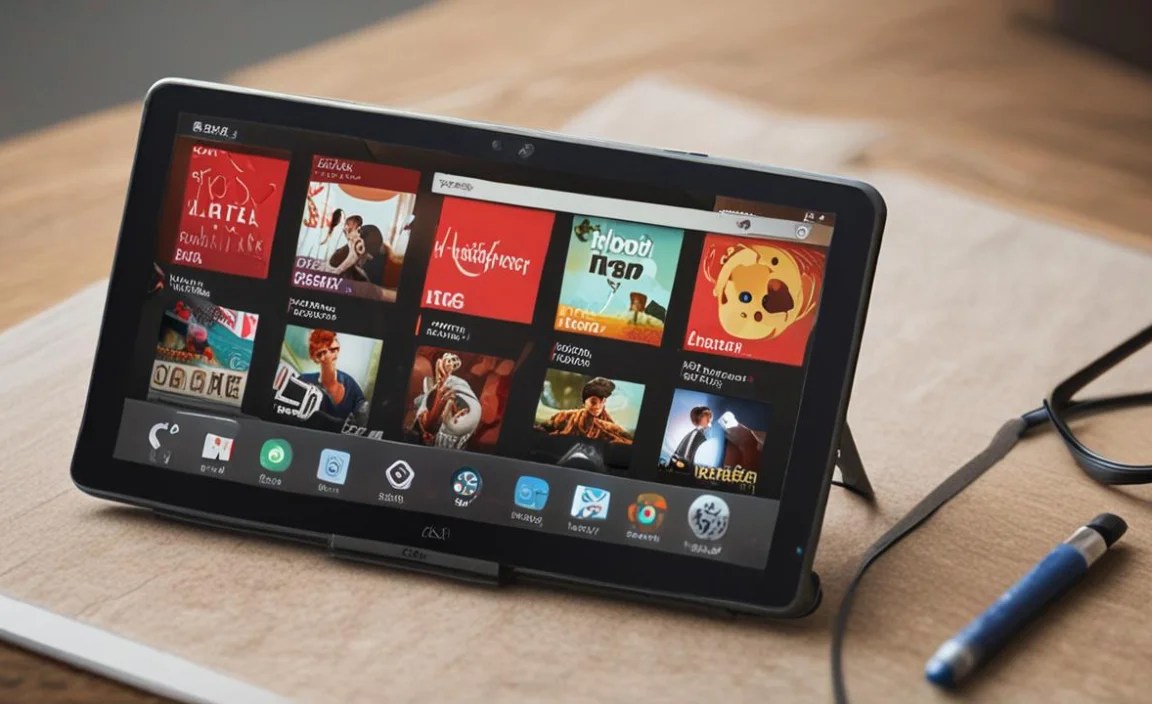
Even with simple guides, sometimes technology throws a curveball. Here are a few common issues and how to resolve them.
| Problem | Solution |
|---|---|
| Tablet won’t turn on | Ensure it’s charged. Try holding the power button for 15-20 seconds for a force restart. Make sure the charger and cable are working correctly by testing them with another device. |
| Cannot connect to Wi-Fi | Double-check your Wi-Fi password. Restart your router and your tablet. Ensure your tablet is within range of the Wi-Fi signal. If you’re trying to connect to a public Wi-Fi network, you might need to open a browser and log in through a captive portal. |
| Google Play Store not responding | Go to Settings > Apps > Google Play Store > Storage > Clear Cache and Clear Data. This often resolves app issues. You may need to sign back into your Google account. Ensure your tablet has a stable internet connection. |
| Screen is too dim/bright | Adjust the brightness slider in the Display settings or Quick Settings. Check if “Adaptive brightness” is enabled and try toggling it off if it’s not working as expected. |
| Touchscreen is unresponsive | Try restarting the tablet. If the issue persists, clean the screen gently with a soft, dry cloth. For persistent issues, it might indicate a hardware problem, and you may need to contact customer support. |
Frequently Asked Questions (FAQ)
Q1: Do I need a Google account to use the RCA Tablet 7 Voyager for reading?
Yes, you absolutely need a Google account to access the Google Play Store, which is where you’ll download all your favorite reading apps like Kindle, Kobo, or Libby. If you don’t have one, you can easily create one during the setup process or later via Settings.
Q2: Can I read books without an internet connection?
Once you have downloaded books onto your reading apps (like Kindle or Google Play Books), you can read them offline. However, you’ll need an internet connection to download new books, sync your progress between devices, and use apps like Libby to borrow new titles.
Q3: How can I make the text on my RCA Tablet 7 Voyager easier to read?
You can adjust the font size and style within most reading apps. Additionally, enabling the “Night Light” or “Blue Light Filter” in your tablet’s Display Settings can make the screen warmer and less harsh on your eyes, especially in dim lighting.
Q4: Which is the best app for reading free books on my RCA Tablet 7 Voyager?
For free books, the Libby app is excellent if you have a library card, as it lets you borrow e-books and audiobooks from your local library. Project Gutenberg and ManyBooks offer free public domain books that can often be read through apps like Google Play Books or downloaded as EPUB/PDF files.
Q5: How do I protect my RCA Tablet 7 Voyager while reading outside?
When reading outside in bright sunlight, it’s crucial to maximize your screen brightness and, if possible, find a shaded spot. Glare can make reading difficult even on the brightest screens. Consider using a matte screen protector, which can help reduce glare.
Q6: Can I read PDFs on this tablet?
Yes! You can download a PDF reader app from the Google Play Store, such as Adobe Acrobat Reader or Xodo PDF Reader & Editor, to open and read PDF documents. You can also often open PDFs directly from your email or cloud storage.
Q7: How can I save battery during long reading sessions?
To save battery, reduce your screen brightness, turn off Wi-Fi and Bluetooth if not needed, and consider enabling the tablet’s “Battery Saver” mode. These steps will help your tablet last longer between charges.
Conclusion
Setting up your RCA Tablet 7 Voyager for reading is a journey of simple adjustments and smart app choices. By following these steps, you’ve transformed a general-purpose tablet into your personal, portable library. You’ve learned how to navigate the initial setup, customize display settings for maximum eye comfort, download essential reading applications, and organize your digital bookshelf.
Remember that the key to a great reading experience on any tablet lies in optimizing the settings to suit your needs. Don’t hesitate to experiment with different font sizes, brightness levels, and app features until you find what feels just right for you. If you encountered any hiccups, the troubleshooting tips and FAQs should have you covered. Now, with your RCA Tablet 7 Voyager ready to go, you’re all set for countless hours of enjoyable reading!

Your tech guru in Sand City, CA, bringing you the latest insights and tips exclusively on mobile tablets. Dive into the world of sleek devices and stay ahead in the tablet game with my expert guidance. Your go-to source for all things tablet-related – let’s elevate your tech experience!