If your RCA Tablet 7 Voyager is struggling to connect to Wi-Fi, don’t worry! This guide provides simple, proven solutions to get your tablet back online quickly. We’ll walk through easy troubleshooting steps, from restarting your tablet to checking your router settings, ensuring you can enjoy uninterrupted internet access for all your favorite apps and browsing needs. Let’s get your Voyager connected!
Hello there! Walter Moore here from Tabletzoo, ready to help you navigate the sometimes-tricky world of tablet tech. Today, we’re diving into a common hiccup many RCA Tablet 7 Voyager users encounter: Wi-Fi connection problems. It can be super frustrating when your tablet refuses to play nice with your home network, especially when you just want to stream a show, check email, or let the kids play their favorite online games. But here’s the good news: most Wi-Fi issues are fixable with a few straightforward steps. We’re going to break down exactly how to get your RCA Tablet 7 Voyager back on the digital highway, smoothly and reliably. Stick with me, and we’ll get this sorted out in no time!
Why is My RCA Tablet 7 Voyager Not Connecting to WiFi?

It’s no fun when your trusty RCA Tablet 7 Voyager decides to go on a digital strike and won’t connect to your Wi-Fi. But don’t throw in the towel just yet! There are several common culprits behind these connection woes, and understanding them is half the battle. Often, it’s not a major hardware failure but a simple glitch or an overlooked setting.
Some of the most frequent reasons for a Wi-Fi connection issue on your RCA Tablet 7 Voyager include:
- Incorrect Password: It sounds obvious, but a tiny typo in your Wi-Fi password is the most common reason a device won’t connect.
- Router Problems: Your Wi-Fi router might be having a bad day. It could be overloaded, need a restart, or be too far away from your tablet.
- Tablet Glitches: Just like any electronic device, your tablet can sometimes experience temporary software hiccups that affect its ability to connect.
- Outdated Software: Sometimes, an older operating system or an outdated app can cause conflicts with Wi-Fi connectivity.
- Network Interference: Other devices or even physical barriers can sometimes interfere with your Wi-Fi signal.
- Airplane Mode: It happens to the best of us! Accidentally leaving Airplane Mode on will disable all wireless connections, including Wi-Fi.
- IP Address Conflicts: In rare cases, your tablet might have trouble obtaining a unique address from your router.
The good news is that most of these are easily resolved with a few simple troubleshooting steps. We’ll tackle these one by one to get your RCA Tablet 7 Voyager back online.
Step-by-Step WiFi Fixes for Your RCA Tablet 7 Voyager

Let’s roll up our sleeves and get your RCA Tablet 7 Voyager reconnected. These steps are designed to be easy to follow, even if you’re new to tablet troubleshooting. We’ll start with the simplest solutions and move towards more involved ones.
Step 1: The Universal Fix – Reboot Everything
Before we dive into anything complicated, let’s try the most effective troubleshooting step in the tech world: the restart. This simple action can clear out temporary glitches in both your tablet and your router that might be preventing a connection.
How to Restart Your RCA Tablet 7 Voyager:
- Press and hold the Power button on your tablet for about 10-15 seconds, until the screen goes black and the device powers down.
- Wait for about 30 seconds.
- Press and hold the Power button again until the RCA logo appears, indicating the tablet is starting up.
How to Restart Your Wi-Fi Router:
- Unplug the power adapter from your Wi-Fi router.
- Wait for at least 30 seconds. This allows the router to fully discharge and reset.
- Plug the power adapter back into the router.
- Wait a few minutes for the router to fully boot up and for the indicator lights to stabilize.
Once both your tablet and router have restarted, try connecting to your Wi-Fi network again. Often, this is all it takes!
Step 2: Check Your Wi-Fi Password
Typos happen! Double-check that you’re entering the correct Wi-Fi password. Passwords are case-sensitive, so ensure you’re matching the uppercase and lowercase letters exactly.
How to check and re-enter your password:
- On your RCA Tablet 7 Voyager, swipe down from the top of the screen to open the Quick Settings panel.
- Tap and hold the Wi-Fi icon.
- Tap on your Wi-Fi network name (SSID).
- Tap “Forget Network.”
- Tap on your Wi-Fi network name again from the list of available networks.
- Carefully re-enter your Wi-Fi password when prompted. Make sure you’re entering it correctly, paying attention to capitalization and special characters.
- Tap “Connect.”
If you’re unsure of your Wi-Fi password, it’s often printed on a sticker on your router itself. You can also log into your router’s administration page to view or reset it, though this is a bit more advanced and will depend on your router manufacturer.
Step 3: Verify Airplane Mode is Off
This is a quick check, but a crucial one. Airplane Mode disables all wireless communication radios on your device, including Wi-Fi, Bluetooth, and cellular data (if applicable). It’s easy to accidentally turn on.
How to check Airplane Mode:
- Swipe down from the top of your RCA Tablet 7 Voyager’s screen to access the Quick Settings panel.
- Look for an icon that resembles an airplane. If it’s highlighted or colored, Airplane Mode is on.
- Tap the airplane icon to turn it off.
After turning Airplane Mode off, your tablet should automatically attempt to reconnect to available Wi-Fi networks. If not, try manually connecting again through the Wi-Fi settings.
Step 4: Forget and Rejoin the Network
Sometimes, your tablet might have stored incorrect or outdated network information for your Wi-Fi. Forgetting the network and then rejoining it forces your tablet to re-establish a fresh connection and ask for the password again.
Steps:
- Go to Settings on your RCA Tablet 7 Voyager.
- Tap on Network & Internet (or similar wording like “Wi-Fi”).
- Tap on your Wi-Fi network’s name.
- Tap the “Forget” or “Forget Network” option.
- Your tablet will now scan for available networks again. Select your Wi-Fi network name.
- Enter your Wi-Fi password carefully and tap “Connect.”
Step 5: Check Your Tablet’s Date and Time Settings
Believe it or not, incorrect date and time settings on your tablet can sometimes interfere with secure connections, including Wi-Fi. Many network protocols and security certificates rely on accurate time synchronization.
Steps:
- Open the Settings app on your RCA Tablet 7 Voyager.
- Scroll down and tap on System.
- Tap on Date & time.
- Ensure that “Use network-provided time” and “Use network-provided time zone” are both toggled ON. If they are already on, try toggling them OFF and then ON again.
- If you don’t have these options, ensure the date, time, and time zone are set correctly manually.
Once these are correct, try connecting to your Wi-Fi network again.
Step 6: Update Your Tablet’s Software
Software updates often include fixes for bugs and connectivity issues. Keeping your RCA Tablet 7 Voyager’s operating system up-to-date is crucial for optimal performance and security.
Steps:
- Connect your tablet to a stable internet source if possible (e.g., using mobile data if available, or another Wi-Fi network if it can connect elsewhere).
- Go to Settings.
- Tap on System.
- Tap on System update (or “About tablet” then “System update”).
- Tap “Check for update.”
- If an update is available, follow the on-screen instructions to download and install it. Make sure your tablet is charged or plugged in during the update process.
After the update is complete and your tablet restarts, try connecting to your Wi-Fi network again.
Step 7: Check for Router Firmware Updates
Just like your tablet, your router also runs on software (firmware) that needs to be kept up-to-date. Manufacturers release firmware updates to improve performance, fix bugs, and enhance security. While updating router firmware can be a bit more involved, it’s a powerful way to resolve connectivity issues.
How to check for router firmware updates:
- Identify your router model: Look for the model number on the sticker on your router.
- Visit the manufacturer’s website: Go to the support section of your router manufacturer’s website (e.g., Netgear, Linksys, TP-Link).
- Find your model: Search for your specific router model.
- Download the latest firmware: Look for the firmware download or support section. Download the latest firmware file for your model.
- Access your router’s admin page: Open a web browser on a computer connected to your network and type your router’s IP address (often 192.168.1.1 or 192.168.0.1) into the address bar. Log in with your router’s username and password.
- Upload the firmware: Navigate to the firmware update section within your router’s settings and follow the instructions to upload the firmware file you downloaded.
Important Considerations:
- Do NOT interrupt the update process: This can permanently damage your router. Ensure your computer is connected via Ethernet cable if possible, and don’t turn off the router or computer during the firmware update.
- Consult your router’s manual: Each router is slightly different, so always refer to your router’s specific manual or the manufacturer’s online guide for detailed instructions.
After the firmware update, restart your router and try connecting your RCA Tablet 7 Voyager again. You can find more general information on router firmware updates from reputable sources like Digital Trends.
Step 8: Reset Network Settings on Your Tablet
If the above steps haven’t worked, resetting your tablet’s network settings can often resolve stubborn connection problems by clearing all saved Wi-Fi passwords, Bluetooth pairings, and VPN configurations. This doesn’t delete any of your personal data but gives your network connections a clean slate.
Steps:
- Open Settings on your RCA Tablet 7 Voyager.
- Tap on System.
- Tap on Reset options (or “Backup & reset,” then “Reset”).
- Tap on Reset Wi-Fi, mobile & Bluetooth (or “Reset network settings”).
- Confirm that you want to reset the settings. This action cannot be undone.
After the reset, your tablet will restart. You will need to re-enter your Wi-Fi password and re-pair any Bluetooth devices.
Step 9: Check for Network Interference
Sometimes, the issue isn’t with your tablet or router, but with interference from other devices or physical obstructions.
Common sources of interference include:
- Microwave ovens
- Cordless phones
- Bluetooth devices
- Thick walls or large metal objects
- Neighboring Wi-Fi networks
What you can do:
- Move closer to the router: See if the signal improves as you get nearer to your Wi-Fi router.
- Minimize obstructions: Ensure there are no large furniture pieces, appliances, or thick walls directly between your tablet and the router.
- Reduce device usage: Temporarily turn off other wireless devices (like Bluetooth speakers or cordless phones) to see if they are causing interference.
- Experiment with Wi-Fi channels: If you have access to your router settings, you might be able to change the Wi-Fi channel your router uses. Some channels are less congested than others. Information on this can often be found on your router manufacturer’s support site or tech forums.
Step 10: Check Your Router’s MAC Filtering (Advanced)
MAC filtering is a security feature that allows you to specify which devices are allowed to connect to your network based on their unique MAC address. If MAC filtering is enabled on your router and your RCA Tablet 7 Voyager’s MAC address isn’t on the approved list, it won’t be able to connect.
How to check your tablet’s MAC address:
- Go to Settings on your RCA Tablet 7 Voyager.
- Tap on About tablet.
- Tap on Status.
- Look for “Wi-Fi MAC address”.
How to adjust MAC Filtering on your router:
- Access your router’s admin page (as described in Step 7).
- Look for a section related to “Access Control,” “MAC Filtering,” or “Security.”
- If MAC filtering is enabled, check the list of allowed devices. If your tablet’s MAC address isn’t there, you can either add it or temporarily disable MAC filtering to see if that resolves the issue.
Note: This is a more advanced setting. If you’re uncomfortable making changes to your router’s security, it’s best to consult with someone more experienced or your internet service provider.
Troubleshooting Specific Router Issues
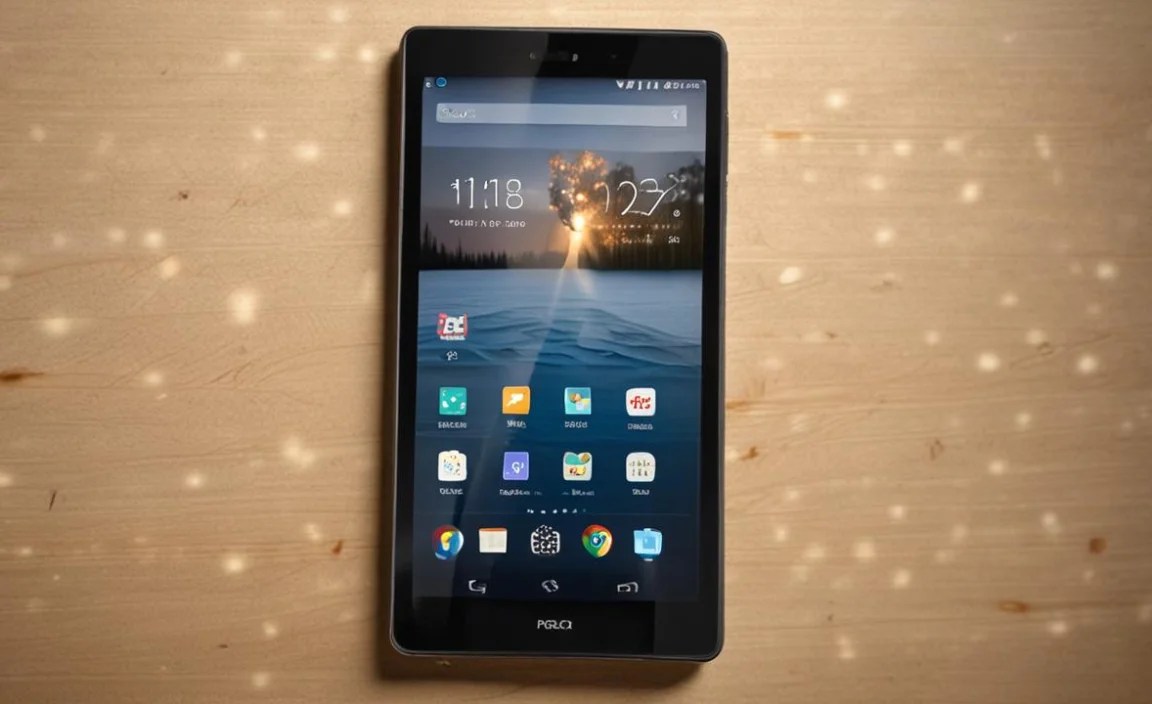
Sometimes, the problem might be with your router’s configuration or its ability to handle the number of connected devices. Let’s explore a few additional router-specific checks.
A. Router Too Far Away or Weak Signal
The range of your Wi-Fi signal is limited. If your RCA Tablet 7 Voyager is too far from the router, or if there are many walls or floors in between, the signal can become too weak to maintain a stable connection. This is not a unique problem to the RCA Tablet 7 Voyager, but rather a limitation of Wi-Fi technology. Your device might show it’s connected, but the data transfer will be very slow or drop frequently.
Solutions:
- Move Closer: The simplest solution is often to move your tablet closer to the router.
- Wi-Fi Extender/Mesh System: For larger homes, consider investing in a Wi-Fi extender or a mesh Wi-Fi system. These devices rebroadcast your Wi-Fi signal, extending its reach to eliminate dead zones. You can find more information on these solutions on reputable tech sites like TechRadar.
- Router Placement: Ensure your router is placed in a central location in your home, away from obstructions and potential sources of interference.
B. Too Many Devices Connected to the Router
Home Wi-Fi routers have a limit on how many devices they can handle concurrently. While newer routers can manage many devices, older or less powerful ones might struggle if you have numerous devices actively using the internet (smartphones, laptops, smart TVs, gaming consoles, etc.). This can lead to connection issues for new devices like your RCA Tablet 7 Voyager.
Solutions:
- Disconnect Unused Devices: Temporarily disconnect devices that are not currently in use.
- Check Router Specifications: Consult your router’s manual or the manufacturer’s website to find out its recommended maximum number of connected devices.
- Upgrade Your Router: If you consistently have many devices online, consider upgrading to a newer router that can support a higher number of connections.
C. Router Not Broadcasting the Network Name (SSID)
Your router broadcasts its network name (SSID) so that devices can find it. If this is accidentally disabled, your RCA Tablet 7 Voyager won’t be able to see your network in the list of available networks.
How to

Your tech guru in Sand City, CA, bringing you the latest insights and tips exclusively on mobile tablets. Dive into the world of sleek devices and stay ahead in the tablet game with my expert guidance. Your go-to source for all things tablet-related – let’s elevate your tech experience!