The RCA Tablet 8 Delta Pro is a genuinely genius Android tablet choice, proving you can get a reliable and feature-rich experience for under $100. It’s perfect for everyday tasks, entertainment, and even light productivity without breaking the bank.
Finding a good tablet on a tight budget can feel like a treasure hunt. You want something that works well, doesn’t lag with every tap, and can handle your daily needs, whether it’s browsing the web, checking emails, or letting the kids watch their favorite shows. It’s easy to get overwhelmed by the sheer number of options and confusing specs. But what if there was a tablet that offered real value for less than you spend on a nice dinner out? We’ve got you covered with the RCA Tablet 8 Delta Pro, a smart choice for anyone seeking an affordable yet capable Android device.
RCA Tablet 8 Delta Pro: Genius Android Under $100

In the world of budget tablets, it’s easy to feel like you have to compromise. You might expect sluggish performance, a screen that’s hard to see, or a battery that dies way too quickly. However, the RCA Tablet 8 Delta Pro aims to defy those expectations, delivering a surprisingly solid Android experience without emptying your wallet. Let’s dive into why this tablet might be the smart pick you’ve been searching for.
What Makes the RCA Tablet 8 Delta Pro a Smart Choice?
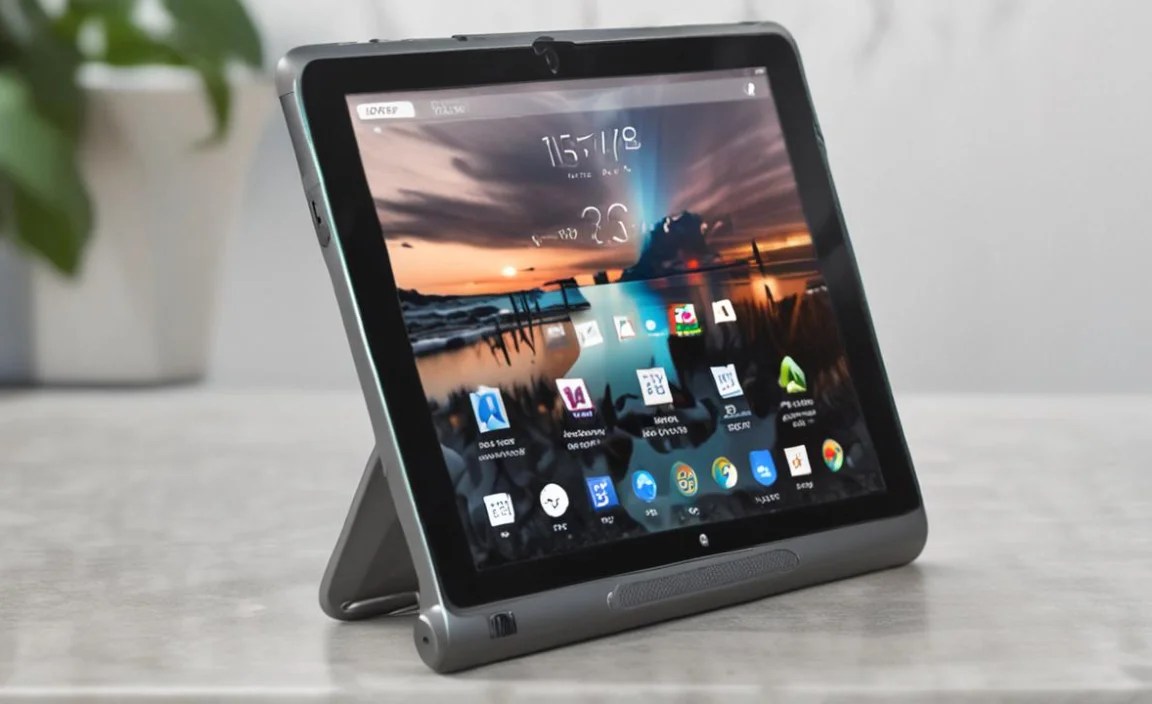
When you’re looking for a tablet under $100, you’re likely prioritizing value and essential functionality. The RCA Tablet 8 Delta Pro hits a sweet spot by offering a decent set of features that cover the bases for most casual users. It’s not trying to be a high-end powerhouse, but it’s built to be a reliable companion for everyday tasks.
Here’s a quick look at what makes it stand out in its price category:
- Affordability: This is the headline grabber. For under $100, you get a functional Android tablet, making it an incredibly accessible option for many.
- Android Operating System: Running on Android, you get access to the vast Google Play Store, meaning millions of apps and games are at your fingertips.
- Decent Screen Size: The 8-inch display is a comfortable size for browsing, reading, and watching videos without feeling cramped.
- Portability: Its size makes it easy to carry around, whether you’re moving from the couch to the kitchen or taking it on a short trip.
- Functionality for Everyday Tasks: For essentials like browsing, social media, email, and basic games, the Delta Pro performs admirably.
Understanding the Specs: What You Get for Your Money?

Let’s break down the technical details in a way that makes sense. When you see specifications, it’s easy to get lost, but for the RCA Tablet 8 Delta Pro, we’re focusing on what these numbers mean for you.
Performance and Processing Power
The RCA Tablet 8 Delta Pro is equipped with a processor that’s designed for everyday Android tasks. While it won’t win any speed races against premium tablets, it’s perfectly capable of handling:
- Web browsing and searching
- Checking and sending emails
- Using social media apps (Facebook, Instagram, Twitter)
- Streaming video content from apps like YouTube and Netflix
- Playing casual or less demanding mobile games
- Reading e-books and digital articles
The amount of RAM (Random Access Memory) is also important. More RAM generally means smoother multitasking. For a tablet in this price range, you’ll find it’s optimized for a single application at a time or very light multitasking. This is typical for budget devices, and as long as you manage your expectations, you’ll find it performs quite well for its intended use.
Display Quality
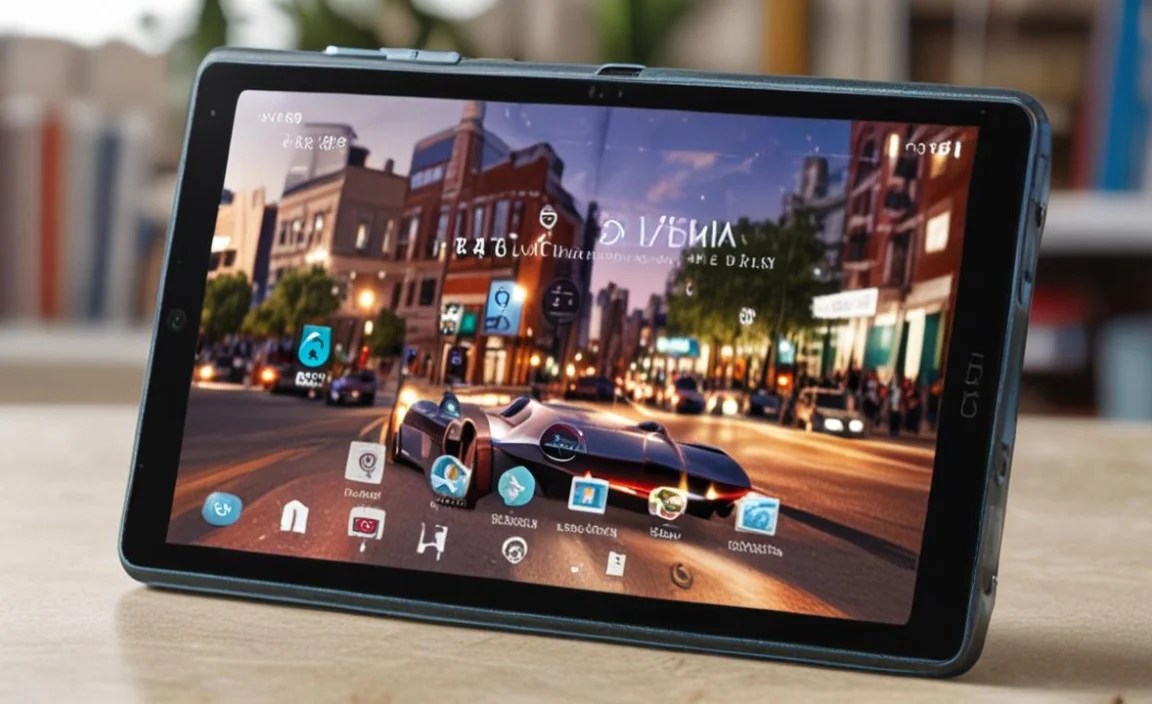
The 8-inch screen is a key feature. For an under-$100 tablet, the display is designed to be clear and bright enough for indoor use and casual viewing. You can expect a standard resolution that’s perfectly adequate for:
- Reading text without strain
- Viewing photos and videos with reasonable clarity
- Navigating apps and menus easily
While it might not offer the same vibrant colors or super-sharp detail as high-end tablets, the RCA Tablet 8 Delta Pro’s screen gets the job done for everyday enjoyment and productivity.
Storage Space
Storage is where you keep your apps, photos, videos, and other files. The RCA Tablet 8 Delta Pro typically comes with a certain amount of internal storage. It’s important to note that the operating system and pre-installed apps take up a portion of this space. For users who download many apps or store a lot of media, consider these points:
- Internal Storage: Check the specific model for its internal storage capacity (e.g., 32GB).
- Expandable Storage: Many RCA tablets, including potentially the Delta Pro, offer a microSD card slot. This is a fantastic feature for budget devices, allowing you to significantly expand your storage for photos, videos, and apps without buying a more expensive model. A microSD card can easily add another 64GB, 128GB, or even more, giving you plenty of room.
Tip for Beginners: If you plan to download a lot of games or movies, investing in a microSD card alongside your tablet is a very smart move. You can find affordable cards online and at electronic stores.
Battery Life
Battery life is crucial for any portable device. Manufacturers often aim for a certain number of hours of use. For the RCA Tablet 8 Delta Pro, you can expect a battery that will get you through several hours of continuous use, which is generally sufficient for:
- A movie or two
- A few hours of web browsing
- A study session with note-taking or reading
As with all tablets, battery life will vary depending on how you use it (e.g., screen brightness, running demanding apps). Keeping it charged when not in use and closing background apps can help maximize its longevity.
Who is the RCA Tablet 8 Delta Pro Best For?

This tablet isn’t trying to compete with the top-tier devices, and that’s its strength. Its target audience is precisely those who need an affordable, functional, and reliable tablet for specific uses. We see it being a perfect fit for:
Students
For students on a budget, the Delta Pro can be a fantastic tool:
- Note-taking: Pair it with a stylus (check if compatible) for jotting down lecture notes.
- Research: Accessing online resources and academic papers.
- Digital Textbooks: Reading assigned materials.
- Organization: Using calendar and task management apps.
It’s important to ensure that any specific educational apps required by your institution are compatible with the Android version it runs. Researching the Android version is key here.
Families and Kids

For households looking for a shared family tablet or a device for children, the Delta Pro is an excellent, low-risk option:
- Entertainment: Perfect for watching cartoons, kids’ movies, and playing age-appropriate games.
- Educational Apps: Access to a wide range of learning games and apps from the Play Store.
- Parental Controls: You can set up Google Family Link to manage screen time and content for children. This is a crucial feature for a family tablet.
- Affordable Backup: It’s a cost-effective device that can be easily replaced if an accident happens, which is common with younger users.
Casual Users and Seniors
If your tech needs are simple, the Delta Pro is a no-fuss solution:
- Email and Browsing: Staying connected with friends and family online.
- Reading News: Keeping up with current events.
- Social Media: Scrolling through Facebook, watching YouTube.
- Simple Games: Engaging in casual pastimes.
- Ease of Use: The familiar Android interface is generally intuitive for most users, including seniors who might be new to tablets.
Budget-Conscious Buyers

This is the most obvious category. If your budget is strictly under $100, the RCA Tablet 8 Delta Pro offers one of the best combinations of functionality and price. It’s a sensible alternative to more expensive brands for basic needs.
RCA Tablet 8 Delta Pro vs. The Competition (Under $100)
When you’re shopping in the sub-$100 tablet market, choices are often limited, and quality can vary wildly. Here’s how the RCA Tablet 8 Delta Pro generally stacks up against other common budget options:
| Feature | RCA Tablet 8 Delta Pro | Other Budget Tablets (General) | Considerations for Buyers |
|---|---|---|---|
| Price Range | Consistently under $100 | Varies, often around $60-$120 | RCA often offers a stable price point. |
| Operating System | Android (Version may vary, check specifics) | Android, Fire OS (Amazon), sometimes older Windows | Android offers the most app versatility (Google Play Store). |
| Screen Size | 8-inch | Typically 7-10 inches | 8-inch is a good balance of portability and usability. |
| Performance | Good for basic tasks. | Can range from very slow to adequate. | RCA aims for a balanced, functional performance. |
| Storage | Often expandable via microSD | Varies, some non-expandable | Expandable storage is a huge plus for budget devices. |
| Build Quality | Functional, durable enough for intended use. | Can feel cheap or flimsy. | RCA generally provides a solid, no-frills build. |
| App Ecosystem | Full Google Play Store access | Amazon Appstore for Fire OS (limited compared to Play Store) | Google Play Store offers superior app selection. |
Key takeaway for buyers: While many brands offer tablets under $100, the RCA Tablet 8 Delta Pro often stands out due to its reliable Android performance and the convenience of the full Google Play Store. Always check the specific model number and advertised specs, as configurations can change.
Setting Up Your RCA Tablet 8 Delta Pro: A Simple Guide
Getting your new tablet ready to use is straightforward. Here’s a step-by-step process:
1. Unboxing and Initial Charge
Carefully open the box and find your tablet, charger, and any included accessories. Before turning it on, it’s a good idea to plug it in and let it charge for at least an hour or two. This ensures you have enough battery for the setup process.
2. Powering On and Language Selection
Press and hold the power button (usually on the side or top edge) until the RCA logo appears. The first screen will prompt you to select your language. Choose the language you want to use for your tablet.
3. Connecting to Wi-Fi
Your tablet needs an internet connection to complete setup and download updates. Select your home Wi-Fi network from the list and enter your Wi-Fi password. If you don’t have Wi-Fi, you might have an option to skip this step temporarily and set up later, but an internet connection is essential for most functionality.
4. Signing In with Your Google Account
You’ll be asked to sign in with your Google account (the same one you use for Gmail, YouTube, etc.). If you don’t have one, you can create a new one right on the tablet. This account is crucial for downloading apps from the Google Play Store and backing up your data.
5. Setting Up Security (Optional but Recommended)
You’ll have the option to set up a screen lock, such as a PIN, pattern, or password. This protects your tablet if it’s lost or stolen. You can also choose to set up facial recognition if your model supports it.
6. Reviewing and Accepting Terms
You’ll need to agree to Google’s terms of service and any manufacturer-specific terms. Read through them and accept to proceed.
7. Restoring or Setting Up as New
If you’ve had Android devices before, you might be offered the chance to restore data and apps from a previous backup. Otherwise, choose to set up as a new device.
8. Exploring Your Tablet!
Once setup is complete, you’ll be taken to your home screen. You can now start exploring! Look for the Google Play Store icon to download apps.
Tips for Getting the Most Out of Your RCA Tablet 8 Delta Pro

Even with a budget tablet, a few smart practices can significantly enhance your experience.
- Keep it Updated: Regularly check for software updates. These often include performance improvements, bug fixes, and security patches. You can usually find this under Settings > System > System Update.
- Manage Storage Wisely: If you have a microSD card slot, use it! Move photos, videos, and even some apps to the external card to free up internal storage. Regularly delete old files or apps you no longer use.
- Optimize Battery:
- Lower screen brightness when possible.
- Use Wi-Fi instead of mobile data if available.
- Close apps you aren’t actively using.
- Enable battery saver mode when needed.
- Explore the Google Play Store: Don’t just stick to the pre-installed apps. Discover new productivity tools, games, and entertainment. For example, apps like Google Docs and Sheets can help with basic document editing.
- Consider a Stylus (if compatible): If you enjoy jotting down notes or sketching, check if the tablet supports an active or passive stylus. This can greatly enhance its utility for creative or academic tasks.
- Use Google Family Link: If the tablet is for a child, set up Google Family Link from your own Android device. This allows you to set screen time limits, approve apps, and filter content remotely. Learn more on the Google Family Link website.
- Read Reviews for Apps: Before downloading new apps, check their reviews and permissions. This is good practice for any tablet, especially budget ones.
Troubleshooting Common Issues
Even reliable devices can sometimes have hiccups. Here are a few common issues and simple fixes:
- Tablet is Slow or Lagging:
- Restart the tablet. This is the simplest fix and often resolves minor performance glitches.
- Close all open apps. Too many apps running in the background can slow things down.
- Clear the cache of specific apps. Go to Settings > Apps, select an app, then Storage > Clear cache.
- Uninstall apps you don’t use.
- Consider a factory reset as a last resort (this will erase all your data, so back up first!).
- App Crashing or Not Working:
- Ensure the app and your tablet’s operating system are updated.
- Uninstall and reinstall the app.
- Check app reviews; others might be experiencing the same issue.
- Wi-Fi Not Connecting:
- Restart your router and modem.
- Turn Wi-Fi off and on again on your tablet.
- Forget the network and reconnect, re-entering the password.
- Ensure you are within range of the router.
- Battery Draining Too Quickly:
- Check battery usage in Settings > Battery to see which apps are consuming the most power.
- Reduce screen brightness and screen timeout duration.
- Disable unnecessary background app activity.
- Touchscreen Unresponsive:
- Ensure your screen is clean and dry.
- Remove any screen protectors that might be interfering.
- Restart the tablet.
For more in-depth troubleshooting or specific issues related to your tablet model, you can often find support on the RCA support website.

Your tech guru in Sand City, CA, bringing you the latest insights and tips exclusively on mobile tablets. Dive into the world of sleek devices and stay ahead in the tablet game with my expert guidance. Your go-to source for all things tablet-related – let’s elevate your tech experience!