Having your RCA Tablet 8 Delta Pro refuse to charge can be a real bummer. It’s a common problem, and we know how frustrating it can be when you just want to power up and get back to what you were doing. Don’t sweat it! This guide breaks down exactly what to do, using simple steps anyone can follow. We’ll help you get your tablet charging again, so you can say goodbye to that low battery anxiety. Ready to troubleshoot? Let’s dive in!
RCA Tablet 8 Delta Pro Charger Not Charging: Essential Fixes

It’s certainly jarring when your dependable RCA Tablet 8 Delta Pro suddenly stops charging. You plug it in, you wait, but the battery icon simply won’t budge. This is an issue that many tablet users face at some point, and it can put a halt to everything from work and study to entertainment. But before you start panicking about needing a new tablet, remember that most charging problems have straightforward solutions.
Here at Tabletzoo, we’re all about making tech easy to understand and manage. We’ve put together this guide to help you pinpoint why your RCA Tablet 8 Delta Pro charger might not be working and, more importantly, how to fix it. We’ll walk through a series of practical troubleshooting steps, starting with the simplest checks and moving towards more involved solutions. Our goal is to empower you to get your tablet back up and running without needing a tech expert.
Understanding the Common Causes: Why Isn’t My RCA Tablet 8 Delta Pro Charging?

Before we jump into solutions, let’s quickly look at the most frequent reasons why your RCA Tablet 8 Delta Pro might not be charging. Knowing the potential culprits can save you a lot of time and guesswork.
Charger and Cable Issues: This is by far the most common reason. The charging cable might be damaged, or the charger brick itself could be faulty.
Dirty Charging Port: Dust, lint, and debris can accumulate in your tablet’s charging port, preventing a secure connection.
Power Source Problems: The wall outlet or USB port you’re using might not be providing enough power, or it could be malfunctioning.
Software Glitches: Sometimes, a temporary software bug can interfere with the charging process.
Battery Degradation: While less common for newer tablets, older batteries naturally lose their ability to hold a charge effectively.
Hardware Malfunction: In rarer cases, there might be an internal hardware issue with the tablet or the battery itself.
Figuring out which of these is the problem is the first step towards a fix. Let’s start troubleshooting!
Step-by-Step Troubleshooting Guide for Your RCA Tablet 8 Delta Pro
We’ll guide you through a series of checks. It’s best to go through these in order, as the simplest solutions are often the most effective.
1. Inspect the Charging Cable and Charger Brick
This is where most problems originate. Take a close look at your RCA Tablet 8 Delta Pro’s charging cable and the power adapter (the brick you plug into the wall).
Cable:
Check for any visible damage: frayed wires, kinks, cuts, or bent connectors.
Ensure the connector that plugs into the tablet is clean and not bent.
Try wiggling the connector gently while plugged in – if the charging indicator flickers, the cable is likely the issue.
Charger Brick:
Look for any cracks or scorch marks on the brick.
Make sure the prongs that plug into the wall are not bent or damaged.
If you find any visible damage to the cable or charger, it’s time to replace it. Using a damaged charger can be a safety hazard and won’t effectively charge your tablet.
2. Test a Different Charging Cable and Charger
The best way to determine if your charger or cable is the problem is to try a known-good alternative.
Use a Different USB Cable: If you have another micro-USB or USB-C cable (depending on your RCA Tablet 8 Delta Pro model) that you know works with other devices, try using it with your tablet and your existing charger brick.
Use a Different Charger Brick: Try using your tablet’s cable with a different compatible charger brick. For example, an old phone charger might work if it has the correct output rating.
Use a Known-Good Charger and Cable Together: The ultimate test is to use a charging cable and charger brick that you know are working perfectly with another device.
Important Note on Chargers: While other chargers might physically fit, it’s crucial to use a charger with the correct power output (measured in Amps and Volts) for your RCA Tablet 8 Delta Pro. Using an underpowered charger might mean slow charging or no charging at all, while an overpowered one can potentially damage your tablet’s battery. Check your tablet’s original charger for its specifications (e.g., 5V/2A). If you’re unsure, stick to the original charger or a replacement specifically designed for your RCA model to be safe.
3. Clean the Charging Port on Your RCA Tablet 8 Delta Pro

A dirty charging port is a surprisingly common culprit. Dust, lint, and pocket debris can create a barrier, preventing the charger from making a solid connection.
What You’ll Need:
A can of compressed air
A non-metallic, pointed object like a wooden or plastic toothpick (avoid metal as it can cause shorts)
A small flashlight (optional, but helpful)
How to Clean:
1. Power Off Your Tablet: Always turn your tablet completely off before cleaning the port.
2. Inspect the Port: Use a flashlight to look inside the charging port. You’ll likely see a buildup of fluffy debris.
3. Use Compressed Air: Hold the can upright and use the straw attachment to blast short bursts of air into the port. This can dislodge loose debris.
4. Gentle Pick: Very carefully, use a wooden or plastic toothpick to gently scrape out any stubborn debris that the air didn’t remove. Be extremely delicate here, as you don’t want to damage the pins inside the port.
5. Blow Again: Use compressed air one more time to clear out any loosened particles.
6. Test: Reconnect your charger and see if it works.
4. Try a Different Power Source
Sometimes, the problem isn’t with the charger or tablet, but with the outlet or USB port you’re using.
Wall Outlet:
Try plugging the charger into a different wall outlet in your home.
Ensure the outlet itself is working by plugging in another device you know is functional.
Avoid using overloaded power strips or extension cords, as they might not provide sufficient power.
USB Port: If you’re trying to charge via a computer USB port or a car charger:
Computer USB: Some older computer USB ports might not supply enough power to charge a tablet effectively. Try a USB 3.0 port if available, or better yet, plug directly into a wall outlet.
Car Charger: Ensure your car charger is designed for tablets and provides adequate amperage. Try a different car charger if possible.
5. Restart Your RCA Tablet 8 Delta Pro
A simple restart can often resolve temporary software glitches that might be preventing your tablet from recognizing the charger.
How to Restart:
1. Press and hold the Power button on your tablet.
2. On the screen, you should see an option to “Power off” or “Restart.”
3. Tap “Restart.”
4. Once the tablet fully restarts, plug in the charger and see if it begins to charge.
If your tablet is completely dead and won’t even turn on, you might need to try a “force restart.” This usually involves holding the Power button for an extended period (e.g., 10-30 seconds) until the device powers on. Check your RCA manual for the specific force restart procedure if available.
6. Check for Software Updates (If Possible)
While your tablet needs to be charged to update, this is a relevant step if the charging issue is intermittent or if you can get a small charge to enable an update. Sometimes, a pending software update might contain fixes for charging-related bugs.
If your tablet has enough charge to power on and connect to Wi-Fi, navigate to:
Settings > System > System update (the exact path may vary slightly depending on your Android version).
Check for any available updates and install them.
7. Boot into Recovery Mode (Advanced)
This is a more advanced step and should only be attempted if you’re comfortable, as it involves navigating a special menu. If your tablet is stuck in a boot loop or won’t power on, booting into recovery mode can sometimes help.
How to Access Recovery Mode (General Steps – may vary):
1. Turn off your RCA Tablet 8 Delta Pro completely.
2. Press and hold the Volume Up button and the Power button simultaneously.
3. Hold them until you see the RCA logo or the Android robot.
4. Release the buttons. You should now be in the Android Recovery menu.
5. Use the Volume buttons to navigate and the Power button to select.
6. Navigate to “Reboot system now” and select it.
If the above doesn’t work, try holding Volume Down and Power, or Volume Up, Volume Down, and Power simultaneously.
What this does: Rebooting “system now” from recovery mode can sometimes clear temporary system cache issues that may be interfering with charging.
Caution: Do NOT select “Wipe data/factory reset” unless you are prepared to erase all your data.
Where to Find Information on Recovery Mode: For the most accurate instructions on accessing recovery mode for your specific RCA Tablet 8 Delta Pro model, it’s best to consult the official RCA support website or the device manual. You can often find these online by searching for “[Your RCA Tablet Model] recovery mode.”
Troubleshooting Tools and What to Look For
Here’s a quick checklist of what you’ve been using or checking, and what you’re looking for:
| Item Being Checked | What to Look For | Likely Problem If Issue Found |
| :——————- | :————————————————– | :———————————————————– |
| Charging Cable | Fraying, cuts, kinks, bent or loose connector | Cable needs replacement |
| Charger Brick | Cracks, scorch marks, bent prongs | Charger brick needs replacement |
| Charging Port | Dust, lint, debris, bent pins | Port needs cleaning; potentially damaged internal pins |
| Power Outlet | Inconsistent power, other devices not working | Outlet is faulty; try a different one |
| USB Port (PC) | Insufficient power output, not recognized | Use a wall outlet; computer USB may not be enough |
| Tablet Battery | Rapid draining, not holding charge, swelling (rare) | Battery may be degraded and need professional replacement |
| Tablet Software | Intermittent charging, charging errors | Software glitch; requires restart or update; potentially factory reset |
When to Consider a Battery Replacement or Professional Repair
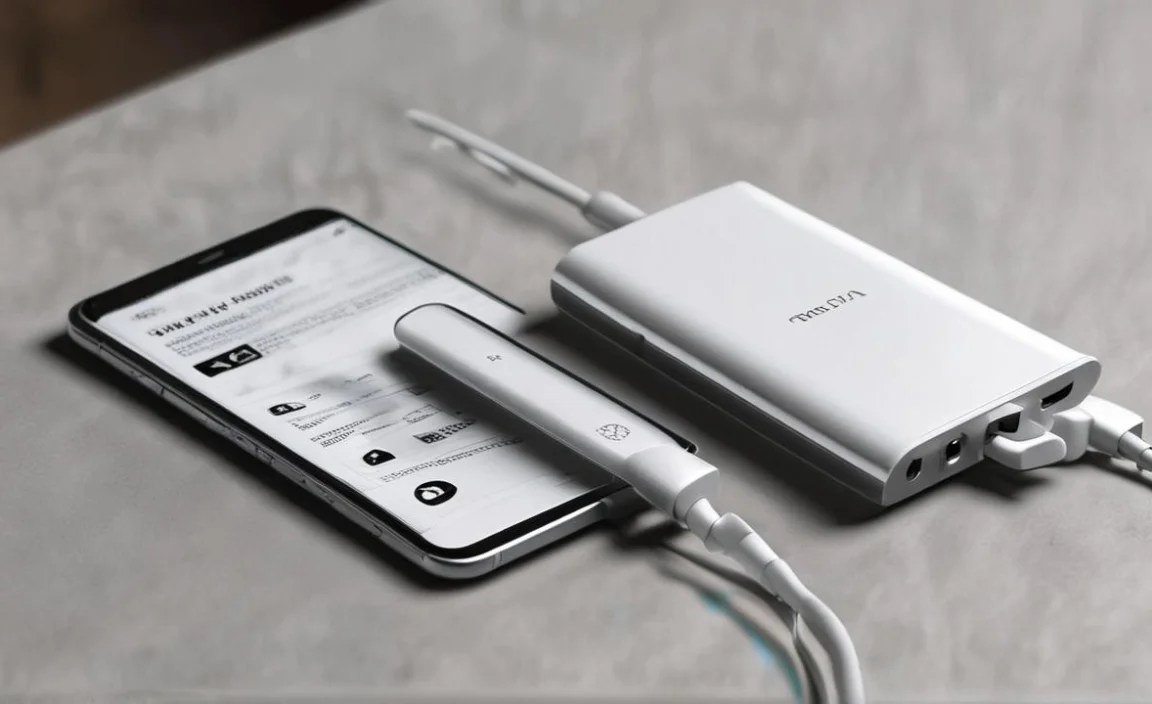
If you’ve gone through all the troubleshooting steps above and your RCA Tablet 8 Delta Pro still isn’t charging, it’s time to consider the battery itself or a potential hardware issue.
Battery Degradation: Like all rechargeable batteries, the one in your RCA Tablet 8 Delta Pro has a finite lifespan. Over time, it will lose its capacity to hold a charge. Symptoms include:
The tablet only charges to a certain percentage and gets stuck.
The battery drains very quickly, even when not in heavy use.
The tablet suddenly shuts off, even when it shows a decent battery percentage.
The tablet gets excessively hot during charging.
In very rare and concerning cases, the battery might swell. If you notice this, stop using the tablet immediately and seek professional help, as a swollen battery is a fire hazard.
If you suspect battery degradation, the battery will likely need to be replaced. For many RCA tablets, especially those with non-removable batteries, this is a job best left to professionals.
Internal Hardware Damage: Less commonly, there might be a problem with the charging port’s internal connection to the motherboard, or with the charging circuitry itself. These issues require advanced diagnostics and repair.
What to do next:
Contact RCA Support: If your tablet is still within its warranty period, your first step should be to contact RCA customer support. They can guide you through warranty claims and repair options. You can usually find their support contact information on the official RCA website.
Seek a Professional Repair Service: If your tablet is out of warranty, you can look for reputable local or online tablet repair shops. Get a quote before agreeing to any work. Be aware that the cost of repair might sometimes approach the cost of a new budget tablet, so weigh your options carefully.
For more information on battery care and longevity, you can check out resources from reliable tech sources. While this specific tip is for general mobile devices, the principles of battery health are universal:
Extending Battery Life:** Understanding how battery health works can help you manage expectations and prolong the life of your device’s battery.
Frequently Asked Questions (FAQ)
Let’s answer some common questions beginners have when their RCA Tablet 8 Delta Pro isn’t charging.
Q1: My tablet is completely dead and won’t turn on. Can this guide still help?
A1: Yes, absolutely! Even if your tablet seems completely dead, start with the simplest steps like checking your charger, cable, and cleaning the port. Sometimes, a completely drained battery needs a bit of time connected to a reliable charger to show any signs of life. If it remains unresponsive after trying these steps, it might indicate a deeper issue like a faulty battery.
Q2: Can I use any USB charger to charge my RCA Tablet 8 Delta Pro?
A2: It’s best to use a charger that is specifically designed for your RCA Tablet 8 Delta Pro, or one with the same voltage (V) and amperage (A) ratings as the original charger. Look at the small print on your original charger brick, it will specify something like “Output: 5V = 2A”. Using an underpowered charger might result in very slow charging or no charging at all, while an overpowered one could potentially damage your tablet’s battery or charging port.
Q3: How do I know if my charging port is damaged?
A3: You might notice that the charging cable feels loose in the port, or you have to wiggle it to get it to connect. Visually, you might see bent pins inside the port, or if it looks like the port itself is pushed further into the tablet. If cleaning the port doesn’t help and the cable feels loose, it’s likely internally damaged and may need professional repair.
Q4: My tablet charges for a bit, then stops. What’s wrong?
A4: This can be a sign of a few things. The charging cable might be damaged and only making intermittent contact. It could also be an issue with the power source – if you’re using a computer’s USB port, it might not be providing enough stable power. Overheating can also cause charging to pause. Ensure your tablet isn’t too hot and try a different, reliable wall charger and cable.
Q5: Is it safe to use a tablet while it’s charging if it’s charging slowly?
A5: Generally, yes. However, if your tablet is getting unusually hot while charging and being used, it’s best to stop. Excessive heat can degrade the battery faster and, in extreme cases, pose a safety risk. For slow charging, ensure you’re using a compatible charger and avoid resource-intensive tasks while plugged in.
Q6: How long should I leave my RCA Tablet 8 Delta Pro to charge if it was completely dead?
A6: When a battery is completely drained, it takes some time for it to build up enough charge to power the device on. Leave it plugged in for at least an hour or two. If you don’t see any charging indicator or the device doesn’t power on after that, it suggests the charging setup (cable, charger, or port) might still be the issue, or there could be a battery problem.
Q7: Will a factory reset fix my RCA Tablet 8 Delta Pro not charging problem?
A7: A factory reset will not fix hardware issues like a damaged cable, port, or battery. However, if the charging problem is caused by a stubborn software glitch, a factory reset can sometimes resolve it by restoring the tablet’s software to its original settings. Remember, a factory reset erases all your data, so back up anything important first.
Conclusion: Getting Your RCA Tablet 8 Delta Pro Back to Full Power
Dealing with a tablet that won’t charge can feel like a major roadblock, but as we’ve explored, there are many practical steps you can take right at home to get it working again. By systematically checking your charging accessories, cleaning the port, and trying different power sources, you can often identify and resolve the issue without much fuss.
Remember, most charging problems stem from simple causes like a faulty cable or a bit of lint in the port. Even if your tablet needs a battery replacement or a more complex repair, knowing these initial troubleshooting

Your tech guru in Sand City, CA, bringing you the latest insights and tips exclusively on mobile tablets. Dive into the world of sleek devices and stay ahead in the tablet game with my expert guidance. Your go-to source for all things tablet-related – let’s elevate your tech experience!