Get your RCA Tablet 8 Delta Pro back in action fast with these easy troubleshooting steps for students. We’ll cover common problems like slow performance, app crashes, and connectivity woes, ensuring your studies stay on track without frustration.
Hey there! Walter Moore here from Tabletzoo. So, you’re a student, and your RCA Tablet 8 Delta Pro is acting up at a crucial moment? We’ve all been there. That moment when your tablet freezes just as you’re about to submit an assignment, or when an app refuses to open before a big lecture, can be incredibly frustrating. Don’t worry, though! These little hiccups are usually easy to fix. This guide is designed to make troubleshooting your RCA Tablet 8 Delta Pro simple and stress-free, so you can get back to learning and acing those classes. We’ll walk through common issues step-by-step, turning tech troubles into quick wins.
RCA Tablet 8 Delta Pro: Understanding Your Student Companion

The RCA Tablet 8 Delta Pro is a popular choice for students looking for an affordable and functional device. It’s great for note-taking, accessing online resources, and staying connected. Like any piece of technology, though, it can sometimes encounter issues. Knowing how to tackle these common problems can save you time, stress, and even money by avoiding unnecessary repairs or replacements. We’re going to break down the most frequent student-related issues and provide clear, actionable solutions.
Common RCA Tablet 8 Delta Pro Issues for Students and How to Fix Them

Let’s dive into the specific problems you might encounter and how to resolve them. These steps are designed to be easy to follow, even if you’re not a tech whiz.
1. Tablet is Slow or Unresponsive
This is probably the most common complaint for any device, especially when used heavily for schoolwork. Apps might take ages to load, typing can lag, and navigating menus feels sluggish.
Why it happens:
Too many apps running: Having multiple apps open in the background can consume processing power and memory.
Low storage space: When your tablet’s internal storage is nearly full, it has less room to operate efficiently.
Outdated software: Older versions of the operating system or apps might have performance bugs that have been fixed in newer updates.
Background processes: Some apps continue to run in the background, even when you’re not actively using them, consuming resources.
Troubleshooting steps:
1. Restart your tablet: This is the golden rule of tech troubleshooting. A simple restart can clear temporary glitches and free up memory.
Press and hold the power button.
Tap “Restart” when the options appear.
2. Close unused apps:
On your RCA Tablet 8 Delta Pro, swipe up from the bottom of the screen and hold briefly to open the multitasking view.
Swipe up on any app previews you don’t need to close them.
3. Check storage space:
Go to `Settings` > `Storage`.
See how much space is available. If it’s below 10-15%, you need to free up space.
Tips for freeing up space:
Uninstall apps you no longer use.
Delete old photos and videos (transfer them to a computer or cloud storage first).
Clear app cache (see below).
4. Clear app cache: The cache stores temporary data for apps, which can sometimes become corrupted or too large.
Go to `Settings` > `Apps` (or `Applications`).
Tap on an app that’s causing issues or one you use frequently.
Tap `Storage`.
Tap `Clear cache`. Note: Do not tap “Clear data” unless you want to reset the app to its default settings and lose login information or saved progress.
5. Check for software updates:
Go to `Settings` > `About tablet`.
Tap `System updates` (or similar wording).
Install any available updates. These often include performance improvements.
2. Apps Crashing or Freezing
It’s incredibly annoying when your study app or browser suddenly closes itself or becomes completely unresponsive.
Why it happens:
App bugs: The app itself might have a bug.
Conflicting apps: Sometimes, two apps don’t play well together.
Corrupted app data: Like cached data, app data can sometimes become corrupted.
Insufficient RAM: If the tablet doesn’t have enough memory to run the app smoothly, it can crash.
Troubleshooting steps:
1. Force stop the app:
Go to `Settings` > `Apps` (or `Applications`).
Find the app that’s crashing and tap on it.
Tap `Force stop`. Then try opening the app again.
2. Clear app cache and data: If force-stopping doesn’t work, try clearing the cache and data (be cautious with “Clear data”).
Go to `Settings` > `Apps` > (Select the app) > `Storage`.
Tap `Clear cache`.
If the problem persists, try `Clear data`. This will reset the app to its default state, so you’ll need to log back in and reconfigure settings.
3. Reinstall the app: If clearing data doesn’t help, uninstalling and then reinstalling the app from the Google Play Store can resolve many issues.
Tap and hold the app icon, then drag it to “Uninstall” or find the uninstall option in `Settings > Apps`.
Go to the Google Play Store and search for the app to reinstall.
4. Update the app: Ensure the app is updated to the latest version via the Google Play Store.
5. Check tablet software updates: As mentioned earlier, a system update can sometimes fix underlying compatibility issues.
6. Device Restart: A simple restart can often resolve temporary app glitches.
3. Wi-Fi Connectivity Problems
No internet means no access to online textbooks, research papers, or communication with classmates. This is a critical issue for students.
Why it happens:
Router issues: The problem might be with your Wi-Fi router.
Incorrect password: A simple typo when entering the password.
Tablet’s Wi-Fi setting: The Wi-Fi might be turned off or the tablet might be trying to connect to the wrong network.
Outdated network drivers: Though less common, sometimes network software needs an update.
Troubleshooting steps:
1. Check Wi-Fi is enabled:
Swipe down from the top of the screen to open the Quick Settings panel.
Ensure the Wi-Fi icon is blue (or illuminated, indicating it’s on). Tap it to toggle Wi-Fi off and on.
2. Restart your router and modem:
Unplug both your router and modem from the power outlet.
Wait for at least 30 seconds.
Plug the modem back in first and wait for its lights to stabilize.
Then, plug the router back in and wait for its lights to stabilize.
Try connecting your tablet again.
3. “Forget” the network and reconnect:
Go to `Settings` > `Network & internet` (or `Connections` > `Wi-Fi`).
Tap on the name of your Wi-Fi network.
Tap `Forget` (or the gear icon, then `Forget`).
Scan for available networks again, select yours, and re-enter the password carefully.
4. Check the password: Double-check you’re entering the correct Wi-Fi password. Passwords are case-sensitive.
5. Move closer to the router: Signal strength degrades with distance and obstructions.
6. Try a different network: If possible, try connecting to another Wi-Fi network to see if the issue is specific to your home or campus network. For example, try using your phone’s mobile hotspot.
7. Reset network settings: This will remove all saved Wi-Fi networks, Bluetooth pairings and cellular settings.
Go to `Settings` > `System` > `Reset options`.
Tap `Reset Wi-Fi, mobile & Bluetooth`.
Confirm by tapping `Reset settings`.
You will need to re-enter Wi-Fi passwords and re-pair Bluetooth devices.
4. Battery Draining Too Quickly
A dying battery mid-study session is a student’s nightmare. If you notice your RCA Tablet 8 Delta Pro isn’t lasting as long as it used to, here’s what to do.
Why it happens:
Screen brightness: High brightness consumes a lot of power.
Background apps: Apps running constantly in the background.
Location services (GPS): Apps using GPS aggressively drain the battery.
Outdated software: Sometimes battery optimization is improved in newer OS versions.
Younger battery: Battery capacity naturally degrades over time. You might be using an older device or simply have a battery that’s seen a lot of use.
Troubleshooting steps:
1. Adjust screen brightness and timeout:
Go to `Settings` > `Display`.
Lower the brightness to a comfortable level.
Set the `Screen timeout` to a shorter duration (e.g., 30 seconds or 1 minute).
2. Check battery usage by app:
Go to `Settings` > `Battery` > `Battery usage`.
This shows you which apps are consuming the most power. If a particular app is consistently high and you don’t need it running all the time, consider restricting its background activity or uninstalling it.
3. Disable Location Services when not needed:
Go to `Settings` > `Location`.
Toggle Location off when you don’t need it. You can also go into individual app settings to grant location access only “While using the app.”
4. Turn off background data for certain apps:
Go to `Settings` > `Network & internet` > `Data Saver`. Turn this on if available.
Alternatively, for specific apps: `Settings` > `Apps` > (Select app) > `Mobile data & Wi-Fi` and toggle off `Background data`.
5. Update apps and system software: Ensure everything is up-to-date, as updates often include battery optimizations.
6. Disable unnecessary features: Turn off Bluetooth, Wi-Fi, and GPS when you’re not actively using them.
5. Camera Not Working
Whether you need to scan a document, participate in a video call for class, or take a quick photo of a whiteboard, a non-functional camera can be a major roadblock.
Why it happens:
App permission issues: The camera app might not have permission to access the camera.
Another app using the camera: Sometimes, another app hogs the camera resource.
Software glitch: A temporary bug in the camera app or system.
Hardware issue: In rare cases, the camera hardware itself might be faulty.
Before you start, consider if another app is currently using the camera. Close all other apps that might have camera access.
Troubleshooting steps:
1. Restart your tablet: As always, a restart is the first step.
2. Check camera app permissions:
Go to `Settings` > `Apps` (or `Applications`).
Find the `Camera` app.
Tap `Permissions`.
Ensure `Camera` permission is allowed.
3. Clear Camera app cache and data:
Go to `Settings` > `Apps` > `Camera` > `Storage`.
Tap `Clear cache`.
If that doesn’t work, try `Clear data` (you’ll lose any saved camera settings).
4. Try a different camera app: If the default camera app isn’t working, download another free camera app from the Google Play Store to see if it can access the camera. This helps determine if the problem is with the specific app or the tablet’s camera hardware/system.
5. Check for system updates: System updates can sometimes resolve camera driver issues.
6. Issues with Google Play Store or Downloads
Can’t download essential study apps or update existing ones? The Google Play Store is key for students.
Why it happens:
Cache issues: The Play Store’s cache can become corrupted.
Account problems: Issues with your Google account.
Insufficient storage: Not enough space to download or update apps.
Internet connection problems: Downloading requires a stable connection.
Troubleshooting steps:
1. Check your internet connection: Ensure you are connected to a stable Wi-Fi or mobile data network.
2. Restart your tablet: A simple reboot can fix many temporary issues.
3. Clear Google Play Store cache and data:
Go to `Settings` > `Apps` (or `Applications`).
Find `Google Play Store`.
Tap `Storage` > `Clear cache`.
Then tap `Clear data`.
4. Clear Google Play Services cache and data: This is another essential component for the Play Store.
Go to `Settings` > `Apps` (or `Applications`).
Find `Google Play Services`.
Tap `Storage` > `Clear cache`.
Then tap `Clear data`.
5. Check storage space: Make sure you have enough free space on your tablet for the download.
6. Restart Google Play Store: Simply close the Play Store app completely and reopen it.
7. Check your Google Account: Ensure you are logged in correctly to your Google Account on the tablet. You can try removing and re-adding your Google account:
Go to `Settings` > `Accounts` > Your Google Account > `Remove account`.
Then add it back by going to `Settings` > `Accounts` > `Add account` > `Google`.
Advanced Troubleshooting: When Basic Steps Aren’t Enough

If the above steps haven’t solved your RCA Tablet 8 Delta Pro issues, you might need to consider more advanced solutions.
1. Software Updates and Factory Reset
Software Updates:
Always ensure your tablet is running the latest available software. Manufacturers release updates to fix bugs, improve performance, and patch security vulnerabilities.
To check for updates:
Go to `Settings` > `About tablet` > `System updates`.
Factory Reset:
A factory reset is often the last resort, as it erases everything on your tablet and returns it to its original state. Back up all your important data (photos, documents, notes, etc.) before proceeding!
Back up your data: Transfer files to a computer, cloud storage (like Google Drive or Dropbox), or an external drive if possible.
Perform the factory reset:
Go to `Settings` > `System` > `Reset options`.
Tap `Erase all data (factory reset)`.
Read the warning carefully and tap `Erase all data`. You may need to enter your PIN or password.
The tablet will restart and go through the initial setup process as if it were new.
2. Checking Device Health
Sometimes, external factors can impact your tablet.
Power Adapter and Cable:
Ensure you are using the original RCA power adapter and cable, or a certified compatible one. Faulty chargers can cause charging issues or even affect tablet performance.
Try using a different outlet to rule out electrical problems.
Environmental Factors:
Avoid extreme temperatures. Overheating or freezing can damage the tablet’s components and affect performance.
Keep the tablet clean. Dust can clog vents and lead to overheating.
When to Seek Professional Help
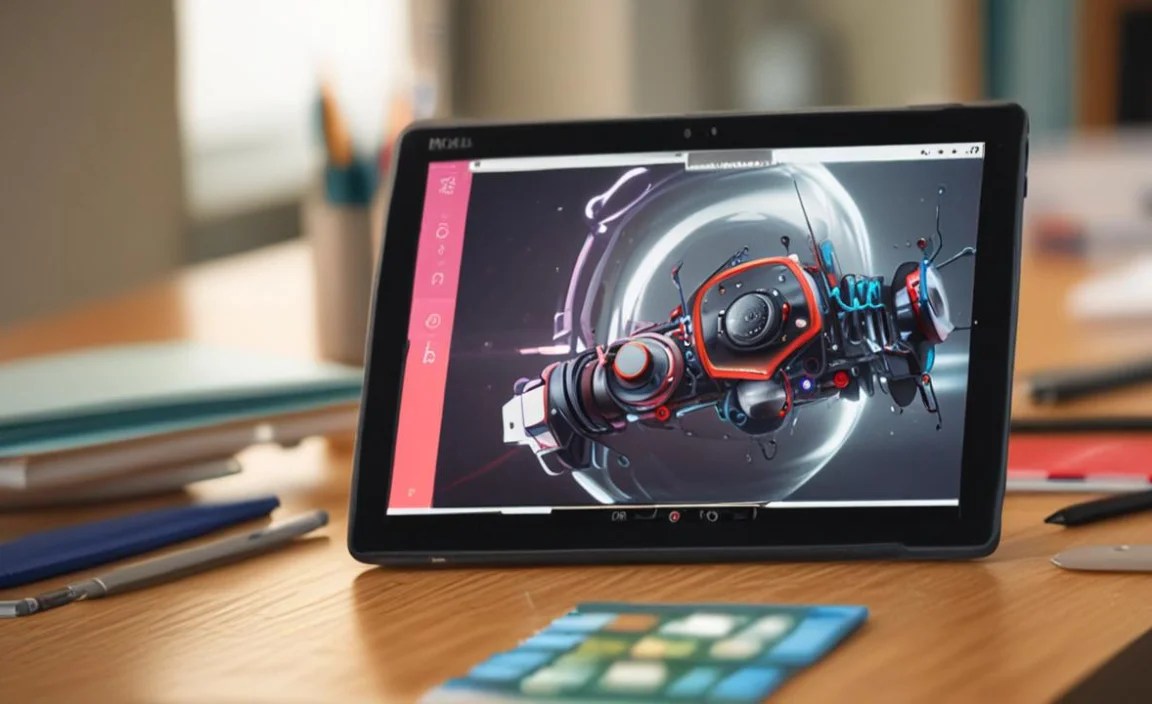
If you’ve tried all the troubleshooting steps, including a factory reset, and your RCA Tablet 8 Delta Pro is still not working correctly, it’s time to consider professional help.
Options:
RCA Support: Check RCA’s official website for customer support, FAQs, or warranty service information.
Third-Party Repair Shops: Look for reputable local repair shops that specialize in tablet repairs. Ensure they have experience with Android devices.
* Warranty: If your tablet is still under warranty, contact RCA for repair or replacement options. You can usually find warranty information on the manufacturer’s website or in the original packaging.
Table: Common Student App Needs & RCA Tablet 8 Delta Pro Capabilities

| Student Need | RCA Tablet 8 Delta Pro Capabilities | Potential Troubleshooting Steps |
| :————————– | :———————————————— | :———————————————————— |
| Note-Taking | Supports stylus input (if compatible), keyboard | Laggy typing (see slow performance), app crashes (see app issues) |
| Research & Browsing | Standard Android browser, Google Play apps | Slow loading (see slow performance), Wi-Fi issues (see Wi-Fi) |
| Online Lectures/Video | Capable of running most educational apps | Video stuttering (check Wi-Fi, close background apps) |
| Document Reading (PDFs) | Supports PDF reader apps | Slow page turns (check storage, app cache) |
| Online Collaboration | Apps like Zoom, Google Meet, Slack supported | Audio/video issues (check app permissions, Wi-Fi) |
| Basic Organization | Calendar, reminders, to-do list apps available

Your tech guru in Sand City, CA, bringing you the latest insights and tips exclusively on mobile tablets. Dive into the world of sleek devices and stay ahead in the tablet game with my expert guidance. Your go-to source for all things tablet-related – let’s elevate your tech experience!