Choosing the best tablets for remote learning is simple with our essential guide. We’ll help you find a reliable, affordable device with a great screen, long battery life, and the right features to make online classes a success. Get ready to learn with confidence!
The world of remote learning has opened up amazing possibilities, but it’s also brought a new challenge: finding the right tech. Many students and parents feel a bit overwhelmed when it comes to choosing a tablet. You want something that’s easy to use, won’t break the bank, and can keep up with online classes, homework, and maybe even a little fun. It’s completely understandable if you’re wondering where to start! But don’t worry, we’re here to break it down. This guide will walk you through exactly what to look for, making your tablet buying journey smooth and stress-free. Let’s get you set up for a fantastic remote learning experience!
Recommended Tablets For Remote Learning Buying Tips: Essential Guide
Remote learning has become a constant for many students, and a good tablet can be a game-changer. Whether you’re in elementary school, high school, or college, a reliable tablet makes it easier to attend virtual classes, complete assignments, and stay organized. But with so many options out there, how do you pick the right one? That’s where this guide comes in. We’ll cover all the essential buying tips to help you find the perfect tablet for your remote learning needs.
Why a Tablet is Great for Remote Learning
Tablets offer a unique blend of portability, touch-screen simplicity, and powerful features that make them ideal for students. They’re lighter than laptops, easier to hold for long periods, and often more intuitive for tasks like drawing, note-taking, and interactive learning. Plus, they typically have longer battery life, which is a huge plus when you’re moving between classes or studying away from a power outlet.
Key Features to Consider for Remote Learning Tablets
When you’re looking for a tablet for online schooling, a few key features really stand out. Thinking about these will help you narrow down your choices and ensure you’re getting a device that truly meets your needs.
1. Screen Size and Quality
This is probably the most important feature for remote learning. You’ll be staring at the screen for hours, so it needs to be comfortable for your eyes and large enough to see all your important information clearly.
- Size: Aim for a screen between 9 to 11 inches. Smaller screens can feel cramped, making it hard to see details or multitask. Larger screens offer a more comfortable viewing experience, much like a small laptop.
- Resolution: Higher resolution means a sharper, clearer image. Look for Full HD (1920 x 1080 pixels) or higher. This makes text easier to read and images sharper, which is great for educational videos and diagrams.
- Brightness and Color Accuracy: A bright screen is essential for working in different lighting conditions. Good color accuracy is also important, especially if you’ll be engaging with colorful lessons or creative apps.
2. Performance and Processor
You need a tablet that can handle multiple apps running at once – think video conferencing, a web browser for research, and a note-taking app, all without slowing down.
- Processor (CPU): A modern, capable processor ensures smooth multitasking and fast app loading. For most students, mid-range processors from Apple (A-series), Samsung (Exynos), or Qualcomm (Snapdragon) will be more than sufficient.
- RAM: Random Access Memory (RAM) is like a tablet’s short-term memory. More RAM means it can handle more tasks simultaneously. For remote learning, 4GB of RAM is a good minimum, but 6GB or 8GB will offer a smoother experience, especially for older students or those running more demanding apps.
3. Battery Life
Long battery life is crucial for remote learning. You need a tablet that can last through a full day of classes and study sessions without needing to be plugged in constantly.
- Target: Look for tablets that advertise at least 8-10 hours of active use. Many modern tablets easily achieve this, but it’s always good to check reviews for real-world battery performance.
- Charging Speed: While not as critical as battery life itself, fast charging can be a lifesaver if you need a quick power boost before a class.
4. Storage Space
You’ll need enough storage for your operating system, apps, downloaded course materials, videos, and assignments.
- Minimum: For basic use, 64GB might be enough.
- Recommended: However, 128GB is usually a safer bet for students to avoid running out of space.
- Expandable Storage: Some Android tablets offer microSD card slots, allowing you to expand storage affordably. iPads do not have this option, so you must choose the internal storage you need at purchase.
5. Operating System and Ecosystem
The operating system dictates the apps available and how you interact with the device. The two main players are iPadOS (Apple) and Android (Google).
- iPadOS: Known for its user-friendly interface, strong app ecosystem, and excellent performance. If you’re already in the Apple ecosystem, it’s a natural fit. It also has great stylus support for note-taking.
- Android: Offers more customization, a wider range of hardware choices at different price points, and often more open features.
- Windows Tablets (2-in-1s): While less common for pure “tablet” use, Windows tablets (often called 2-in-1s or convertibles) offer a full desktop experience, which can be beneficial for older students needing desktop-class software.
6. Connectivity (Wi-Fi and Optional LTE)
Most remote learning will happen over Wi-Fi. Ensure the tablet supports the latest Wi-Fi standards (Wi-Fi 6 for future-proofing) for a stable connection.
- Wi-Fi Only: This is the most common and affordable option.
- Wi-Fi + Cellular (LTE): If you don’t always have reliable Wi-Fi access, a cellular model allows you to connect to the internet using a mobile data plan. This usually adds significant cost and ongoing expenses.
7. Stylus and Keyboard Support
For students who take a lot of notes, draw diagrams, or mark up documents, a stylus is a must. Many tablets offer optional keyboard attachments, transforming them into more laptop-like devices.
- Stylus: Check if the tablet supports a stylus and if it’s included or an extra purchase. Look for pressure sensitivity and palm rejection for a natural writing feel.
- Keyboard: Detachable keyboards can be very useful for typing essays or longer assignments. Consider the size and typing feel of any keyboard accessory.
Top Tablet Recommendations for Remote Learning
Here are some popular and well-regarded tablets that are excellent choices for remote learning, covering different budgets and needs.
For the Budget-Conscious Student:
Amazon Fire HD Tablets
Amazon’s Fire HD tablets are incredibly affordable and perfect for basic remote learning tasks like attending video calls, reading, and using educational apps. While they run a customized version of Android with Amazon’s Appstore, they handle core functions well.
- Pros: Very low price, good build quality for the cost, decent battery life, kid-friendly features if needed.
- Cons: Limited app selection compared to Google Play Store, performance can be slower for demanding tasks, not ideal for heavy multitasking.
- Ideal for: Younger students, basic browsing, reading assignments, and simple note-taking.
Samsung Galaxy Tab A Series
Samsung’s Galaxy Tab A series offers a good balance of features and price. Running a full Android OS, you get access to the Google Play Store and a more familiar tablet experience than Fire tablets.
- Pros: Full Android experience, access to Google Play Store, good build quality, often available at competitive prices.
- Cons: Performance can vary significantly between models; check reviews for specific models.
- Ideal for: Students looking for a capable Android tablet without a high price tag.
For the Mid-Range Learner:
Apple iPad (Standard Model)
The standard iPad is often the sweet spot for value and performance. It’s powerful enough for most academic tasks, has an excellent screen, and benefits from Apple’s vast app store and user-friendly iPadOS.
- Pros: Great performance for the price, high-quality display, excellent app support, easy to use, good stylus and keyboard compatibility.
- Cons: Storage upgrades can be expensive, stylus and keyboard are often sold separately.
- Ideal for: High school and college students, general note-taking, research, and multitasking.
Samsung Galaxy Tab S Series (e.g., Tab S9 FE or Tab S9)
Samsung’s flagship Tab S series offers premium features, fantastic AMOLED displays, and powerful performance. The “FE” (Fan Edition) models often provide a great balance of high-end features at a more accessible price point.
- Pros: Stunning displays, powerful processors, often include an S Pen stylus, robust multitasking capabilities, premium build.
- Cons: Can be more expensive than other options, some high-end features might be overkill for basic learning.
- Ideal for: Students who need top-tier performance, excellent media quality, and advanced note-taking/drawing capabilities.
For the Power User/Creative Student:
Apple iPad Air / iPad Pro
If your studies involve creative work, complex software, or you simply want the best performance and features, the iPad Air or iPad Pro are top-tier choices. They offer the most powerful processors, advanced displays, and seamless integration with accessories like the Apple Pencil and Magic Keyboard.
- Pros: Best-in-class performance, stunning displays (ProMotion on Pro models), M-series chips offer laptop-level power, excellent ecosystem for creatives.
- Cons: Most expensive option, accessories add significantly to the cost.
- Ideal for: University students, art and design majors, students needing to run demanding applications, those who want the absolute best tablet experience.
Microsoft Surface Go 3 / Surface Pro 9
These are technically Windows tablets, offering a full desktop computing experience. They are fantastic for students who need to run specific Windows-based software or prefer the functionality of a traditional PC in a tablet form factor.
- Pros: Full Windows OS, runs desktop applications, excellent for productivity, great keyboards and stylus support.
- Cons: Can be pricier, battery life may not match dedicated tablets, touch interface can be less refined than iPadOS or Android for some tasks.
- Ideal for: Students needing specific Windows software, those who want a true laptop replacement that can also be a tablet.
How to Choose the Right Tablet: A Step-by-Step Approach

Navigating all the options can feel daunting, but following these steps will guide you to the best tablet for your remote learning needs.
- Determine Your Budget: This is the first and most crucial step. Knowing how much you can spend will immediately narrow down your options. Remember to factor in the cost of accessories like a stylus or keyboard if needed.
- Identify Your Primary Use Cases: Will you be mostly watching lectures and taking simple notes? Or do you need to run more demanding applications, edit videos, or draw? Be honest about how you’ll use the tablet daily.
- Compare Operating Systems: Are you comfortable with Apple’s iPadOS, or do you prefer the flexibility of Android? If you need specific Windows software, a Surface might be your best bet.
- Prioritize Key Features: Based on your use cases, rank the importance of screen size, processor speed, battery life, and storage. For dedicated learning, battery life and screen quality are usually top priorities.
- Read Reviews: Once you have a few candidates, dive into reviews! Look for reviews from reputable tech sites and user reviews that specifically mention remote learning or student use. For example, RTINGS.com offers in-depth reviews and comparisons of many tablets.
- Check for Educational Discounts: Many manufacturers and retailers offer discounts for students and educators. Always check for these before purchasing.
- Consider Refurbished or Older Models: If budget is tight, consider buying a previous generation model or a certified refurbished device from the manufacturer. These can offer significant savings with little compromise on quality. The Apple Certified Refurbished store, for instance, is a great place to look for iPads.
Tablet Accessories for Enhanced Remote Learning
Once you’ve chosen your tablet, a few accessories can make your remote learning experience even better.
- Stylus: Essential for digital note-taking, marking up PDFs, sketching diagrams, and annotating slides. Look for pressure sensitivity for a more natural feel.
- Protective Case: Protects your investment from accidental drops and bumps, especially important if the tablet is carried around. Some cases also offer built-in stands.
- Bluetooth Keyboard: Great for typing essays, reports, or longer assignments. Look for one that’s comfortable to type on and pairs easily with your tablet.
- Screen Protector: Adds an extra layer of protection against scratches and can sometimes reduce glare.
- Headphones or Earbuds: Crucial for clear audio during online classes and lectures, and for focused study sessions.
Security and Privacy Best Practices for Students

When using a tablet for school, it’s important to keep your data and accounts secure.
- Strong Passwords/Biometrics: Always use a strong passcode, fingerprint, or facial recognition to unlock your device.
- Enable Two-Factor Authentication (2FA): For your school accounts and important personal accounts (like email), enable 2FA for an extra layer of security.
- Be Wary of Public Wi-Fi: Avoid accessing sensitive information or logging into school accounts on unsecured public Wi-Fi networks. Consider using a VPN if you must.
- Keep Software Updated: Install operating system and app updates promptly, as they often contain vital security patches.
- Understand App Permissions: Review the permissions you grant to apps. Does a simple calculator app really need access to your location or contacts?
- Data Backup: Regularly back up important schoolwork to cloud storage services (like Google Drive, OneDrive, or iCloud) or an external drive.
Troubleshooting Common Remote Learning Tablet Issues
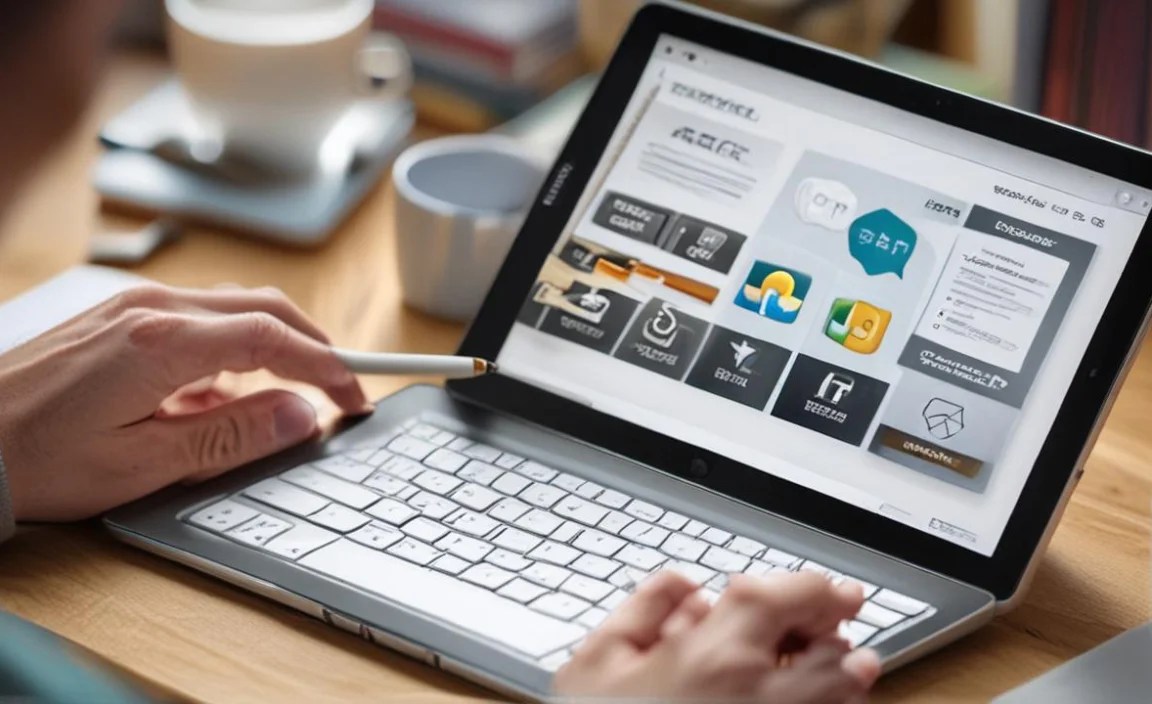
Even the best tablets can have occasional hiccups. Here are a few common issues and how to fix them:
- Slow Performance: Close unused apps, restart your tablet, clear your browser cache, and free up storage space.
- Wi-Fi Connectivity Problems: Restart your router and modem, restart your tablet, forget and re-join the Wi-Fi network, or try connecting to a different network.
- App Crashing: Ensure the app is updated to the latest version. If the problem persists, try uninstalling and reinstalling the app.
- Battery Draining Too Quickly: Check battery usage in settings to see which apps consume the most power. Reduce screen brightness, disable background app refresh for non-essential apps, and turn off Bluetooth/GPS when not in use.
- Audio Issues: Ensure the volume is turned up and not muted. Check app-specific audio settings. Restarting the tablet often resolves temporary audio glitches.
When to Consider a Laptop Instead
While tablets are fantastic for many remote learning tasks, a traditional laptop might be a better fit if:
- You need to run specialized desktop software (e.g., advanced coding environments, specific engineering or design programs) that aren’t available or are much less capable on tablet operating systems.
- You do a large amount of typing (e.g., writing lengthy research papers on a daily basis) and prefer a built-in, full-sized keyboard.
- The cost of a tablet plus necessary accessories (keyboard, stylus) approaches or exceeds the price of a capable budget laptop.
- You need more robust file management capabilities or access to a wider array of ports for peripherals.

Your tech guru in Sand City, CA, bringing you the latest insights and tips exclusively on mobile tablets. Dive into the world of sleek devices and stay ahead in the tablet game with my expert guidance. Your go-to source for all things tablet-related – let’s elevate your tech experience!