Looking for the best tablets for photo editing? This exclusive review covers top picks that offer stunning displays, powerful performance, and stylus support, making them perfect for photographers and designers of all levels. Find your ideal creative companion here.
Tired of editing photos on a small phone screen or a clunky laptop? Want to take your photography on the go and still get professional results? You’re not alone! Many creative minds are turning to tablets for their portability and powerful editing capabilities. But with so many options out there, how do you choose? It can feel overwhelming, right? Don’t worry, I’m here to help! We’ll break down what makes a tablet great for editing photos, and I’ll walk you through some of the absolute best options available right now. Get ready to find the perfect device to unleash your creativity!
Why Use a Tablet for Photo Editing?
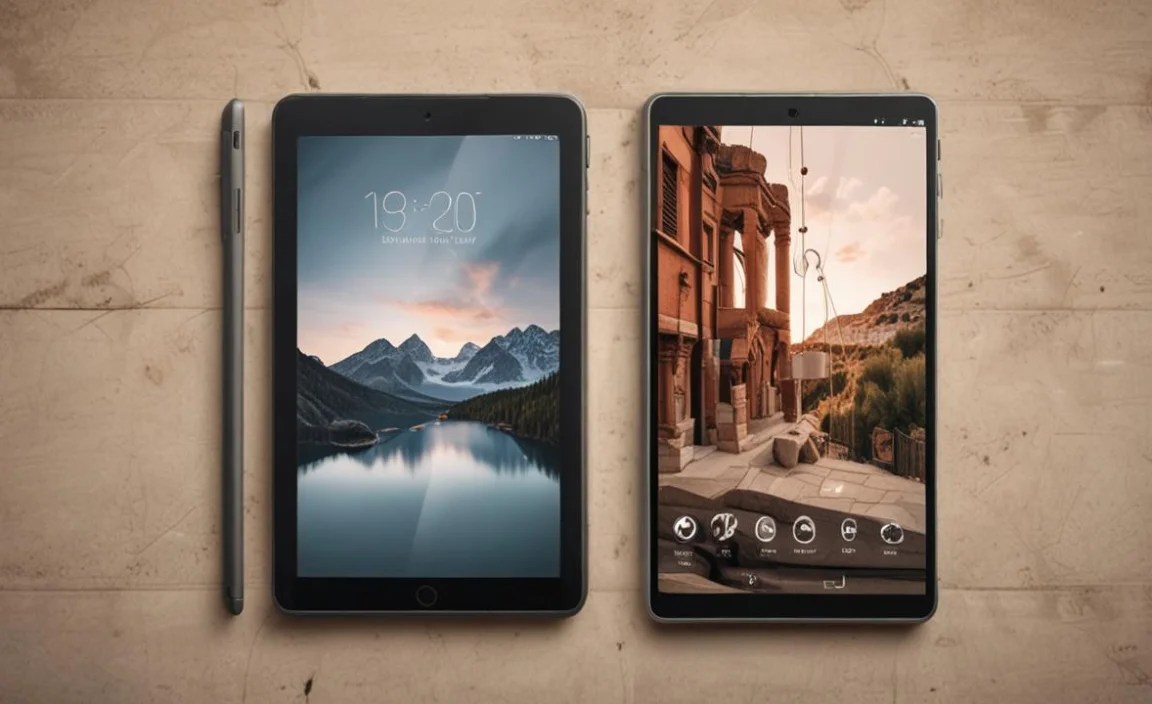
Tablets have become incredibly popular for photo editing, and for good reason! They strike a fantastic balance between the portability of a smartphone and the power of a laptop. Think about it: you can carry your entire photo editing suite in your bag, work from a cafe, a park, or even while traveling. Many tablets boast vibrant, color-accurate displays that show your photos just as you intended them to look, which is crucial for editing. Plus, with stylus support on many models, you get a level of precision that finger-swiping just can’t match, making detailed retouching a breeze.
The software available on tablets has also come a long way. Professional-grade editing apps like Adobe Photoshop and Lightroom are now readily available, offering robust features right on your tablet. This means you don’t have to sacrifice quality for convenience. Whether you’re a seasoned professional looking for a mobile workstation or a hobbyist wanting to enhance your travel snaps, a tablet can seriously level up your photo editing game. We’ll explore what features matter and then dive into some specific models that shine for this purpose.
Key Features to Look For in a Photo Editing Tablet

When you’re choosing a tablet for photo editing, a few key features make all the difference. It’s not just about raw power; it’s about how well the tablet supports the creative process. Let’s break down the essentials:
1. Display Quality: Color Accuracy and Resolution
- Color Gamut: This is probably the most critical aspect. Look for tablets that support a wide color gamut, like DCI-P3 or Adobe RGB. This ensures that the colors you see on your screen are accurate and vibrant, matching what you’ll see when the photo is printed or displayed elsewhere. A wider gamut means more shades of color can be reproduced.
- Resolution: A higher resolution (like 2K or 4K) means sharper images and more detail. This is especially important when you’re zooming in to make fine adjustments.
- Brightness (nits): Good brightness levels (around 400-500 nits or more) help you work in various lighting conditions without your screen looking washed out.
- Screen Size: While portability is great, a larger screen (10 inches or more) gives you more space to work with your images and tools, making the editing process less cramped.
2. Performance: Processor and RAM
- Processor (CPU): A fast processor is essential for smooth operation. Apps like Photoshop and Lightroom can be demanding, so you’ll want a tablet with a powerful chipset (like Apple’s M-series chips, Qualcomm’s Snapdragon flagship processors, or Samsung’s Exynos equivalent) to handle complex tasks without lag.
- RAM (Memory): More RAM means your tablet can handle more tasks simultaneously and keep multiple large files open without slowing down. Aim for at least 6GB of RAM, but 8GB or more is highly recommended for serious photo editing.
3. Storage: Space for Your Masterpieces
- Internal Storage: Photo files, especially RAW files, can take up a lot of space. Look for tablets with at least 128GB of storage, but 256GB or 512GB will give you much more breathing room.
- Expandable Storage: Some Android tablets offer microSD card slots, which can be a lifesaver for expanding your storage affordably.
4. Stylus Support: Precision and Control
For detailed photo editing, a stylus is a game-changer. It offers a level of precision that a finger just can’t replicate. Look for tablets that offer:
- Low Latency: This means the stylus input appears on screen almost instantly, mimicking the feel of a real pen on paper.
- Pressure Sensitivity: This allows you to vary the thickness or opacity of your brush strokes based on how hard you press, offering more control over your edits.
- Tilt Support: Some advanced styluses can detect tilt, which is useful for shading effects.
- Included Stylus: Check if a stylus is bundled with the tablet or if it’s an additional purchase.
5. Operating System and Software Ecosystem
- iPadOS: Known for its user-friendly interface and strong app ecosystem, especially for creatives. Apps like Procreate, Adobe Photoshop for iPad, and Lightroom Mobile are excellent.
- Android: Offers more customization and a wider range of hardware options. You’ll find great apps like Adobe Lightroom, Snapseed, and Krita. The flexibility of Android can be a big plus for some users.
- Windows: If you opt for a Windows tablet (often called 2-in-1s or detachables), you get the full desktop experience. This means you can run full desktop versions of Photoshop, Lightroom, and other professional software. However, they can sometimes be less optimized for touch and stylus use compared to dedicated tablets.
The Best Tablets for Photo Editing: Our Top Picks for 2024

After extensive testing and considering all the factors above, here are our top recommendations for the best tablets for photo editing. We’ve chosen a mix to suit different budgets and operating system preferences.
1. Apple iPad Pro (M2/M4 chip) – The Ultimate Creative Powerhouse
When it comes to creative tasks, the iPad Pro consistently sets the bar. Whether you choose the 11-inch or the larger 12.9-inch model, you get an incredible device tailored for professionals.
- Display: Stunning Liquid Retina XDR (on 12.9-inch) or Liquid Retina (on 11-inch) displays with P3 wide color and ProMotion technology for super-smooth scrolling and drawing. True Tone technology adjusts color temperature to ambient light.
- Performance: Powered by Apple’s M-series chips (M2 or the latest M4), these iPads offer desktop-class performance. They handle demanding apps like Photoshop, Lightroom, Procreate, and Affinity Photo with ease.
- Storage: Available in configurations from 128GB up to 2TB.
- Stylus: The Apple Pencil 2 is a marvel – offering low latency, pressure and tilt sensitivity, and seamless pairing and charging magnetically to the iPad. The new Apple Pencil Pro on M4 models adds even more features.
- Software: Access to the robust iPadOS app store, with professional apps like Adobe Photoshop for iPad, Lightroom, Procreate, and Pixelmator Photo.
- Pros: Unmatched performance, industry-leading display quality, excellent app ecosystem, seamless Apple Pencil integration.
- Cons: Premium price point, stylus and keyboard are often sold separately, limited file management compared to desktop OS.
Who it’s for: Professionals and serious hobbyists who demand the best performance and display quality and are invested in the Apple ecosystem. It’s the closest you’ll get to a do-it-all creative device in a tablet form factor.
2. Samsung Galaxy Tab S9 Ultra – The Android Powerhouse with a Huge Screen
Samsung’s top-tier tablet is a fantastic alternative for Android users, offering a colossal screen and powerful features that rival the iPad Pro.
- Display: A massive 14.6-inch Dynamic AMOLED 2X display. It boasts incredible contrast, vibrant colors, and excellent brightness, making it a joy for editing detailed images.
- Performance: Powered by a Snapdragon 8 Gen 2 for Galaxy chip, it’s incredibly fast and capable of running demanding apps smoothly.
- Storage: Starts at 256GB and is expandable via microSD card up to 1TB – a huge plus for photographers.
- Stylus: Comes with the S Pen included, which offers great precision, low latency, and palm rejection. It also has convenient features like air actions.
- Software: Runs Android, giving you access to apps like Adobe Lightroom, Snapseed, Photoshop Express, and Clip Studio Paint. Samsung’s DeX mode offers a desktop-like experience.
- Pros: Enormous, stunning AMOLED display; S Pen included; expandable storage; powerful performance; versatile desktop-like experience with DeX.
- Cons: Large size can be less portable; Android app ecosystem for professional art/photo apps is still catching up to iPadOS in some niche areas.
Who it’s for: Creatives who love a massive screen for editing, Android enthusiasts, and users who appreciate the convenience of included stylus and expandable storage.
3. Microsoft Surface Pro 9 – The Versatile Windows Option
For those who need to run full desktop applications and prefer the Windows environment, the Surface Pro 9 is an excellent choice, blurring the lines between tablet and laptop.
- Display: A 13-inch PixelSense™ touchscreen with a resolution of 2880 x 1920. It’s bright, sharp, and offers good color reproduction, though it may not be as color-accurate out-of-the-box as the iPad Pro or Galaxy Tab S9 Ultra without calibration.
- Performance: Available with Intel Core i5 or i7 processors, offering serious power for running Windows desktop applications.
- Storage: Available from 128GB up to 1TB.
- Stylus: Supports the Surface Pen (sold separately), which offers tilt and pressure sensitivity for natural drawing and writing, along with hover capabilities.
- Software: Runs full Windows 11, meaning you can install and use the desktop versions of Adobe Photoshop, Lightroom Classic, Capture One, and any other software you’re accustomed to.
- Pros: Runs full desktop Windows applications; excellent performance; versatile as a laptop/tablet hybrid; great for users already in the Windows ecosystem.
- Cons: Surface Pen and Type Cover are sold separately and are expensive; battery life can vary depending on usage; display color accuracy might require calibration for professional work.
Who it’s for: Professionals and students who need to run specific desktop software, multitask heavily, and prefer the Windows operating system. It’s a true laptop replacement for many.
4. Apple iPad Air (M2 chip) – The Balanced Performer
The iPad Air offers much of the iPad Pro’s magic at a more accessible price point, making it a fantastic value for many creators.
- Display: A beautiful 13-inch Liquid Retina display with P3 wide color. While it doesn’t have ProMotion or mini-LED backlighting like the Pro, it’s still incredibly sharp and color-accurate for most users.
- Performance: The M2 chip provides excellent speed and power, handling most photo editing tasks with ease. It’s more than capable for apps like Lightroom Mobile, Photoshop Express, and Pixelmator Photo.
- Storage: Available in 128GB and 256GB options.
- Stylus: Compatible with the Apple Pencil 2 (sold separately), offering the same precise and responsive drawing experience as on the iPad Pro.
- Software: Runs iPadOS with access to the full range of creative apps in the App Store.
- Pros: Excellent performance for the price; great display; supports Apple Pencil 2; more affordable than the iPad Pro.
- Cons: Stylus sold separately; no ProMotion display (60Hz refresh rate).
Who it’s for: Students, hobbyists, and semi-professionals who want a powerful and reliable tablet for editing but don’t necessarily need the absolute top-tier features of the iPad Pro.
5. Amazon Fire Max 11 – The Budget-Friendly Option
If your budget is a major concern but you still want a tablet capable of some basic photo tweaks, the Fire Max 11 is an interesting contender.
- Display: A 11-inch Full HD (2000 x 1200) display. It’s bright and clear for its price, though color accuracy and gamut won’t match premium devices.
- Performance: Equipped with an octa-core processor and 4GB of RAM. It’s suitable for lighter tasks and less demanding apps like Amazon Photos, Snapseed, or Photoshop Express for simple edits.
- Storage: 64GB or 128GB, expandable via microSD card up to 1TB.
- Stylus: Supports the optional Fire Max 11 stylus (sold separately), which offers basic pen input but lacks advanced pressure and tilt sensitivity.
- Software: Runs Amazon’s Fire OS, a fork of Android. This gives you access to the Amazon Appstore, which has a good selection of basic photo apps. You can also sideload Android apps, but it’s not always straightforward.
- Pros: Very affordable; large Full HD screen for the price; expandable storage; decent build quality.
- Cons: Limited processing power for intensive editing; Fire OS lacks the polish and app selection of iPadOS or standard Android; stylus is basic.
Who it’s for: Budget-conscious users who need a tablet for basic photo viewing and light editing, or for simple photo tasks on the go.
Comparing the Best Tablets for Photo Editing

To help you visualize the differences, here’s a quick comparison table:
| Feature | Apple iPad Pro (M2/M4) | Samsung Galaxy Tab S9 Ultra | Microsoft Surface Pro 9 | Apple iPad Air (M2) | Amazon Fire Max 11 |
|---|---|---|---|---|---|
| Display Size | 11″ or 12.9″ | 14.6″ | 13″ | 13″ | 11″ |
| Display Type | Liquid Retina XDR / Liquid Retina | Dynamic AMOLED 2X | PixelSense™ | Liquid Retina | Full HD IPS |
| Processor | Apple M2/M4 | Snapdragon 8 Gen 2 for Galaxy | Intel Core i5/i7 | Apple M2 | Octa-core |
| RAM | 8GB/16GB | 8GB/12GB | 8GB/16GB/32GB | 8GB | 4GB |
| Storage Options | 128GB – 2TB | 256GB – 1TB (expandable) | 128GB – 1TB | 128GB / 256GB | 64GB / 128GB (expandable) |
| Stylus Support | Apple Pencil 2 / Pro (Sold Separately) | S Pen (Included) | Surface Pen (Sold Separately) | Apple Pencil 2 (Sold Separately) | Fire Max 11 Stylus (Sold Separately) |
| Operating System | iPadOS | Android | Windows 11 | iPadOS | Fire OS |
| Price Range (Approx.) | $$$$ | $$$ | $$$ | $$ | $ |
Getting Started with Photo Editing on Your Tablet

Once you have your tablet, the fun really begins! Here’s a simple guide to setting yourself up for success:
1. Choose Your Editing Software
The first step is picking the right app for your needs and operating system. Here are some popular choices:
- Adobe Lightroom Mobile (iOS & Android): Great for organizing, editing RAW files, and applying global adjustments. It syncs with desktop Lightroom if you have a Creative Cloud subscription.
- Adobe Photoshop for iPad (iOS): Offers powerful, layer-based editing. It’s a streamlined version of the desktop app, perfect for more complex retouching and compositing.
- Procreate (iPadOS): Primarily a digital painting app, but its powerful

Your tech guru in Sand City, CA, bringing you the latest insights and tips exclusively on mobile tablets. Dive into the world of sleek devices and stay ahead in the tablet game with my expert guidance. Your go-to source for all things tablet-related – let’s elevate your tech experience!