As a teacher, juggling lesson plans, student engagement, and a mountain of administrative tasks can feel overwhelming. A tablet can be a game-changer, simplifying your workflow and bringing your classroom into the digital age. But with so many options, finding the perfect tablet feels like another lesson! We know you’re busy, so we’ve done the heavy lifting. Get ready to discover the best tablets that make teaching easier and more engaging, without breaking the bank.
Best Tablets For Teachers: Expert Picks
Teachers are more connected and digitally involved than ever before. From interactive whiteboards to digital gradebooks, technology has become an indispensable tool in the modern classroom. Tablets, in particular, offer a unique blend of portability, versatility, and power that can transform how educators teach and engage with their students. But with a dizzying array of choices on the market, selecting the “best” tablet can feel like a daunting task. What features truly matter for a teacher? How much processing power do you really need? And which operating system will best fit your existing tech ecosystem?
At Tabletzoo, we understand these questions. That’s why we’ve curated this guide to the best tablets for teachers, breaking down the complexities into simple, actionable advice. We’ll explore devices that excel in note-taking, presentation capabilities, app compatibility, and sheer ease of use. Whether you’re a tech enthusiast or just dipping your toes into educational technology, this guide will help you find a tablet that acts as your ultimate teaching assistant. Let’s dive into the expert picks that can elevate your teaching experience!
Why Teachers Need a Tablet
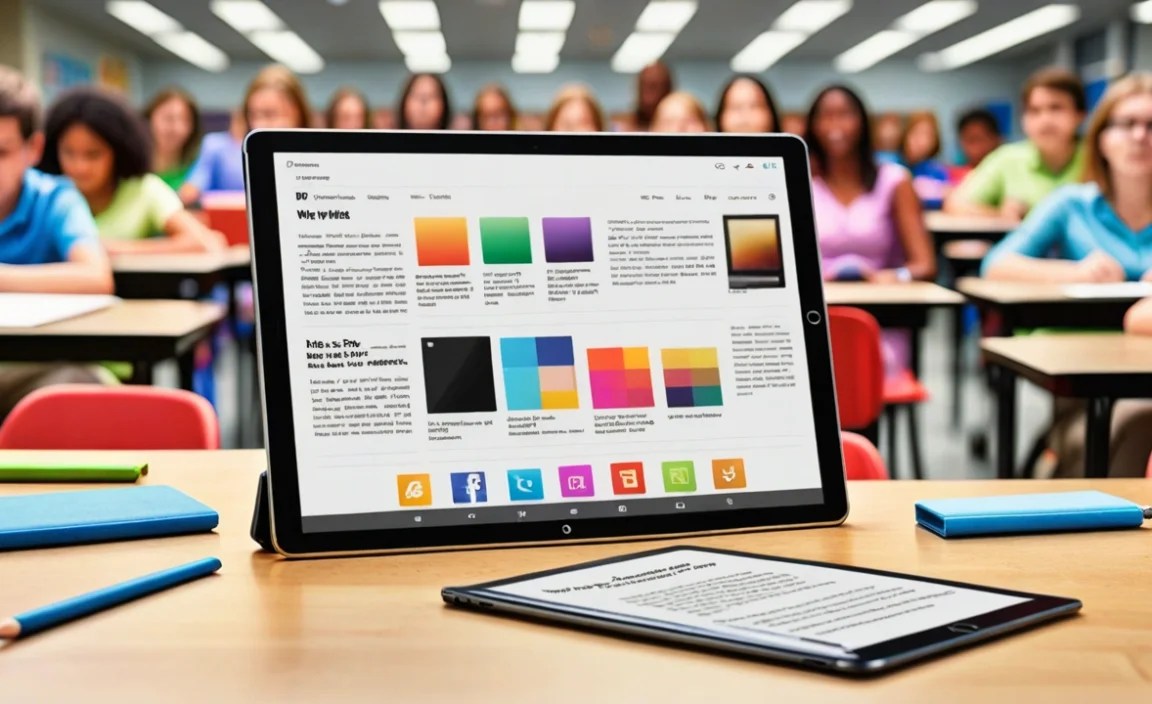
In today’s educational landscape, a tablet isn’t just a gadget; it’s a powerful productivity tool. Think of it as your mobile command center for everything related to teaching. Here’s why it’s such a smart investment:
- Portability: Easily carry lesson plans, student work, grading rubrics, and all your teaching resources from your desk to the classroom, to home, and back again. No more lugging around heavy textbooks or binders!
- Interactive Learning: Engage students with dynamic presentations, educational apps, interactive simulations, and multimedia content. A tablet can make abstract concepts come alive.
- Digital Organization: Keep your schedule, notes, assignments, and student records neatly organized in one digital space. Cloud integration means your data is accessible from anywhere.
- Note-Taking & Grading: Jot down quick notes, mark up digital assignments with a stylus, record lectures, or even use specialized apps for efficient grading.
- Communication: Streamline communication with students, parents, and colleagues through email, messaging apps, and educational platforms.
- Resource Access: Instant access to a world of online resources, educational websites, digital libraries, and professional development materials.
Key Features to Consider for Teachers

When choosing the best tablet for your teaching needs, focus on these essential features:
1. Screen Size and Quality
A larger screen can be better for presentations, multitasking, and detailed work. However, it also means less portability. Aim for a balance. Look for good resolution (at least Full HD, 1920×1080) for crisp text and images.
2. Performance (Processor & RAM)
For smooth app switching, running educational software, and multitasking, a decent processor and at least 4GB of RAM are recommended. More demanding tasks or newer operating systems might benefit from 6GB or even 8GB of RAM. Don’t get bogged down in specs; aim for responsiveness.
3. Storage Capacity
Consider how many apps, documents, videos, and lesson materials you plan to store. 64GB is a good starting point, but 128GB or more is ideal if you plan to download a lot of content or use the tablet for extensive media. Check if the tablet supports expandable storage via microSD card.
4. Battery Life
A full school day can be long. Look for tablets that offer at least 8-10 hours of typical use on a single charge. This ensures you won’t be scrambling for an outlet during crucial lesson times.
5. Stylus Support
If you plan to take notes, mark up documents, or create digital art, a tablet with excellent stylus support is crucial. Look for active styluses (often sold separately, but worth the investment) that offer pressure sensitivity and palm rejection for a natural writing feel. Some tablets come bundled with a stylus.
6. Operating System Ecosystem
The OS dictates the apps available and the overall user experience.
- iPadOS (Apple): Known for its intuitive interface, vast app store (many education-specific apps are optimized for iPad), and strong integration with other Apple devices.
- Android (Google): Offers more customization, a wider range of hardware choices at various price points, and excellent integration with Google services like Drive and Classroom.
- Windows: Best for those who need to run desktop-grade applications or prefer a familiar computer-like environment.
Your choice might depend on what you’re already comfortable with or what works best with your school’s IT infrastructure.
7. Durability and Build Quality
While not always a top spec, a well-built tablet can withstand the rigors of daily use. Consider a protective case, especially if you’re concerned about accidental drops.
Our Expert Picks: Best Tablets for Teachers

After extensive research and considering the needs of educators, here are our top recommendations, categorized for clarity:
1. Best All-Around: Apple iPad (10th Generation)
The latest base iPad continues to be a fantastic option for teachers looking for a reliable, user-friendly, and versatile tablet. It strikes an excellent balance between features, performance, and price.
| Feature | Details |
|---|---|
| Screen: | 10.9-inch Liquid Retina display (2360 x 1640 resolution) |
| Processor: | A14 Bionic chip |
| Storage: | 64GB, 256GB |
| Stylus Support: | Apple Pencil (1st generation) – requires USB-C adapter for charging. Learn more about Apple Pencil. |
| Battery Life: | Up to 10 hours of surfing the web on Wi-Fi or watching video |
| Pros: | Vibrant display, excellent app selection, intuitive iPadOS, good performance for most tasks, familiar Apple ecosystem. |
| Cons: | Apple Pencil (1st gen) charging can be awkward, base model storage might be limiting for some. |
The 10th Gen iPad offers a larger, edge-to-edge screen compared to previous base models, making it more comfortable for viewing content and marking up documents. The A14 Bionic chip provides more than enough power for everyday teaching tasks, from browsing educational websites to running multiple apps. Its extensive app library in the App Store means you’ll find tools for virtually any subject or teaching style. While the Apple Pencil (1st gen) requires a separate purchase and adapter for charging, it’s still a capable tool for digital note-taking.
2. Best for Note-Takers & Creatives: Samsung Galaxy Tab S9 FE / S9 FE+
Samsung’s Fan Edition (FE) tablets offer a premium experience at a more accessible price point, making them excellent choices for teachers who value a great display and included S Pen.
| Feature | Details |
|---|---|
| Screen: | Tab S9 FE: 10.9-inch LCD (2304 x 1440). Tab S9 FE+: 12.4-inch LCD (2560 x 1600) |
| Processor: | MediaTek Dimensity 930 |
| Storage: | Tab S9 FE: 128GB, 256GB. Tab S9 FE+: 128GB, 256GB (Expandable via microSD) |
| Stylus Support: | Included S Pen (IP68 rated for water/dust resistance) – no charging needed. Explore the S Pen. |
| Battery Life: | Excellent, typically 10+ hours depending on usage. |
| Pros: | Included S Pen with magnetic attachment, expandable storage, IP68 water/dust resistance, vibrant displays, good performance, DeX mode for desktop-like multitasking. |
| Cons: | LCD screen might not be as vibrant as AMOLED (found on higher-end Samsung tablets), processor is good but not top-tier. |
The Galaxy Tab S9 FE series truly shines with its included S Pen, which is a joy to use for writing notes directly on PDFs, annotating assignments, or sketching out ideas. The fact that it doesn’t need charging makes it incredibly convenient. The larger screen on the S9 FE+ is perfect for those who want more real estate for multitasking or presentations. Android’s flexibility, coupled with Samsung’s DeX mode, allows you to transform the tablet into a near-desktop experience, which is invaluable for planning lessons or managing grades. Expandable storage is a big bonus for teachers who deal with a lot of digital files.
3. Best Budget-Friendly Option: Amazon Fire HD 10 (2023 Release)
For teachers on a tight budget who need a reliable device for basic tasks, the Amazon Fire HD 10 offers incredible value for its price.
| Feature | Details |
|---|---|
| Screen: | 10.1-inch Full HD (1920 x 1200) |
| Processor: | Octa-core |
| Storage: | 32GB, 64GB (Expandable via microSD) |
| Stylus Support: | No official stylus support. |
| Battery Life: | Up to 12 hours |
| Pros: | Extremely affordable, durable build, good battery life, decent screen for the price, expandable storage. |
| Cons: | Amazon’s Fire OS is more limited than iPadOS or Android, app store is smaller (though supports most essential Google apps via a workaround), performance is adequate but not stellar. |
While it won’t replace a high-end device, the Fire HD 10 is a workhorse for essential teaching tasks. You can access educational content, use standard productivity apps, manage your email, and even stream videos. The user interface is simple, and the device is built to be quite rugged. If your primary need is a portable screen for accessing digital resources, basic note-taking (using an on-screen keyboard), and running common educational apps, the Fire HD 10 is an exceptional value. For those comfortable with a slight workaround, you can install the Google Play Store for a much wider app selection.
4. Best for Windows Users: Microsoft Surface Go 3
If you prefer the Windows ecosystem or need to run desktop applications, the Surface Go 3 offers a tablet-first experience with the power of Windows.
| Feature | Details |
|---|---|
| Screen: | 10.5-inch PixelSense™ Display (1920 x 1280 resolution) |
| Processor: | Intel® Pentium® Gold / Intel® Core™ i3 processor options |
| Storage: | 64GB eMMC or 128GB SSD options |
| Stylus Support: | Supports Microsoft Pen Protocol (MPP), Surface Pen sold separately. Discover the Surface Pen. |
| Battery Life: | Up to 11 hours of typical device usage |
| Pros: | Full Windows 11 experience, excellent for running traditional desktop software, lightweight and portable, great build quality, vibrant touchscreen. |
| Cons: | Base model performance can be sluggish, Surface Pen and Type Cover are sold separately and add significantly to the cost, limited ports. |
The Surface Go 3 is a compact 2-in-1 device. When paired with its optional Type Cover and Surface Pen, it becomes a highly functional mini-laptop-tablet hybrid. This is ideal for teachers who need to use specific Windows-based educational software, manage extensive class rosters in Excel, or simply prefer the familiarity of the Windows interface. The high-resolution screen is great for reading documents and presentations. Be mindful of configuring it with at least an Intel Core i3 processor and 128GB SSD for a smoother experience, especially if you plan on multitasking.
5. Best Mid-Range Android Tablet: Google Pixel Tablet
Google’s offering brings a unique smart home integration with its charging speaker dock, making it a versatile device for the classroom and beyond.
| Feature | Details |
|---|---|
| Screen: | 10.95-inch LCD (2560 x 1600 resolution) |
| Processor: | Google Tensor G2 |
| Storage: | 128GB, 256GB |
| Stylus Support: | Supports USI 2.0 stylus (sold separately). See USI Stylus options. |
| Battery Life: | Up to 12 hours of video playback |
| Clever Extra: | Includes a Charging Speaker Dock, transforming it into a smart display. |
| Pros: | Excellent performance, high-resolution display, smart speaker/display functionality with the dock, solid Android experience, great for Google Workspace users. |
| Cons: | Stylus sold separately and not as refined as competitors’ first-party options, Android tablet app optimization can still be hit or miss for some specific educational apps. |
The Google Pixel Tablet is an interesting proposition for educators. Its core tablet performance is strong, thanks to the Tensor G2 chip found in Pixel phones. The display is lovely, and the inclusion of the charging speaker dock is ingenious. It seamlessly transitions between a powerful tablet and a helpful smart display for the classroom, displaying schedules, acting as a digital bulletin board, or even helping with classroom music. If your school heavily integrates with Google services (Google Classroom, Drive, Meet), this tablet fits right in. The addition of stylus support opens up note-taking possibilities too.
Tips for Using Your Tablet in the Classroom

Once you’ve chosen your perfect tablet, here are some tips to maximize its potential:
- Invest in a Good Case: Protect your investment! A sturdy case with a keyboard or kickstand can add significant functionality and durability.
- Stylus is Your Friend: If you plan on writing, get a good stylus. It makes a world of difference for note-

Your tech guru in Sand City, CA, bringing you the latest insights and tips exclusively on mobile tablets. Dive into the world of sleek devices and stay ahead in the tablet game with my expert guidance. Your go-to source for all things tablet-related – let’s elevate your tech experience!