Choosing the perfect tablet for teaching can feel overwhelming, with so many options available. Many educators struggle to find a device that balances essential features, budget, and ease of use. This guide simplifies the process, drawing on real user reviews to highlight the top tablets that empower teachers in today’s dynamic classrooms. We’ll break down what makes a tablet great for educators and which models stand out from the crowd.
Welcome, fellow educators, to Tabletzoo! I’m Walter Moore, and I know firsthand how crucial the right tech can be in making your teaching life smoother and more effective. We’re diving deep into the world of tablets today, specifically focusing on what teachers like you are saying about their experiences.
Why Teachers Need a Great Tablet (And What Makes One “Great”!)

In modern education, a tablet isn’t just a fancy gadget; it’s a powerful teaching tool. It can be your digital whiteboard, your lesson plan organizer, your student assessment hub, and even a way to access a universe of educational resources on the go. But what exactly makes a tablet “great” for a teacher? It boils down to a few key things:
- Durability: Let’s face it, classrooms can be busy places. A tablet that can withstand a few bumps and spills is a lifesaver.
- Battery Life: You need a device that can keep up with a full day of lessons, grading, and planning without running out of juice.
- Ease of Use: A complex interface can be a major distraction. Teachers need intuitive devices that are quick to learn and navigate.
- App Compatibility: Access to educational apps for interactive lessons, grading, and organization is essential.
- Note-Taking & Annotation: The ability to jot down notes, mark up documents, and create digital content is a game-changer for lesson delivery and feedback.
- Connectivity: Reliable Wi-Fi and Bluetooth are non-negotiable for accessing online resources and connecting peripherals.
- Portability: Teachers are often on the move, from classroom to classroom, staff meetings, or home. A lightweight device is a must.
- Cost-Effectiveness: Many teachers are on a budget, so finding a device that offers great value for the price is vital.
Proven Picks: Best Tablets for Teachers Based on User Reviews
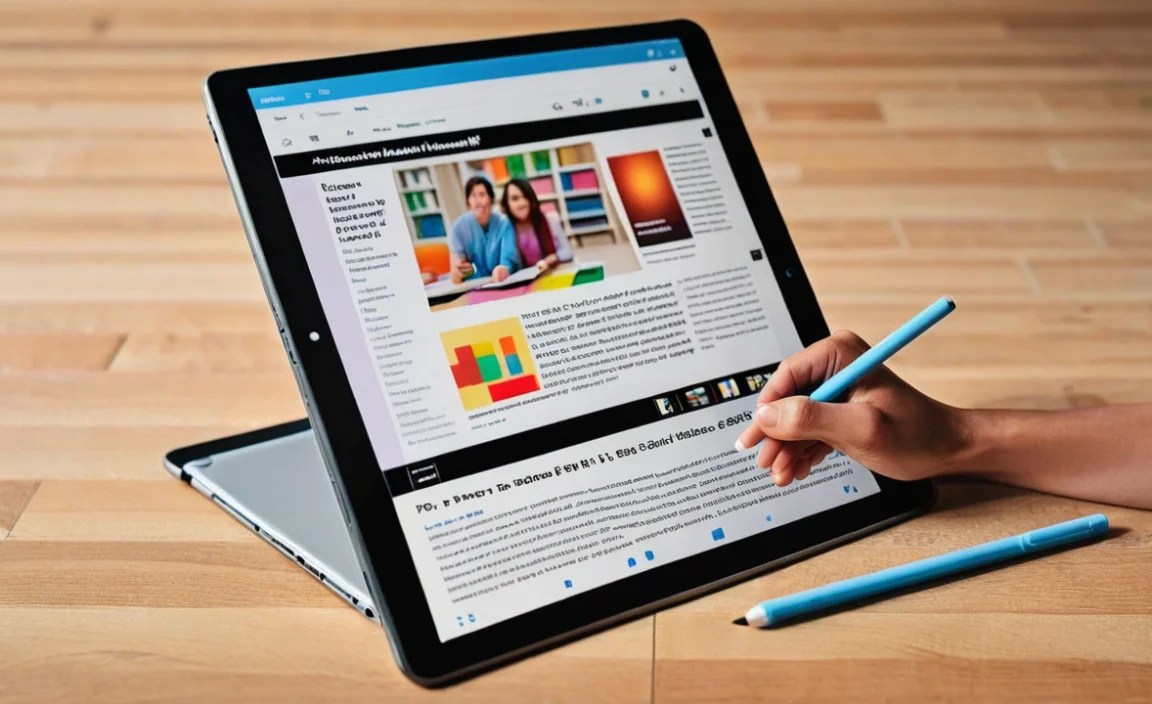
After sifting through countless user reviews, forum discussions, and educator testimonials, a few standout tablets consistently receive high praise for their suitability in educational settings. These aren’t just the flashiest; they’re the most practical and reliable workhorses for teachers.
1. Apple iPad (Standard Model)
The standard iPad remains a perennial favorite among educators, and for good reason. It strikes an excellent balance between affordability, performance, and access to Apple’s vast App Store, which is brimming with high-quality educational applications.
What Teachers Love:
- User-Friendly Interface: iPadOS is incredibly intuitive, making it easy for teachers of all tech levels to jump in and use.
- Vast App Ecosystem: The App Store offers an unparalleled selection of educational apps, from interactive whiteboards (like Explain Everything) to productivity tools (like GoodNotes for digital note-taking) and creative applications.
- Reliability: Apple devices are known for their stability and longevity, meaning an iPad can be a solid investment that lasts for several school years.
- Apple Pencil (1st Gen) Support: While not included, the Apple Pencil (1st Gen) offers a natural writing and drawing experience, perfect for annotating PDFs, grading papers digitally, or sketching diagrams on the fly. Accessing resources on digital note-taking can be found on sites like CNET.
- Good Battery Life: Most users report getting a full day of moderate use out of a single charge.
Potential Downsides Teachers Mention:
- Cost of Accessories: The Apple Pencil and a sturdy case can add significant cost.
- Storage Limitations: Base models might require careful management of digital files.
User Review Snippet: “I’ve been using my standard iPad for years as my primary teaching tool. It handles all my lesson plans, student assignments, and virtual meetings. The App Store is a goldmine for education, and the battery is reliable enough for a whole school day.” – Sarah K., High School Teacher
2. Apple iPad Air
For teachers who need a bit more power and a sleeker design than the standard iPad, the iPad Air is a fantastic upgrade. It often incorporates newer processors, a slightly larger and more vibrant display, and support for the newer Apple Pencil (2nd Gen).
What Teachers Love:
- Performance Boost: Faster processors mean smoother multitasking, quicker app loading, and a more fluid experience, especially with demanding apps.
- Beautiful Display: The laminated display offers better color accuracy and reduced glare, making it great for presentations and reading digital texts.
- Apple Pencil (2nd Gen) Compatibility: This pencil magnetically attaches and charges on the side of the iPad Air, which is a huge convenience, and offers a more responsive drawing experience.
- Lightweight & Stylish: It’s a comfortable device to hold for extended periods and looks professional.
Potential Downsides Teachers Mention:
- Higher Price Point: It’s a step up in cost from the standard iPad.
- Still Requires Accessories: Like its sibling, the Pencil and a case are separate purchases.
User Review Snippet: “The iPad Air is the sweet spot for me. It’s powerful enough for all my teaching needs, from showing engaging videos to annotating digital textbooks. The convenience of the Apple Pencil 2nd Gen is a game-changer for quick notes during class.” – Mark T., Middle School Teacher
3. Microsoft Surface Go 3
The Surface Go 3 bridges the gap between a tablet and a laptop, running a full version of Windows. This makes it incredibly versatile, especially for teachers who need to run specific Windows-based educational software or prefer the familiarity of a desktop operating system.
What Teachers Love:
- Full Windows Experience: Run any Windows application your school uses without compatibility issues. This is a huge advantage for teachers in specialized fields or those using legacy software.
- Built-in Kickstand: Extremely useful for hands-free viewing during lessons or while students are working independently.
- Optional Keyboard Cover: Transforms the Surface Go 3 into a functional laptop, perfect for extensive typing and productivity.
- Compact and Portable: Its small footprint makes it easy to carry around campus.
Potential Downsides Teachers Mention:
- Performance for Demanding Tasks: While adequate for most teaching tasks, it may lag with very resource-intensive applications compared to higher-end devices.
- Color Accuracy: Some users note that the display isn’t as vibrant as some iPad models.
- Stylus Sold Separately: Like many tablets, the Surface Pen is an additional purchase.
User Review Snippet: “As a science teacher, I rely on specific Windows software for simulations. The Surface Go 3 runs it all perfectly and is so much lighter than my old laptop. The kickstand and optional keyboard make it incredibly versatile.” – Emily R., High School Science Teacher
4. Samsung Galaxy Tab S Series (e.g., Tab S8/S9)
Samsung’s Galaxy Tab S series offers a premium Android experience, often rivaling the iPad Pro in terms of hardware and features. They are known for their stunning AMOLED displays and the inclusion of the S Pen stylus.
What Teachers Love:
- Brilliant AMOLED Displays: These screens are incredibly sharp, bright, and have fantastic color reproduction, making visuals pop during lessons.
- Included S Pen: The S Pen is usually bundled with these devices, offering a great stylus experience for note-taking, drawing, and precision tasks right out of the box. Explore S Pen tips here: Samsung Support.
- DeX Mode: Samsung’s DeX software allows the tablet to mimic a desktop computer interface when connected to an external monitor or keyboard, boosting productivity.
- Open Android Ecosystem: Access to the Google Play Store provides a vast array of apps, including robust educational options.
Potential Downsides Teachers Mention:
- Price: These are premium devices and can be quite expensive, especially the higher storage variants.
- App Optimization: While most Android apps are good, some tablet-optimized versions might not be as polished as their iOS counterparts.
User Review Snippet: “The S Pen is so responsive, it feels like writing on paper. I use my Galaxy Tab S for lesson planning, grading, and even displaying interactive activities. The screen is gorgeous, and DeX mode is surprisingly useful for writing full reports.” – David L., University Lecturer
5. Amazon Fire HD Tablets (e.g., Fire HD 10)
For budget-conscious teachers or those in environments where cost is a major factor, Amazon’s Fire HD tablets offer incredible value. They are excellent for basic tasks, media consumption, and accessing Amazon’s ecosystem.
What Teachers Love:
- Exceptional Affordability: These are some of the most budget-friendly tablets on the market, making them accessible for personal purchase or school-wide initiatives.
- Durable Build: Generally considered robust enough for everyday use, especially the Kids Edition which comes with a protective case.
- Good for Media & Reading: Great for displaying educational videos, reading e-books, and accessing Kindle content.
- Decent Battery Life: Typically offers a full day of moderate usage.
Potential Downsides Teachers Mention:
- Amazon Appstore: While it has many apps, it’s not as extensive as the Google Play Store or Apple App Store. You can sideload Google Play, but it’s an extra step.
- Performance Limitations: They are not designed for demanding multitasking or heavy-duty creative work.
- Ads: The standard versions come with “special offers” (ads) on the lock screen. You can pay to remove them.
User Review Snippet: “I bought the Fire HD 10 for taking attendance and displaying simple instructions. For the price, it’s fantastic. It’s easy to use, and the battery lasts. It’s not for heavy work, but for basic classroom needs, it’s a winner.” – Maria G., Elementary School Teacher
Comparing Top Tablets for Teachers
To help you visualize the differences, here’s a quick comparison of some of the key features teachers often look for:
| Feature | Apple iPad (Standard) | Apple iPad Air | Microsoft Surface Go 3 | Samsung Galaxy Tab S8/S9 | Amazon Fire HD 10 |
|---|---|---|---|---|---|
| Operating System | iPadOS | iPadOS | Windows 11 Home | Android | Fire OS (Based on Android) |
| Stylus Support | Apple Pencil (1st Gen) – Sold Separately | Apple Pencil (2nd Gen) – Sold Separately | Surface Pen – Sold Separately | S Pen – Included | No Official Stylus Support (Basic touch input) |
| App Store | Apple App Store | Apple App Store | Microsoft Store / Windows Apps | Google Play Store | Amazon Appstore (Can sideload Google Play) |
| Key Strengths for Teachers | User-friendly, vast app choice, reliable | Performance, better display, Apple Pencil 2 support | Full Windows OS, versatility, kickstand | Stunning display, included S Pen, DeX mode | Affordability, durability, basic functions |
| Typical Price Range (USD) | $300 – $500 | $600 – $800+ | $400 – $600+ (depending on configuration) | $700 – $1000+ | $100 – $200 |
Beyond the Hardware: Essential Features and Considerations

When selecting a tablet, think beyond just the brand or model. Consider these practical aspects:
1. Software and Apps
This is arguably the most critical factor for teachers. Ensure the tablet’s operating system supports the educational apps you rely on or plan to use. For example:
- Productivity: Microsoft 365 apps (Word, Excel, PowerPoint), Google Workspace apps (Docs, Sheets, Slides), note-taking apps like GoodNotes, Notability, OneNote.
- Interactive Whiteboard: Applications like Explain Everything, Nearpod, or SMART Notebook provide dynamic presentation tools.
- Grading & Assessment: Apps like Google Classroom, Canvas, or specialized grading tools.
- Subject-Specific Apps: From science simulations to language learning tools, the possibilities are vast. Researching educational apps for your specific needs is highly recommended. For a general overview of digital tools in education, resources from organizations like the International Society for Technology in Education (ISTE) can be invaluable.
2. Storage Space
Teachers often manage a lot of digital files: lesson plans, student work, presentations, PDFs, and media. Aim for at least 64GB of storage, though 128GB or more is preferable if your budget allows and you plan to store a lot locally. Cloud storage services like Google Drive, OneDrive, or iCloud can supplement on-device storage.
3. Accessories Matter
Don’t forget to factor in the cost of essential accessories:
- Protective Case: Absolutely vital for classroom durability. Look for rugged cases with good grip and perhaps a built-in stand.
- Screen Protector: Guards against scratches.
- Stylus/Pen: If not included, this is crucial for note-taking and annotation.
- Keyboard: If you do a lot of typing, a detachable keyboard can transform your tablet into a mini-laptop.
4. Connectivity Options
Ensure the tablet has reliable Wi-Fi. If you frequently work in areas with spotty Wi-Fi, consider a model with cellular connectivity (though this adds significant cost).
Tips from the Classroom: Making Your Tablet Work for You
Teachers who love their tablets often develop clever ways to integrate them fully into their workflow. Here are some tried-and-true strategies:
- Go Paperless (Where Possible): Use your tablet for handouts, assignments, and grading by converting traditional paper tasks into digital formats. PDF annotation tools are your best friend here.
- Interactive Lessons: Utilize presentation apps and interactive platforms to engage students with dynamic content instead of static worksheets.
- Organize Everything: Dedicate specific apps for lesson planning, student records, communication, and professional development resources.
- Curate Resources: Bookmark useful websites, save inspiring articles, and create digital libraries of teaching materials accessible anytime.
- Accessibility Tools: Explore the built-in accessibility features of your tablet’s operating system. They can be invaluable for students with diverse learning needs.
Frequently Asked Questions (FAQ)
Q1: Which is better for a teacher, an iPad or an Android tablet?
It often depends on your personal preference and school ecosystem. iPads are celebrated for their intuitive interface and the sheer volume of high-quality educational apps. Android tablets, like Samsung’s Galaxy Tab series, offer more customization and often include a stylus, with strong productivity features like DeX. If your school heavily uses Google Workspace or Microsoft 365, both platforms can integrate well, but consider specific app availability.
Q2: Do teachers really need a stylus?
While not strictly essential for every teacher, a stylus significantly enhances a tablet’s utility for educational purposes. It makes writing notes, annotating documents, marking up student work, and drawing diagrams a much more natural and efficient process.

Your tech guru in Sand City, CA, bringing you the latest insights and tips exclusively on mobile tablets. Dive into the world of sleek devices and stay ahead in the tablet game with my expert guidance. Your go-to source for all things tablet-related – let’s elevate your tech experience!