Cheap tablets for point of sale are a budget-friendly way for small businesses to accept payments and manage sales. Look for reliable brands with good battery life, sufficient storage, and compatibility with your chosen POS software. Focus on affordability without sacrificing essential features.
Running a business, no matter how small, means keeping track of sales and customers. For many entrepreneurs, a point-of-sale (POS) system is key. But often, the technology that powers these systems can seem expensive. If your budget is tight, you might be wondering if there’s a more affordable way to get your business set up. Great news! You absolutely can. This guide is here to help you navigate the world of budget-friendly tablets, showing you how to pick the perfect one for your business needs without breaking the bank.
Cheap Tablets for Point of Sale: Essential Guide for Beginners
As a small business owner, every penny counts, right? When it comes to setting up your sales system, you might think you need the fanciest, most expensive gadget. But that’s not always true! Many businesses, from bustling cafes to pop-up shops, are finding success with affordable tablets running their point-of-sale (POS) software. These devices are powerful enough to handle transactions, manage inventory, and keep your customers happy, all while being kind to your wallet. This guide is designed to make choosing a cheap tablet for your POS system as simple as possible, even if you’re not a tech whiz. We’ll break down what to look for, what to avoid, and give you some great options to consider.
Why Tablets Are Perfect for Your POS System

Tablets have revolutionized how businesses operate, especially those with a mobile or flexible sales approach. They offer a perfect blend of portability, usability, and affordability, making them ideal for a POS system. Think about it: instead of a bulky cash register, you have a sleek device that can go anywhere your business does. Whether you’re at a farmer’s market, a trade show, or just behind the counter, a tablet is easy to manage and present to your customers.
1. Portability and Flexibility
The biggest win for tablets is their portability. You can easily move your entire POS system from one location to another. This is fantastic for businesses that don’t have a fixed storefront, like food trucks, service providers who visit clients, or market vendors. Even if you have a brick-and-mortar store, a tablet can be moved around to assist with customer service on the floor rather than being stuck behind a counter.
2. User-Friendly Interface
Most modern tablets come with intuitive touchscreens and operating systems that are easy to learn. This means less training time for you and your staff, and a smoother customer checkout experience. You don’t need to be a tech expert to navigate through sales, process payments, or check inventory. The familiar nature of tablets makes them accessible to almost anyone.
3. Cost-Effectiveness
This is where the “cheap tablets” aspect really shines. Compared to traditional POS hardware or high-end laptops, budget-friendly tablets offer incredible value. You can often find reliable tablets for a few hundred dollars or even less, which is a significantly lower upfront investment for any business owner.
4. Integration Capabilities
Modern POS software is designed to work seamlessly with tablets. This means you can connect barcode scanners, receipt printers, and card readers with relative ease. Your tablet becomes the central hub, interacting with all the necessary tools to run your sales operations efficiently.
What to Look For in a Cheap Tablet for POS

When you’re hunting for a bargain, it’s easy to get swayed by the lowest price. But for a business tool like a POS system, you need to ensure the tablet can actually do the job reliably. Here’s what to prioritize:
1. Operating System Compatibility
This is arguably the MOST important factor. Your chosen POS software will have specific operating system requirements.:
- Android: Widely popular for POS systems due to its open nature and availability of affordable devices. Many POS apps are built for Android.
- iOS (iPadOS): Apple iPads are very common for POS, offering a polished experience. However, even older or refurbished iPads tend to be pricier than their Android counterparts.
- Windows: Less common for budget tablets. If your POS software is Windows-based, you’ll likely need a more robust (and possibly more expensive) device.
Recommendation: Most beginner-friendly and affordable POS systems are designed to run on Android or iOS. Check the requirements of your preferred POS software FIRST before you even start looking at tablets.
2. Screen Size and Durability
You’ll be interacting with this screen constantly. A screen that’s too small can be frustrating, while one that’s too large might be cumbersome. Common POS tablet screen sizes range from 7 inches to 10 inches.
- 7-8 inches: Very portable, but can feel cramped for complex menus or detailed inventory management.
- 9-11 inches: A good sweet spot for usability and portability, offering enough space to see everything clearly.
Durability is also key, especially if your tablet will be handled a lot or used in a busy environment. Look for tablets with sturdy construction. Consider an inexpensive rugged case to protect it from drops and spills – this is a small investment that can save you from costly repairs.
3. Processing Power and RAM
You don’t need a super-powered gaming tablet, but you do need enough juice to run your POS app smoothly without lagging.
- Processor: A quad-core processor is usually sufficient for basic POS tasks.
- RAM: Aim for at least 2GB of RAM. 3GB or 4GB will provide a smoother experience, especially if you plan to run multiple apps or a more feature-rich POS system.
A tablet that’s constantly slow will frustrate you and your customers, leading to lost sales. It’s worth spending a little extra for decent performance.
4. Storage Space
POS systems generally don’t require massive amounts of storage unless you plan to store a lot of high-resolution product images or extensive customer data directly on the device.
- Internal Storage: 16GB is often the minimum, but 32GB is becoming the standard and is recommended for a smoother experience.
-
Expandable Storage: Check if the tablet has a microSD card slot. This is a budget-friendly way to add more storage down the line if needed.
5. Battery Life
This is crucial for any business that operates away from a power outlet or during long shifts. You don’t want your POS system dying in the middle of a sale.
- Look for: Tablets advertised with 8+ hours of battery life under normal usage.
- Consider: Having a portable power bank handy as a backup, regardless of the tablet’s battery life.
6. Connectivity Options
Your tablet will need to connect to the internet and potentially other peripherals.
- Wi-Fi: Essential for most cloud-based POS systems. Ensure it has a reliable Wi-Fi connection.
- Bluetooth: Necessary for connecting wireless peripherals like receipt printers or card readers.
- Cellular (LTE/4G): If you need internet access everywhere and don’t always have Wi-Fi, a cellular model is an option, but these are typically more expensive and require a data plan. Most businesses can get by with Wi-Fi and a mobile hotspot from a smartphone.
Recommended Budget Tablets for POS: Brands and Models

While specific deals change rapidly, here are some reliable brands and types of tablets that frequently offer excellent value for POS systems. Always check the latest reviews and specifications before purchasing.
1. Amazon Fire Tablets
Amazon’s Fire tablets are incredibly affordable, making them a very attractive option for budget-conscious businesses. They run on a customized version of Android called Fire OS.
- Pros: Extremely low price point, decent performance for basic tasks, compact size.
- Cons: Fire OS is heavily integrated with Amazon services and doesn’t have full access to the Google Play Store by default. You may need to sideload apps or find POS solutions compatible with Fire OS. Battery life is generally good.
- Best For: Businesses using POS software that is specifically compatible with Fire OS or those willing to do a bit of extra setup.
2. Samsung Galaxy Tab A Series
Samsung offers a range of affordable Android tablets in its Galaxy Tab A lineup. These provide a more standard Android experience with full access to the Google Play Store.
- Pros: Full Google Play Store access, reliable performance, good build quality for the price, variety of screen sizes.
- Cons: Performance might be slightly slower than premium models when running heavy applications.
- Best For: Businesses wanting a reliable Android tablet with access to all popular POS apps from the Google Play Store.
3. Lenovo Tablets
Lenovo offers a variety of budget-friendly Android tablets that often pack a good punch for their price. They are known for decent build quality and reliable performance.
- Pros: Good value for money, often have decent displays, full Google Play Store access.
- Cons: Specific models can vary greatly in performance and features, so it’s essential to check specs.
- Best For: Businesses looking for a solid Android tablet with a good balance of features and price.
4. Older Generation iPads (Refurbished or Used)
While new iPads can be expensive, buying a refurbished or gently used older generation iPad can be a surprisingly affordable way to get a high-quality, reliable tablet for your POS system.
- Pros: Excellent build quality, very user-friendly interface (iOS/iPadOS), strong app ecosystem, generally reliable performance even on older models for POS tasks.
- Cons: You need to be careful about the iOS version compatibility with your POS app. Battery health can be a concern with used devices.
- Best For: Businesses that prefer the Apple ecosystem or whose POS software is optimized for iOS and are comfortable buying refurbished.
Where to Buy Refurbished iPads:
- Apple’s official Refurbished Store: Apple Certified Refurbished iPads
- Reputable third-party retailers like Amazon Renewed, Best Buy, etc.
5. Entry-Level Android Tablets from Other Brands
Brands like Acer, TCL, and others also offer very affordable Android tablets. These can be good options if your POS software has no strict requirements and you need the absolute lowest price.
- Pros: Lowest price points available.
- Cons: Performance, build quality, and long-term software support can be inconsistent. May have limited access or slower experiences with demanding apps.
- Best For: Businesses with the most constrained budgets where POS needs are very basic.
Table: Comparing Popular Budget Tablet Options for POS

This table provides a general overview. Prices are estimates and can change. Always check current pricing and specific model features.
| Feature | Amazon Fire HD (e.g., 8 or 10) | Samsung Galaxy Tab A Series | Lenovo Tab M Series | Refurbished iPad (e.g., 7th/8th Gen) |
|---|---|---|---|---|
| Typical Price Range (New) | $50 – $150 | $100 – $250 | $80 – $200 | $150 – $300 (Refurbished) |
| Operating System | Fire OS (Android-based) | Android | Android | iPadOS (iOS) |
| App Store Access | Amazon Appstore (limited Google Play) | Google Play Store | Google Play Store | Apple App Store |
| Screen Size Options | 7″ – 10″ | 8″ – 11″ | 8″ – 11″ | 10.2″ – 10.5″ |
| RAM | 2GB – 4GB | 2GB – 4GB | 2GB – 4GB | 2GB – 3GB |
| Storage | 32GB (expandable) | 32GB – 128GB (expandable) | 32GB – 128GB (expandable) | 32GB – 128GB |
| Battery Life | Good (up to 12 hrs) | Good (up to 10 hrs) | Good (up to 10 hrs) | Good, but check battery health on used devices |
| POS Software Compatibility | Requires Fire OS compatible apps | Excellent (most Android POS apps) | Excellent (most Android POS apps) | Excellent (most iOS POS apps) |
Choosing Your Point of Sale Software

The tablet is just one half of the equation. Your POS software is the other, equally important, half. Make sure you choose software that:
- Is compatible with your chosen tablet’s operating system (Android, iOS).
- Meets your business needs (inventory management, customer loyalty, e-commerce integration, etc.).
- Fits your budget (many offer free tiers for basic use, with paid upgrades for more features).
- Offers good customer support.
Some popular POS software options that work well on tablets include:
- Square POS: Very popular, user-friendly, good for small businesses.
- Shopify POS: Excellent for businesses that also sell online.
- Lightspeed POS: More robust features for inventory-heavy businesses.
- Zoho Inventory/POS: Part of a larger suite of business tools.
Always try out free trials if available before committing to a paid plan.
Setting Up Your Tablet for POS
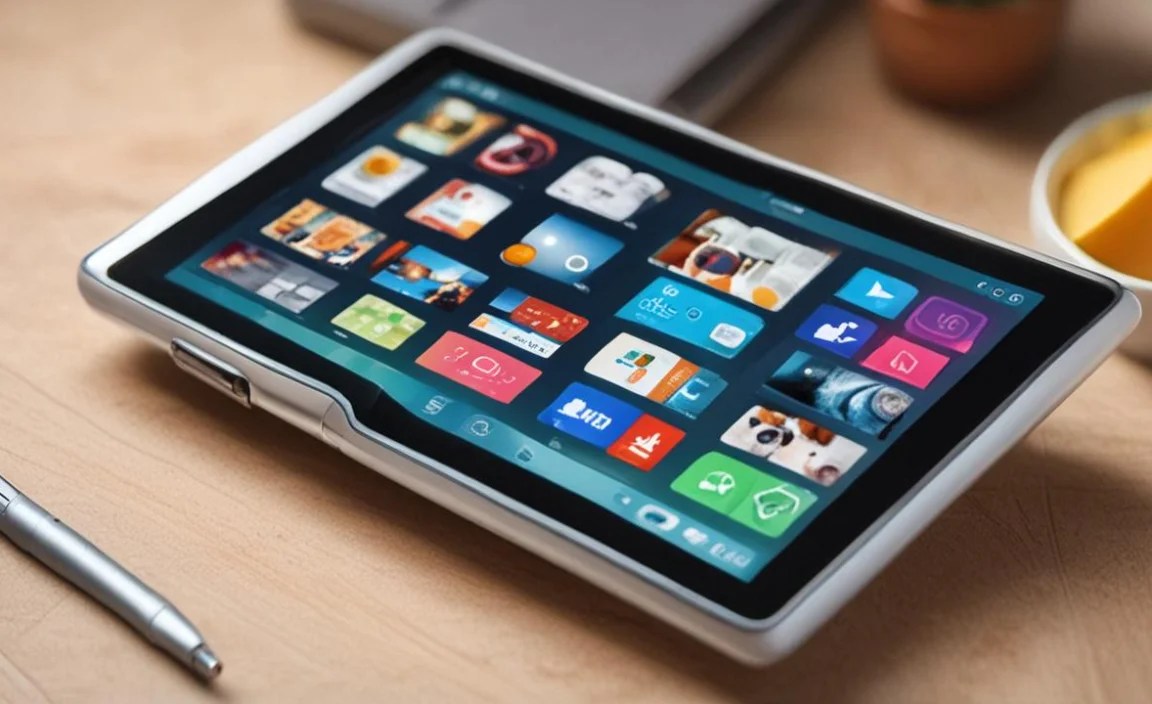
Once you have your tablet and POS software, setting things up is usually straightforward. Here’s a general checklist:
- Charge your tablet: Ensure it’s fully charged before you start.
- Connect to Wi-Fi: Stable internet is crucial for most cloud-based POS systems.
- Download your POS app: Get it from the respective app store (Google Play or Apple App Store).
- Log in or create an account: Follow the software’s instructions to set up your business profile.
- Configure settings: Input your business information, tax rates, payment methods, and any initial inventory.
- Connect peripherals: Pair any Bluetooth receipt printers, barcode scanners, or card readers. Follow the instructions for both the device and your POS app.
- Test transactions: Run a few test sales to ensure everything is working before your first real customer.
- Secure your tablet: If it’s in a public area, consider a tablet stand with a security lock.
Tips for Maximizing Your Budget Tablet’s Lifespan
To get the most out of your affordable POS tablet, treat it well:
- Invest in a good case: A rugged case can save you from accidental drops and spills, significantly extending its life.
- Keep it clean: Wipe the screen and body regularly with a soft, dry cloth. Avoid harsh chemicals.
- Manage battery health: Avoid leaving it constantly plugged in if possible, as this can degrade battery over time.
- Don’t overload it: Stick to running your POS app and maybe one or two other essential apps. Too many background processes can slow it down and drain the battery faster.
- Regular updates: Keep your tablet’s operating system and your POS app updated. Updates often include performance improvements and security patches.
When to Consider a Slightly More Expensive Tablet
While this guide focuses on cheap tablets, there are times when spending a little more can be a wise investment:
- Very busy environments: If you expect heavy daily use, a more robust processor and RAM can prevent frustrating slowdowns.
- Complex inventory: Managing thousands of SKUs or detailed product variations might require a snappier device.
- Long-term business plan: If you see your business growing rapidly, you might want a tablet that can scale with you for the next

Your tech guru in Sand City, CA, bringing you the latest insights and tips exclusively on mobile tablets. Dive into the world of sleek devices and stay ahead in the tablet game with my expert guidance. Your go-to source for all things tablet-related – let’s elevate your tech experience!