Getting the right tablet for college can make studying so much easier. We’ll guide you through the essential buying tips for the most popular options, covering everything from screen size to battery life, so you can find your perfect campus companion.
Heading off to college is exciting, but it also means a lot of new decisions. One of the biggest? Choosing the right tech to keep up with your studies. A tablet can be a game-changer, helping you take notes, read textbooks, join online classes, and even relax with some entertainment. But with so many options out there, how do you pick the one that’s perfect for you? It can feel overwhelming, right? Don’t worry! We’re here to break it all down, step by step. You’ll be a tablet-picking pro in no time, ready to conquer your coursework and campus life.
Finding Your Perfect College Tablet: A Step-by-Step Guide

Choosing a tablet for college involves looking at a few key things that will make your academic life smoother. Think of it as choosing a study buddy that fits in your backpack and can do a whole lot more! We’ll walk you through the essential features to consider, from how big the screen should be to how long it can last on a single charge. We’ll also touch upon different operating systems and what accessories might be worth your while. Let’s dive in and make sure you get a tablet that’s a real asset to your college journey.
1. Determine Your Budget: How Much Can You Spend?
Before you even start looking at shiny new tablets, it’s crucial to set a budget. Tablets can range from under $100 to well over $1000. Knowing your spending limit will instantly narrow down your options and prevent you from falling in love with a device that’s out of reach. College expenses add up quickly, so being smart about your tech budget is key. Think about what you can realistically afford, and then stick to it!
Budget-Friendly Options (Under $300)
For students on a tight budget, there are some excellent tablets that won’t break the bank. These are often great for basic tasks like note-taking, reading PDFs, and browsing the web.
- Amazon Fire Tablets: These are known for their affordability and are great for media consumption and simple productivity.
- Basic Android Tablets: Brands like Samsung and Lenovo offer entry-level Android tablets that are functional for everyday student needs.
Mid-Range Powerhouses ($300 – $600)
This range offers a better balance of performance, features, and build quality. You’ll find tablets here that can handle more demanding apps, better multitasking, and often come with nicer displays.
- Samsung Galaxy Tab A and S series (lower end): Offers a good Android experience with solid performance.
- Apple iPad (base model): The standard iPad is often a great value in this price bracket, providing access to the robust iPadOS ecosystem.
Premium and High-Performance Tablets ($600+)
These tablets are for students who need serious power for demanding tasks, or who want the best possible experience. This is where you’ll find top-tier performance, exceptional screens, and often stylus and keyboard support.
- Apple iPad Air and iPad Pro: Offer incredible performance, stunning displays, and seamless integration with Apple’s ecosystem.
- Samsung Galaxy Tab S series (higher end): These premium Android tablets compete directly with iPads, offering powerful performance and beautiful screens.
- Microsoft Surface Go: A great option for those who need a full Windows experience in a tablet form factor, bridging the gap between tablet and laptop.
2. Choose Your Operating System: iOS, Android, or Windows?
The operating system (OS) is the software that runs your tablet. Each has its own strengths and weaknesses, and the best choice often depends on what other devices you use and what kind of apps you need.
a) iOS (Apple iPadOS)
Pros:
- Extremely user-friendly interface.
- Vast library of high-quality apps optimized for tablets.
- Seamless integration with other Apple devices (iPhone, Macbooks).
- Excellent performance and long-term software support.
- Strong resale value.
Cons:
- Can be more expensive than Android alternatives.
- Less customization compared to Android.
- File management can be a bit more restrictive.
Best for: Students already in the Apple ecosystem, those who prioritize ease of use and app quality, and users who want a reliable, high-performance device.
b) Android (Google)
Pros:
- Wide range of devices and price points.
- Highly customizable interface.
- Open-source nature allows for more flexibility.
- Excellent integration with Google services.
- Better file management options.
Cons:
- App optimization for tablets can be hit-or-miss for some apps (though it’s improving).
- Software updates can be slower and less consistent depending on the manufacturer.
- Overall performance can vary more widely due to the diverse hardware.
Best for: Students who want more choice in hardware and price, those who are invested in Google services, and users who enjoy customizing their devices.
c) Windows (Microsoft Surface)
Pros:
- Runs a full desktop operating system, allowing you to use Windows software.
- Excellent for productivity and multitasking, especially with keyboard and mouse.
- Good for students who need to run specific Windows-compatible software for their courses.
- Seamless integration with Microsoft services.
Cons:
- Tablet apps are not as plentiful or as optimized as on iOS or Android.
- Can be more expensive, especially when you add accessories like a keyboard.
- Battery life can sometimes be less impressive than dedicated tablets.
- Can feel more like a laptop than a traditional tablet.
Best for: Students who need to run specific Windows software, those who want a device that can truly replace their laptop for certain tasks, and users who are already comfortable with the Windows environment.
3. Screen Size and Resolution: Clarity for Your Courses
The screen is how you’ll interact with your tablet daily. For college, you need something that’s comfortable for reading, note-taking, and watching lectures, but also portable enough to carry around campus.
Screen Size Considerations
- 7-8 inches: Very portable, great for reading and quick notes on the go. Can feel a bit cramped for extensive typing or drawing.
- 9-11 inches: This is the sweet spot for many students. Large enough for comfortable reading and note-taking, but still manageable to carry. It’s ideal for split-screen multitasking.
- 12 inches and above: These are excellent for replacing a laptop for many tasks, offering a spacious canvas for drawing and writing. However, they can be heavier and more cumbersome to carry.
Display Quality (Resolution)
A higher resolution means a sharper, clearer image. For college, you’ll want a screen that’s easy on the eyes for long study sessions. Look for resolutions of at least 1920 x 1080 (Full HD). Higher resolutions (like Apple’s Retina display or Samsung’s AMOLED displays) offer even more detail and vibrant colors, making textbooks and digital notes pop.
According to Dictionary.com, “Resolution refers to the number of pixels that make up the image on a screen; the higher the resolution, the clearer and sharper the image will be.” For a tablet, this translates to a more pleasant and effective study experience, especially when dealing with detailed diagrams or dense text.
4. Performance and Storage: Keeping Up with Your Demands
Your tablet needs to be zippy enough to run your essential apps smoothly and have enough space to store your notes, assignments, textbooks, and maybe even some entertainment.
Processor and RAM
A faster processor (CPU) and more RAM (Random Access Memory) mean your tablet can handle more tasks at once without slowing down. For college use:
- Basic use (web browsing, email, note-taking): A modest processor and 2-4GB of RAM are usually sufficient.
- Moderate use (multitasking, light media editing, some gaming): Look for 4-6GB of RAM and a more capable processor.
- Heavy use (demanding apps, extensive multitasking, video editing): Aim for 6GB of RAM or more and a high-end processor found in premium models.
Storage Space
This is where you’ll store everything. Consider how much digital content you’ll be dealing with:
- 64GB: Might be enough if you primarily use cloud storage and stream content.
- 128GB: A good starting point for most students, offering space for apps, documents, and a few media files.
- 256GB or more: Recommended if you plan to download many large textbooks, store videos, or edit media files directly on the tablet.
Tip: Many Android tablets offer expandable storage via a microSD card, which can be a more affordable way to increase space. iPads do not have expandable storage, so you must choose your internal storage wisely.
5. Battery Life: Power Through Your Day
You don’t want your tablet dying halfway through a crucial lecture or study session. Long battery life is essential for a device you’ll be using on the go.
Most modern tablets aim for around 8-10 hours of continuous use. When checking reviews, look for real-world battery test results, not just manufacturer claims. Features like screen brightness, active app usage, and Wi-Fi connectivity can significantly impact how long your battery lasts.
Look for: Tablets that consistently deliver 10+ hours of screen-on time in independent reviews. This should comfortably get you through a full day of classes and study without needing to find an outlet.
6. Connectivity: Wi-Fi, Cellular, and Ports
How your tablet connects to the internet and other devices is important for its usability.
Wi-Fi vs. Cellular (LTE/5G)
- Wi-Fi Only: The most common and affordable option. You’ll need access to Wi-Fi hotspots (on campus, at home, in cafes) to get online.
- Wi-Fi + Cellular (LTE/5G): These models have a SIM card slot and allow you to connect to the internet anywhere you have a cellular signal. This is more expensive upfront and requires an ongoing data plan.
Recommendation: For most students, a Wi-Fi-only model is sufficient and saves money. If you anticipate needing internet access in areas without Wi-Fi frequently, or if your campus Wi-Fi is unreliable, consider a cellular model.
Ports and Accessories
Most modern tablets rely on USB-C for charging and data transfer. However, you might also want to consider:
- Headphone Jack: Increasingly rare on tablets, but useful if you don’t want to rely solely on Bluetooth headphones.
- MicroSD Card Slot: Found on many Android tablets for expandable storage.
- Stylus Support: Many tablets work with active styluses (like the Apple Pencil or Samsung S Pen) for precise note-taking and drawing. This is a major plus for many students!
- Keyboard Compatibility: If you plan to do a lot of typing, look for tablets that offer official or well-supported third-party keyboards to turn your tablet into a more laptop-like device.
The Federal Communications Commission (FCC) notes that USB-C is becoming the universal standard for charging and data transfer, offering faster speeds and reversible connectors, which is a handy feature for busy students.
7. Important Features for Students
Beyond the basic specs, think about how you’ll use your tablet for academic purposes.
Note-Taking Capabilities
This is a huge reason many students opt for tablets. Consider:
- Stylus Support: Is there an app that works well with a stylus? Is the stylus included or an extra purchase?
- Handwriting Recognition: Can the tablet convert your handwritten notes into typed text?
- Note-Taking Apps: Look at apps like OneNote, Evernote, GoodNotes (iPadOS), or Samsung Notes.
Durability and Build Quality
Your tablet will likely be tossed in a backpack and carried to lectures, libraries, and coffee shops. A sturdy build can prevent costly accidental damage. Some cases also offer enhanced drop protection.
Camera Quality
While not as critical as on a smartphone, a decent camera can be useful for scanning documents, snapping photos of whiteboards, or participating in video calls. Most tablets have adequate cameras for these purposes.
Speakers and Audio
If you plan to watch lectures, listen to podcasts, or enjoy entertainment on your tablet, good speakers can enhance the experience. For critical listening or quiet libraries, headphones are usually preferred.
Most Popular Tablet Models for College Students

Here’s a look at some of the most frequently recommended tablets by students, broken down by their strengths:
1. Apple iPad (Base Model)
The standard iPad remains a top choice for its incredible value. It offers a familiar, user-friendly interface, access to the vast App Store, and solid performance for a reasonable price.
- OS: iPadOS
- Screen Size: 10.2-inch
- Key Pros: Excellent app ecosystem, easy to use, good battery life, Apple Pencil support (1st Gen).
- Ideal For: Students who need a reliable all-rounder for note-taking, research, and media consumption.
2. Apple iPad Air
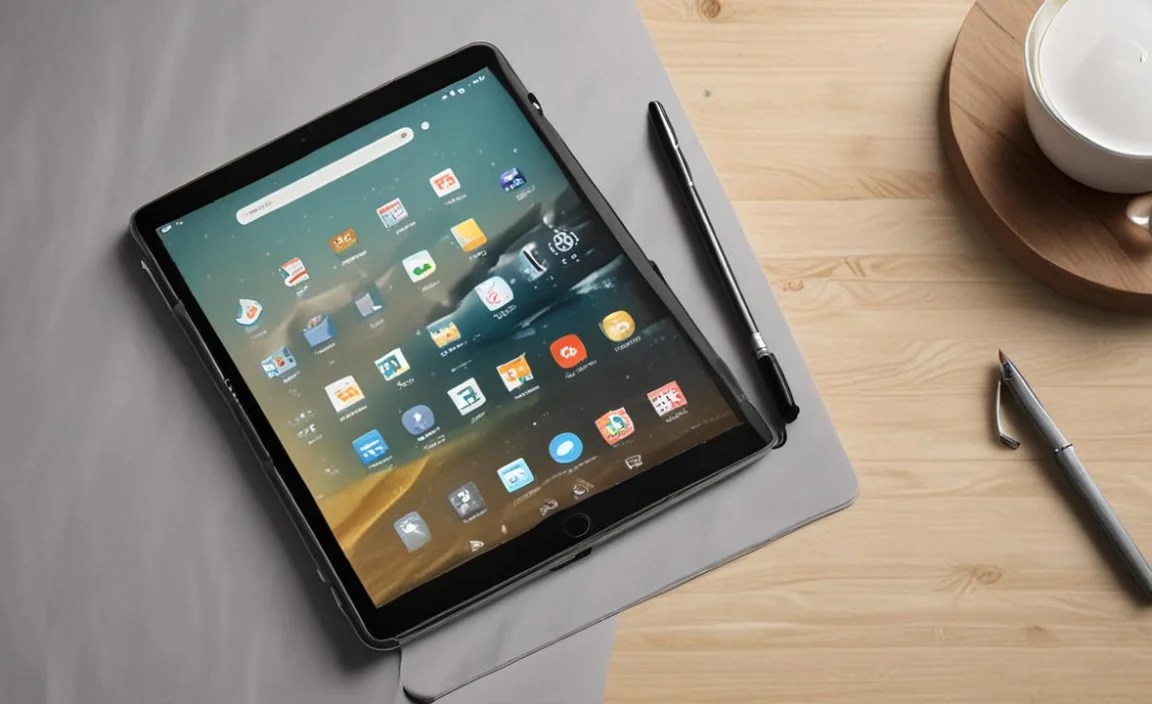
A step up from the base iPad, the iPad Air offers a more premium design, a better display, and significantly more power thanks to Apple’s M-series chips. It’s a fantastic option if your budget allows.
- OS: iPadOS
- Screen Size: 10.9-inch
- Key Pros: Powerful performance, beautiful Liquid Retina display, USB-C port, Apple Pencil (2nd Gen) and Magic Keyboard support.
- Ideal For: Students who want a more powerful device for creative tasks, heavier multitasking, or a more polished experience than the base iPad.
3. Apple iPad Pro
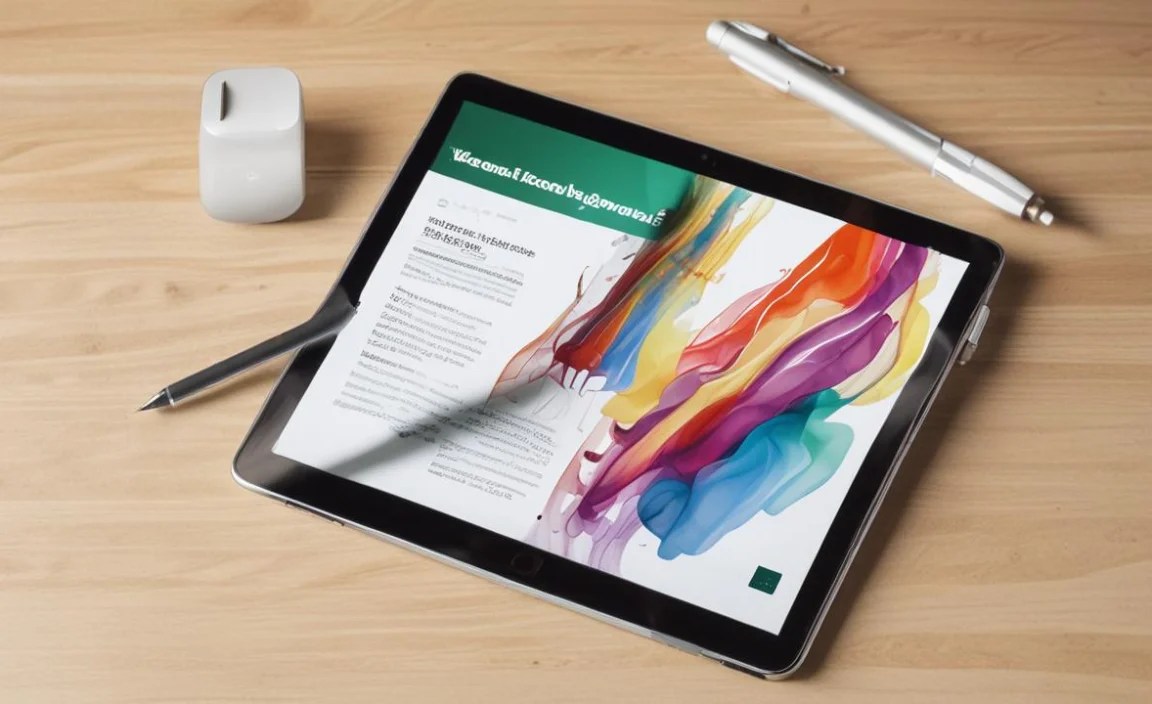
The king of tablets. The iPad Pro offers desktop-class performance, stunning ProMotion displays, and top-of-the-line features. It’s overkill for many, but if you need the absolute best for demanding creative work or extensive app usage, this is it.
- OS: iPadOS
- Screen Size: 11-inch and 12.9-inch
- Key Pros: Unmatched performance, incredible displays, advanced camera systems, Face ID, best stylus and keyboard support.
- Ideal For: Art and design students, those who need a true laptop replacement, or anyone who wants the most powerful tablet available.
4. Samsung Galaxy Tab S Series (e.g., Tab S9, Tab S9 FE)

Samsung’s flagship tablets are excellent Android alternatives to the iPad Pro and Air. They boast gorgeous AMOLED or LCD displays, powerful processors, and come with their S Pen stylus included, which is a huge advantage for note-takers.
- OS: Android
- Screen Size: Varies (e.g., 11-inch, 12.4-inch)
- Key Pros: Included S Pen, vibrant displays, DeX mode (desktop-like experience), expandable storage (on select models).
- Ideal For: Android users, students who want an all-in-one note-taking and media device, and those who value the included stylus.
5. Samsung Galaxy Tab A Series (e.g., Tab A9+)

For budget-conscious students, Samsung’s Tab A series offers a solid Android experience at an accessible price point. They are capable of handling everyday tasks and light multitasking.
- OS: Android
- Screen Size: Varies (e.g., 8.7-inch, 11-inch)
- Key Pros: Affordable, decent performance for basic tasks, good battery life.

Your tech guru in Sand City, CA, bringing you the latest insights and tips exclusively on mobile tablets. Dive into the world of sleek devices and stay ahead in the tablet game with my expert guidance. Your go-to source for all things tablet-related – let’s elevate your tech experience!