Durable tablets for point of sale are tough, reliable devices designed to withstand daily business use, ensuring smooth transactions and fewer interruptions. Choose models with rugged casing, long battery life, and good screen durability for a worry-free checkout experience.
Running a business means things can get hectic, especially at the point of sale (POS). You need technology that can keep up without skipping a beat. That’s where durable tablets come in! If you’ve ever worried about a dropped device or a smudged screen interrupting sales, you’re not alone. Finding the right tablet that’s built to last in a busy environment can feel overwhelming. But don’t worry, we’re here to simplify everything. This guide will walk you through everything you need to know about choosing durable tablets for your point of sale system, ensuring your business operations run smoothly and efficiently.
Why Durable Tablets are a Must-Have for Your Point of Sale

When you’re running a business, especially one with a physical storefront, your point of sale (POS) system is the heart of your operations. It’s where sales are made, payments are processed, and customer interactions happen. For many businesses, a tablet has become the go-to device for its flexibility, intuitive interface, and ability to be taken anywhere within the store. However, the reality of a busy retail or restaurant environment is that spills, drops, and constant use are almost unavoidable. This is precisely why investing in a durable tablet for point of sale isn’t just a good idea; it’s truly essential.
Think about it: a standard, consumer-grade tablet might be perfectly fine for casual browsing at home, but it’s just not built to withstand the rigors of a commercial setting. A single accidental drop could render it useless, leading to downtime, lost sales, and costly repairs or replacements. This is where the magic of durable tablets shines. These devices are engineered with specific features to handle the knocks and spills that are part of everyday business life. They offer peace of mind, knowing your POS system is built to last.
Choosing the right durable tablet means ensuring your business can process transactions reliably. It means less stress for your staff and a better experience for your customers. In the following sections, we’ll dive into what makes a tablet “durable,” the key features to look for, and how to make the best choice for your specific business needs. Let’s get your POS system ready for anything!
Understanding Durability: What Makes a Tablet “Rugged”?
When we talk about “durable tablets for point of sale,” we’re not just talking about a device that feels solid in your hand. True durability in this context means the tablet has been specifically engineered and tested to withstand certain environmental hazards and physical stresses. This often involves adhering to industry standards, making them far tougher than your average consumer device.
Here’s a breakdown of what typically contributes to a tablet’s durability:
Rugged Casing: This is the most visible feature. Durable tablets usually have a reinforced frame, often made of tough plastics, rubberized bumpers, or even metal alloys. These materials are designed to absorb shock from drops and resist scratches.
Drop Protection: Many durable tablets are tested against specific drop heights and surfaces. They often meet standards like MIL-STD-810G, which is a military standard for testing equipment robustness. This means they’re designed to survive being dropped onto concrete from a certain height.
Water and Dust Resistance: Look for IP (Ingress Protection) ratings. An IP rating tells you how well a device is protected against solids (like dust) and liquids (like water). For a POS environment, an IP54 rating or higher is generally recommended to protect against splashes and dust. For more extreme environments, IP65, IP67, or even IP68 ratings offer even greater protection.
Screen Protection: The screen is often the most vulnerable part of a tablet. Durable tablets typically feature toughened glass, such as Corning® Gorilla® Glass, which is significantly more resistant to scratches and cracks than standard screen materials. Some may also have raised bezels to protect the screen when the device is laid flat or dropped face-down.
Operating Temperature Range: Businesses can operate in various climates. Durable tablets are often designed to function reliably within a wider range of temperatures than consumer devices, ensuring they won’t fail in a hot kitchen or a cold storage area.
Understanding these elements will help you identify tablets that are truly built for the demands of your point of sale system.
Key Features to Look for in Durable POS Tablets
When you’re on the hunt for a durable tablet for your point of sale, several key features can make or break your experience. It’s not just about toughness; it’s also about ensuring the tablet can perform the essential tasks needed to run your business smoothly.
Here’s a checklist of crucial features to consider:
Screen Brightness and Readability: In a busy store, sunlight or bright overhead lights can make screens difficult to read. Look for tablets with high brightness levels (measured in nits). A screen that’s easy to see at a glance improves efficiency and reduces errors. Some durable tablets also feature anti-glare coatings.
Long Battery Life: Your POS system needs to be available throughout your business hours. Tablets with extended battery life, or even swappable batteries, are invaluable. This prevents mid-transaction shutdowns and ensures you can keep selling even if power is temporarily unavailable.
Connectivity Options: Reliable Wi-Fi is essential, but consider other connectivity needs too. Do you need Bluetooth for connecting peripherals like receipt printers or card readers? What about cellular (4G/5G) connectivity for accepting payments or operating in areas with spotty Wi-Fi?
Processing Power and RAM: While you don’t typically need the most powerful processor for basic POS tasks, ensure the tablet has enough power (CPU) and memory (RAM) to run your POS software smoothly, especially if you’re processing multiple transactions or using inventory management features. Too little power can lead to frustrating delays.
Storage Capacity: Consider how much storage you need for your POS application, customer data, and any offline information. Most cloud-based POS systems minimize storage needs, but it’s still a factor.
Camera Performance (Optional but Useful): Some POS systems use barcode scanning via the camera. If yours does, ensure the tablet has a decent rear-facing camera that can capture codes quickly and accurately.
Stylus/Pen Support (Optional): For tasks like digital signature capture or detailed note-taking, a tablet that supports an active stylus can be a great addition. Ensure the stylus is also durable or can be tethered securely.
Operating System Compatibility: Make sure the tablet’s operating system (e.g., Android, Windows, iOS) is compatible with your chosen POS software. Most modern POS solutions are designed to work across multiple platforms, but it’s always worth confirming.
Finding Your Perfect Match: Top Durable Tablet Brands & Models
Choosing a durable tablet doesn’t mean you’re limited to clunky, industrial-looking devices. Many manufacturers now offer robust options that blend durability with sleek design and modern functionality. Here are some popular brands and types of durable tablets to consider for your point of sale, along with what makes them stand out.
1. Zebra Technologies:
Zebra is a powerhouse in rugged mobile computing. Their tablets are built from the ground up for demanding environments.
Key Features: Extreme durability (drop, dust, water resistance), sunlight-readable displays, robust scanning capabilities, long battery life, enterprise-grade security.
Great for: High-traffic retail, warehouses, logistics, and any business where extreme conditions are the norm.
Example Models: Zebra ET51/ET56 tablets are often cited for their balance of ruggedness and a more consumer-like feel.
2. Getac:
Getac is another leader in rugged devices, known for their exceptionally tough products that meet numerous military standards.
Key Features: Highly durable, often exceeding MIL-STD-810G standards; sealed against water and dust; wide operating temperature ranges; powerful processors for demanding tasks.
Great for: Field service, public safety, manufacturing, and any business that requires the utmost reliability in harsh conditions.
Example Models: The Getac T800 is a compact, rugged tablet offering a good balance of portability and durability.
3. Dell Latitude Rugged Tablets:
Dell offers ruggedized versions of their popular Latitude line, bringing enterprise-grade performance with enhanced durability.
Key Features: MIL-STD-810G certified, sealed against dust and liquids, glove-touch capable screens, strong performance, excellent connectivity options.
Great for: Businesses in construction, field services, or anyone needing enterprise-level performance in a durable package.
Example Models: Dell Latitude 7210 Rugged Tablet or the 5430 Rugged Tablet offer a more traditional laptop-tablet hybrid feel.
4. Panasonic Toughbook:
Toughbook is a name synonymous with extreme ruggedness. These tablets are built to survive the toughest jobs.
Key Features: Unmatched durability, designed for extreme environments, highly configurable, robust security features, often with advanced connectivity.
Great for: Industries like emergency services, utilities, and transportation where failure is not an option.
Example Models: Panasonic Toughbook A3 is a popular choice for its balance of features and ruggedness.
5. Kyocera:
Kyocera offers a range of durable smartphones and tablets that are often more budget-friendly while still providing significant ruggedness.
Key Features: IP-rated and MIL-STD-810G certified, good battery life, often includes special features like loud audio or enhanced connectivity.
Great for: Small to medium businesses looking for reliable, tough devices without the enterprise-level price tag of some competitors.
Example Models: The Kyocera DuraForce series offers robust performance for its class.
6. Consumer Tablets with Rugged Cases:
For businesses on a tighter budget or those with less extreme needs, buying a popular consumer tablet (like an iPad or a Samsung Galaxy Tab) and pairing it with a high-quality rugged case can be a viable solution.
Key Benefits: Access to a wider range of apps, more familiar operating systems, potentially lower upfront cost.
Considerations: The durability is dependent on the case quality. The tablet itself might not have the internal ruggedization for extreme temperatures or drops if the case fails. Always check the case’s specifications for drop protection and water resistance.
Popular Cases: OtterBox, Griffin Technology, and UAG (Urban Armor Gear) offer highly protective cases.
Choosing the Right Rugged Tablet for Your POS:
To make the best choice, consider your typical work environment and the specific demands of your POS software.
For high-traffic retail or restaurants: Look for ease of cleaning, good screen visibility, and moderate drop protection.
For field service or outdoor use: Extreme drop, water, and dust protection, wide operating temperature range, and sunlight-readable screens are critical.
For budget-conscious businesses: A consumer tablet with a top-tier rugged case might suffice, but weigh the long-term reliability against potential repair costs.
It’s often a good idea to get a demo unit or test one of these tablets for a short period to see how it fits into your workflow before committing to a larger purchase.
Setting Up Your Durable POS Tablet: A Simple Walkthrough
You’ve chosen your durable tablet; congratulations! Now, let’s get it set up so you can start using it for your point of sale operations. The process is generally straightforward, especially if you’re familiar with tablets.
Here’s a step-by-step guide to get you started:
Step 1: Initial Charging
Before doing anything else, plug in your new tablet and let it charge fully. A full charge ensures you have plenty of power for the setup process and your first uses.
Step 2: Power On and Basic Setup
Press and hold the power button to turn on the tablet.
You’ll be guided through initial setup steps, which usually include selecting your language, connecting to your Wi-Fi network, and agreeing to terms of service.
Important for POS: If your tablet has cellular capabilities and you plan to use it for mobile payments or in areas without Wi-Fi, insert your SIM card at this stage or when prompted.
Step 3: Sign In or Create an Account
You’ll likely be asked to sign in with an existing account (like a Google account for Android or an Apple ID for iOS) or create a new one. This account is essential for downloading apps and accessing cloud services.
If your tablet runs Windows, you’ll sign in with your Microsoft account.
Step 4: Install Your POS Software
Open the app store (Google Play Store for Android, App Store for iOS, or the Microsoft Store for Windows).
Search for your chosen Point of Sale (POS) software. Many popular POS systems are available as apps.
Download and install the POS application.
If you’re using a web-based POS, you can usually add a shortcut to your home screen from your browser for easy access.
Step 5: Configure Your POS Software
Launch the POS app.
Log in with your business account credentials for the POS system.
Follow the on-screen prompts to set up your products, taxes, payment methods, and staff accounts. This is a crucial step that personalizes the system to your business.
Refer to your POS software provider’s documentation for specific setup instructions.
Step 6: Connect Peripherals (Printers, Card Readers, Scanners)
Printers & Scanners: If you have Bluetooth-enabled receipt printers or barcode scanners, you’ll typically pair them through the tablet’s settings menu (under Bluetooth). Once paired, your POS software should be able to detect and use them.
Card Readers: Depending on your setup, card readers might connect via Bluetooth, USB (if your tablet has a USB port), or even wirelessly through your POS system. Follow the instructions provided by your payment processor and POS software.
Step 7: Test Everything Thoroughly
Before your first real customer transaction, perform a few test sales.
Process different types of payments.
Print test receipts.
Scan some of your products.
Ensure everything is working as expected. Check that the screen is responsive and the battery is holding a charge.
Tips for Optimal Use:
Keep it Clean: Even durable tablets benefit from regular cleaning. Use a microfiber cloth and approved cleaning solutions to keep the screen and casing in good condition.
Protect the Screen (Optional): While durable screens are tough, a good-quality screen protector can add an extra layer of defense against scratches.
Secure Your Tablet: Consider a tablet mount or stand for your counter to keep it secure and at a convenient angle. This also reduces the risk of accidental drops.
Software Updates: Regularly update your tablet’s operating system and your POS software to ensure you have the latest features and security patches.
By following these steps, you’ll have your durable POS tablet up and running efficiently, ready to handle transactions and contribute to your business’s success.
Durability Standards Explained: Understanding MIL-STD and IP Ratings
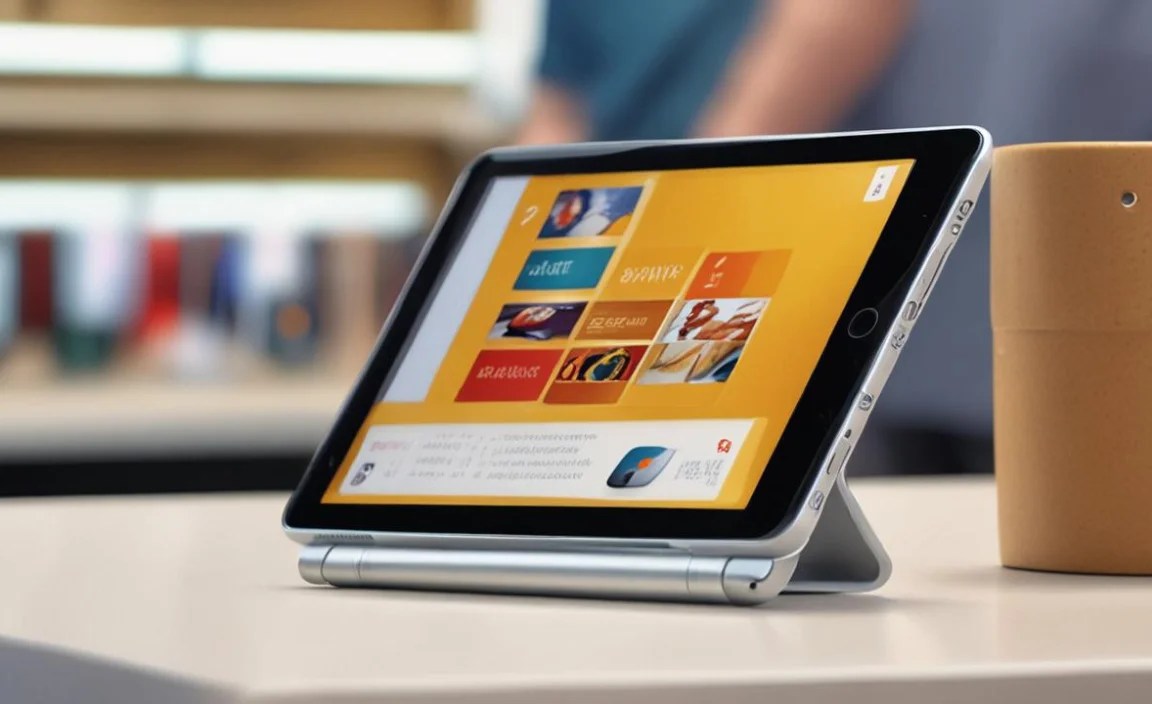
When you see terms like MIL-STD and IP ratings associated with durable tablets, it can sound impressive, but what do they actually mean for you as a business owner? These are industry-recognized standards that help quantify a device’s resistance to environmental factors and physical stress. Understanding them can help you confidently choose a tablet that meets your operational needs.
1. MIL-STD (Military Standard):
MIL-STD refers to a series of standards developed by the United States Department of Defense to test the robustness of equipment. For consumer electronics like tablets, the most commonly cited standard is MIL-STD-810G (or the newer MIL-STD-810H).
What it Tests: MIL-STD-810G covers a range of environmental tests, including:
High and Low Temperature: How the device performs in extreme heat and cold.
Shock and Vibration: Resistance to impacts and sustained shaking.
Drops: Simulated drops onto hard surfaces from specific heights.
Humidity: Performance in moist environments.
Altitude: Operation at various atmospheric pressures.
Sand and Dust: Resistance to particulate intrusion.
Water (Rain, Immersion): Resistance to water ingress.
What it Means for You: A tablet that is MIL-STD-810G certified means it has passed rigorous testing designed for military equipment. While the specifics of the testing (e.g., exact drop heights against concrete) vary by manufacturer and which specific tests are passed, it generally indicates a high level of resilience. For a POS tablet, this translates to a device that is less likely to fail due to accidental drops, temperature fluctuations, or exposure to dust.
Important Note: Manufacturers often highlight which specific methods within MIL-STD-810G their devices have passed. Don’t just look for “MIL-STD-810G”; check if it includes drop, shock, and water resistance, as these are most critical for POS use.
2. IP (Ingress Protection) Ratings:
IP ratings are an international standard (IEC standard 60529) used to define the extent to which a device is protected against the intrusion of solid objects (like dust) and liquids (like water). An IP rating consists of two numbers:
First Digit (Solids Protection):
0: No protection
1: Protected against solid objects larger than 50mm (e.g., large hand)
2: Protected against solid objects larger than 12.5mm (e.g., fingers)
3: Protected against solid objects larger than 2.5mm (e.g., tools)
4: Protected against solid objects larger than 1mm (e.g., wires)
* 5: Dust protected. Ingress of dust is not

Your tech guru in Sand City, CA, bringing you the latest insights and tips exclusively on mobile tablets. Dive into the world of sleek devices and stay ahead in the tablet game with my expert guidance. Your go-to source for all things tablet-related – let’s elevate your tech experience!