Transform your RCA Tablet 8 Delta Pro with its keyboard for seamless online classes. This guide shows you exactly how to set it up and use it for efficient learning, making digital education effortless and productive. Get ready to ace your studies!
Learning online has become a fundamental part of our lives, and having the right tools can make a world of difference. If you’re juggling virtual lectures, online assignments, and digital textbooks, you know how important it is to have a device that keeps up. Sometimes, a tablet screen just doesn’t cut it for serious study. That’s where a good keyboard comes in, turning your tablet into a mini workstation. This guide is all about maximizing your RCA Tablet 8 Delta Pro for online classes, specifically focusing on its fantastic keyboard accessory.
We’ll walk you through everything from connecting the keyboard to navigating your learning platforms more effectively. No more struggling with tiny on-screen keys or complicated software. We’re here to make your online learning experience smooth, productive, and even enjoyable. Get ready to unlock the full potential of your RCA tablet for your academic journey!
Unlocking Your RCA Tablet 8 Delta Pro for Online Classes

The RCA Tablet 8 Delta Pro is a popular choice for its affordability and versatility. When paired with its dedicated keyboard, it transforms from a casual browsing device into a capable tool for productivity, especially for online learning. This combination is fantastic for students or anyone taking online courses, offering a more comfortable and efficient way to type notes, complete assignments, and interact with course materials.
Let’s dive into how you can make the most of this setup for your online classes. We’ll cover the initial connection, essential features, and tips to enhance your learning experience.
Connecting Your RCA Tablet 8 Delta Pro Keyboard

The Easy Bluetooth Pairing Process
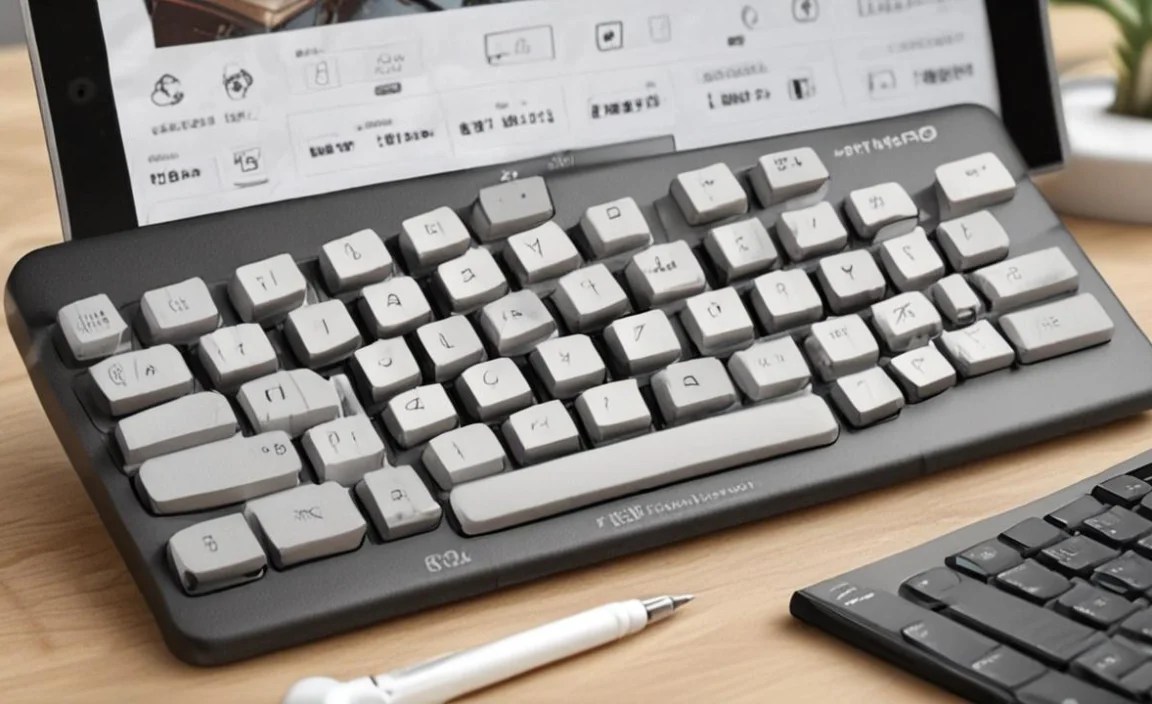
One of the best features of the RCA Tablet 8 Delta Pro keyboard is its wireless connectivity. It typically connects via Bluetooth, which is a straightforward process. Here’s how to get connected:
- Turn on the keyboard: Locate the power switch on your RCA keyboard. It’s usually on the side or top edge. Flip it to the ‘On’ position. Many keyboards will have an indicator light that turns on.
- Activate pairing mode: Most Bluetooth keyboards have a dedicated pairing button, often labeled with a Bluetooth symbol or the word “Pair.” Press and hold this button until an indicator light starts blinking rapidly. This signifies that the keyboard is discoverable.
- Enable Bluetooth on your tablet: On your RCA Tablet 8 Delta Pro, go to the Settings app. Tap on “Connected devices” or “Bluetooth.” Make sure the Bluetooth toggle is switched to ‘On’.
- Search for devices: Your tablet will begin searching for nearby Bluetooth devices. You should see a list of available devices appear on the screen.
- Select the keyboard: Look for the name of your RCA keyboard in the list. It might be something like “RCA Tablet Keyboard” or a specific model number. Tap on it to initiate the pairing.
- Confirm pairing (if prompted): Some devices may ask you to confirm a pairing code or enter a PIN. Follow the on-screen instructions. If prompted to enter a code, it’s often “0000” or “1234” for simple keyboards, but your tablet will usually display the code to enter on the keyboard itself.
- Connection successful: Once paired, your tablet will indicate that the device is connected, and the blinking light on the keyboard should turn solid or turn off. You are now ready to start typing!
Troubleshooting Connection Issues
Sometimes, technology doesn’t cooperate immediately. If you encounter problems, try these quick fixes:
- Ensure both the keyboard and tablet are sufficiently charged.
- Check that Bluetooth is enabled on your tablet and discoverable.
- Restart both the keyboard and your tablet.
- Make sure the keyboard is within range of your tablet (usually around 30 feet/10 meters for Bluetooth).
- Forget the device on your tablet (Settings > Bluetooth > Tap on the keyboard > Forget Device) and try pairing again from scratch.
Key Features for Online Learning
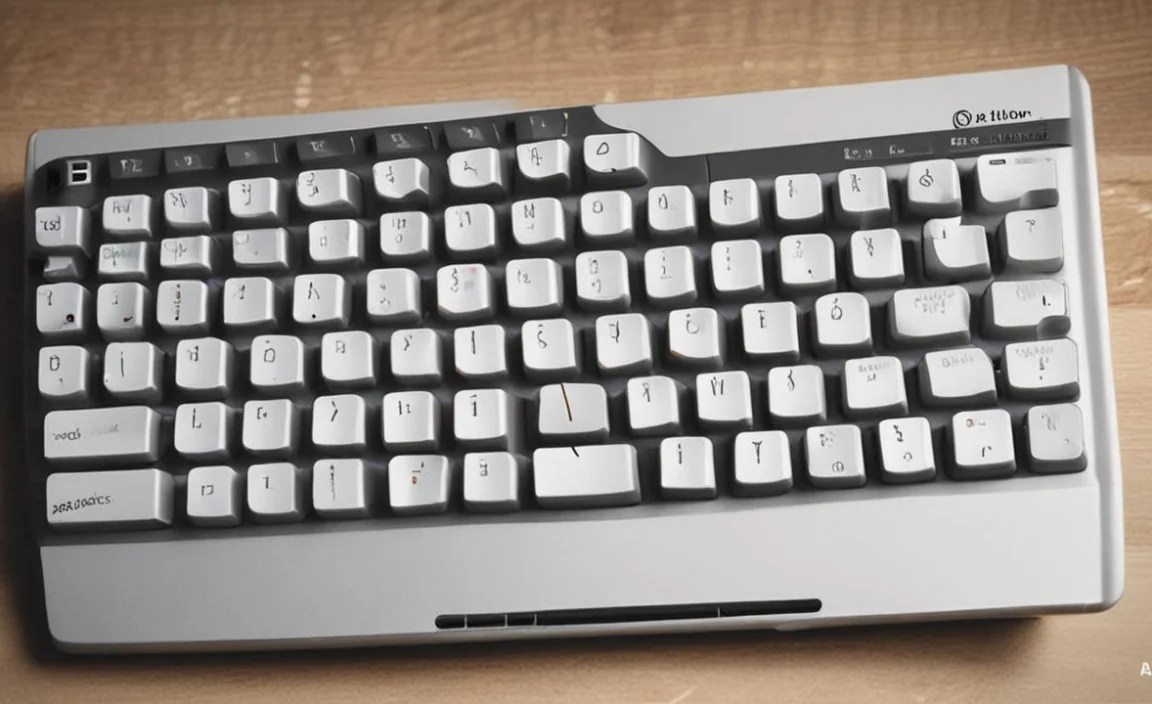
The RCA Tablet 8 Delta Pro keyboard isn’t just about typing. It often comes with specific design elements and functionalities that are incredibly useful for online classes. Understanding these features can significantly boost your productivity.
Integrated Stand and Protection
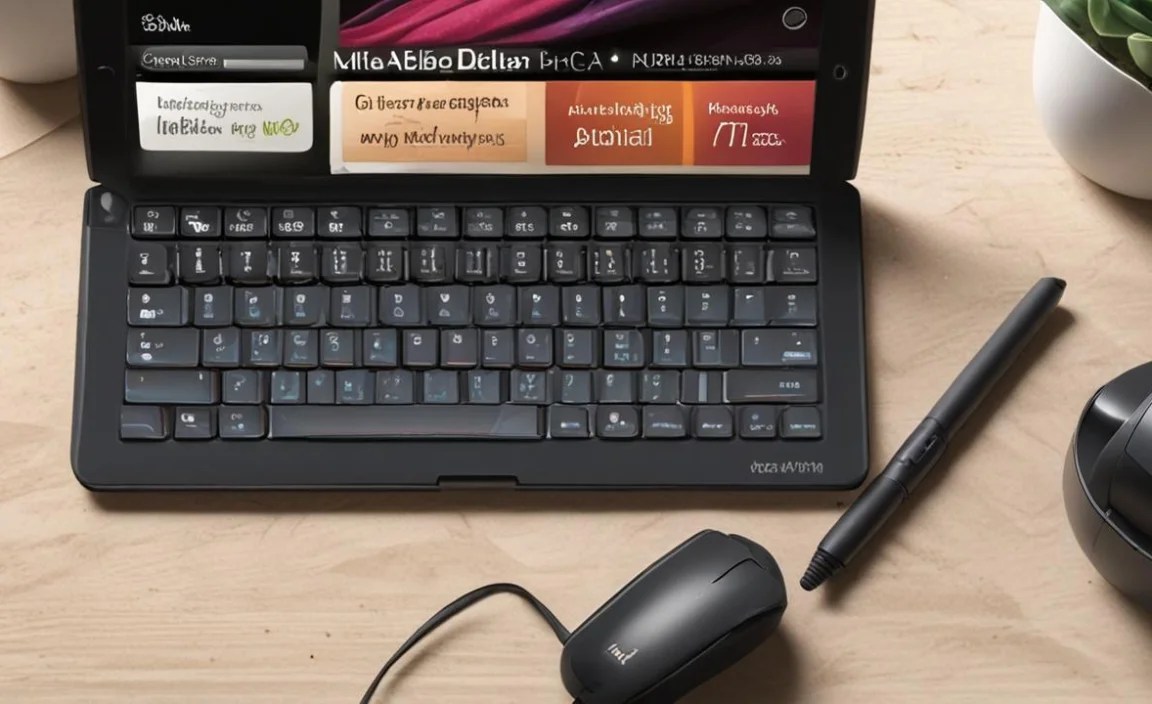
Many RCA keyboard covers for the Delta Pro are designed to function as cases and stands. This is crucial for online classes as it allows you to prop up your tablet at an optimal viewing angle, eliminating the need to hold it or prop it precariously on a stack of books. This hands-free setup is vital for long lectures and active participation.
Dedicated Function Keys
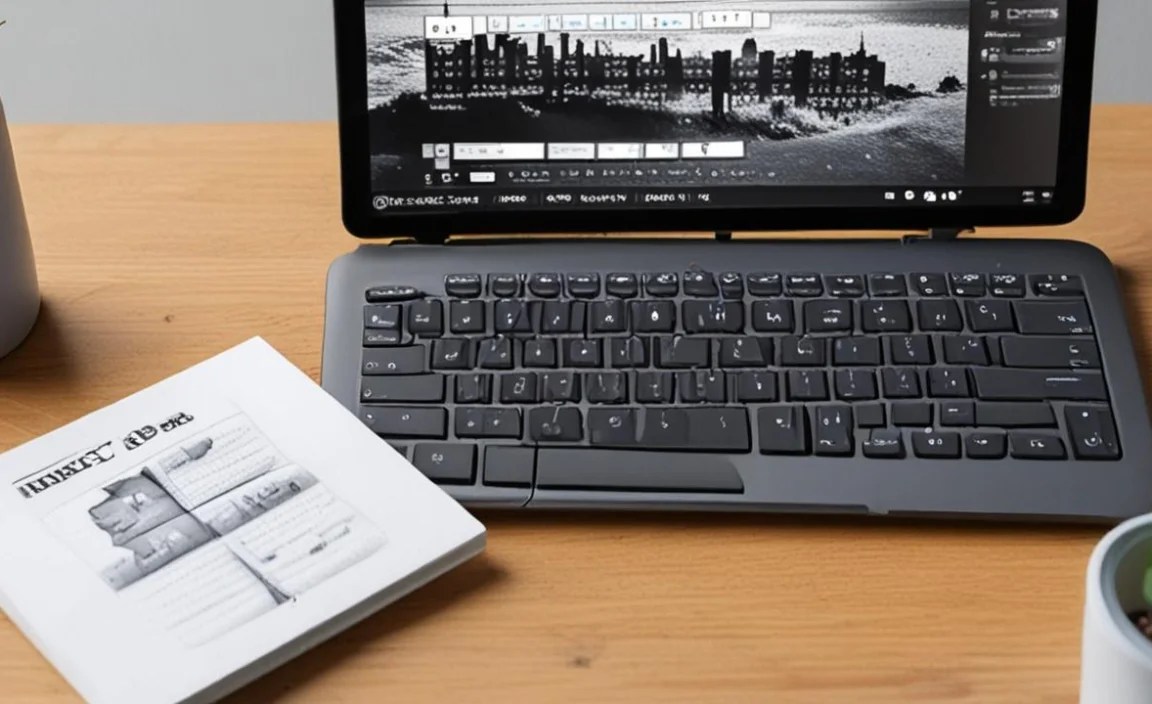
Look out for function keys on your keyboard, often located on the top row (labeled F1, F2, etc.). These keys can provide shortcuts for common tasks that are particularly helpful in an online learning environment:
- Volume Controls: Easily adjust audio for lectures or videos.
- Brightness Controls: Reduce eye strain by adjusting screen brightness.
- Media Playback: Pause, play, or skip content when needed.
- Home/Search: Quickly return to your tablet’s home screen or initiate a web search for supplementary information.
- Specific App Shortcuts: Some keyboards might have keys designed to open default apps like email or browsers, which can be handy for quickly accessing course materials.
Ergonomics and Typing Experience
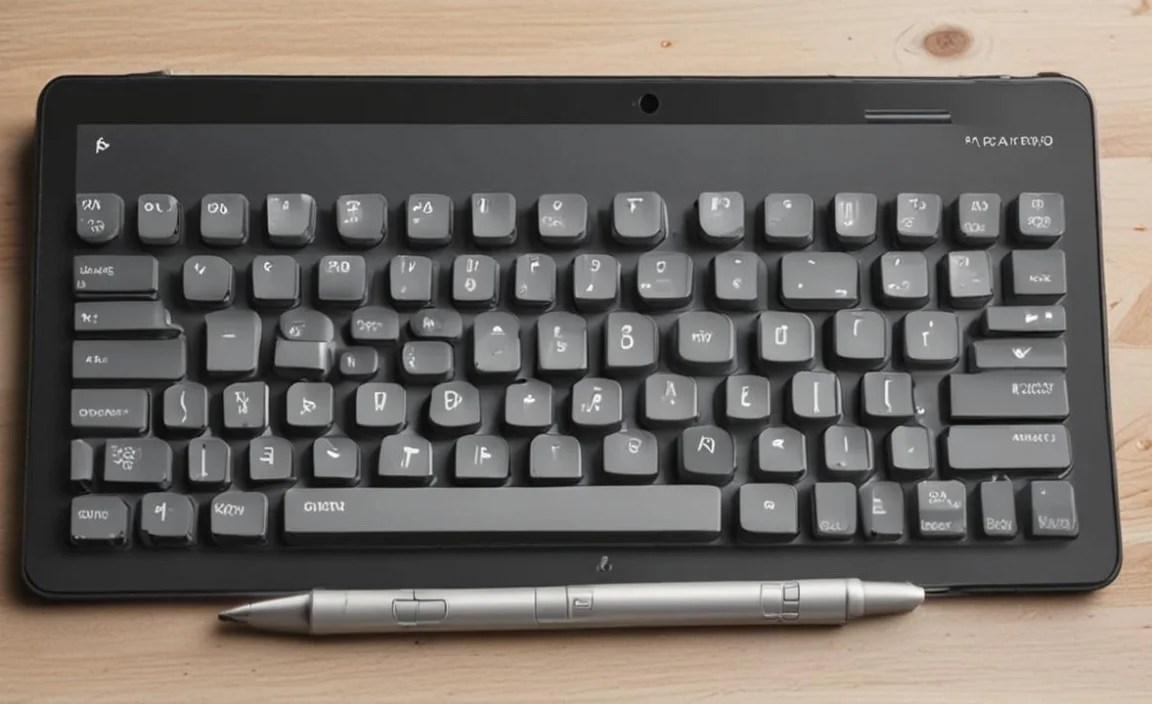
While the RCA Tablet 8 Delta Pro keyboard is designed for portability, it offers a surprisingly comfortable typing experience compared to on-screen keyboards. The key travel and spacing are optimized for efficient typing, reducing errors and fatigue during lengthy note-taking sessions.
Maximizing Productivity: Tips for Online Classes
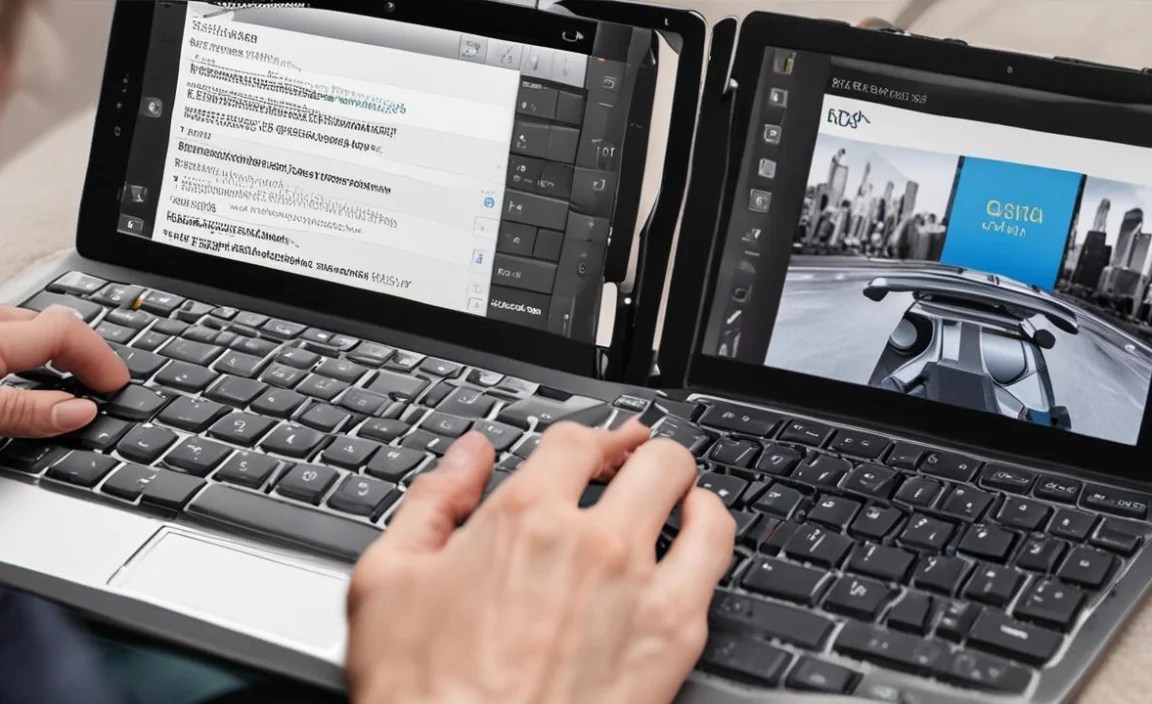
Simply connecting the keyboard is the first step. Now, let’s explore how to integrate it seamlessly into your online learning workflow.
Note-Taking Strategies
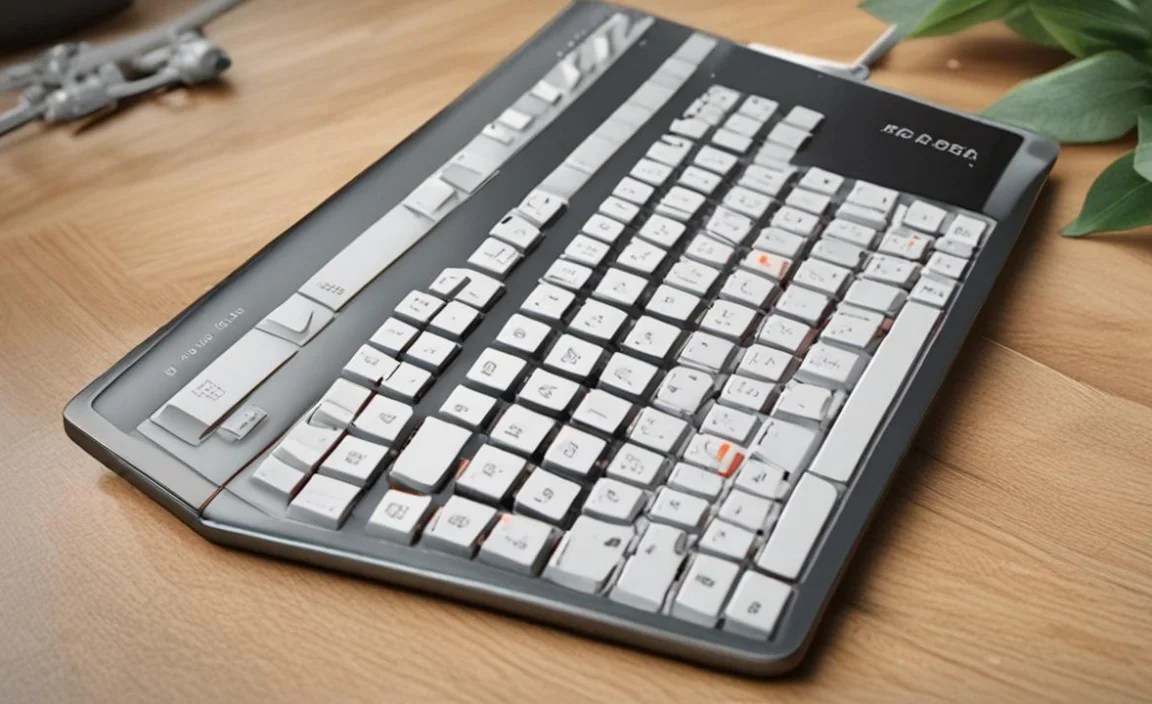
Typing notes on a physical keyboard is considerably faster and more accurate than using the on-screen keyboard. Use your RCA tablet and keyboard to:
- Live Typing: Take notes directly in word processing apps (like Google Docs, Microsoft Word), note-taking apps (like OneNote, EverNote), or even within your Learning Management System (LMS) if it allows direct text input.
- Summarize Lectures: After a lecture, use the keyboard to quickly create summaries, bullet points, or mind maps of the key information.
- Organize Notes with Shortcuts: Learn keyboard shortcuts for your preferred note-taking app. For example, Ctrl+B for bold, Ctrl+I for italics, or Ctrl+N for a new note can save significant time within apps that support them.
Navigating Your Learning Platform
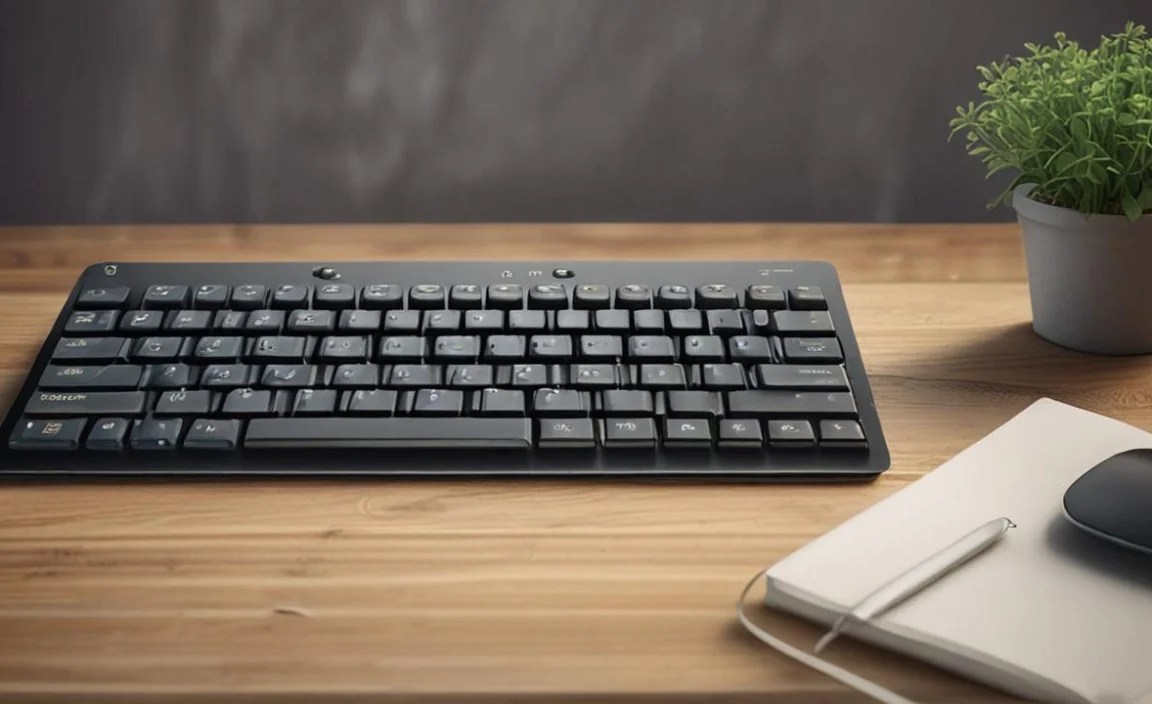
Most online learning platforms (e.g., Canvas, Blackboard, Moodle, Google Classroom) are browser-based. Your keyboard makes navigating these much easier:
- Tab Key Navigation: Use the ‘Tab’ key to cycle through different interactive elements on a webpage, such as links, buttons, and form fields. Use ‘Shift+Tab’ to go backward. This is a great accessibility feature and can speed up form filling.
- Enter Key for Submission/Confirmation: Once you’ve tabbed to a specific field or button, hit ‘Enter’ to activate it or submit your input.
- Scrolling: Use the arrow keys to scroll up and down through web pages if you prefer not to use touch or a mouse.
Research and Assignments
Writing essays, reports, or research papers is far more efficient with a physical keyboard. Your RCA tablet and keyboard combo can handle these tasks:
- Drafting and Editing: Utilize word processing software or online editors to draft out your assignments. The keyboard makes extensive writing manageable.
- Online Research: Quickly type search queries into Google or academic databases. Copy and paste information into your notes or assignment drafts using keyboard shortcuts (Ctrl+C to copy, Ctrl+V to paste, Ctrl+X to cut).
- Interactive Quizzes: For online quizzes where you need to type answers, the keyboard makes the experience much smoother and less prone to errors.
Multitasking with Split Screen
Your RCA tablet likely supports split-screen multitasking. This is a game-changer for online classes:
- View Lecture and Notes Simultaneously: Open your video lecture on one half of the screen and your note-taking app on the other. You can then use your keyboard to type notes while watching and listening.
- Reference Materials: Keep your course syllabus or readings open on one side while working on an assignment in another.
To use split screen, typically you’ll need to enter the tablet’s recent apps view, tap and hold the app icon, and then select the split-screen option. Then, choose a second app to open alongside it.
Enhancing Your Setup for Online Learning
Beyond the tablet and keyboard, a few other accessories and practices can further optimize your online class experience.
Consider a Stylus

While the keyboard is great for typing, a stylus can be invaluable for certain tasks. Many students find them perfect for:
- Annotating PDFs of lecture slides or readings.
- Doodling or creating visual notes.
- Signing documents digitally.
- Navigating with more precision than a finger.
Ensure any stylus you consider is compatible with your RCA Tablet 8 Delta Pro. Some may require specific technology like Wacom EMR, while others are simple capacitive styluses.
External Mouse (Optional but Recommended)
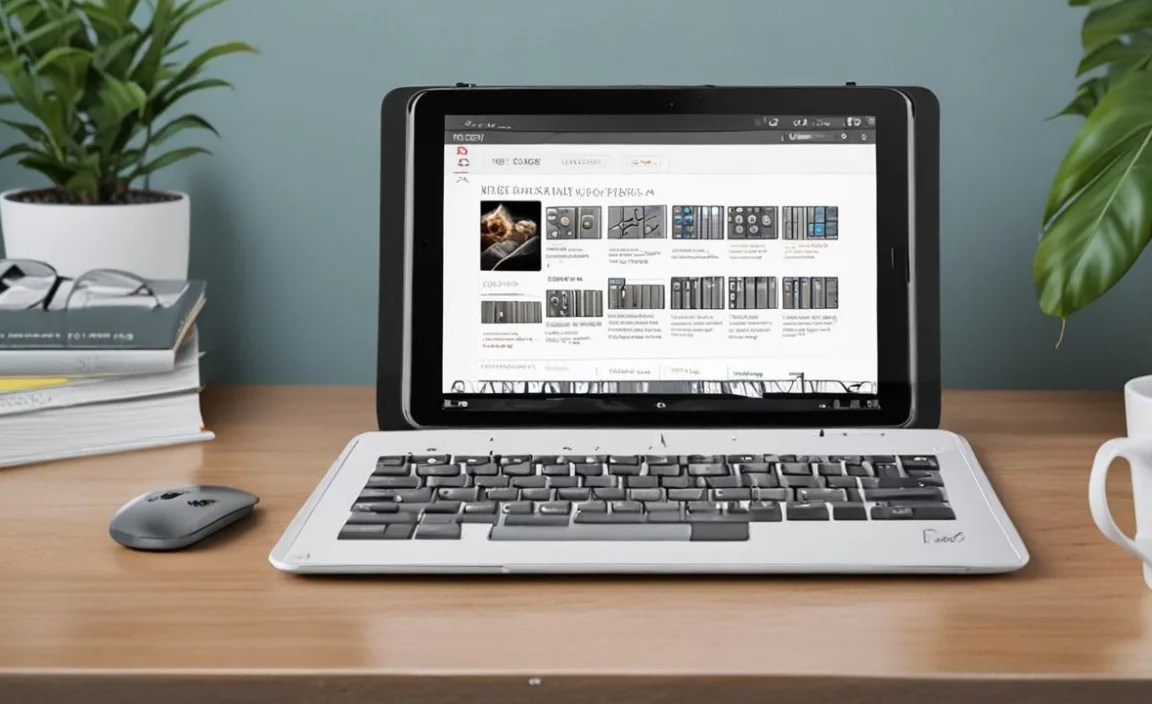
For more complex tasks, such as extensive document editing or navigating intricate websites, an external Bluetooth mouse can be a great addition. It offers more precise cursor control than a trackpad or touchscreen, making the tablet feel more like a traditional laptop.
Stable Internet Connection
This might seem obvious, but a reliable internet connection is the backbone of online learning. Ensure you have a strong Wi-Fi signal wherever you plan to study. For intensive video conferencing or large downloads, consider:
- Moving closer to your Wi-Fi router.
- Minimizing other internet usage on your network during class times.
- Exploring mobile hotspot options if your home internet is unreliable.
Organizations like The Federal Communications Commission (FCC) offer resources on understanding broadband internet and improving your connection.
Ergonomic Setup
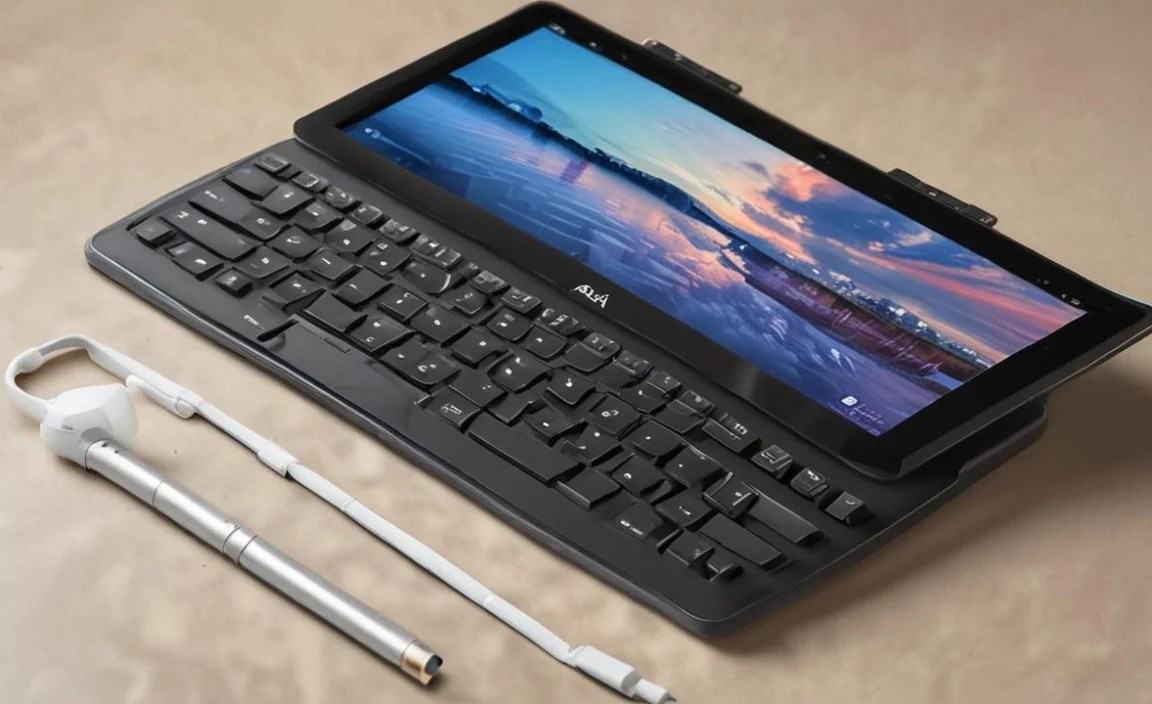
Even with a keyboard, prolonged tablet use can strain your neck and eyes. Try these tips for a healthier setup:
- Elevate the Screen: Use a tablet stand or prop your RCA tablet and keyboard setup on books so the screen is at eye level. This helps prevent neck strain.
- Take Breaks: Follow the 20-20-20 rule: every 20 minutes, look at something 20 feet away for at least 20 seconds to rest your eyes.
- Proper Lighting: Ensure your study area is well-lit to reduce eye strain. Avoid glare on your screen.
RCA Tablet 8 Delta Pro Keyboard: Key Benefits for Students

Let’s summarize why this combination is a smart choice for online students.
| Benefit | How it Helps with Online Classes |
|---|---|
| Enhanced Typing Speed & Accuracy | Faster note-taking, quicker assignment completion, fewer typos. |
| Improved Ergonomics | Comfortable viewing angles and typing posture reduce fatigue. |
| Portability & Versatility | Easily transition from classwork to other tablet uses or travel. |
| Cost-Effective Solution | A budget-friendly alternative to laptops or more expensive tablets. |
| Hands-Free Operation | Integrated stand allows for worry-free lecture viewing. |
| Increased Productivity | Streamlined workflow for research, writing, and course navigation. |
Software and App Recommendations
To make the most of your RCA Tablet 8 Delta Pro keyboard, consider these types of apps that are well-suited for online learning:
Productivity Suites
- Google Workspace (Docs, Sheets, Slides): Excellent for collaborative work and widely used in educational settings. Accessible via browser or dedicated apps that support keyboard input well.
- Microsoft Office Suite (Word, Excel, PowerPoint): Powerful and familiar tools for many students. Available as apps that are optimized for tablet and keyboard use.
- WPS Office: A popular free alternative that offers robust word processing, spreadsheet, and presentation capabilities.
Note-Taking Apps
- Evernote: Great for clipping web content, organizing notes with tags, and syncing across devices.
- OneNote: A freeform digital notebook that excels at capturing ideas in various formats, including typed text, drawings, and audio.
- Simplenote: A straightforward, fast note-taking app that focuses on simple text and syncing.
Reading and Annotation Apps
- Adobe Acrobat Reader: Essential for opening and annotating PDF files, which are common for course materials. Use it with a stylus or text boxes for comments.
- Google Play Books/Kindle: For reading textbooks and other digital literature. Many allow for highlighting and adding notes, which can be typed using your keyboard.
Learning Management System (LMS) Access
Most universities and schools use platforms like:
- Canvas
- Blackboard
- Moodle
- Google Classroom
Access these through your tablet’s web browser. Your keyboard will make navigating assignments, forums, and submission portals much easier.
Maintaining Your RCA Tablet 8 Delta Pro Keyboard
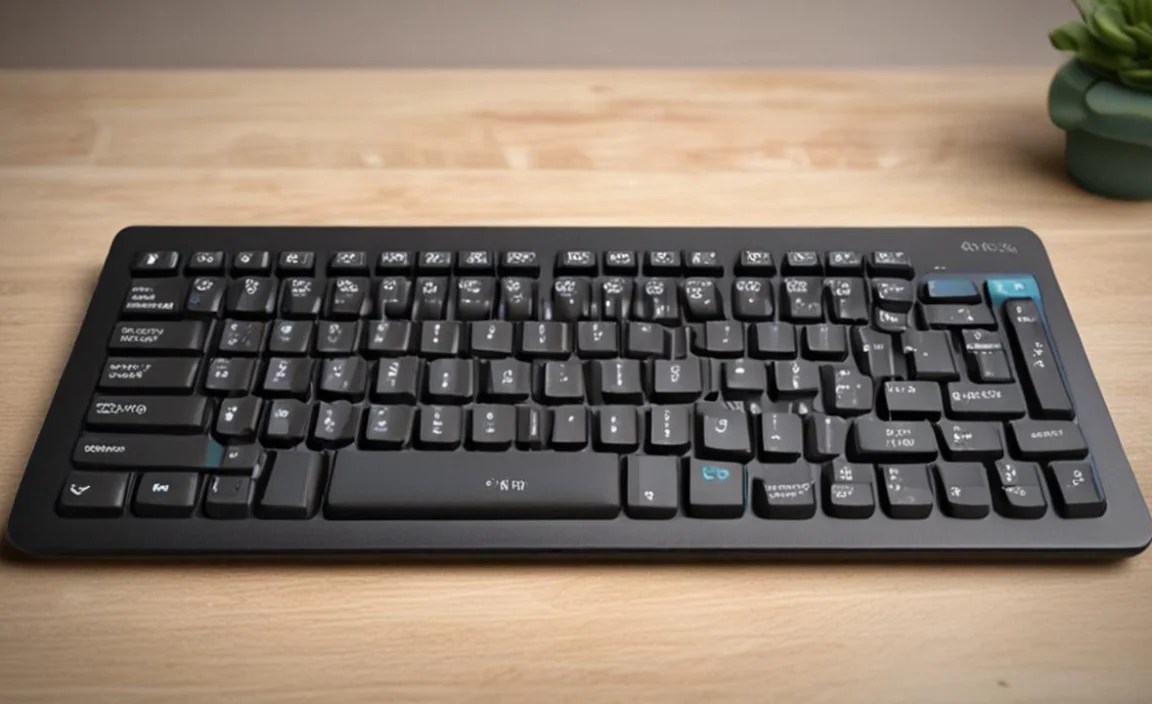
To ensure your keyboard continues to serve you well throughout your online studies, a little maintenance goes a long way:
- Keep it Clean: Dust and debris can accumulate between keys. Use compressed air to blow out debris, or a soft, slightly damp cloth (ensure it’s not wet) to wipe down the surface and keys. Avoid harsh cleaning chemicals.
- Charging: If your keyboard is rechargeable, follow the manufacturer’s guidelines for charging. Avoid overcharging, and if it has a removable battery, ensure you use the correct type.
- Storage: When not in use, store the keyboard in a safe place, ideally with its protective case, to prevent damage to the keys or internal components.
Comparing with Other Tablet Keyboard Options
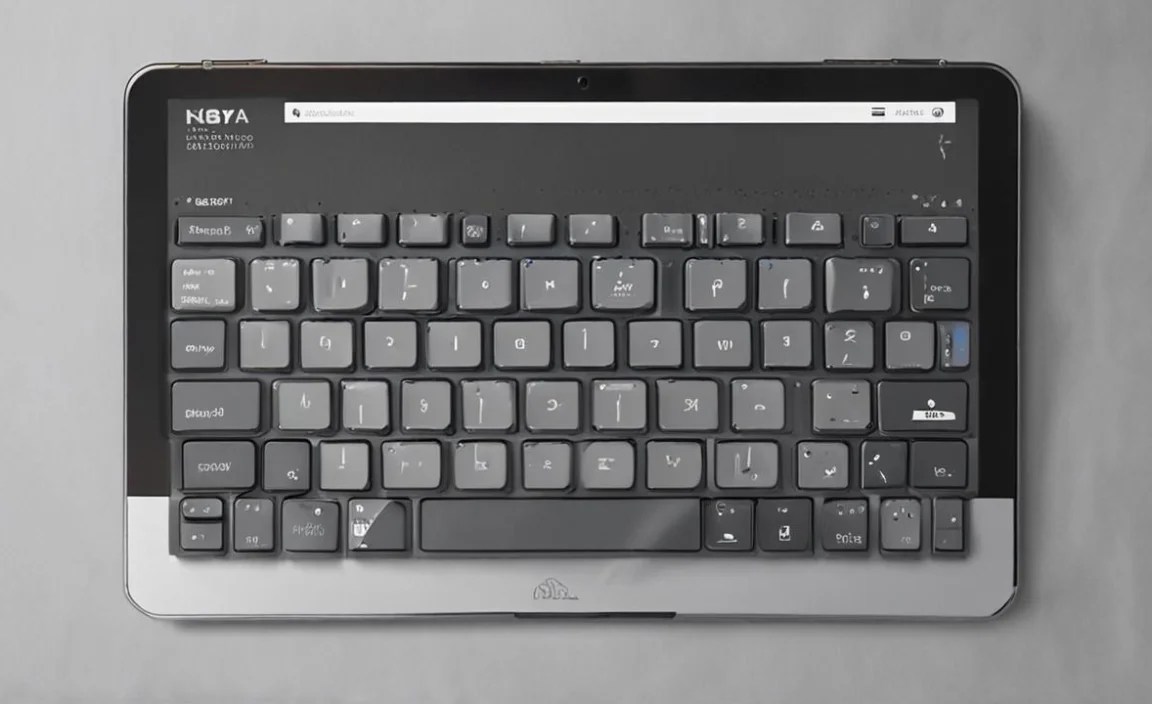
The RCA Tablet 8 Delta Pro keyboard is specifically designed for that tablet, offering a good balance of features and price. However, it’s worth understanding how it fits into the broader market of tablet keyboards.
Integrated vs. Detachable Keyboards
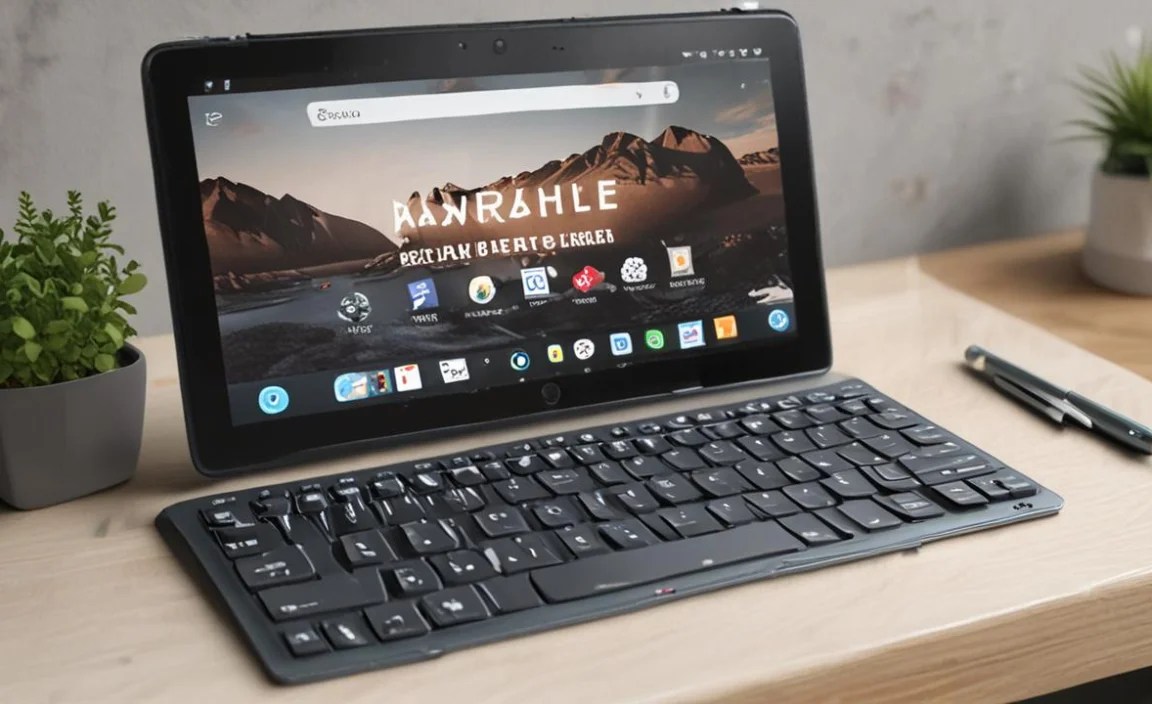
- Integrated (Keyboard Case): Like the RCA setup, these often serve as a case and stand, offering all-in-one protection and functionality. They are generally designed for a specific tablet model, ensuring a good fit.
- Detachable Keyboards: These are standalone Bluetooth keyboards that can be used with any tablet (or even a smartphone). They offer more flexibility in terms of size and typing feel but might require an additional stand for the tablet and don’t offer integrated protection.
Compatibility and Features
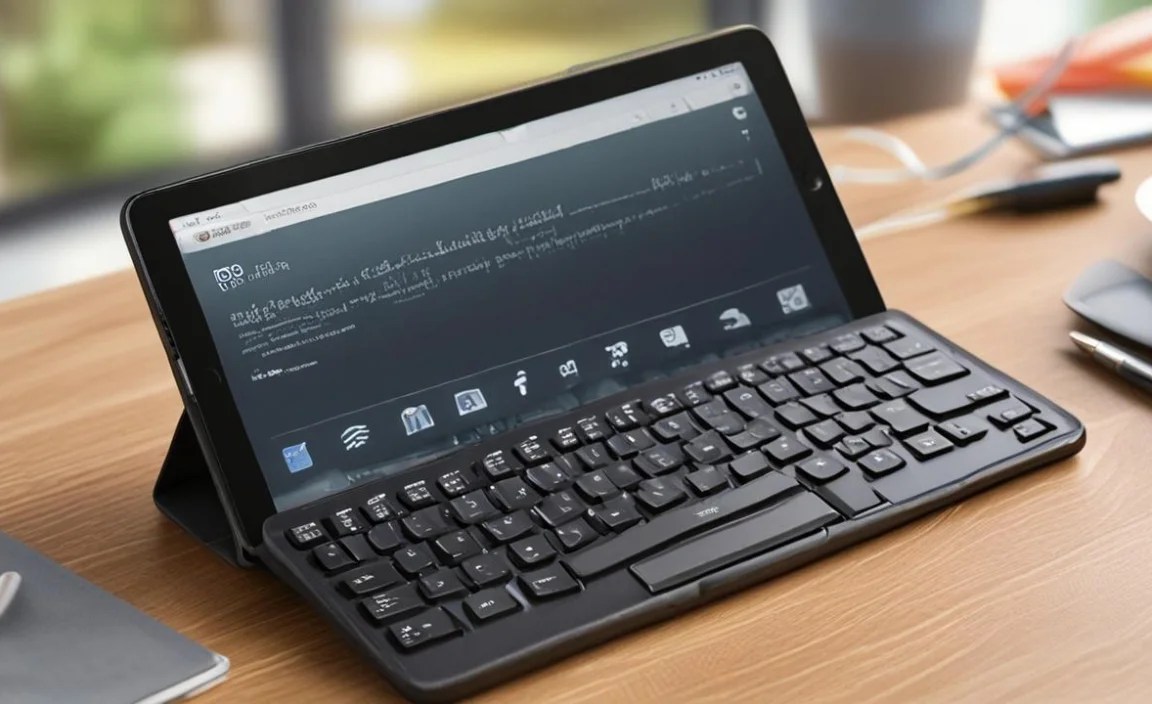
Ensure any third-party keyboard you consider is compatible with your RCA Tablet 8 Delta Pro (i.e., it supports Android or Windows, depending on your tablet’s OS). Key features to look for include:
- Bluetooth Version: Newer versions (like Bluetooth 5.0) offer more stable connections and better power efficiency.
- Battery Life: Crucial for long study sessions or when you’re away from a charger.
- Key Layout and Feel: Some users prefer chiclet-style keys, while others like a more tactile feel.
- Additional Ports: Some higher-end keyboard cases include USB ports or SD card readers, which can expand your tablet’s connectivity.
For most users looking for a straightforward solution for online classes, the RCA Tablet 8 Delta Pro keyboard offers an excellent, value-driven experience that directly addresses the needs of students.
Frequently Asked Questions (FAQ)
Will the RCA Tablet 8 Delta Pro keyboard work with other tablets?
Generally, the RCA Tablet 8 Delta Pro keyboard is designed to be compatible with its specific tablet model to ensure physical fit and optimal functionality. However, as it connects via Bluetooth, it may be able to pair with other Android or Windows devices if they support standard Bluetooth keyboards. Compatibility is not guaranteed for devices outside the intended pairing.

Your tech guru in Sand City, CA, bringing you the latest insights and tips exclusively on mobile tablets. Dive into the world of sleek devices and stay ahead in the tablet game with my expert guidance. Your go-to source for all things tablet-related – let’s elevate your tech experience!