Searching for the best tablet for photo editing can feel overwhelming, but it doesn’t have to be! We’ve done the research to find top-rated tablets perfect for photographers and casual editors alike. Get ready to discover your next creative powerhouse.
Expert-Approved Tablets For Photo Editing: Best Picks
Hey there, fellow creators and photo enthusiasts! Walter Moore here from Tabletzoo, your go-to guide for all things tablet. If you’ve ever found yourself squinting at your phone screen, wishing you had more space and precision to make your photos pop, then you’re in the right place. Many of us love capturing memories and moments, and we want those digital snapshots to look their absolute best. But when it comes to editing those beautiful images, the sheer number of tablet options out there can feel like a confusing maze.
Don’t worry! My goal is to cut through the jargon and lay out the most user-friendly, powerful, and downright excellent tablets that professionals and hobbyists trust for their photo editing needs. We’re talking about devices that offer a fantastic combination of display quality, processing power, stylus support, and software compatibility. Whether you’re a seasoned pro looking to upgrade or just starting to explore the world of mobile photo editing, this guide is designed to give you the confidence to choose the perfect device. Let’s dive in and find the tablet that will help your photos shine!
Why a Tablet is Great for Photo Editing

Tablets have become incredibly popular for photo editing, and for good reason! They offer a fantastic balance between the portability of a smartphone and the screen real estate and creative potential of a laptop. Imagine being able to edit your latest photoshoot while relaxing on the couch, on a plane, or even in a park – that’s the freedom a tablet brings.
Here’s why they’re such a good choice:
- Portability: Easily take your editing studio with you wherever inspiration strikes.
- Touchscreen & Stylus Support: Many tablets offer precise control with a stylus, mimicking the feel of traditional brushes and tools.
- Vibrant Displays: Modern tablets boast stunning displays with excellent color accuracy, crucial for getting your edits right.
- Powerful Processors: Don’t let their size fool you; many tablets pack serious processing power capable of handling demanding editing software.
- App Ecosystem: Access a vast library of powerful photo editing apps, from professional-grade software to user-friendly options.
Key Features to Look For in a Photo Editing Tablet

When picking a tablet specifically for photo editing, a few key features stand out. These are the non-negotiables that will make your editing experience smooth, accurate, and enjoyable.
1. Display Quality: Color Accuracy and Resolution
This is perhaps the most critical factor. You need a screen that shows colors as they truly are. Look for:
- High Resolution: A sharp display (like 2K or 4K) means you can see fine details in your images.
- Color Gamut Coverage: Aim for tablets that cover a high percentage of standard color spaces like sRGB (essential for web) and ideally Adobe RGB or DCI-P3 (important for professional print work). Technologies like OLED and high-quality LCD panels make a big difference here.
- Brightness and Contrast: Sufficient brightness allows you to edit in various lighting conditions, and good contrast reveals subtle tones and shadows.
- Screen Size: While portable, a larger screen (10 inches or more) generally provides a more comfortable workspace for editing complex images.
2. Performance: Processor and RAM
Photo editing, especially with large RAW files or complex edits, requires processing power. You’ll want to ensure the tablet can handle these tasks without lagging.
- Fast Processor: Look for flagship-level chipsets (e.g., Apple’s M-series chips, high-end Qualcomm Snapdragon processors).
- Ample RAM: 8GB of RAM is a good minimum, but 12GB or more is ideal for smoother multitasking and handling larger files.
3. Storage Space
Photo files, especially RAW images, can take up a lot of space. Make sure the tablet has enough internal storage or supports expandable storage (like microSD cards) if needed.
- Minimum 128GB: This is a good starting point, but if you work with many large files, consider 256GB or more.
- Cloud Storage Integration: Consider how well the tablet integrates with cloud services like Google Drive, Dropbox, or iCloud for offloading files.
4. Stylus Support
For precise adjustments, masking, and retouching, a stylus is almost essential. Look for tablets that offer:
- Responsive Stylus: A stylus that feels natural, has low latency, and offers pressure sensitivity is key.
- Stylus Included or Easily Available: Some tablets come with a stylus in the box, while others require a separate purchase.
- Palm Rejection: The ability to rest your hand on the screen without causing unwanted marks is a crucial usability feature.
5. Operating System and Software Compatibility
The OS determines the apps you can use. Consider which editing software you prefer and if it’s available on the tablet’s platform.
- iPadOS: Excellent for creative apps, with robust options like Procreate, Pixelmator Photo, and Adobe Lightroom/Photoshop.
- Android: Offers a wide range of apps, including powerful options like Adobe Lightroom Mobile, Snapseed, and Krita. Performance can vary by manufacturer.
- Windows: While primarily laptops, some Windows tablets (like Microsoft Surface) offer a full desktop experience with desktop-class editing software, though they can be more expensive.
Top Expert-Approved Tablets For Photo Editing: Best Picks for 2024
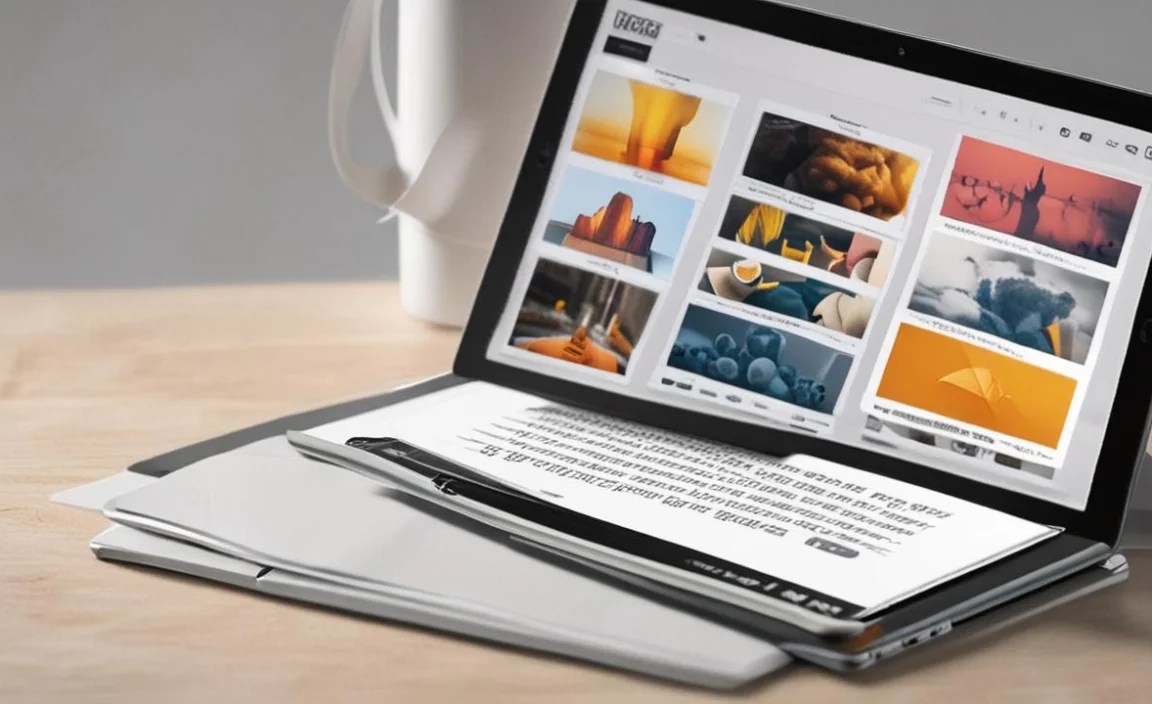
After thorough research and considering what creative professionals look for, here are our top recommendations. We’ve aimed to cover different needs and budgets.
1. Apple iPad Pro (M4) (2024)
The iPad Pro has long been a favorite for creatives, and the latest M4 model continues this legacy with impressive power and a stunning new display.
- Display: Ultra Retina XDR display (Tandem OLED) with ProMotion, VAST color accuracy for incredible realism. Available in 11-inch and 13-inch.
- Processor: M4 chip – extremely powerful for demanding tasks.
- Stylus Support: Works seamlessly with the Apple Pencil Pro, offering advanced features like squeeze and barrel roll.
- Software: Access to powerful apps like Procreate, Pixelmator Photo, Affinity Photo, and the full Adobe Creative Cloud suite on iPadOS.
- Storage: Options from 256GB up to 2TB.
- Pros: Best-in-class performance, industry-leading display technology, seamless Apple Pencil integration, vast app ecosystem, excellent build quality.
- Cons: Premium pricing, Apple Pencil Pro sold separately, can be an investment.
2. Samsung Galaxy Tab S9 Ultra
For Android users, the Galaxy Tab S9 Ultra offers a massive display and flagship performance, making it a true powerhouse for creative work.
- Display: Gorgeous 14.6-inch Dynamic AMOLED 2X display with a 120Hz refresh rate, offering vibrant colors and deep blacks.
- Processor: Snapdragon 8 Gen 2 for Galaxy – top-tier performance for Android tablets.
- Stylus Support: Includes the S Pen in the box, which is highly responsive with good pressure sensitivity and low latency.
- Software: Runs Android, giving access to apps like Adobe Lightroom Mobile, Krita, Clip Studio Paint, and many others. Samsung DeX offers a desktop-like experience.
- Storage: Available in 256GB, 512GB, and 1TB options, with microSD card expansion for up to 1TB more.
- Pros: Enormous screen, brilliant display quality, S Pen included, excellent performance, expandable storage, versatile Android ecosystem.
- Cons: Large size might be less portable for some, Android app optimization can sometimes lag behind iPadOS for certain professional tools.
3. Microsoft Surface Pro 9 (Wi-Fi)
If you prefer a full desktop operating system and want to run your favorite Windows-based editing software, the Surface Pro 9 is a fantastic 2-in-1 option.
- Display: 13-inch PixelSense touchscreen with a 3:2 aspect ratio, which is great for productivity and editing. Available in various resolutions, typically high quality with good color accuracy.
- Processor: Intel Core i5 or i7 processors (12th Gen), offering robust computing power. Configurations with 8GB, 16GB, or 32GB RAM.
- Stylus Support: Works with the Surface Slim Pen 2 (sold separately), offering excellent precision and haptic feedback.
- Software: Runs Windows 11 Home, meaning you can install virtually any desktop photo editing software like Adobe Photoshop, Lightroom, Capture One, Luminar Neo, etc.
- Storage: Options from 128GB up to 1TB SSD.
- Pros: Full Windows OS and desktop software compatibility, versatile use as a tablet or laptop, excellent build quality, vibrant display.
- Cons: Expensive, especially with accessories like the keyboard and stylus, battery life can be average depending on usage, not as mobile-focused as iPadOS or Android tablets.
4. Apple iPad Air (M2) (2024)
A slightly more budget-friendly Apple option that still packs a punch for photo editing, especially for those who don’t need the absolute top-tier power of the Pro.
- Display: 11-inch or 13-inch Liquid Retina display with excellent color reproduction and True Tone technology.
- Processor: M2 chip – very capable for most photo editing tasks.
- Stylus Support: Works with Apple Pencil (USB-C) and Apple Pencil (1st Gen). For pressure sensitivity and tilt, the Apple Pencil Pro is the best option (though requires the newer iPad Pro). Correction: The iPad Air now supports the Apple Pencil Pro and the Apple Pencil (USB-C).
- Software: All the great iPadOS apps mentioned for the iPad Pro.
- Storage: Options from 128GB up to 1TB.
- Pros: Great performance for the price, excellent display quality, access to powerful iPadOS apps, more affordable than iPad Pro.
- Cons: Display is not as advanced as the iPad Pro’s, may not be ideal for the most demanding professional workflows, Apple Pencil Pro sold separately.
5. Samsung Galaxy Tab S9 FE / S9 FE+
A more accessible option from Samsung that still offers a great, large display and stylus support, making it ideal for budget-conscious creators.
- Display: 10.9-inch (S9 FE) or 12.4-inch (S9 FE+) LCD display with 90Hz refresh rate and good color coverage.
- Processor: MediaTek Dimensity 900 or Exynos 1380 (depending on region/model), offering solid mid-range performance for editing.
- Stylus Support: Includes an IP68-rated S Pen for drawing and editing.
- Software: Android, with access to Google Play Store apps.
- Storage: Available in 128GB or 256GB, with microSD card expansion.
- Pros: Large screen options, S Pen included at a lower price point, good battery life, expandable storage, robust build.
- Cons: Display is not OLED and has a lower refresh rate than the flagship S9 series, performance is not as powerful for very demanding edits.
Comparison Table

Here’s a quick overview to help you compare some of our top picks:
| Tablet Model | Display Type & Size | Key Processor | Stylus | Typical Starting Price (USD) | Operating System |
|---|---|---|---|---|---|
| Apple iPad Pro (M4) (2024) | Tandem OLED, 11″ & 13″ | Apple M4 | Apple Pencil Pro (Sold Separately) | ~$999 / ~$1299 | iPadOS |
| Samsung Galaxy Tab S9 Ultra | Dynamic AMOLED 2X, 14.6″ | Snapdragon 8 Gen 2 for Galaxy | S Pen (Included) | ~$999 | Android |
| Microsoft Surface Pro 9 (Wi-Fi) | PixelSense LCD, 13″ | Intel Core i5/i7 (12th Gen) | Surface Slim Pen 2 (Sold Separately) | ~$999 (base, without accessories) | Windows 11 |
| Apple iPad Air (M2) (2024) | Liquid Retina LCD, 11″ & 13″ | Apple M2 | Apple Pencil Pro / USB-C (Sold Separately) | ~$599 / ~$799 | iPadOS |
| Samsung Galaxy Tab S9 FE/FE+ | TFT LCD, 10.9″ / 12.4″ | MediaTek Dimensity 900 / Exynos 1380 | S Pen (Included) | ~$450 / ~$600 | Android |
Tips for Getting the Most Out of Your Photo Editing Tablet
Once you’ve got your new tablet, here are some tips to make your photo editing workflow even better:
- Calibrate Your Display (If Possible): While store-bought tablets have great displays, professional editing often benefits from calibration. Tools like Calibrite or Datacolor Spyder can help ensure your colors are as accurate as possible. For many, the built-in calibration features and high-quality panels on top tablets are sufficient for most needs.
- Use a Stylus for Precision: Seriously, if you’re not already, get a stylus! It makes detailed selections, retouching, and brushing infinitely easier and more accurate than using your finger.
- Organize Your Workflow: Use cloud storage services (like Dropbox, Google Photos, or iCloud) to sync your photos across devices. This keeps your tablet storage manageable and ensures you always have access to your latest edits.
- Explore Different Apps: Don’t stick to just one app. Try out various options from your tablet’s app store. You might find that one app is perfect for quick edits, while another excels at more complex retouching. For example, Adobe Lightroom Mobile is a fantastic all-rounder for many users.
- Invest in Good Lighting: When judging colors and exposure, ensure you’re in a well-lit environment, ideally with natural, indirect light. This helps you make better decisions about your edits.
- Protect Your Investment: Consider a screen protector to prevent scratches and a good case to keep your tablet safe, especially if you’re carrying it around frequently.
- Learn Keyboard Shortcuts (if applicable): If you opt for a Windows tablet or use a keyboard with your iPad or Android tablet, learn common keyboard shortcuts for your preferred editing software to speed up your workflow.
Frequently Asked Questions (FAQ)
Q1: Can I really do professional photo editing on a tablet?
Absolutely! While some very niche, highly specialized workflows might still require powerful desktop setups, many professional photographers and editors use tablets for a significant portion of their work. Tablets like the iPad Pro and Samsung Galaxy Tab S9 Ultra offer incredible power, amazing displays, and access to professional-grade software that rivals desktop capabilities for many tasks.
Q2: Do I need a stylus for photo editing on a tablet?
While you can edit with your finger, a stylus is highly recommended for any serious photo editing. It provides far greater precision

Your tech guru in Sand City, CA, bringing you the latest insights and tips exclusively on mobile tablets. Dive into the world of sleek devices and stay ahead in the tablet game with my expert guidance. Your go-to source for all things tablet-related – let’s elevate your tech experience!