Don’t get lost choosing a drawing tablet! Our expert picks offer brilliant performance for sketching and art, from budget-friendly options to professional powerhouses. Find the perfect tablet for your creative journey with confidence, whether you’re a budding artist or a seasoned digital illustrator.
Looking to sketch digitally, but overwhelmed by tablet choices? You’re not alone! The world of tablets can feel like a maze of specs and confusing jargon. But creating art on a tablet doesn’t have to be complicated. It’s about finding the right tool that feels natural in your hand and brings your ideas to life effortlessly.
This guide is here to help. We’ll break down the best expert-approved tablets for sketching, no matter your budget or skill level. Think of me as your friendly guide, cutting through the tech talk to show you exactly what matters for artists. Get ready to discover your next favorite creative companion!
The Ultimate Guide to Sketching Tablets for Artists

Choosing a tablet for sketching involves considering a few key things. It’s not just about how powerful it is; it’s also about how it feels to draw on, the software it supports, and how well it fits your workflow and budget. As an artist myself, I know the frustration of a laggy stylus or a screen that doesn’t capture color accurately. That’s why we’ve curated this list, focusing on tablets that deliver a fantastic sketching experience.
Understanding Tablet Types for Art
Before we dive into specific models, let’s quickly cover the main types of tablets you’ll find:
Pen Display Tablets: These are screens you draw directly onto with a stylus. They offer the most intuitive drawing experience, feeling very similar to drawing on paper due to the direct interaction. They connect to a computer and require that computer to run your art software.
Standalone/Hybrid Tablets: These are essentially miniature computers that run full operating systems (like iPadOS or Windows) and have touchscreens. You draw directly on the screen with a stylus. They offer immense portability and versatility, capable of running professional art apps without needing a separate computer.
Pen Tablets (Graphics Tablets): These are flat, pressure-sensitive surfaces you draw on with a stylus while looking at your computer monitor. They are generally more affordable but have a steeper learning curve for some, as your hand and eye are not directly aligned.
For sketching, pen display and standalone tablets are usually the top choices because they offer direct drawing on screen.
Brilliant Picks: Expert-Approved Tablets for Sketching

We’ve sclected these tablets based on their performance, stylus quality, screen technology, artist reviews, and overall value. Whether you’re just starting out or looking for a professional tool, there’s a brilliant pick here for you.
1. For the Aspiring Artist: Wacom Intuos Pro (Special Edition)
Wacom is the gold standard in creative tablets for a reason. The Intuos Pro line is a favorite among professionals, and the Special Edition offers some unique benefits. While this is technically a pen tablet (not a display), its exceptional pressure sensitivity and responsiveness make it a joy for sketching, even without drawing directly on screen.
The Special Edition often comes with a special edition coloring book, bonus software, and sometimes a different color scheme. It’s designed for serious work, offering a large active drawing area for controlled strokes, customizable ExpressKeys to speed up your workflow, and a fantastic pen experience. If you’re on a budget but want top-tier Wacom quality and are willing to adapt to drawing while looking at your monitor, this is an excellent choice.
Pros:
- Unmatched pressure sensitivity and tilt recognition.
- Durable build quality.
- Customizable ExpressKeys and Touch Ring for shortcuts.
- Wireless connectivity options.
- Excellent for long drawing sessions without hand fatigue.
Cons:
- Requires looking at a separate monitor, which has a learning curve.
- No screen means no direct visual feedback where your hand is moving.
- Can be pricier than other pen tablets.
2. The All-Rounder Creative Powerhouse: Apple iPad Pro (with Apple Pencil)
The iPad Pro, paired with the Apple Pencil (2nd generation), is arguably the most popular and versatile sketching tablet available. Its Liquid Retina XDR display is stunning, offering incredible color accuracy and brightness, which is crucial for digital art. The Apple Pencil 2 is a dream to use – it attaches magnetically to the iPad for charging and pairing, has near-zero latency, and detects tilt and pressure beautifully.
The magic of the iPad Pro lies in its combination of powerful hardware and a vast ecosystem of creative apps like Procreate, Adobe Fresco, and Affinity Designer. For artists who value portability, a beautiful display, and a seamless drawing experience, the iPad Pro is hard to beat. It’s a professional tool that fits in your backpack.
To learn more about the technical specifications and how Apple designs these devices for creative professionals, check out the Apple iPad Pro design page.
Pros:
- Exceptional display quality with fantastic color reproduction.
- Apple Pencil 2 is one of the best styluses on the market.
- Runs powerful, dedicated art applications (Procreate is a must-have!).
- Highly portable and versatile for all kinds of tasks beyond art.
- Intuitive touch interface.
Cons:
- Can be one of the most expensive options.
- Requires purchasing the Apple Pencil separately.
- Limited file management compared to desktop OS.
3. The Professional’s Choice: Wacom Cintiq Pro 27
When budget is less of a concern and you demand the absolute best for professional digital art, the Wacom Cintiq Pro 27 stands at the pinnacle. This is a pen display that sets the standard. It boasts a breathtaking 4K resolution on a 27-inch screen, with exceptional color accuracy covering 99% of Adobe RGB. The texture of the screen provides a natural, paper-like feel, reducing the “glassy” glide many tablets can have.
The included Pro Pen 3 offers unparalleled customization with swappable grips and pen nibs, plus 8,192 levels of pressure sensitivity and tilt support. It’s a serious investment, but for professional illustrators, concept artists, and designers, the Cintiq Pro 27 is designed to be a primary workstation tool that significantly enhances workflow and creative output.
For detailed specifications and professional insights, refer to the official Wacom Cintiq Pro 27 product page.
Pros:
- Stunning 4K display with superb color accuracy (Adobe RGB).
- Large, immersive drawing surface.
- Natural, paper-like drawing texture.
- Highly customizable Pro Pen 3.
- Excellent for color-critical work and professional use.
Cons:
- Extremely expensive.
- Requires a powerful computer to run effectively.
- Less portable than standalone tablets.
4. The Incredible Value: Samsung Galaxy Tab S9 Series (with S Pen)
For Android users looking for a powerful, versatile, and more affordable alternative to the iPad Pro, the Samsung Galaxy Tab S9 series (including the S9, S9+, and S9 Ultra) is a fantastic option. It comes bundled with the S Pen, which offers excellent responsiveness, tilt support, and pressure sensitivity, making it great for sketching and note-taking.
The AMOLED display on these tablets is vibrant and sharp, providing a great canvas for your artwork. Samsung Dex Mode offers a desktop-like experience, making it suitable for more than just art. With access to apps like Clip Studio Paint, Krita, and Adobe Fresco, you have a full creative suite in a portable package. The build quality is premium, and the price point offers remarkable value for the features you get.
Explore the specifications on the official Samsung Galaxy Tablets page.
Pros:
- Excellent AMOLED display with rich colors.
- Bundled S Pen is highly capable for drawing.
- Runs a wide range of powerful art applications on Android.
- Great value for the features and performance.
- Samsung DeX offers excellent multitasking and desktop-like experience.
Cons:
- App ecosystem, while strong, isn’t quite as vast as iPadOS for some niche art apps.
- Stylus experience, while excellent, some may still prefer Wacom’s or Apple’s feel.
5. The Budget-Friendly Entry Point: XP-Pen Artist 15.6 Pro
If you want the direct drawing experience of a pen display without the hefty price tag of a Wacom Cintiq, the XP-Pen Artist 15.6 Pro is a brilliant choice for beginners and budget-conscious artists. It offers a 15.6-inch display with Full HD resolution, which is perfectly adequate for sketching and digital illustration. The included stylus is battery-free and offers 8,192 levels of pressure sensitivity and tilt support, providing a very capable drawing experience for its price.
The screen has a nice matte finish that reduces glare and adds a bit of friction, mimicking the feel of drawing on paper. It’s a great way to get started with pen displays and see if the direct-on-screen drawing workflow is for you. While it might not have all the bells and whistles of the premium models, it delivers solid performance where it counts: drawing.
Pros:
- Affordable entry into pen display tablets.
- Good HD display resolution for its price point.
- Battery-free stylus with high pressure sensitivity and tilt support.
- Matte screen finish for a more natural drawing feel.
- Plenty of shortcut keys on the tablet itself.
Cons:
- Color accuracy and brightness are not as high as premium displays.
- Build quality might feel less robust than more expensive options.
- Requires a connection to a computer.
Key Features to Consider for Sketching Tablets
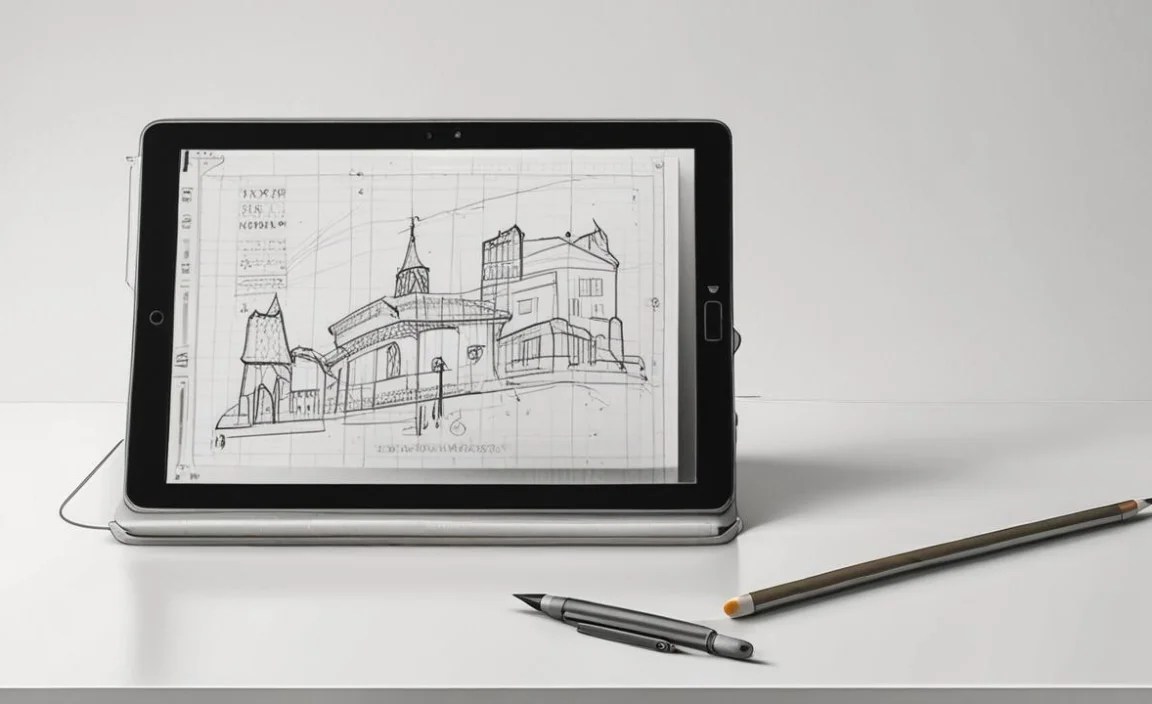
When choosing your ideal digital art companion, keep these crucial features in mind:
- Stylus Performance: Look for high pressure sensitivity (8,192 levels is standard for good tablets), tilt support (allows for brush angle variation), and low latency (the delay between moving your pen and seeing it on screen). Battery-free styluses are convenient.
- Screen Quality: For art, screen quality is paramount. Consider resolution (Full HD or higher is recommended), color accuracy (look for high percentages of sRGB or Adobe RGB), and brightness. A matte finish can improve the drawing experience.
- Size and Portability: How large do you want your drawing surface to be? Larger is generally better for detailed work but makes the tablet less portable. If you plan to sketch on the go, a smaller, standalone tablet is ideal.
- Operating System and Software: Do you prefer Windows, macOS, iPadOS, or Android? This will heavily influence your choice. Also, check which art applications are available and compatible with the tablet and stylus.
- Connectivity: For pen displays, you’ll need to connect to a computer via USB and HDMI/DisplayPort. Standalone tablets offer Wi-Fi and Bluetooth.
- Ergonomics and Build: How comfortable is the stylus to hold? How sturdy is the tablet? Is it comfortable to use for extended periods?
Making the Choice: Tablet Zoo Recommendations
Here’s a concise breakdown based on common artistic needs:
| Artist Type | Recommended Tablet(s) | Why |
|---|---|---|
| Beginner / Hobbyist | XP-Pen Artist 15.6 Pro, Wacom Intuos Pro (if budget allows for pen tablet) | Offers great value and essential features for learning without breaking the bank. |
| Student / Aspiring Professional | Samsung Galaxy Tab S9 Series, Apple iPad Pro (older models if budget is tight) | Versatile, powerful, and portable with excellent app support for serious creative development. |
| Professional / Dedicated Artist | Wacom Cintiq Pro 27, Apple iPad Pro (latest model) | Top-tier performance, stunning displays, and professional-grade tools for demanding workflows. |
| On-the-Go Creator | Apple iPad Pro, Samsung Galaxy Tab S9 Series | Ultimate portability with full creative suite capabilities in a compact form. |
Tips for Getting Started with Tablet Sketching
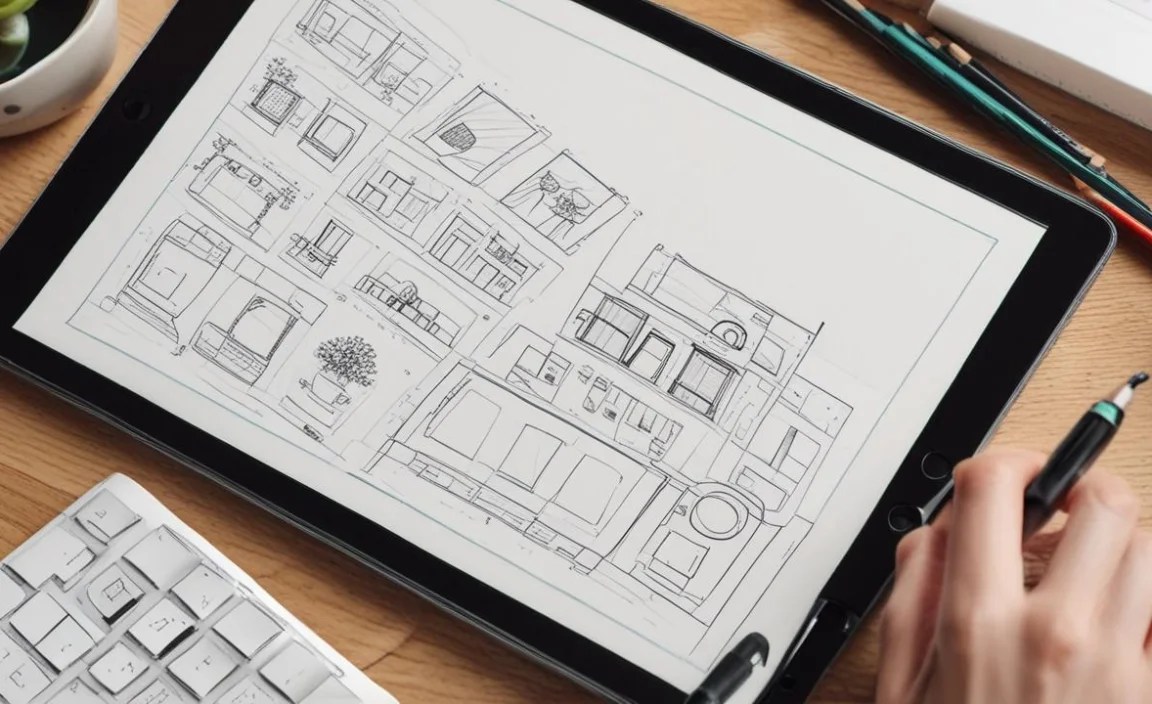
Once you’ve chosen your tablet, here are some tips to make your transition smooth:
- Calibrate Your Pen: Ensure your stylus is properly recognized and calibrated on your tablet for accurate input.
- Customize Shortcuts: Assign frequently used tools and functions to your tablet’s express keys or on-screen buttons for a faster workflow.
- Experiment with Brushes: Digital art offers a vast array of brushes. Take time to explore and find those that suit your sketching style.
- Practice Tilt and Pressure: Actively try to use the tilt and pressure sensitivity features of your stylus. They are key to achieving natural-looking strokes.
- Learn Your Software: Become familiar with the features of your chosen art application (e.g., Procreate, Adobe Photoshop, Clip Studio Paint). Many have excellent tutorials available online.
- Ergonomics Matter: Set up your workspace comfortably. Consider a tablet stand to improve posture and viewing angles.
Frequently Asked Questions (FAQ)
Q1: Do I need a powerful computer to use a pen display tablet like the Wacom Cintiq Pro?
Yes, for a smooth experience, especially with high-resolution displays and demanding art software, you will need a reasonably powerful computer. Check the system requirements for your chosen software and tablet.
Q2: What’s the difference between a pen tablet and a pen display tablet?
A pen tablet (like the Wacom Intuos Pro) is a drawing surface you use while looking at your computer monitor. A pen display tablet (like a Wacom Cintiq or XP-Pen Artist) is a monitor you draw directly onto.
Q3: Is Procreate the only good art app available?
No, Procreate is fantastic for iPad, but there are many other excellent options! For iPads, consider Adobe Fresco, Affinity Designer, and Astropad. For Android, Samsung tablets, and Windows, look at Clip Studio Paint Ex, Krita (free and open-source), Autodesk Sketchbook (free), and Adobe Photoshop/Fresco.
Q4: How important is screen resolution for sketching?
It’s quite important! A higher resolution (like Full HD or 4K) means a sharper image, allowing you to see finer details and work more precisely. It also makes colors appear more vibrant. For serious art, aim for at least 1920×1080 pixels (Full HD).
Q5: Can I use these tablets for digital painting as well as sketching?
Absolutely! All the tablets recommended here are excellent for both sketching and digital painting. The key features like pressure sensitivity, tilt support, and good color accuracy are essential for both disciplines.
Q6: Are expensive styluses really that much better?
Generally, yes. Higher-end styluses (like the Apple Pencil and Wacom Pro Pen) offer superior build quality, more nuanced pressure and tilt detection, and often better ergonomics. They can significantly enhance the drawing experience, making it feel more natural and responsive.
For more information on stylus technology, you can refer to resources on Microsoft’s explanation of digitizer technology, which underpins how these pens work.
Conclusion: Your Creative Canvas Awaits!
Finding the perfect* tablet for sketching is a personal journey. It depends on your budget, your workflow, and what feels right in your hands. Whether you’re drawn to the ultimate portability and app ecosystem of an iPad Pro, the professional powerhouse of a Wacom Cintiq, the versatile value of a Samsung Galaxy Tab, or the accessible entry of an XP-Pen pen display, there’s a brilliant creative tool waiting for you.
Don’t let the tech specs intimidate you. Focus on the drawing experience, the quality of the stylus and screen, and how well the tablet fits into your artistic life. By considering the expert-approved picks and the key features we’ve discussed, you’re well on your way to finding a tablet that will spark your creativity and help you make amazing art for years to come. Happy sketching!

Your tech guru in Sand City, CA, bringing you the latest insights and tips exclusively on mobile tablets. Dive into the world of sleek devices and stay ahead in the tablet game with my expert guidance. Your go-to source for all things tablet-related – let’s elevate your tech experience!