Discover the best expert-approved tablets for teachers! Our curated list highlights genius picks designed to enhance lesson planning, grading, and classroom engagement. Find your perfect tech companion for a smarter, more efficient teaching year.
As educators, you’re always on the lookout for tools that can make your busy lives a little easier. Tablets have become incredibly popular in classrooms, offering a portable and powerful way to access resources, create engaging lessons, and connect with students. But with so many options out there, how do you choose the right one? It can feel overwhelming, right?
Don’t worry, I’m here to help! Think of me as your friendly guide to the world of tablets. We’ll cut through the jargon and focus on what really matters for teachers. This article will walk you through some of the best expert-approved tablets, breaking down why they’re great for educators. Ready to find your next classroom superpower?
Why Tablets Are a Game-Changer for Teachers

Teaching is a demanding job, and technology can be a powerful ally. Tablets offer a unique blend of portability, versatility, and interactive features that can significantly benefit educators. From streamlining administrative tasks to bringing lessons to life, tablets are more than just gadgets; they’re essential tools for modern teaching.
Here’s why so many teachers are embracing them:
- Portability: Easily carry lesson plans, grading rubrics, and student work from your desk to the classroom, home, and any meeting.
- Interactive Learning: Engage students with dynamic visuals, educational apps, and multimedia content.
- Digital Resources: Access online textbooks, articles, videos, and educational platforms with ease.
- Organization: Keep schedules, lesson plans, and notes all in one digital space, reducing clutter.
- Communication: Connect with parents, students, and colleagues through email, messaging apps, and video conferencing.
What Teachers Should Look For in a Tablet

When choosing a tablet for educational purposes, several key features are crucial. You want something reliable, user-friendly, and capable of handling your daily tasks. Here’s a breakdown of what to consider:
Display Quality and Size
A good display makes a huge difference, especially when you’re reading long documents, annotating PDFs, or presenting to the class.
- Size: Tablets range from about 7 inches to over 12 inches. For classroom use, a screen size between 10 and 12 inches is often ideal for reading, writing, and presenting. Smaller screens can work for individual student use or quick tasks, but a larger screen offers more real estate for productivity.
- Resolution: Look for a high resolution (e.g., Full HD or higher) for sharp text and vibrant images. This is especially important if you’ll be displaying graphics or videos.
- Brightness and Color Accuracy: A bright screen is essential for visibility in various lighting conditions, and good color accuracy is important if you’re working with visual aids or editing photos.
Performance and Battery Life
You need a tablet that can keep up with your multitasking needs and last through a full school day without constantly searching for an outlet.
- Processor: A capable processor ensures smooth operation, whether you’re running multiple apps, browsing the web, or editing documents.
- RAM: More RAM (4GB or more) generally means smoother multitasking and faster app switching.
- Battery Life: Aim for a tablet that can consistently offer 8-10 hours of active use on a single charge. This is crucial for teachers who are often away from their desks.
Storage and Expandability
Teachers deal with a lot of files – lesson plans, student assignments, presentations, educational apps. Sufficient storage is vital.
- Internal Storage: 128GB is a good starting point for most teachers. If you plan to store many large media files or download numerous apps, consider 256GB or more.
- Expandable Storage: A microSD card slot can be a lifesaver, allowing you to increase storage capacity affordably if needed. (Note: Not all tablets offer this.)
Connectivity and Ports
Ensuring your tablet can connect to Wi-Fi and other devices is essential.
- Wi-Fi: The latest Wi-Fi standards (Wi-Fi 6 or 6E) offer faster and more reliable connections.
- Bluetooth: Useful for connecting wireless keyboards, mice, or headphones.
- USB-C Port: Increasingly standard, USB-C allows for faster data transfer, charging, and connecting to accessories like external displays or storage.
Stylus and Keyboard Support
For tasks like note-taking, annotating, and extensive writing, a stylus and detachable keyboard can transform your tablet into a powerful productivity machine.
- Stylus: Look for a responsive stylus with pressure sensitivity for natural writing and drawing.
- Keyboard: A comfortable, tactile keyboard can significantly speed up typing and make longer writing sessions more manageable. Check if the keyboard is sold separately or bundled.
Operating System and App Ecosystem
The OS determines the user experience and the availability of apps. The main players are iPadOS (Apple), Android (Google), and Windows (Microsoft).
- iPadOS: Known for its intuitive interface, strong app ecosystem, and excellent stylus support (Apple Pencil). Great for creative tasks and general productivity.
- Android: Offers flexibility and a wide range of devices at different price points. Good for customizable experiences and integration with Google services.
- Windows: Provides a full desktop experience, making it ideal for teachers who need to run specialized Windows software or prefer a traditional computer interface.
Expert-Approved Tablets for Teachers: Our Top Picks
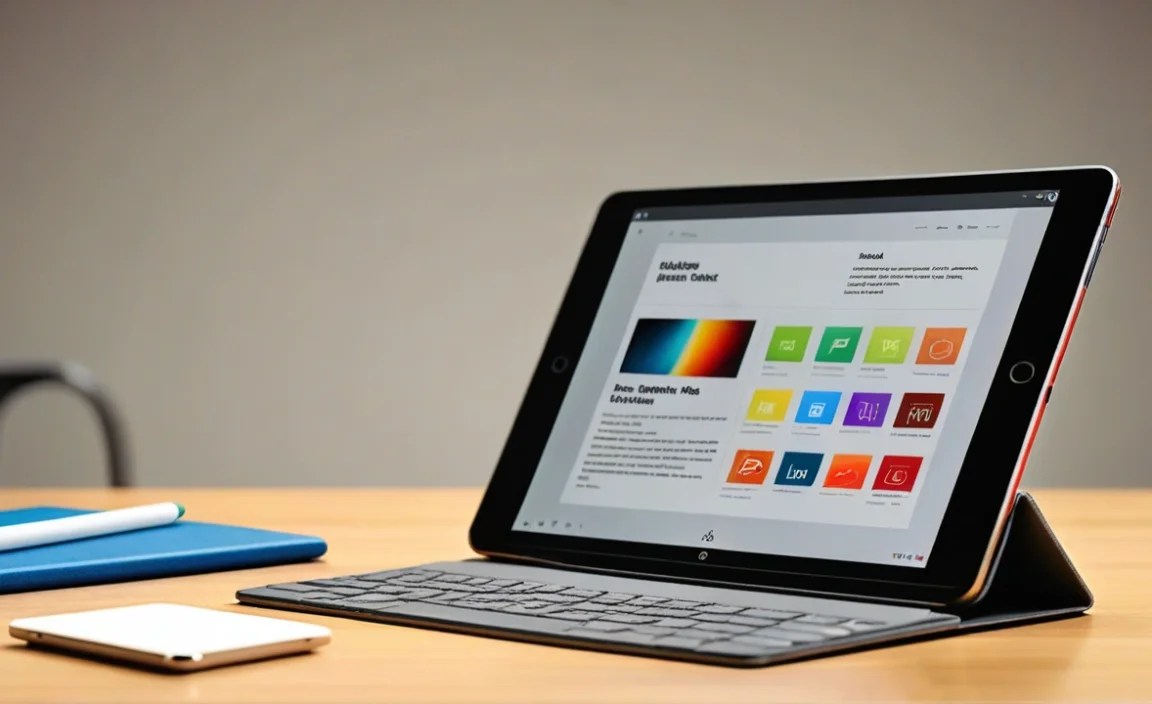
Based on performance, features, and value for educators, here are some of the best tablets available today:
Apple iPad Pro (M2 or M4 Chip)
Best for: Teachers seeking top-tier performance, seamless multitasking, and the best stylus experience for digital art, complex note-taking, and app development.
The iPad Pro is the crème de la crème of tablets, offering unparalleled performance thanks to Apple’s powerful M-series chips. It’s incredibly responsive, handles demanding apps with ease, and boasts stunning Liquid Retina XDR displays (on larger models) or Liquid Retina displays (on smaller models) for brilliant visuals. Paired with the Apple Pencil (2nd generation or USB-C), it’s a dream for digital artists, annotating documents, and intricate note-taking.
Pros:
- Exceptional performance for demanding tasks.
- Brilliant display quality.
- Superb Apple Pencil integration.
- Vast and high-quality app ecosystem (App Store).
- Excellent build quality and longevity.
- Optional Magic Keyboard provides a full laptop-like experience.
Cons:
- Premium price point.
- Apple Pencil and Magic Keyboard are sold separately, adding significant cost.
- Limited file management compared to desktop OS (though iPadOS has improved).
Apple iPad Air (M2 Chip)
Best for: Teachers wanting a premium iPad experience and strong performance without the absolute top-tier price of the iPad Pro.
The iPad Air strikes a fantastic balance between power and price. It often gets the latest Apple silicon (like the M2 chip in recent models), offering a significant performance boost over older iPads or competing tablets. It supports the Apple Pencil (USB-C or 2nd generation, depending on the model) and can be paired with Apple’s Magic Keyboard or Smart Keyboard Folio, making it highly versatile for different teaching tasks.
Pros:
- Excellent performance for its price class.
- Supports Apple Pencil for precise input.
- Access to the robust iPadOS app store.
- Good balance of features and cost.
- Lightweight and portable design.
Cons:
- Apple Pencil and keyboard sold separately.
- Display isn’t as advanced as the iPad Pro’s Liquid Retina XDR.
- Storage can be limited on base models.
Apple iPad (10th Generation)
Best for: Budget-conscious teachers looking for a reliable, user-friendly tablet for general classroom use, browsing, and basic productivity.
The standard iPad remains a fantastic entry point into the Apple ecosystem. The 10th generation brought a significant redesign, including a larger 10.9-inch display, USB-C charging, and landscape front camera, making it more compelling for online meetings. While it’s not as powerful as the Air or Pro, it’s more than capable for lesson planning, grading, web browsing, and running most educational apps. It supports the first-generation Apple Pencil and the Magic Keyboard Folio.
Pros:
- Most affordable new iPad.
- Great screen size and modern design for its price.
- User-friendly interface and excellent app selection.
- Good battery life for a full school day.
- USB-C port for easier charging and connectivity.
Cons:
- Only supports the older Apple Pencil (USB-C or 1st Gen. with adapter), which feels less premium.
- Performance is good but not for very demanding tasks.
- No dedicated Apple Pencil storage/charging on the device itself.
Samsung Galaxy Tab S9 Series (S9, S9+, S9 Ultra)
Best for: Teachers who prefer Android, need robust multitasking, and want a stylus included. The S Pen is perfect for note-taking and annotation.
Samsung’s premium Galaxy Tab S9 series offers a compelling alternative for Android users. These tablets boast beautiful Dynamic AMOLED 2X displays, powerful processors, and excellent build quality (IP68 water and dust resistance!). Crucially, they come with the S Pen stylus included in the box, which is incredibly accurate and responsive for writing and drawing. The DeX mode offers a desktop-like experience, further boosting productivity. The S9 Ultra, with its massive 14.6-inch screen, is like a portable workstation.
Pros:
- Stunning AMOLED displays.
- S Pen stylus included with excellent functionality.
- DeX mode provides a desktop-like experience.
- Powerful performance for multitasking and apps.
- Expandable storage via microSD card.
- IP68 water and dust resistance.
Cons:
- Can be expensive, especially the S9+ and S9 Ultra.
- Android tablet app optimization can sometimes lag behind iPadOS for certain creative tools.
- Samsung’s software updates can be slower than Google’s Pixel devices.
Samsung Galaxy Tab A9 Series (A9, A9+)
Best for: Teachers on a tighter budget looking for a reliable Android tablet for everyday teaching tasks and basic multimedia consumption.
The Galaxy Tab A series is Samsung’s more affordable line, and the A9 and A9+ offer great value. While they don’t have the premium features of the S series, they provide a solid experience for core educational needs. The larger Tab A9+ includes a higher refresh rate display and more speakers, enhancing media viewing. They run Android, giving access to the Google Play Store, and are suitable for browsing, email, lesson planning apps, and light content creation.
Pros:
- Excellent value for the price.
- Reliable performance for everyday tasks.
- Access to the vast Google Play Store.
- Expandable storage via microSD card (a big plus at this price).
- Decent battery life.
Cons:
- Performance is basic; not suitable for heavy multitasking or demanding apps.
- Display quality is good but not as vibrant or sharp as premium tablets.
- No stylus support (though some third-party capacitive styluses can be used).
- Slower software updates compared to Samsung’s flagship lines.
Microsoft Surface Go 3
Best for: Teachers who need a full Windows experience in a compact, tablet-like form factor, especially those who rely on specific Windows software.
The Surface Go 3 is a fantastic option for educators who want the versatility of a Windows laptop but in a more portable tablet form factor. It runs Windows 11, meaning you can install and run virtually any Windows application, including specialized educational software. It offers touch capabilities and can be paired with the Surface Pen and Type Cover (sold separately) to be used as a laptop. It’s especially good for integrating with Microsoft 365 services.
Pros:
- Full Windows 11 experience, compatible with all Windows software.
- Excellent integration with Microsoft 365.
- Compact and lightweight design, very portable.
- Optional Surface Pen and Type Cover offer full productivity.
- Good for those familiar with the Windows ecosystem.
Cons:
- Base models can have limited performance and storage.
- Surface Pen and Type Cover are expensive additions.
- Battery life can be inconsistent depending on usage and configuration.
- Display can feel a bit cramped for extensive writing compared to larger tablets.
Comparing Tablet Options for Teachers
Choosing between operating systems and brands can be tough. Here’s a quick look at how some popular choices stack up:
| Tablet Model | Operating System | Starting Price (Approx.) | Stylus Support | Keyboard Support | Key Strengths for Teachers | Considerations |
|---|---|---|---|---|---|---|
| Apple iPad Pro (M2/M4) | iPadOS | $799+ | Apple Pencil (2nd Gen/USB-C) | Magic Keyboard | Peak performance, superb stylus, vast app ecosystem. | High cost, accessories extra. |
| Apple iPad Air (M2) | iPadOS | $599+ | Apple Pencil (USB-C/2nd Gen) | Magic Keyboard Folio | Great performance-to-price, robust features. | Accessories extra. |
| Apple iPad (10th Gen) | iPadOS | $329+ | Apple Pencil (USB-C/1st Gen + adapter) | Magic Keyboard Folio | Affordable, user-friendly, good for general use. | Basic stylus support, average performance. |
| Samsung Galaxy Tab S9 Series | Android | $799+ | S Pen (included) | Book Cover Keyboard | Stunning display, included stylus, DeX mode. | Can be expensive, Android app optimization. |
| Samsung Galaxy Tab A9+ | Android | $219+ | No specific stylus support (capacitive works) | N/A (third-party) | Budget-friendly, expandable storage, good for basics. | Basic performance, display quality. |
| Microsoft Surface Go 3 | Windows 11 | $399+ | Surface Pen | Surface Type Cover | Full Windows OS, Microsoft |

Your tech guru in Sand City, CA, bringing you the latest insights and tips exclusively on mobile tablets. Dive into the world of sleek devices and stay ahead in the tablet game with my expert guidance. Your go-to source for all things tablet-related – let’s elevate your tech experience!