Is your RCA Tablet 10 Viking Pro lagging? Proven fixes for slow performance involve optimizing storage, closing background apps, and updating software. This guide walks you through simple steps to boost your tablet’s speed and responsiveness, ensuring a smoother user experience without needing technical expertise.
We all love our tablets for their convenience and versatility. The RCA Tablet 10 Viking Pro is a popular choice for many, offering a decent screen size and features for everyday tasks. However, as time goes on or with heavy use, you might notice it starting to slow down. This can be incredibly frustrating, turning a useful tool into a source of annoyance. Don’t worry, though! You’re not alone, and there are effective, easy-to-follow solutions to speed up your RCA Tablet 10 Viking Pro.
This guide is designed for you, the everyday user. We’ll break down common causes of tablet slowdowns and provide clear, step-by-step fixes. You don’t need to be a tech wizard to make your tablet feel like new again. Get ready to reclaim your tablet’s performance and enjoy a much smoother experience for all your apps and activities!
Understanding Your RCA Tablet 10 Viking Pro Specs

Before we dive into the fixes, let’s quickly look at what makes the RCA Tablet 10 Viking Pro tick. Knowing its specifications helps us understand why it might be struggling and what kind of performance we can realistically expect. While it’s not a high-end powerhouse, it’s designed for general use like browsing, emails, social media, and light entertainment.
Key Specifications of the RCA Tablet 10 Viking Pro
Here’s a look at some of the core components that influence its performance:
| Component | Typical Configuration |
|---|---|
| Display | 10.1-inch IPS Display (Resolution varies by specific model, often around 1280 x 800 pixels) |
| Processor | Quad-Core Processor (Often MediaTek or similar budget-friendly chipsets) |
| RAM | 1GB or 2GB RAM |
| Storage | 16GB or 32GB Internal Storage (Expandable via MicroSD card) |
| Operating System | Android (Version varies depending on the model and updates received) |
| Connectivity | Wi-Fi, Bluetooth, Micro USB, 3.5mm headphone jack |
As you can see, particularly the amount of RAM (1GB or 2GB) and internal storage (16GB or 32GB) are crucial for how smoothly your tablet runs. Limited RAM means the tablet can’t hold as many apps in memory at once, and limited storage can slow down the system’s ability to read and write data. These are common bottlenecks in budget-friendly tablets.
Common Causes of Slow Performance on RCA Tablets

Many factors can contribute to your RCA Tablet 10 Viking Pro feeling sluggish. Identifying the cause is the first step toward finding the right solution. Let’s explore the most frequent culprits:
- Too Many Apps Running in the Background: Each app you open, even if you’ve “closed” it, might still be using up your tablet’s resources like RAM and battery.
- Low Internal Storage Space: When your tablet’s internal storage is nearly full, Android has less room to work with, which can significantly slow down performance. Think of it like a desk that’s so cluttered you can’t find anything.
- Outdated Software and Apps: Developers regularly release updates that improve performance, fix bugs, and enhance security. Running older versions can lead to compatibility issues and slowdowns.
- Bloatware and Unused Apps: Many tablets come pre-installed with apps you’ll never use (bloatware). These apps can consume storage and background resources.
- Cache Build-up: Apps and the system itself store temporary data (cache) to speed up loading times. Over time, this cache can become bloated or corrupted, causing issues.
- Malware or Suspicious Apps: Although less common on Android tablets than phones, it’s possible to accidentally download malicious software that can hog your tablet’s resources.
- Hardware Limitations: As mentioned, lower-spec hardware will naturally have its limits. Excessive demands from newer, more resource-intensive apps might simply be too much for it to handle smoothly.
Proven Fixes for Slow Performance: Step-by-Step Guide
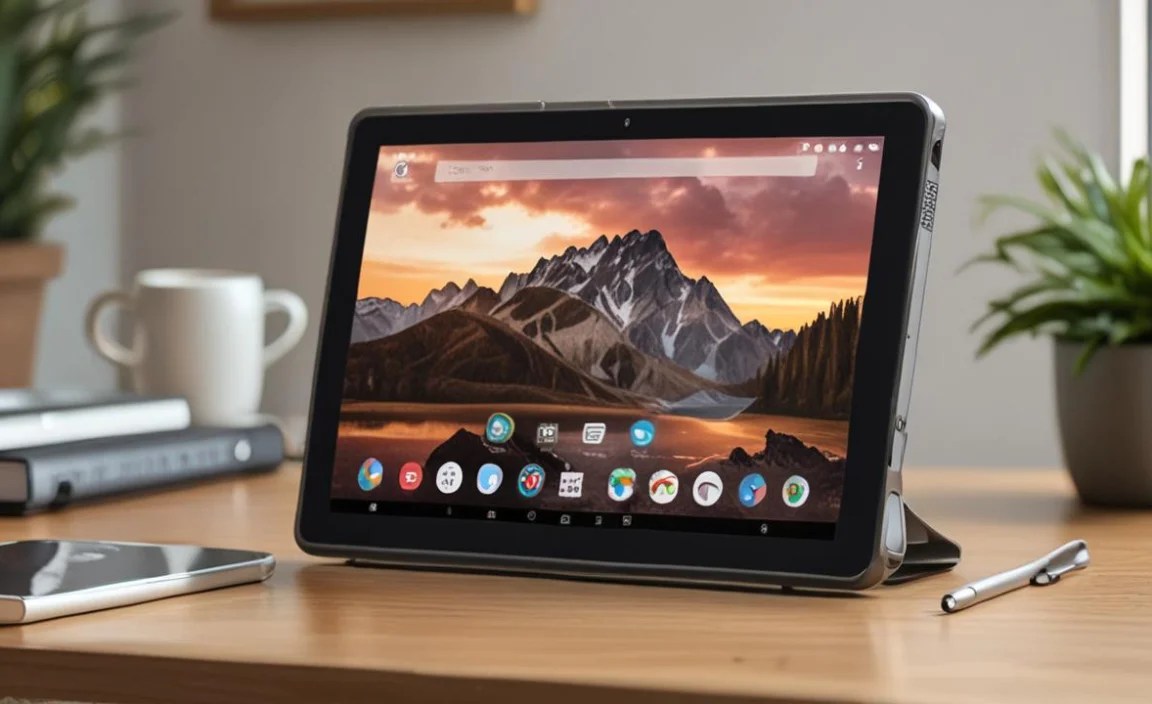
Now, let’s get your RCA Tablet 10 Viking Pro running faster! Follow these steps to troubleshoot and improve its performance. Start with the easiest solutions and work your way through.
1. Restart Your Tablet Regularly
This is the simplest yet often most effective fix. A restart clears the tablet’s temporary memory (RAM), closes all running apps, and can resolve minor glitches that cause slowdowns.
How to Restart:
- Press and hold the Power button (usually on the side or top of the tablet) until a menu appears.
- Tap “Restart” or “Reboot.”
- If those options aren’t available, tap “Power off,” wait about 30 seconds, and then press and hold the Power button again to turn it back on.
Frequency: Aim for at least once every few days, or whenever you notice your tablet starting to lag.
2. Close Unused Apps
Having too many applications open can drain your tablet’s resources. Even if you’ve swiped them away, some might still be running in the background.
How to Close Apps:
- Access your Recent Apps view. This is usually done by tapping a dedicated button (often a square icon) on the navigation bar at the bottom of the screen, or by swiping up from the bottom and holding (depending on your Android version).
- You’ll see a list of all recently opened apps.
- To close an app, swipe it left or right off the screen, or tap a “Close All” button if available.
Tip: Get into the habit of closing apps after you finish using them, especially if you have limited RAM.
3. Free Up Internal Storage Space
This is a critical step. When your tablet’s storage is full or nearly full, its performance will suffer dramatically. Android needs free space to operate efficiently.
What to Delete/Move:
- Unused Apps: Uninstall apps you no longer need.
- Downloaded Files: Delete old documents, PDFs, or other files you’ve downloaded and no longer require.
- Photos & Videos: If you have many photos and videos, consider moving them to a cloud service or a computer.
- App Data: Some apps store large amounts of data. You can often clear this within the app’s settings or by clearing the app’s cache (see below).
How to Uninstall Apps:
- Go to Settings > Apps (or Applications/App Manager).
- Find the app you want to uninstall.
- Tap on the app’s name.
- Tap the “Uninstall” button. Confirm if prompted.
How to Check Storage:
- Go to Settings > Storage.
- This will show you how much space is being used and by what categories (Apps, Photos, Videos, System, etc.).
4. Clear App Cache and Data
Cache can speed up app loading, but over time it can become large and corrupted. Clearing it can free up space and resolve performance issues.
How to Clear Cache:
- Go to Settings > Apps (or Applications/App Manager).
- Tap on an app that you suspect is causing slowdowns or taking up a lot of space.
- Tap on “Storage.”
- Tap “Clear Cache.”
Caution: Be careful not to tap “Clear Data,” as this will reset the app to its default state, effectively deleting all your settings, logins, and saved information within that app. Only use “Clear Data” if you understand the consequences and have backed up anything important.
5. Manage or Remove Bloatware
Pre-installed apps, often from the manufacturer or carrier, can take up valuable space and run in the background. Not all of them can be uninstalled, but some can.
How to Disable/Uninstall Bloatware:
- Check your app list and settings for apps you definitely don’t use.
- Try uninstalling them using the steps in section 3.
- If an app cannot be uninstalled, look for a “Disable” option in Settings > Apps. Disabling an app prevents it from running or showing up in your app drawer, saving resources.
Note: Some system apps cannot be disabled. For these, clearing their cache or data (if possible and safe) might be the only option.
6. Update Your Tablet’s Software and Apps
Software updates are vital for performance and security. Manufacturers often optimize their operating systems, and app developers constantly refine their applications.
How to Update Android System:
- Go to Settings > System > System Update (or About Tablet > Software Update).
- Tap “Check for Update.”
- If an update is available, follow the on-screen instructions to download and install it. Ensure your tablet is charged and connected to Wi-Fi.
How to Update Apps:
- Open the Google Play Store app.
- Tap your profile icon in the top right corner.
- Tap “Manage apps & device.”
- Under “Updates available,” tap “Update all,” or select individual apps to update.
Recommendation: Enable automatic updates for apps in the Play Store settings to keep them current without manual intervention.
7. Use a MicroSD Card for Extra Storage
The RCA Tablet 10 Viking Pro usually supports MicroSD cards. This is a cost-effective way to expand storage, which can indirectly help performance by offloading files and apps.
How to Use a MicroSD Card:
- Purchase a compatible MicroSD card (check your tablet’s manual for supported sizes).
- Locate the MicroSD card slot on your tablet.
- Insert the card carefully.
- Your tablet should recognize the card. You can then move photos, videos, and sometimes even apps (if the app supports it and the Android version allows) to the card.
Tip: Some apps might not be transferable, and performance with apps stored on the SD card can sometimes be slower than internal storage. It’s best for media files and backups.
8. Reduce Animations and Visual Effects
Android has visual effects and animations that make the interface look smooth. On older or less powerful hardware, these can cause lag. You can disable them via Developer Options.
How to Enable Developer Options:
- Go to Settings > About Tablet.
- Scroll down and tap on “Build number” repeatedly (usually 7 times) until you see a message saying “You are now a developer!”
How to Reduce Animations:
- Go back to the main Settings menu.
- Tap “System” (or find “Developer Options” directly in the main settings list).
- Tap “Developer Options.”
- Scroll down and find options like “Window animation scale,” “Transition animation scale,” and “Animator duration scale.”
- Tap on each one and set it to “Animation off” or “.5x” for reduced animation.
Benefit: This can make your tablet feel significantly snappier as it cuts down on processing these visual effects.
9. Perform a Factory Reset (Last Resort)
If none of the above steps work, a factory reset can restore your tablet to its original state, effectively wiping out any accumulated software issues that are causing slowdowns. This is a more drastic step and should be done only after backing up your important data.
How to Factory Reset:
- Back up your data! This includes photos, videos, documents, app data, and contacts. You can use cloud services (Google Drive, Google Photos), connect to a computer, or use specific backup apps.
- Go to Settings > System > Reset options (or Backup & Reset).
- Tap “Erase all data (factory reset).”
- Read the warning carefully and tap “Erase all data” or “Reset Tablet.”
- Enter your PIN or password if prompted.
- The tablet will restart and go through the initial setup process, as if it were brand new.
Important: This process will delete everything on your tablet. Ensure you have backed up everything you want to keep.
Maintaining Optimal Performance Long-Term

Once you’ve optimized your RCA Tablet 10 Viking Pro, you’ll want to keep it running smoothly. Here are some habits to adopt:
- Regularly Clear Cache: Make it a habit to clear app caches every few weeks.
- Monitor Storage: Keep an eye on your internal storage. Aim to keep at least 15-20% free space.
- Be Selective with Apps: Only install apps you truly need. Uninstall them once you’re done with them.
- Keep Software Updated: Enable automatic updates for apps and check for system updates periodically.
- Limit Background Activity: Close apps when you’re finished and review app permissions to limit background data usage.
- Use a Reputable Antivirus (Optional): While less critical for tablets than PCs, if you suspect malware, a reputable antivirus app from the Google Play Store can help.
Frequently Asked Questions (FAQ)
Q1: My RCA Tablet 10 Viking Pro is very slow when I open almost any app. What’s the first thing I should try?
A1: The very first-best thing to try is a simple restart. Press and hold the power button, then select “Restart.” This clears temporary memory and often resolves minor performance hiccups quickly.
Q2: How do I know if I have too many apps running?
A2: You can check by opening the “Recent Apps” view. This is usually accessed by tapping a square button on your navigation bar or swiping up from the bottom of the screen and holding. If you see a long list of apps, many of them might be consuming resources. Swipe them away to close them.
Q3: I can’t uninstall some apps that came with my tablet. What can I do?
A3: If an app cannot be uninstalled, you might be able to “disable” it. Go to Settings > Apps, find the app, and look for a “Disable” option. This stops it from running in the background or appearing in your app drawer, saving resources.
Q4: Is it safe to clear all app data?
A4: No, it’s generally not recommended to clear “all app data” unless you know exactly what you’re doing. “Clear Cache” is safe and beneficial. “Clear Data” will reset the app to its default state, meaning you’ll lose all your login information, settings, and saved progress within that specific app. Only do this if you intend to restart the app from scratch.
Q5: How much free storage space do I need for my tablet to run well?
A5: It’s ideal to keep at least 15-20% of your internal storage free. This gives Android the necessary space to manage temporary files, updates, and app operations smoothly. If you’re consistently below this, performance issues are likely.
Q6: Will a factory reset delete my Google account?
A6: No, a factory reset will not delete your Google account itself. However, it will remove your Google account from the device. You’ll need to sign back in after the reset to download apps and sync your data. Crucially, ensure you know your Google account password before resetting.
Q7: My tablet is still slow even after trying these fixes. Could it be a hardware issue?
A7: It’s possible. If your RCA Tablet 10 Viking Pro is several years old and has very limited RAM (like 1GB), it might simply be struggling with modern app requirements. In such cases, while these software fixes can help, there’s a limit to what older hardware can achieve.

Your tech guru in Sand City, CA, bringing you the latest insights and tips exclusively on mobile tablets. Dive into the world of sleek devices and stay ahead in the tablet game with my expert guidance. Your go-to source for all things tablet-related – let’s elevate your tech experience!