RCA Tablet 8 Delta Pro Keyboard Guide: Essential Tips
Unlock your RCA Tablet 8 Delta Pro’s full potential with this essential keyboard guide. We’ll show you how to connect, customize, and troubleshoot to make it a productivity powerhouse. From basic typing to advanced shortcuts, this review and guide will boost your tablet experience and help you get the most out of your device for work and play.
Hey there, tablet explorers! Walter Moore here from Tabletzoo. So, you’ve got yourself an RCA Tablet 8 Delta Pro, and you’re thinking about pairing it with a keyboard. Smart move! Tablets are amazing, but sometimes, for typing up emails, taking notes, or writing that important document, a full keyboard just makes life simpler. But if you’ve never connected a tablet keyboard before, or you’re wondering what features make a good one, you might feel a little lost. Don’t worry, it’s not as complicated as it seems! We’re going to dive into everything you need to know to make your RCA Tablet 8 Delta Pro a true productivity companion. We’ll cover the basics of connection, explore the features that matter, and even troubleshoot those pesky little issues that can pop up. Get ready to type with confidence!
RCA Tablet 8 Delta Pro Review: Getting Started with Your Keyboard

When you think about enhancing your tablet experience, a physical keyboard often comes to mind first. For the RCA Tablet 8 Delta Pro, adding a keyboard can transform it from a great tablet into a capable portable workstation or a more efficient learning tool. This guide is designed to be your go-to resource, breaking down everything you need to know about using a keyboard with your Delta Pro, from selecting the right one to mastering its features.
Why a Keyboard for Your RCA Tablet 8 Delta Pro?
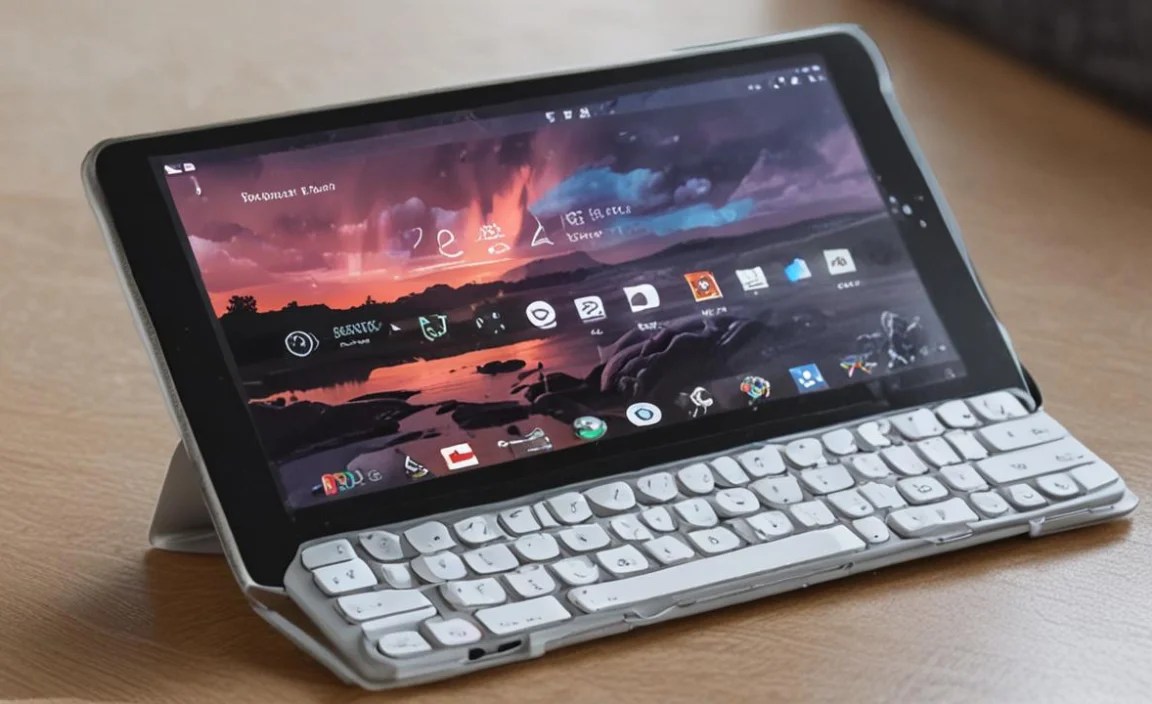
Tablets are fantastic for portability and touch-based interaction. However, tasks that involve a lot of typing, like writing long emails, creating documents, or even coding, can be cumbersome with an on-screen keyboard. A physical keyboard offers:
Improved Typing Speed and Accuracy: Physical keys provide tactile feedback, making it easier to type faster and with fewer errors.
Enhanced Productivity: For students and professionals, a keyboard is almost essential for efficient work.
Comfortable Extended Use: Typing for long periods is far more comfortable on a physical keyboard than a touch screen.
Versatile Functionality: Many keyboard cases also offer a stand or protective cover, adding extra utility.
The RCA Tablet 8 Delta Pro, with its compact size, is a natural fit for a portable keyboard. It strikes a balance between being easy to carry and having a screen large enough to work with.
Choosing the Right Keyboard for Your RCA Tablet 8 Delta Pro

Not all keyboards are created equal, especially when it comes to tablets. Here’s what to look for:
Connectivity Options
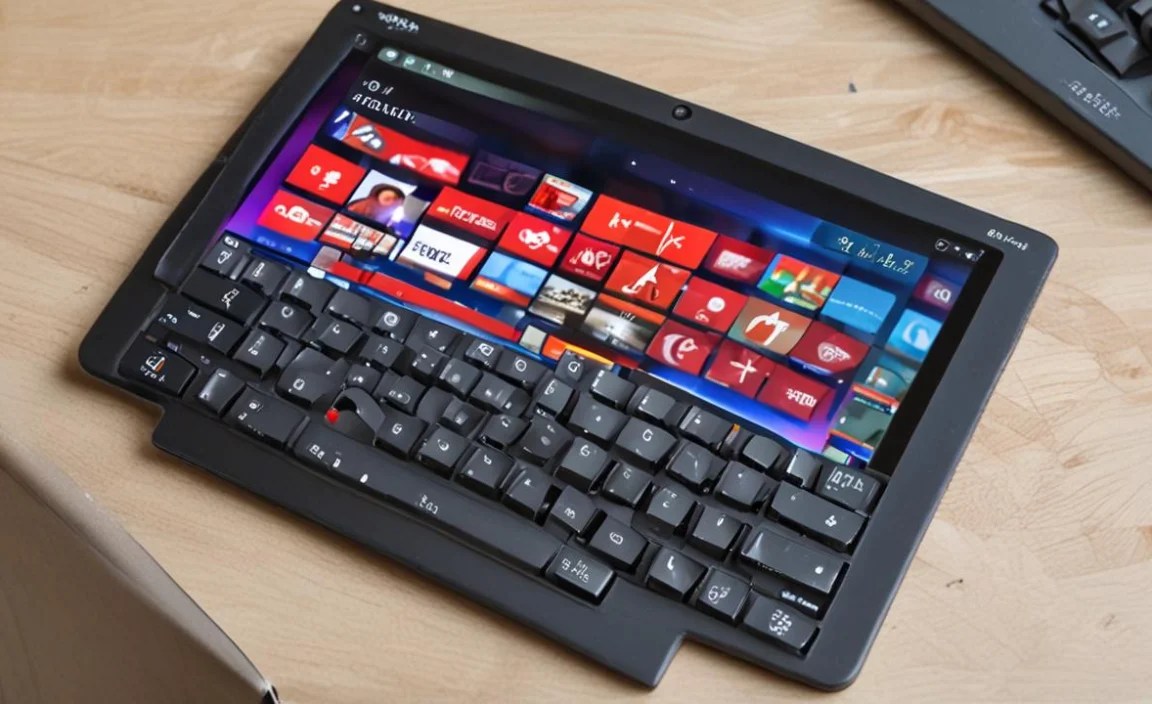
Bluetooth: This is the most common and versatile option for wireless keyboards. It allows for a clean setup without cables and works with most modern tablets, including the RCA Tablet 8 Delta Pro. Look for keyboards with stable Bluetooth 4.0 or higher for better battery life and connection speed.
USB-C/Micro-USB (via OTG adapter): Some tablet keyboards might connect through your tablet’s charging port. This can offer a more direct connection, but you might need a USB On-The-Go (OTG) adapter if your tablet doesn’t have a full-size USB port. The RCA Tablet 8 Delta Pro typically uses a Micro-USB port, so an OTG adapter would be necessary for a wired connection. However, Bluetooth is generally preferred for convenience.
Keyboard Type and Layout
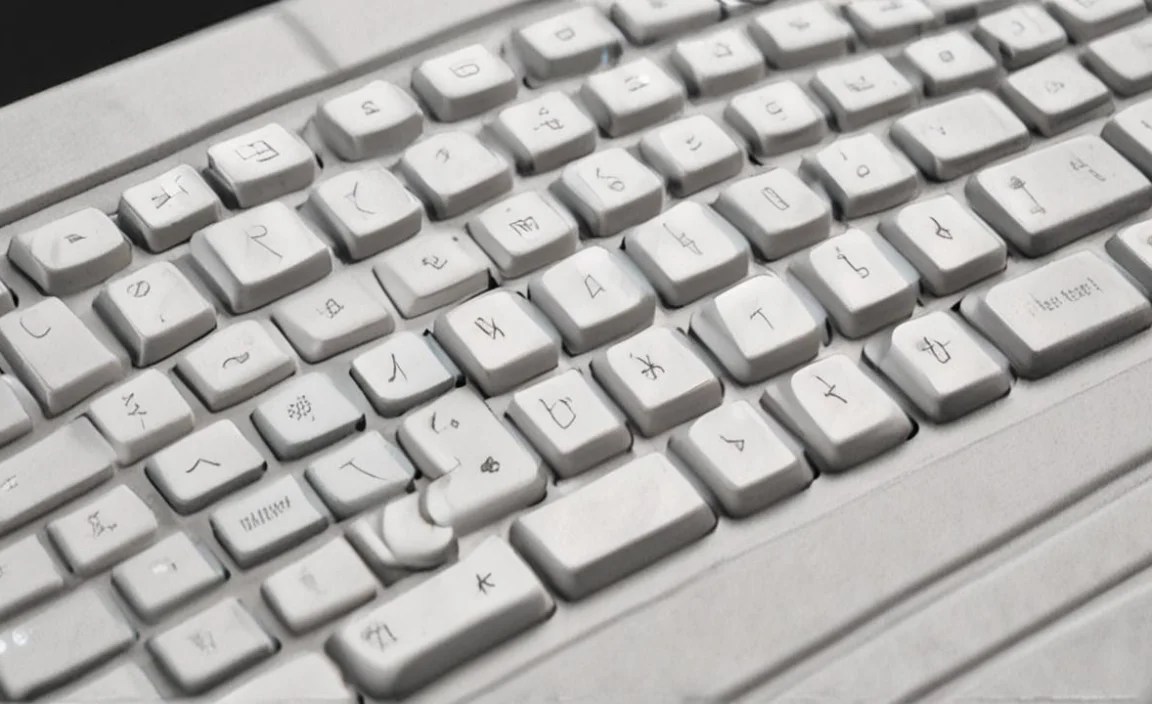
Compact/Full-Size: Keyboards come in various sizes. A compact keyboard is great for portability, fitting easily into a bag. A full-size keyboard might offer a more comfortable typing experience if space isn’t an issue. For the 8-inch Delta Pro, a compact or a slightly condensed full-size keyboard is usually ideal.
Key Feel: Some keys are shallow and “chiclet” style, while others have more travel. If you do a lot of typing, try to find a keyboard with keys that feel comfortable to you.
QWERTY Layout: Most keyboards will be QWERTY, but ensure the specific layout (e.g., U.S., UK) matches your preference.
Additional Features
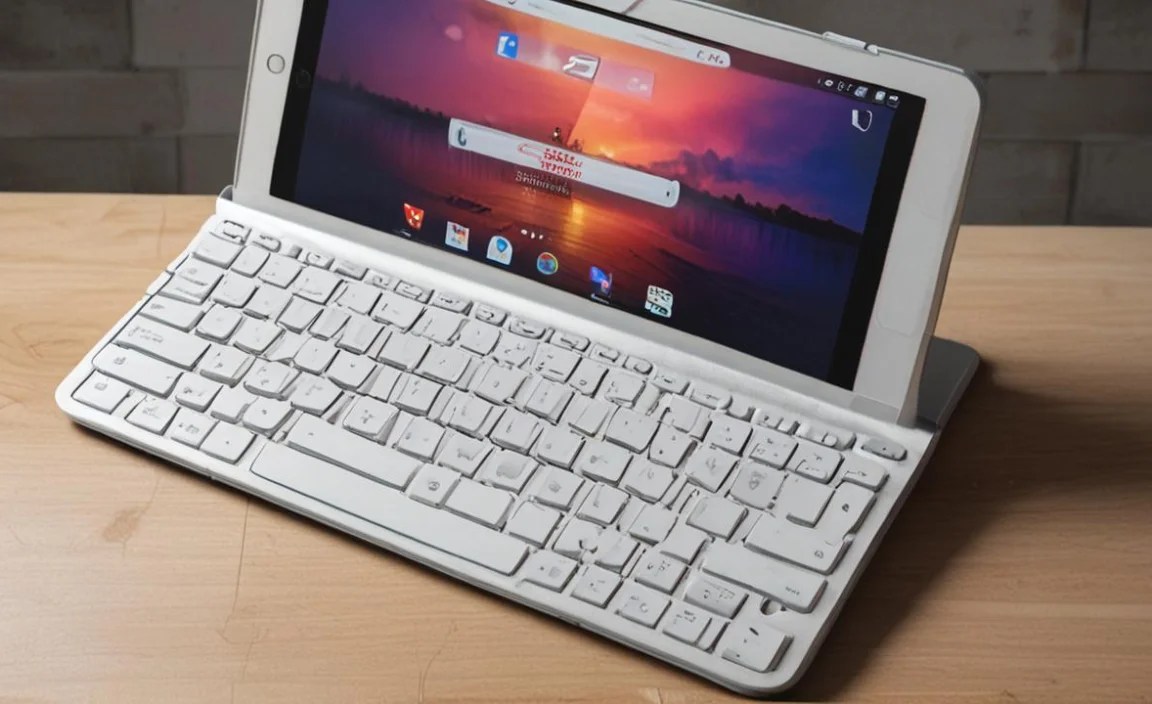
Built-in Stand/Case: Many keyboards are integrated into cases that prop up your tablet. This is incredibly convenient for typing and viewing. Detachable keyboards offer more flexibility, allowing you to use the tablet independently.
Touchpad: Some keyboards include a small touchpad, adding an extra layer of mouse-like control, which can be useful for navigating apps and websites.
Backlighting: If you often work in low-light conditions, a backlit keyboard can be a lifesaver.
Battery Life: For Bluetooth keyboards, battery life is crucial. Look for models that offer many hours of use on a single charge or use replaceable batteries.
Compatibility
Always double-check that the keyboard is compatible with Android operating systems, specifically the version running on your RCA Tablet 8 Delta Pro. Most Bluetooth keyboards are universally compatible with Android, but it’s wise to confirm.
Connecting Your Keyboard to the RCA Tablet 8 Delta Pro (Bluetooth)

Connecting a Bluetooth keyboard is usually straightforward. Here’s a step-by-step guide:
Step 1: Prepare Your Keyboard
Charge or Insert Batteries: Ensure your keyboard has enough power.
Turn On: Locate the power switch, usually on the side or back, and turn it on.
Enter Pairing Mode: Most keyboards have a dedicated Bluetooth pairing button or a function key combination (often labeled with a Bluetooth icon). Press and hold this button/key until an indicator light starts flashing (usually blue or white). This signals that the keyboard isDiscoverable.
Step 2: Prepare Your RCA Tablet 8 Delta Pro
Go to Settings: Swipe down from the top of your screen to open the Quick Settings panel, then tap the gear icon to access the full Settings menu.
Find Bluetooth: Navigate to “Connected devices” or directly to “Bluetooth.”
Turn On Bluetooth: Make sure the Bluetooth toggle is switched ON. Your tablet will start searching for available devices.
Step 3: Pair the Devices
Select Your Keyboard: In your tablet’s Bluetooth settings, you should see a list of available devices. Look for the name of your keyboard (e.g., “Bluetooth Keyboard 3.0,” “Universal Keyboard”), and tap on it.
Enter Pairing Code (if prompted): Some keyboards might require you to type a PIN code displayed on your tablet screen and then press Enter on the keyboard. Others might pair automatically without a code. Follow the on-screen prompts.
Confirm Pairing: Once successfully paired, your keyboard should appear under “Paired devices” or “Connected devices,” and the indicator light on the keyboard will likely turn solid or turn off.
Step 4: Test Your Keyboard
Open a Text App: Open a notes app, a web browser, or any application where you can type.
Start Typing: Try typing a few words to ensure the connection is working.
Troubleshooting Connectivity Issues
Restart Devices: Turn both your tablet and keyboard off and on again.
Forget and Re-Pair: In your tablet’s Bluetooth settings, “Forget” the keyboard, then repeat the pairing process.
Check Distance: Ensure the keyboard is within range of your tablet (typically up to 30 feet or 10 meters).
Interference: Other wireless devices can sometimes interfere. Try moving away from them.
Low Battery: A low battery on either device can cause connection problems.
Essential Keyboard Shortcuts for RCA Tablet 8 Delta Pro Users
Once your keyboard is connected, you’ll want to leverage its power with shortcuts. While many app-specific shortcuts exist, here are some universal Android shortcuts that will speed up your navigation and workflow on your RCA Tablet 8 Delta Pro.
General Navigation Shortcuts
These are incredibly useful for moving around your tablet’s interface without touching the screen.
Home Button: `Fn + H` or `Windows Key + H` (can vary depending on keyboard mapping, sometimes just `Home` key) – Takes you to your tablet’s home screen.
Back Button: `Fn + B` or `Windows Key + Backspace` (again, may vary) – Takes you back one step in apps or to the previous screen.
Recent Apps: `Fn + R` or `Windows Key + Tab` (or `Windows Key + M`) – Opens the list of recently used apps.
Search: `Windows Key + S` or `Ctrl + Spacebar` – Opens the universal search bar, allowing you to find apps, contacts, settings, or files.
Text Editing Shortcuts
These will save you tons of time when writing or editing.
Select All: `Ctrl + A` – Selects all text in a document or field.
Copy: `Ctrl + C` – Copies selected text to the clipboard.
Cut: `Ctrl + X` – Cuts selected text (removes it and copies it to the clipboard).
Paste: `Ctrl + V` – Pastes text from the clipboard.
Undo: `Ctrl + Z` – Undoes your last action.
Redo: `Ctrl + Y` – Redoes an action that was just undone.
Move Cursor: Use the `Arrow Keys` (Up, Down, Left, Right) for precise cursor movement.
Select Text with Arrows: Hold `Shift` while using the `Arrow Keys` to select text word by word or line by line.
Select Word: Double-click a word with a mouse or use `Ctrl + Shift + Arrow Key` to select whole words at a time.
Select Line/Paragraph: Use `Shift + Up/Down Arrow` carefully, or look for specific app shortcuts.
Browser Navigation Shortcuts
If you spend a lot of time browsing the web, these are a game-changer.
New Tab: `Ctrl + T` – Opens a new browser tab.
Close Tab: `Ctrl + W` – Closes the current browser tab.
Switch Tabs: `Ctrl + Tab` or `Ctrl + Page Down` – Moves to the next tab. `Ctrl + Shift + Tab` or `Ctrl + Page Up` – Moves to the previous tab.
Go to Address Bar: `Ctrl + L` – Focuses the cursor in the address bar for quick URL entry or searching.
Refresh Page: `F5` or `Ctrl + R` – Reloads the current web page.
Back/Forward: `Alt + Left Arrow` (Back), `Alt + Right Arrow` (Forward) – Navigates through your browser history.
Using Your Keyboard with Specific Apps on the RCA Tablet 8 Delta Pro
The elegance of a physical keyboard is how it enhances productivity in various applications. Here’s how it can benefit you:
Productivity Apps (Office Suites, Notes)
This is where a keyboard truly shines. Apps like Google Docs, Sheets, Slides, Microsoft Office, or even simple note-taking apps become much more functional. You can write reports, create spreadsheets, and draft presentations with a speed and comfort unmatched by touch input alone. The text editing shortcuts mentioned earlier are invaluable here.
For example, when writing a document in Google Docs, you can use `Ctrl + B` for bold, `Ctrl + I` for italics, and `Ctrl + U` for underline. `Ctrl + Shift + C` will often open a character counter. Exploring the specific menus within these apps will reveal even more hidden shortcuts.
Web Browsers
Browsing the internet becomes more efficient with keyboard shortcuts. Imagine quickly opening new tabs to research, closing ones you no longer need, and easily navigating between pages. It transforms your tablet into a mini-desktop browsing experience.
Email Clients
Composing emails, especially longer ones, is a much pleasant experience. You can quickly type out your messages, reply to threads, and use shortcuts for common actions like forwarding or archiving. Many email clients also have their own set of keyboard shortcuts for quick actions. According to Google’s documentation on Gmail keyboard shortcuts, you can enable them in settings for a significant productivity boost.
Social Media and Messaging Apps
While primarily touch-based, typing out long posts or messages on platforms like Facebook, Twitter, or WhatsApp is far faster with a physical keyboard. Some messaging apps even allow for quick navigation between chats using keyboard commands.
Creative Apps (Limited Use)
While creative tasks often rely on touch or stylus input (like drawing or photo editing), a keyboard can still be useful. For instance, when using a drawing app, you might use the keyboard to name your files, add descriptions, or adjust specific settings that require text input. For music production apps, keyboard shortcuts can control playback, trigger notes, or access menus.
RCA Tablet 8 Delta Pro Keyboard: Tips for Optimal Use and Comfort

Getting the most out of your keyboard involves more than just connecting it. Here are some tips for a better typing experience and to keep your setup running smoothly.
Ergonomics and Setup
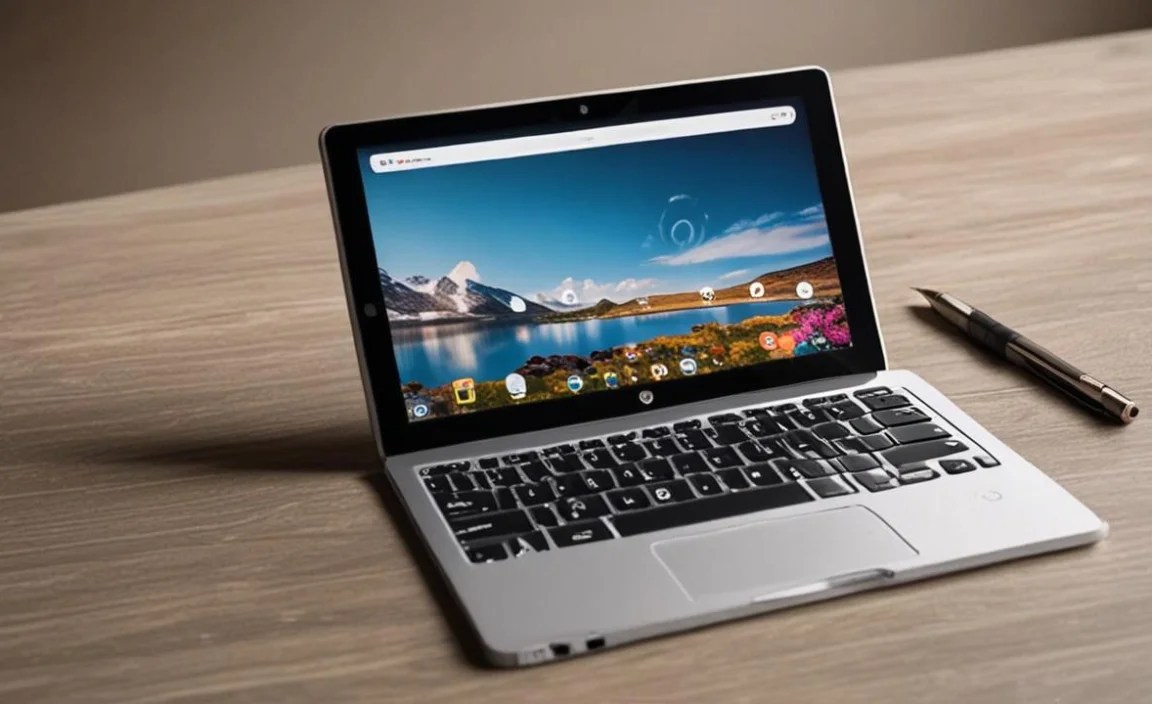
Positioning: Try to position your tablet and keyboard at a comfortable height and distance, similar to how you’d use a laptop. This minimizes neck and wrist strain.
Stable Surface: Ensure both your tablet (if it’s in a case) and keyboard are on a stable, flat surface to prevent wobbling.
Angle: If your keyboard case has multiple angles, experiment to find the most comfortable viewing angle for your tablet screen.
Battery Management (for Wireless Keyboards)
Turn Off When Not in Use: Many Bluetooth keyboards don’t automatically go to sleep. Always get in the habit of turning them off when you’re done to conserve battery.
Charge Regularly: Don’t wait until the battery is completely dead. Charge it when it’s low.
Check Keyboard Status: Some keyboards have LED indicators to show battery levels. Familiarize yourself with these.
Keyboard Maintenance
Cleaning: Dust and debris can accumulate between keys. Regularly turn the keyboard upside down and gently shake it to dislodge particles. You can also use a can of compressed air for a more thorough cleaning.
Wipe Down: Use a slightly damp microfiber cloth to wipe down the keys and casing. Avoid harsh chemicals that could damage the plastic.
Customizing Your Keyboard Experience (Android)
Android offers some flexibility in how your keyboard behaves. While deep customization might require third-party apps, you can adjust some settings:
Input Method:
1. Go to `Settings > System > Languages & input > Virtual keyboard`.
2. Tap on your currently active keyboard (e.g., Gboard).
3. Explore options like dictionary, text correction, and advanced settings.
Note: This section primarily controls the on-screen keyboard. For physical keyboards, Android generally recognizes standard input unless you use specific input method editors (IMEs).
Physical Keyboard Settings:
1. Go to `Settings > System > Languages & input > Physical keyboard`.
2. If your Bluetooth keyboard is connected, you’ll see it listed. Tap on it.
3. Here you can typically change the keyboard layout (e.g., from U.S. to UK) and set modifier key behavior (like swapping Ctrl and Alt keys). This is crucial if your keyboard layout doesn’t match what you’re seeing on screen.
RCA Tablet 8 Delta Pro Keyboard: What To Expect in Bundles and Accessories
Many RCA Tablet 8 Delta Pro models are sold as part of a bundle that includes a keyboard case. This is often the most cost-effective way to get both devices.
Bundled Keyboards
Integrated Design: Bundled keyboards are usually designed to fit the tablet perfectly, often acting as a protective case that props the tablet up.
Functionality: They are typically standard Bluetooth keyboards with QWERTY layouts. They might not have premium features like backlighting or a touchpad, but they provide the core functionality needed for productivity.
Value: If you’re buying a new RCA Tablet 8 Delta Pro, check for bundles. They offer a convenient, all-in-one solution. For example, RCA’s official product pages often list available bundles or compatible accessories.
Third-Party Keyboard Cases
If your tablet didn’t come with a keyboard, or you’re looking for an upgrade, there are many third-party options. Brands like Logitech, Arteck, and Fintie offer versatile Bluetooth keyboard cases compatible with 7-8 inch tablets.
Variety: You’ll find a wider range of features, styles, and price points. Some are slim folio-style cases, while others are more rugged.
Universality: Many universal 7-8 inch tablet cases will fit the RCA Tablet 8 Delta Pro, but always check dimensions and compatibility before purchasing.
Standalone Keyboards
If you prefer to use your tablet without a case or want a more portable keyboard, standalone Bluetooth keyboards are a great option. These are often very compact and lightweight.
RCA Tablet 8 Delta Pro Review: Pros and Cons of Using a Keyboard
Like any accessory, adding a keyboard has its upsides and downsides.
Pros:
Enhanced Productivity: Significantly faster and more comfortable for writing and data entry.
Improved Workflow: Shortcuts streamline navigation and tasks.
Versatility: Turns your tablet into a pseudo-laptop for on-

Your tech guru in Sand City, CA, bringing you the latest insights and tips exclusively on mobile tablets. Dive into the world of sleek devices and stay ahead in the tablet game with my expert guidance. Your go-to source for all things tablet-related – let’s elevate your tech experience!