Yes, the RCA Tablet 8 Delta Pro is compatible with many popular stylus types, offering a reliable solution for note-taking and creative tasks. While it doesn’t come with a manufacturer-specific stylus, it works well with standard capacitive styluses, ensuring a smooth and responsive digital writing experience.
Welcome to Tabletzoo! Are you staring at your new RCA Tablet 8 Delta Pro, wondering if you can ditch the stylus-free fumbling and dive into seamless digital note-taking or drawing? It’s a common question, and happily, it has a straightforward answer. Many users want to know if their RCA tablet can act as a digital canvas or notepad without breaking the bank on expensive accessories. The good news is that you absolutely can! We’ll walk you through exactly what kind of styluses work best with your RCA Tablet 8 Delta Pro, making your tablet experience much more productive and enjoyable.
RCA Tablet 8 Delta Pro: Understanding Stylus Compatibility
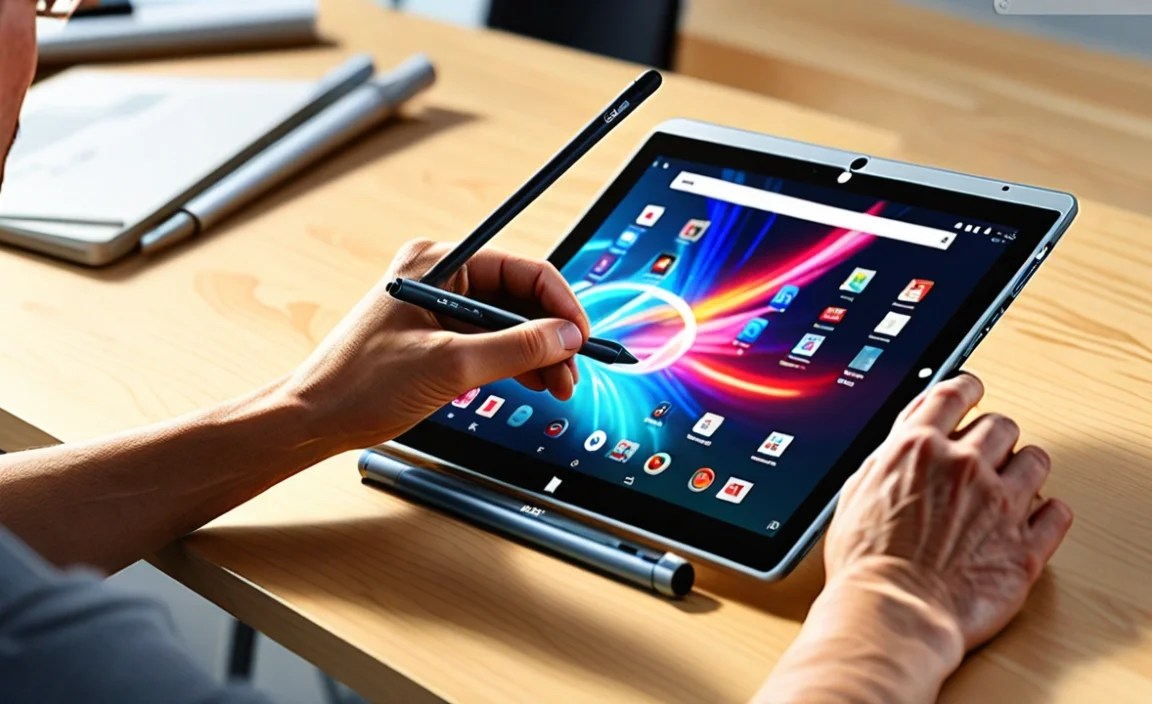
When you get a new tablet, one of the first things many people think about is how to interact with it using something more precise than their finger. This is especially true for tasks like jotting down quick notes, sketching out ideas, or even just navigating with more accuracy. For the RCA Tablet 8 Delta Pro, the key to stylus compatibility lies in understanding the type of touchscreen it uses. The RCA Tablet 8 Delta Pro, like most budget-friendly tablets, features a capacitive touchscreen.
Capacitive touchscreens, the kind found in most smartphones and tablets, work by detecting the electrical conductivity of your fingertip or a conductive stylus. This means that not just any stylus will necessarily work. A stylus needs to be able to mimic the electrical properties of your finger to register a touch on the screen. This is why old-school resistive styluses (the pointy, pressure-sensitive ones you might remember from older PDAs or GPS devices) won’t work on the RCA Tablet 8 Delta Pro.
What is a Capacitive Stylus?
A capacitive stylus is designed specifically for modern capacitive touchscreens. These styluses typically have a soft tip made of rubber, mesh fabric, or a similar conductive material. This material allows the stylus to transfer the electrical signal from your hand to the tablet’s screen, just like your finger would, but with the benefit of a more focused point of contact. This makes them ideal for:
- Precise input: Easier to tap small buttons or links.
- Digital note-taking: More comfortable and natural for writing.
- Drawing and sketching: Offers a better feel for artistic endeavors.
- Reduced smudges: Keeps your screen cleaner than using bare fingers.
The beauty of capacitive styluses is their simplicity. They don’t require batteries, Bluetooth pairing, or special software. You just pick one up and start using it! This plug-and-play nature is a huge advantage for users who want a hassle-free experience.
Proven Stylus Options for Your RCA Tablet 8 Delta Pro

Now that we understand why a certain type of stylus works, let’s look at some proven options that are highly likely to be compatible with your RCA Tablet 8 Delta Pro. The good news is that you don’t need to buy a stylus specifically branded for the RCA tablet. Most general-purpose capacitive styluses will do the trick. Here are some types and brands that are widely recommended and have a strong track record:
1. Basic Capacitive Styluses
These are the most common and affordable styluses you’ll find. They are essentially a metal or plastic stick with a soft, rubbery or mesh tip. They are incredibly versatile and work with almost any capacitive touchscreen device. You can find these in various colors and designs from many electronics retailers and online marketplaces.
- Where to find them: Amazon, Best Buy, Walmart, Staples, and other electronics stores.
- Price range: Typically $5 – $15.
- Pros: Very affordable, no setup required, widely available, good for general navigation and note-taking.
- Cons: Tip can wear out over time, might not offer the best pressure sensitivity for advanced art.
2. Styluses with Replaceable Mesh/Rubber Tips
These are similar to basic capacitive styluses but often feature tips that can be unscrewed and replaced. This is a great benefit as it prolongs the life of your stylus. When the tip starts to wear down, you can simply pop on a new one instead of buying an entirely new stylus.
Many brands offer these, and they are often sold with a pack of replacement tips. Some popular choices include:
- eForCity Capacitive Stylus: Often comes in multi-packs with replacement tips.
- Generic Stylus Brands on Amazon: Many brands offer packs of styluses with multiple replacement tips included.
When shopping for these, always check the product description to confirm it says “for capacitive touchscreens” or “for smartphones and tablets.”
3. Styluses with Clear Disc Tips
For users who prioritize precision, especially for drawing or detailed note-taking, styluses with a clear disc or small globe at the tip are an excellent choice. This transparent disc allows you to see exactly where you are drawing or writing on the screen, offering superior accuracy compared to a soft rubber tip.
Popular examples include:
- X-Pen Stylus (various models): While X-Pen is known for its drawing tablets, some of their basic capacitive styluses feature disc tips and are compatible with standard tablets.
- Adonit Stylus (e.g., Pro series): Adonit offers high-quality styluses, and their disc-tip models are renowned for precision. Ensure you select a capacitive model, not their active stylus options unless specifically stated for tablets without active stylus support.
- Numerous other brands on Amazon: Search for “disc stylus” or “precision stylus” for capacitive tablets.
These styluses often feel more premium and can be a bit more expensive, but the increased accuracy is worth it for many users.
Important Note on Active Styluses
While the RCA Tablet 8 Delta Pro works with capacitive styluses, it’s important to understand that it likely does NOT support active styluses. Active styluses (like the Apple Pencil, Samsung S Pen, or Microsoft Surface Pen) use Bluetooth and have internal electronics to provide features like pressure sensitivity and palm rejection. These require specific hardware and software support from the tablet manufacturer, which is generally not found in entry-level Android tablets like the RCA Tablet 8 Delta Pro.
To be clear: Stick to passive, capacitive styluses for your RCA Tablet 8 Delta Pro. Trying to use an active stylus will not work and could potentially cause confusion.
How to Test Stylus Compatibility

Purchasing a stylus online can sometimes feel like a gamble. Here’s a simple process to ensure you’re making a good choice and how to test your stylus once it arrives:
Before You Buy: What to Look For
- Read Product Descriptions Carefully: Look for keywords like “capacitive stylus,” “universal stylus,” “for smartphones and tablets,” and “works with Android and iOS.”
- Check Reviews: Pay close attention to reviews from users who mention using the stylus with Android tablets, especially those in a similar price range or brand category.
- Avoid “Active Stylus” or “Pressure Sensitive Stylus” Claims (unless specifically for capacitive): These terms can be misleading. If it requires charging or pairing via Bluetooth, it’s likely an active stylus and won’t work.
After You Receive Your Stylus: The Test Drive
Once you have your new capacitive stylus, testing it is easy:
- Unbox and Inspect: Make sure the tip is clean and undamaged.
- Open a Notes App: Use a pre-installed app like Google Keep, or download a simple note-taking app from the Google Play Store.
- Touch the Screen: Gently touch the screen with the stylus tip. You should see a cursor or immediately be able to draw/write.
- Test the Responsiveness: Try writing or drawing a few lines. Does it feel smooth? Is the input registering consistently?
- Test Accuracy: Try tapping on small icons or typing on the on-screen keyboard. Can you hit the targets accurately?
- Check for Streaks: A good capacitive stylus tip should leave minimal streaks.
If the stylus registers a touch and allows you to draw or write smoothly, it’s compatible! You’re all set.
Troubleshooting Common Stylus Issues
Even with the right type of stylus, you might encounter minor hiccups. Here are some common issues and how to fix them:
1. Stylus Not Registering (No Touch Input)
- Check the Tip: Ensure the stylus tip is clean and free of debris. Dirt or oil can sometimes interfere with conductivity.
- Verify Stylus Type: Double-check that you are using a capacitive stylus, not an active one.
- Screen Protector: Some very thick or poorly installed screen protectors can sometimes reduce touch sensitivity. Try removing the screen protector temporarily to see if it resolves the issue.
- Clean the Screen: Make sure the tablet’s screen itself is clean.
2. Inconsistent or Lagging Input
- Restart the Tablet: A simple reboot can often clear temporary software glitches.
- Close Background Apps: Too many apps running in the background can sometimes tax the tablet’s resources, leading to lag.
- Check the Stylus Tip: A worn-out or damaged tip might cause inconsistent contact with the screen.
- Consider Stylus Quality: While many affordable styluses work well, very cheap ones can sometimes have poor construction leading to inconsistent performance.
3. Stylus Tip Wear and Tear
This is a common issue with capacitive styluses, especially those with softer rubber tips. The tip can fray or become misshapen over time with heavy use.
- Replace the Tip: If you have a stylus with replaceable tips, this is the easiest solution.
- Check for a Disc Stylus: As mentioned earlier, styluses with a clear disc tip tend to be more durable and less prone to wear than soft rubber or mesh tips.
- Gentle Pressure: Avoid pressing down too hard when using the stylus. Let the conductivity do the work.
For more in-depth troubleshooting, you can always refer to the RCA support website for general tablet care, though specific stylus compatibility is usually covered by the stylus manufacturer’s guidelines. You can find general tablet maintenance tips on sites like Rice Owl/Tablet Basics.
Comparing Stylus Types for the RCA Tablet 8 Delta Pro

To help you decide, here’s a quick comparison of the most common capacitive stylus types:
| Stylus Type | Typical Price Range | Best For | Pros | Cons |
|---|---|---|---|---|
| Basic Capacitive Stylus (Rubber/Mesh Tip) | $5 – $15 | General Use, Quick Notes, Navigation | Affordable, Easy to Find, No Setup | Tip can wear out, Less precise than discs |
| Stylus with Replaceable Tips | $10 – $25 (often includes multiple tips) | Moderate to Heavy Daily Use, Note-Taking | Longer lasting, Cost-effective over time | Requires purchasing replacement tips |
| Disc Stylus (Clear Disc Tip) | $15 – $30 | Drawing, Precise Note-Taking, Detailed Work | High Precision, Clear View of Tip Location, Durable | More expensive, Can sometimes feel less “natural” than soft tips for writing |
As you can see, each type offers a slightly different experience. For most users getting started, a basic capacitive stylus is a perfect and affordable entry point. If you find yourself doing more detailed work, upgrading to a disc stylus is a logical next step.
Frequently Asked Questions (FAQ)
Q1: Does the RCA Tablet 8 Delta Pro come with a stylus?
No, the RCA Tablet 8 Delta Pro does not typically come with a stylus included in the box. You will need to purchase a compatible stylus separately.
Q2: Can I use any stylus with my RCA Tablet 8 Delta Pro?
No, you need to use a capacitive stylus. These are the ones with soft rubber or mesh tips, or clear disc tips, that mimic the electrical conductivity of your finger. Active styluses that require charging or Bluetooth pairing will not work.
Q3: What is the best stylus for drawing on the RCA Tablet 8 Delta Pro?
For drawing, a stylus with a clear disc tip is often recommended due to its precision, allowing you to see exactly where the stylus is making contact with the screen. Look for brands like Adonit or generic “precision disc styluses” on major retail sites.
Q4: My stylus isn’t working. What should I do?
First, ensure you’re using a capacitive stylus. Then, check that the stylus tip is clean and that your tablet’s screen is also clean. A simple tablet restart can also help. If the problem persists, the stylus itself might be faulty or incompatible.
Q5: Can I use an Apple Pencil or Samsung S Pen with the RCA Tablet 8 Delta Pro?
No, you cannot use an Apple Pencil or Samsung S Pen. These are active styluses designed for specific ecosystems (Apple iPads and Samsung Galaxy devices, respectively) and require dedicated hardware support that the RCA Tablet 8 Delta Pro does not have.
Q6: How long do capacitive stylus tips last?
This varies greatly depending on the material of the tip and how much pressure you apply. Soft rubber or mesh tips might last anywhere from a few months to a year with regular use. Disc tips are generally more durable.
Q7: Where can I buy a compatible stylus for my RCA Tablet 8 Delta Pro?
You can find compatible capacitive styluses at most major electronics retailers like Best Buy, Walmart, Target, and Staples. Online marketplaces such as Amazon, eBay, and directly from accessory manufacturers’ websites are also excellent sources.
Conclusion
Navigating the world of tablet accessories can feel daunting, but when it comes to stylus compatibility for your RCA Tablet 8 Delta Pro, the path is clear and budget-friendly. By understanding that your tablet uses a standard capacitive touchscreen, you unlock a wide range of universal styluses that will enhance your digital experience. Whether you’re a student looking to take better notes, a creative individual wanting to sketch out ideas, or simply someone who prefers a more precise way to interact with their tablet, a capacitive stylus offers a proven and accessible solution.
Focus on capacitive models – the ones with soft, conductive tips or clear discs – and you’ll find them to be reliable, affordable, and ready to use right out of the box. Don’t be swayed by fancy features like Bluetooth pairing or pressure sensitivity that are reserved for more expensive, active styluses; they simply won’t work with your RCA Tablet 8 Delta Pro. Instead, embrace the simplicity and effectiveness of a good old-fashioned capacitive stylus. With the right tool in hand, your RCA Tablet 8 Delta Pro will become an even more powerful device for productivity and creativity. Happy sketching and note-taking!

Your tech guru in Sand City, CA, bringing you the latest insights and tips exclusively on mobile tablets. Dive into the world of sleek devices and stay ahead in the tablet game with my expert guidance. Your go-to source for all things tablet-related – let’s elevate your tech experience!